Conviva DPI enables the integration of AI alerts with Google Chat, enhancing advanced DPI alerts with Google Chat escalation management and notifications. Integrating Conviva alerts with Google Chat involves pasting a Google Chat webhook URL into the Pulse Notification Channels, which then sends AI alert structured card messages to Google Chat Spaces.
Key Capabilities
-
Google Chat as a notification channel for Conviva AI alerts
-
Delivery to Google Chat Spaces using Incoming Webhook URLs
-
Data-rich card layout with:
-
Alert details (metric, value, severity, root cause, event ID)
-
Customer context (account, customer ID, region, device type)
-
A “View Diagnostic Report” button with deep-links into Conviva diagnostics features
-
-
Simple setup: paste your Google Chat Incoming Webhook URL into the Conviva GChat notification channel and send a test message.
-
Secure handling of your webhook configuration (Conviva does not log the raw webhook URL)
Prerequisites
Access to a Google Chat Space to add integrations (Incoming Webhooks).
A Conviva account with permission to manage notification channel settings/integrations.
Configured Conviva AI alerts for routing to Google Chat.
Configure Google Chat Notification
-
Create an Incoming Webhook in Google Chat
-
Open Google Chat.
-
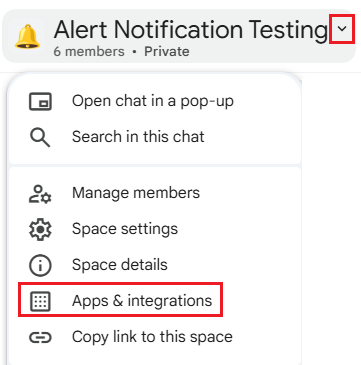
Go to the selected space targeted to receive Conviva AI alert notifications.
-
Navigate to the App & integration to add an Incoming Webhook to this Space.
-
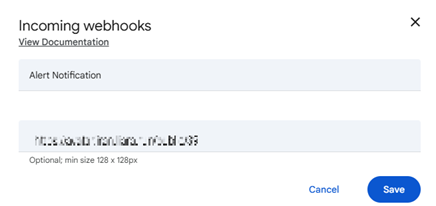
Select Webhooks, and click + Add webhooks to see the Incoming webhooks screen.

-
On the Incoming webhooks, provide the Name and Avatar URL details.
-
Copy the Webhook URL generated by Google Chat.

The generated Incoming Webhook URL is used by Conviva’s Notification Service to securely deliver AI alert cards to the designated Google Chat Space through HTTPS POST requests.
-
-
Add a Google Chat Integration in Conviva Pulse.
-
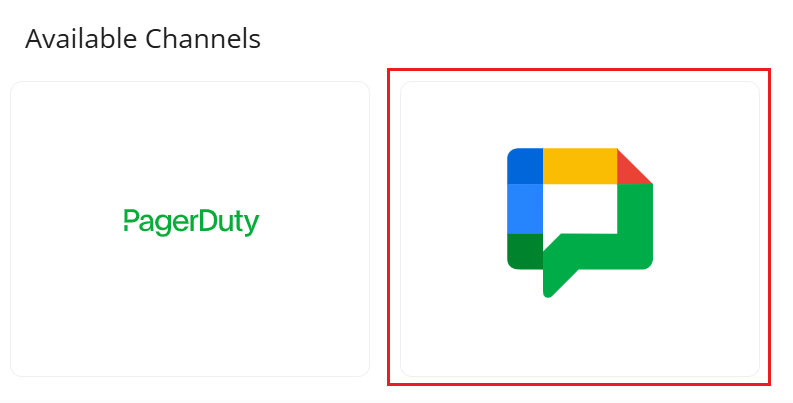
Navigate to Settings > More Channels, Click GChat Notification Icon to see the New GoogleChat Integration screen.
-
On the New Google Chat Integration screen, provide the details and click Verify.

-
In Conviva DPI, verify the GChat notification settings and click Save to see the Google Chat Notification details.

-
Google Chat Notification More Channels webhooks