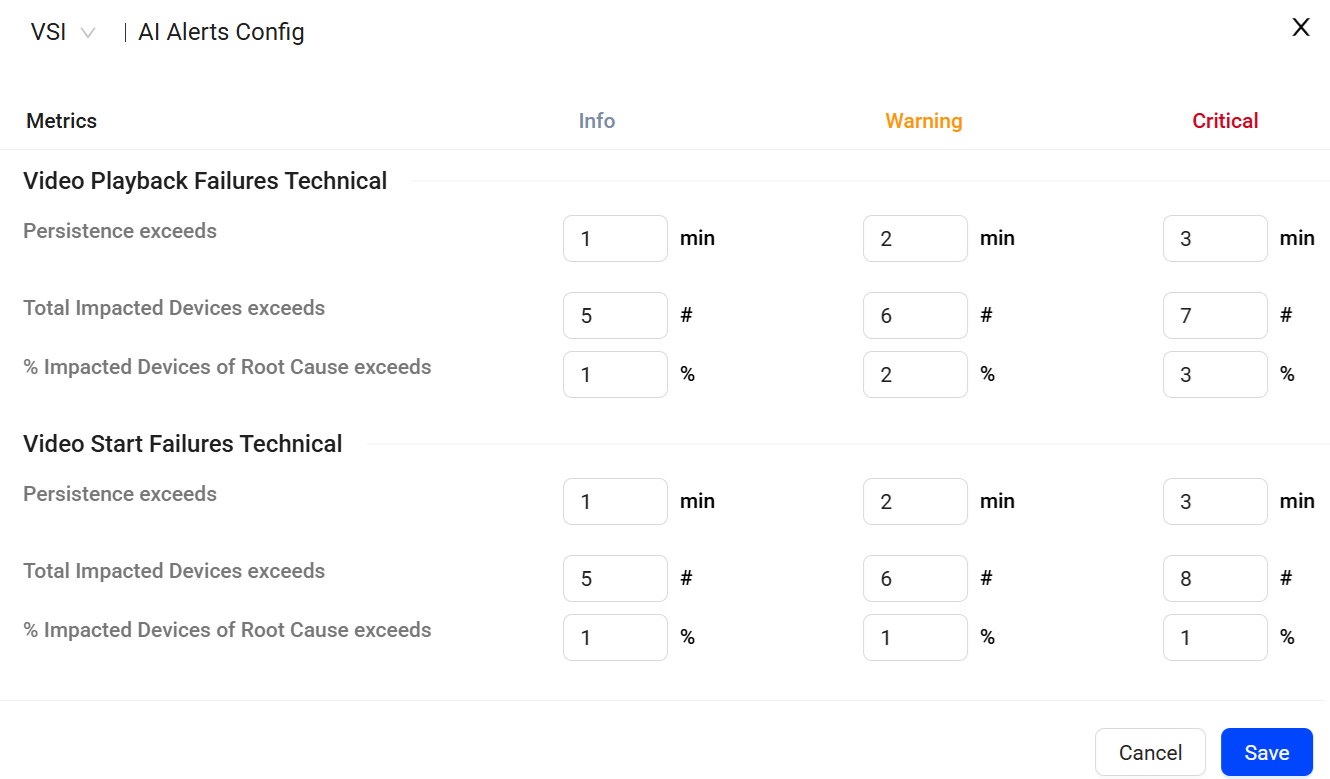
AI Alert sensitivity is controlled by the alert persistence and the number of cumulative impacted unique devices. All sensitivity factors must be met before the AI alert fires. Each AI alert is assigned an alert severity (Info, Warning, Critical) that can help you determine the impact of alert condition. By default, all alerts fire with the Info severity until the thresholds for Info, Warning or Critical severity are met.
Persistence: The system triggers an alert for an issue after a set interval from when the issue arises. The alert activates if the issue persists beyond this interval and meets other sensitivity settings. The severity level of the alert (Info / Warning / Critical) is determined based on the duration of the issue exceeding the persistence interval.
Cumulative Impacted Unique Devices: This control limits AI alert firing so an AI alert fires only after an issue impacts the specified cumulative number and percentage of unique devices within the root cause group. The root cause group is limited to the unique devices impacted by the alert. For example, the root cause group for an Akamai and Live alert is the set of unique devices that are streaming live video through the Akamai CDN. Unique devices are identified by an internal Conviva device Id, which Conviva generates when the player session is created. For mobile players, the Conviva device Id persists throughout each player application instance. For browser-based players, the Conviva device Id is unique for each browser instance and host, and persists until the browser is re-installed or the cache is cleared. You can assign either Info, Warning or Critical severity level to the alert based on the number and percentage of unique devices that exceed this setting.
Sensitivity Control Access
After selecting a metric, the sensitivity controls enable you to configure the sensitivity settings to optimize alerting to meet your delivery network performance standards and user experience levels. You can also adjust the sensitivity controls without saving the changes to observe how new settings would have impacted the example and sample AI alerts. These AI alert simulations can help you determine which setting levels will provide the optimal level of AI alerts.
- To navigate to the Sensitivity page, click Alert Config on the AI Alert page.
KPI-based Metrics (Beta) New Aug 20, 2026
The KPI-based Metrics (Beta) panel configures alerting on the four Streaming Performance Index (SPI) Improvement Opportunity metrics. These metrics are off by default — select the ones you want to alert on.

Video > AI Alerts Config > KPI-based Metrics (Beta).
Use the KPI selector to choose the KPI whose Improvement Opportunities you want to alert on: Conviva Good or Conviva Best. Only one KPI's Improvement Opportunities can be added to alerting in this release; you can switch from Conviva Good to Conviva Best after the initial enablement.
Select the Improvement Opportunity metrics to alert on:
Abandonment
High Startup Time
High Rebuffering
Low Bitrate
- Set the thresholds for each severity level. Info, Warning, and Critical each take their own values across three conditions:
Persistence exceeds: The number of minutes the issue must persist before the alert is fired at that severity. The minimum is 3 minutes.
Total Impacted Devices exceeds: The cumulative number of unique devices the issue must impact before the alert is fired at that severity. The minimum is 5 devices.
% Impacted Devices of Root Cause exceeds: The percentage of unique devices within the root cause group that must be impacted before the alert is fired at that severity. The percentage can be between 0% and 100%.
Click Save to apply the settings.
For more information on the Improvement Opportunity metrics and how these alerts behave, see KPI-based Metrics (Beta).
Default Metrics
The default metrics are configured in the Metrics panel below the KPI-based metrics. These metrics can be cleared as well as selected, so you can remove a default metric when it is not the most actionable signal for your team — for example, clearing Exits Before Video Start once Abandonment is enabled, or replacing Video Start Time with High Startup Time. This avoids two alerts describing the same failure mode.
*1. Use the Metric Selector to select one of the supported metrics to adjust the sensitivity:
Connection Induced Rebuffering Ratio
Exits Before Video Starts
Concurrent Plays
Video Playback Failures Technical
Video Start Failures Technical
Video Start Time
Persistence exceeds: The interval between when the issue starts and the time the alert is fired for the issue. If an issue continues for more than the Persistence interval, then the alert is fired if the other sensitivity settings are also met. Use the Persistence slider to set this sensitivity level. The higher the Persistence time, the less frequently AI alerts will fire. Set the number of minutes required to exceed the Persistence interval for an alert to be labeled with a Info, Warning or Critical severity level. The minimum number is 3 minutes. Concurrent Play AI alerts are generated based on the percentage of concurrency decline and sensitivity settings. Conviva uses machine learning to compile a concurrency baseline, which is determined using weighted comparisons with the previous 7-day concurrency and the most recent concurrency. Concurrency for Live and VOD traffic is compared separately to optimize concurrency alerting for different video types. For example, an AI alert for Concurrent Plays on a Sunday is compared with the concurrency from the previous Sunday along with the most recent concurrency. **- Total Impacted Device exceeds:
Impacted devices exceeds: This control limits AI alert firing so an AI alert fires only after an issue impacts the specified cumulative number of unique devices and the percentage of devices within the dimensions of the root cause. The minimum number of devices is 5, while the percentage can be between 0% and 100%. For example, when an AI alert fires with the _Live and Akamai _root cause group, the number and percentage values apply to only the unique devices running Live traffic over the Akamai CDN. Setting both a number and a percentage can be useful to alert on both a minimum base number and a relative percentage of impacted devices. Keep in mind that the number of unique devices within a root cause group can vary depending on the type of root cause. For example, the root cause group for all Live traffic contains a much larger set of unique devices than the root cause group limited to a specific player version. You can adjust the sensitivity of this control to prevent plays from the same device or a small number of devices from generating multiple AI alerts. For example, a unique device can generate multiple sessions, which could cause multiple AI alert conditions for the same device, such as single player retries causing a high number of Video Start Failures Technical (VSF-T). Setting a higher sensitivity level throttles the AI alert firing until more unique devices and a higher percentage are impacted. Setting extremely high settings can effectively disable AI alerting. Admins should try different sensitivity levels for each metric to determine which level works best for their system based on how granular the firing of the AI alert should be. For example, a lower sensitive setting for Video Start Failures Technical (VSF-T) enables AI alert firing when VSF-T impacts only a small number and percentage of unique devices. In contrast, a less sensitive setting for CIRR allows a rebuffering anomaly to impact more unique devices and a higher percentage of devices before the AI alert is fired. Set the number and percentage of Cumulative Impacted Unique Devices required within the root cause group for an alert to be labeled with a Info, Warning or Critical severity. *
Click **Save** to apply the sensitivity controls and severity levels.
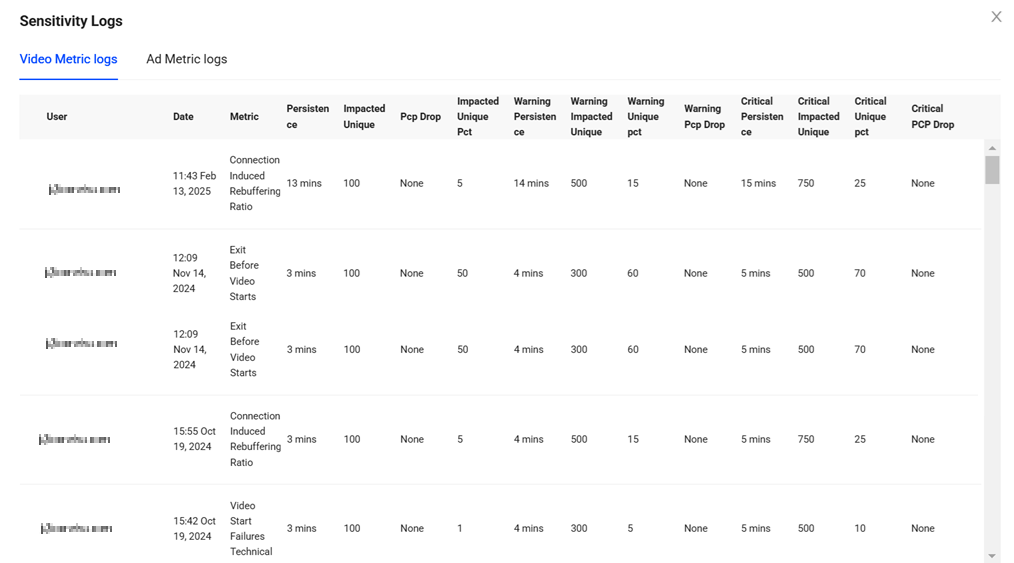
Sensitivity Change Logs
To see the sensitivity change logs screen,
Click the Toggle icon and select Sensitivity Change Logs.
Following information is provided for each change in the history page:
Email address of the user who changed the sensitivity parameters
Time when the updated parameters were saved
Metric for which sensitivity was adjusted
Changes to Persistence and Cumulative Impacted Unique Devices settings