
Conviva Connect MCP (Model Context Protocol) exposes Conviva data to AI agents so Conviva customers can quickly and securely request Conviva data for MCP agent tasks. Whether providing a Support team with issue context before a Help Desk conversation commences with viewer operational data or automating operational performance reports, Conviva Connect MCP provides the foundation for extremely rich AI applications powered by Conviva data.
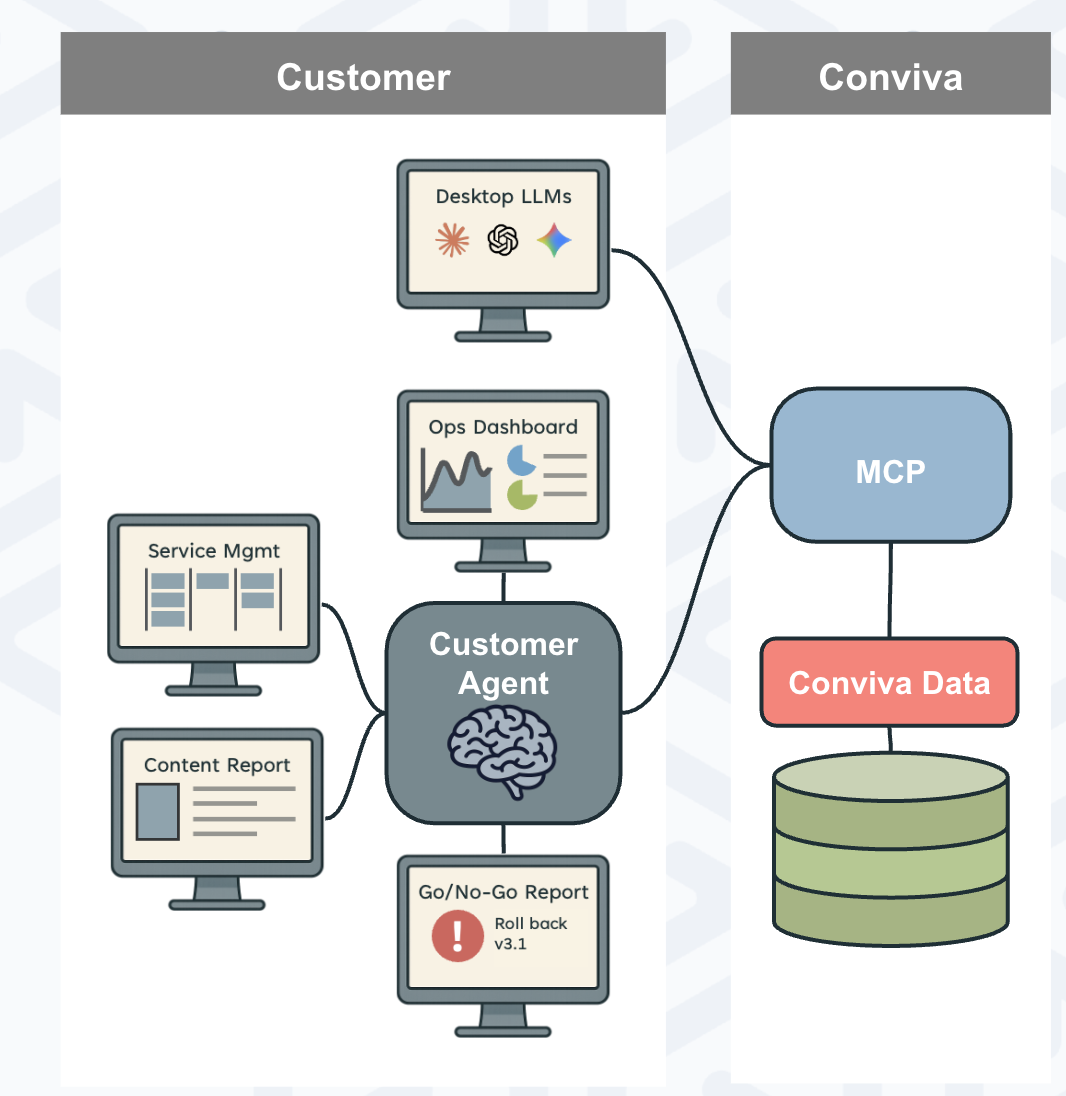
Conviva MCP lets an AI agent bring Conviva data into your own tools, such as desktop LLMs, operational dashboards, service management, and content or go/no-go reports. Use it when you want to query Conviva data through natural language or build agents that act on it.
The Conviva MCP server enables your AI agents to analyze and interact with Conviva's Streaming Experience Insights (SEI) Video and App. The Conviva MCP server provides a set of tools that AI agents use to query video metrics, investigate AI-powered alerts, explore viewer sessions, and analyze digital product experience data, all through natural language prompts and agent-to-agent communication.
Common MCP use cases include generating reports and dashboards that leverage the power of compiling Conviva Video and App data for metrics, AI alerts, and user experience with other data for more informed custom support inquiries and enhanced operational performance reports.
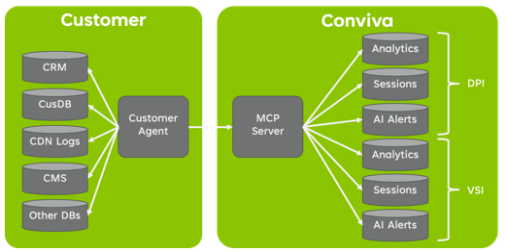
Customer agents reach Conviva analytics, sessions, and AI alerts through the Conviva MCP Server.
MCP FAQs
General Access
What data does Conviva MCP expose?
Conviva MCP exposes Streaming Experience Insights (SEI) data, including:
-
Real-time metrics
-
Historical metrics
-
AI alerts (content and ad)
-
Viewer session data
-
KPI threshold definitions
-
Authorized c3 account access
All capabilities are available as MCP tools under the /mcp endpoint.
Authentication & Authorization
Who can reach Conviva through MCP?
Access is set per user through the MCP Access permission at User Management > Modify User > Permissions. An account admin can enable or disable MCP for an individual user rather than for the whole account. When the permission is cleared, that user's MCP client can no longer authenticate against Conviva data.
MCP Access governs the SSO-authenticated path. Access through API credentials is governed separately, through API Management. For more information, see Viewer Access and MCP Access.
How do I authenticate to Conviva MCP?
Conviva MCP supports:
-
OAuth 2.0
-
API key authentication using HTTP Basic
How do autonomous agents authenticate?
Autonomous agents authenticate using a Conviva API key with HTTP Basic authentication.
The Authorization header must begin with:
Authorization: Basic <base64(client_id:client_secret)>
Conviva MCP systems can use Conviva's API keys via the Basic authentication scheme.
Where are Conviva API keys generated?
API keys are generated in the Pulse API Management page, where you obtain:
-
Client Id
-
Client Secret
Does Conviva MCP support OAuth?
Yes. Conviva MCP supports OAuth 2.0 authentication. Implementations should handle token refresh to prevent session expiration.
How do I rotate or revoke API keys or tokens?
General process:
-
Generate a new API key or token.
-
Update your MCP configuration.
-
Verify the new connection.
-
Revoke the old key or token.
For OAuth tokens, revocation is typically performed via the token revocation endpoint (POST /oauth/revoke). Credentials should be stored securely and rotated periodically.
Data & Tool Capabilities
Can MCP return real-time and historical metrics?
Yes. MCP tools support both real-time and historical SEI metrics.
Can MCP return per-session and per-viewer data?
Yes. MCP provides tools to:
-
List all sessions for a specific viewer within a time range
-
Retrieve aggregated quality metrics across sessions for a viewer
Can MCP retrieve AI alerts?
Yes. MCP tools allow you to:
-
List AI-detected quality alerts (content and ad)
-
Retrieve full alert details and severity timelines by ID
Can MCP retrieve KPI threshold definitions?
Yes. KPI thresholds for quality benchmarking can be retrieved using the appropriate MCP tool.
Can I list the c3 accounts my credentials have access to?
Yes. The get-authorized-c3-accounts tool lists all accessible c3 accounts.
This tool requires OAuth authentication.
Operational Considerations
What happens if rate limits are exceeded?
Conviva MCP runs on the Conviva SEI APIs, so MCP requests count against the same per-account rate limits. A request that exceeds a limit receives an HTTP 429 (Too Many Requests) response. Review the applicable limits in the Rate Limits section of the Metrics V3 API Guide, and implement request queuing with backoff. For full contractual limits and rate plans, see the Conviva service description.
Are there payload size limits?
Large tool inputs or outputs may be truncated or rejected. Ensure requests are appropriately scoped.
Validation & Schema Management
How do I validate MCP tool responses?
To validate responses:
-
Review published tool schemas.
-
Compare responses against expected input/output structures.
-
Verify the
contentarray structure (each item contains atypefield and associated data). -
Ensure responses are valid JSON.
-
Properly handle error responses, which include
isError: trueand error details.
Testing tool calls with utilities such as curl or Postman before production integration is recommended.
Connect to Conviva MCP Server
The Conviva MCP server is available only as a remote HTTP service. No local installation is required or supported. Use the Conviva server URL and your credentials to connect directly from your MCP client.
Server URL: https://mcp.conviva.com/mcp
To obtain your API credentials, visit the API Management page in the Conviva Pulse dashboard.
For the latest release updates and changes, see What's New in Conviva MCP.
LLM Setups
MCP with Claude Desktop
For Claude Desktop access to Conviva MCP servers, add the Conviva MCP server settings to the claude_desktop_config.json file. Most users enable SSO access for authentication.
-
Update the claude_desktop_config.json file in the \Claude folder and enable Okta SSO access.
{
  "mcpServers": {
    "conviva": {
      "command": "npx",
      "args": [
        "mcp-remote",
        "https://mcp.conviva.com/mcp"
      ]
     }
   }
} -
In the Claude desktop, update the Settings > Connectors list to connect to the Conviva MCP servers.
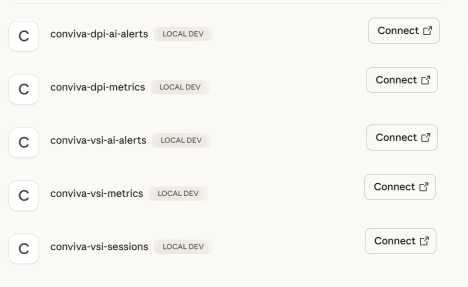
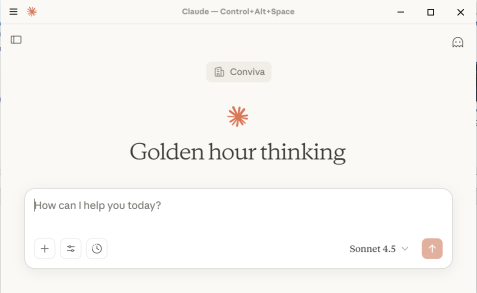
After server authentication prompts, the Claude chat window appears.
MCP with Claude Code
For Claude Code access to Conviva
Prerequisite:
-
Claude Code access
Setup
Run this command to add Conviva MCP to Claude Code:
claude mcp add --transport http conviva https://mcp.conviva.com/mcp
Then, open the MCP panel to verify the connection and authenticate:
claude /mcp
MCP with Cursor
Prerequisite
-
Cursor access
Cursor Setup:
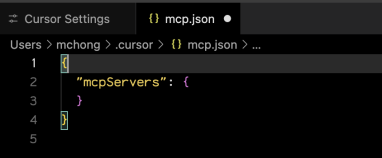
Add the following to your ~/.cursor/mcp.json file. To learn more, see the Cursor docs.
With OAuth:
{
  "mcpServers": {
    "conviva": {
      "type": "http",
      "url": "https://mcp.conviva.com/mcp"
    }
  }
}
With API Key:
{
  "mcpServers": {
    "conviva": {
      "type": "http",
      "url": "https://mcp.conviva.com/mcp",
      "headers": {
        "Authorization": "Basic <YOUR_BASE64_CREDENTIALS>"
      }
    }
  }
}
Connect and authorize in Cursor
After you save mcp.json, complete the connection from the Cursor interface:
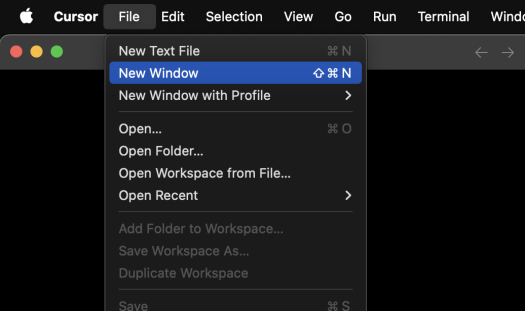
Open a new Cursor window.
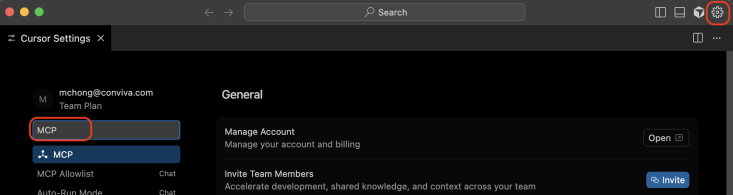
Open Settings and search for MCP.
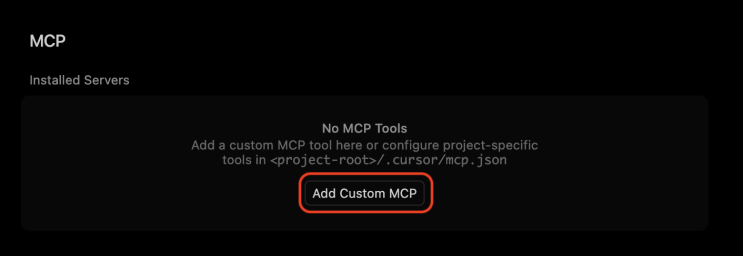
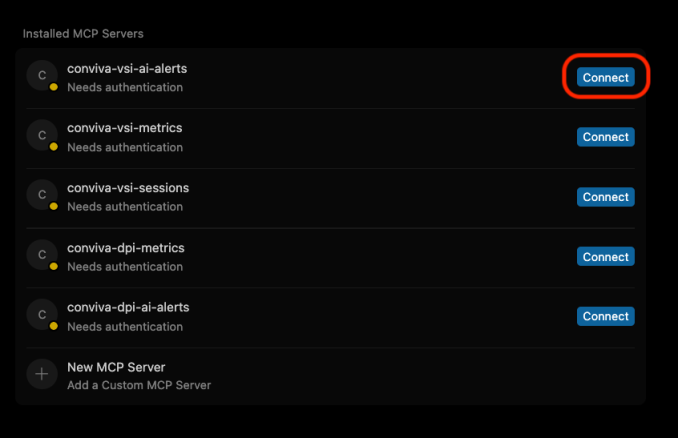
Select Add Custom MCP.
Select Connect to start the Conviva OAuth authorization.
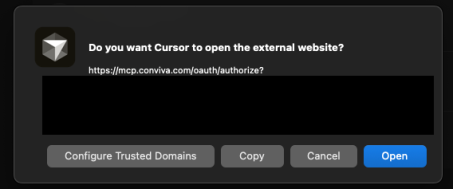
In your browser, select Open to complete Okta single sign-on.
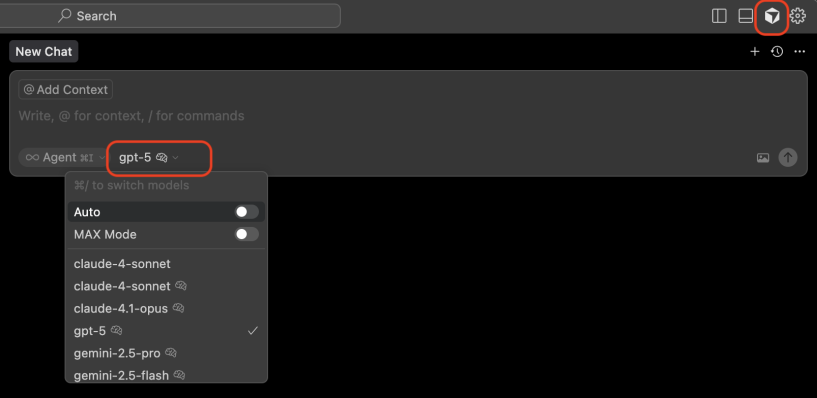
Choose the Cursor model to use with the Conviva MCP tools.
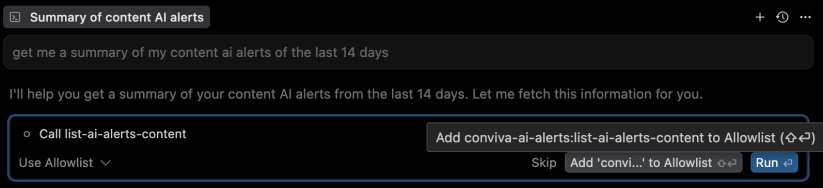
Approve the Conviva MCP tools when Cursor requests permission.
MCP with Gemini
Prerequisites
Gemini access
Setup
Add the following to your mcpServers configuration in your settings.json file. To learn more, see the Gemini docs.
With OAuth:
{
  "mcpServers": {
    "conviva": {
      "type": "http",
      "url": "https://mcp.conviva.com/mcp"
    }
  }
}
With API Key:
{
  "mcpServers": {
    "conviva": {
      "type": "http",
      "url": "https://mcp.conviva.com/mcp",
      "headers": {
        "Authorization": "Basic <YOUR_BASE64_CREDENTIALS>"
      }
    }
  }
}
MCP with ChatGPT
Prerequisites
-
A ChatGPT account with access to Apps & connectors.
ChatGPT Setup:
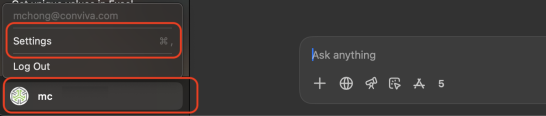
Select your account name, then open Settings.
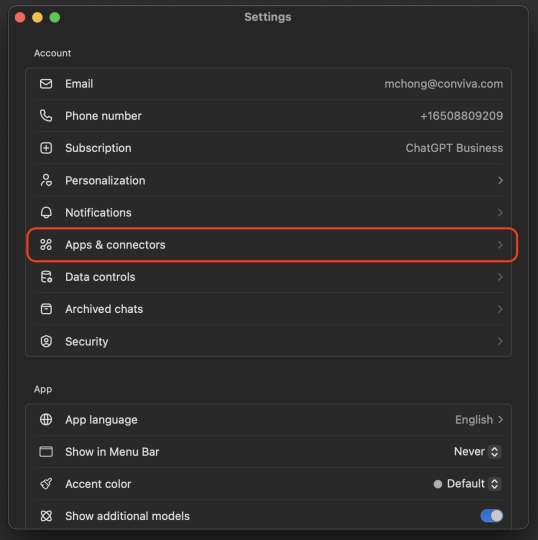
Open Apps & connectors.
In the connectors list, add a connector for Conviva MCP using the server URL
https://mcp.conviva.com/mcp.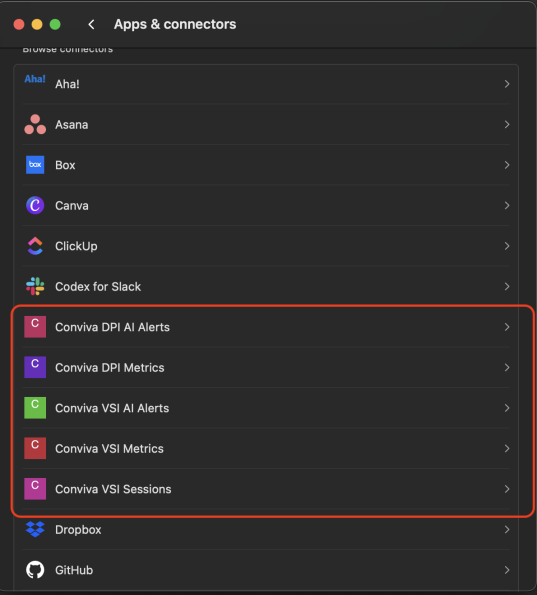
Select Connect on the Conviva connector and continue.
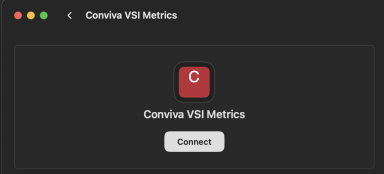
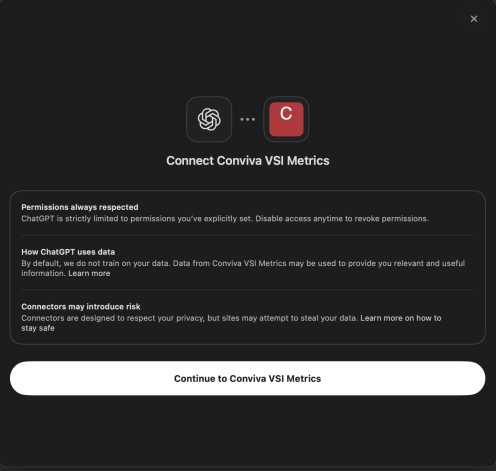
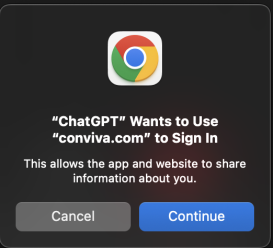
Complete the Conviva OAuth sign-in.
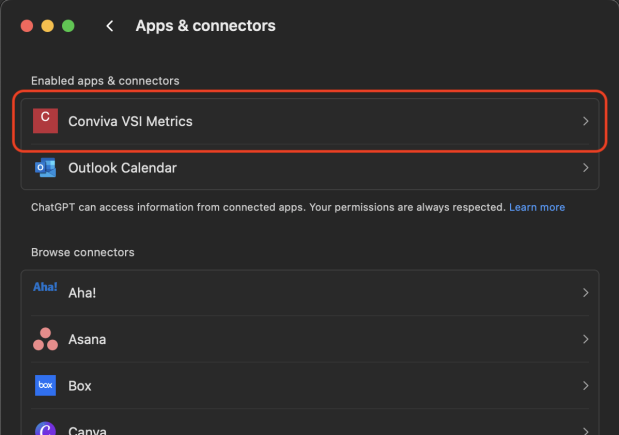
Confirm the connector appears in your enabled apps and connectors.
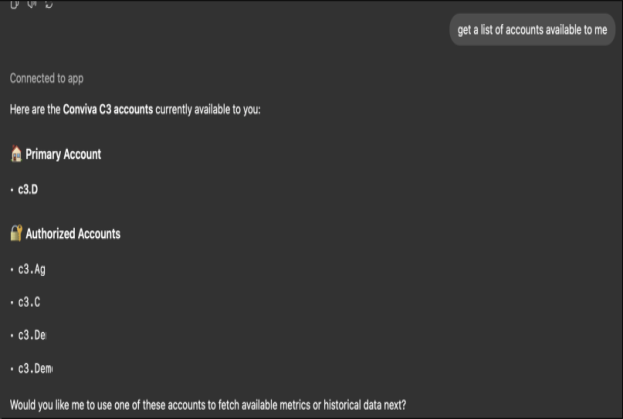
Start a new chat and ask for the c3 accounts your credentials can access.

Allow the Conviva MCP tool when ChatGPT requests confirmation.
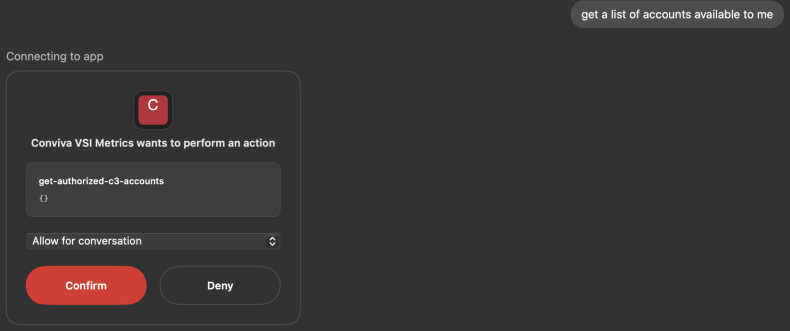
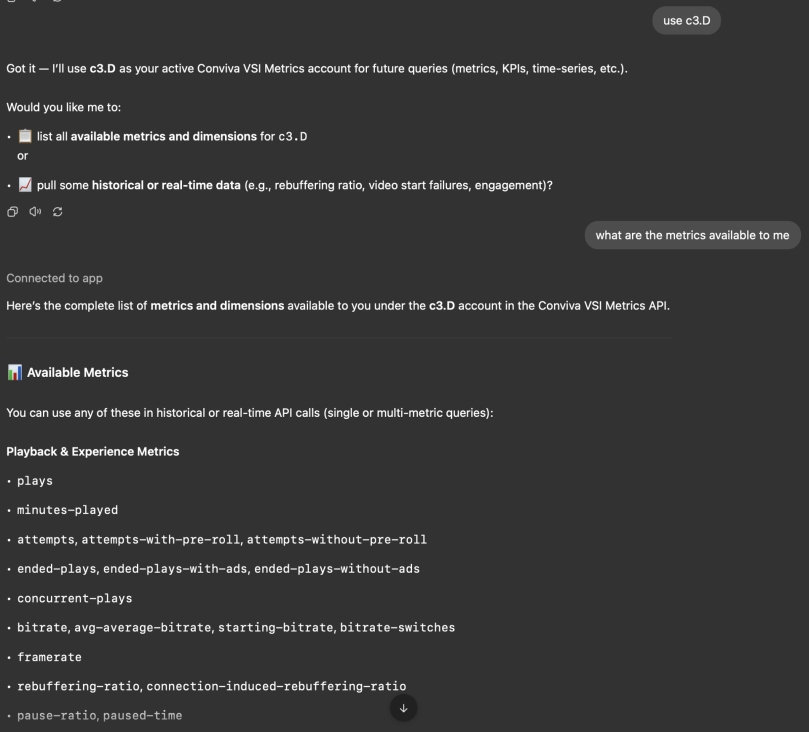
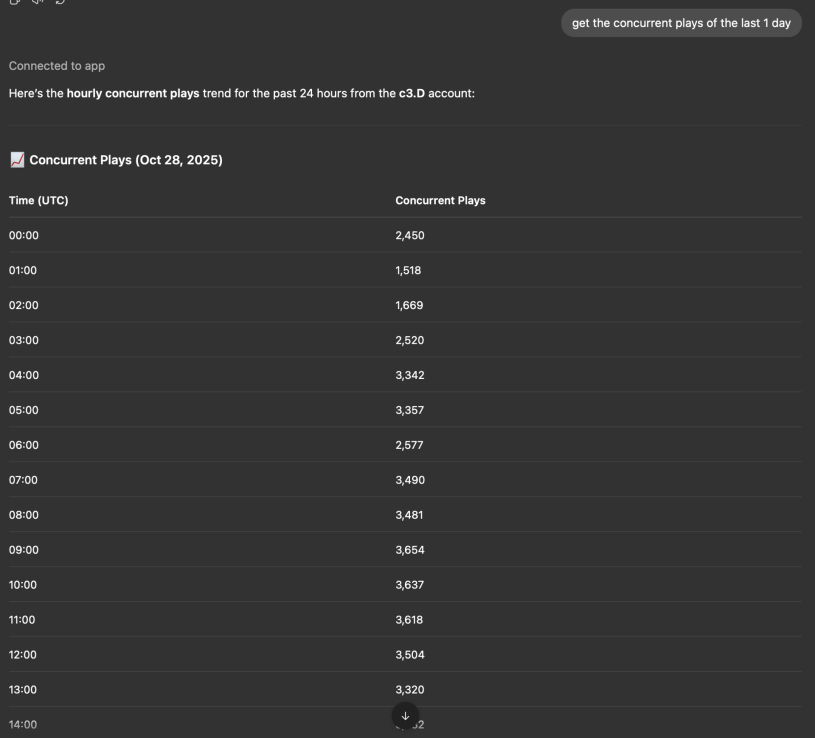
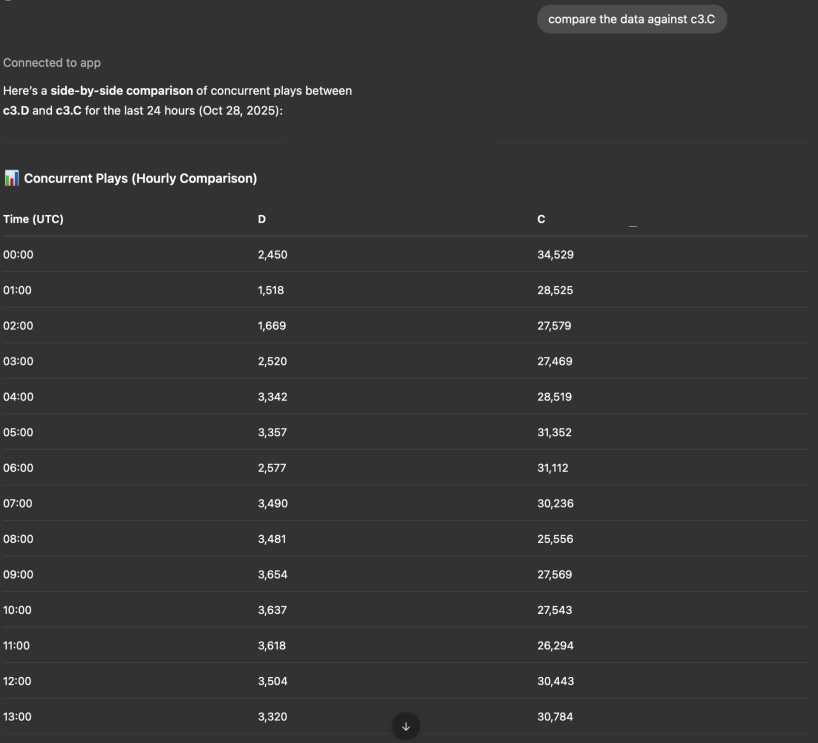
ChatGPT returns your account list. You can then query metrics and data through natural language.
MCP with Other Clients
Prerequisites
Client access
Setup
MCP is an open protocol supported by many clients. Use the following parameters when setting up your connector:
-
Server URL:
https://mcp.conviva.com/mcp -
Connection mechanism: OAuth or Basic Auth
If your MCP client supports OAuth, it opens a consent form automatically when you connect. If your client does not support OAuth, pass your API key in the Authorization header:
{
  "conviva": {
    "url": "https://mcp.conviva.com/mcp",
    "headers": {
      "Authorization": "Basic <YOUR_BASE64_CREDENTIALS>"
    }
  }
}
Authentication
The Conviva MCP server uses OAuth to connect MCP clients according to the Authorization - Model Context Protocol. OAuth is more secure than using an API key because it allows more granular permissions and user-based authorization. When adding the Conviva MCP to a client, the MCP client opens an OAuth consent form which allows you to authorize the client to access your Conviva data.
If your MCP client doesn't support OAuth, pass your API credentials as a Basic Auth header. To generate your Base64-encoded credentials:
echo -n "your_client_id:your_client_secret" | base64Then use the result as:
Authorization: Basic <YOUR_BASE64_CREDENTIALS>To obtain your client_id and client_secret, visit the API Management page in the Conviva dashboard.
Building Autonomous Agents
To build agentic software that calls the Conviva MCP programmatically, pass your API credentials as a Basic Auth header directly in your HTTP requests:
curl https://mcp.conviva.com/mcp \
    -H "Content-Type: application/json" \
    -H "Authorization: Basic <YOUR_BASE64_CREDENTIALS>" \
    -d '{
        "jsonrpc": "2.0",
        "method": "tools/call",
        "params": {
        "name": "get-video-metrics-metadata",
        "arguments": {}
    },
    "id": 1
    }'