
The Map View feature, designed for Geo Dimensions, enhances your data visualization experience, offering a more intuitive experience than traditional tables.
The Map view empowers you with:
- Search and Quick Location — seamlessly locate and explore data points on the map with the integrated search feature.
- Full-screen View — use the full-screen view option (especially useful in Real-Time mode) for a comprehensive visual experience.
- Metrics Switch — effortlessly switch between different metrics within the map interface, providing a versatile and dynamic analytical experience.
Viewing Map
To view the map in the Geo dimension table:
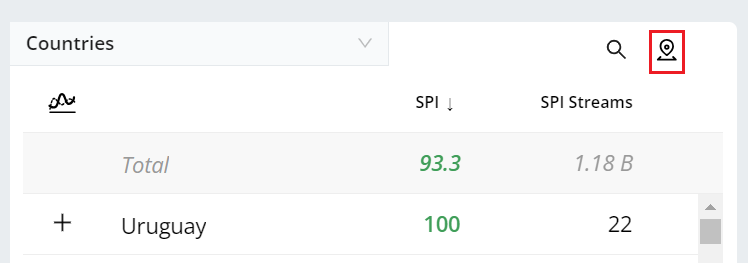
Click the Map icon on the Geo dimension table.
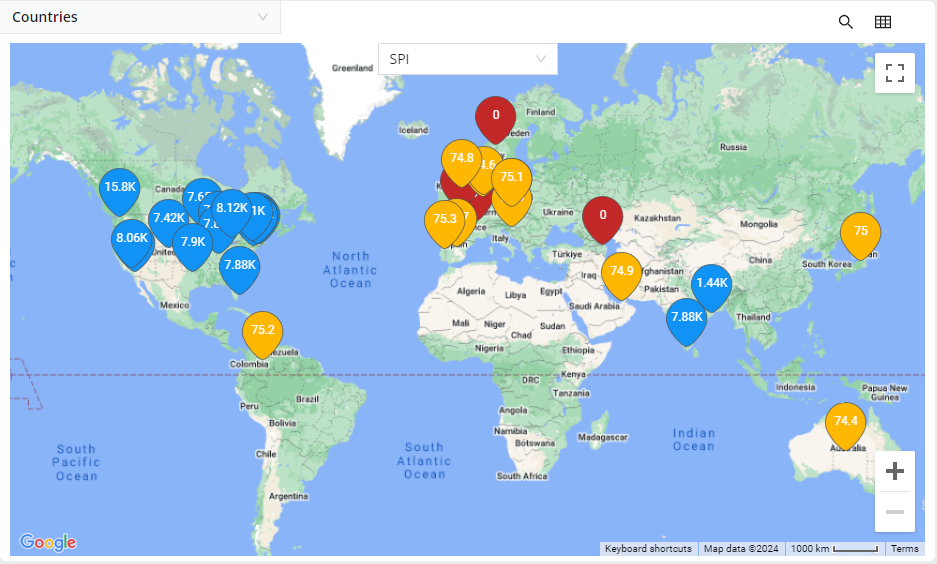
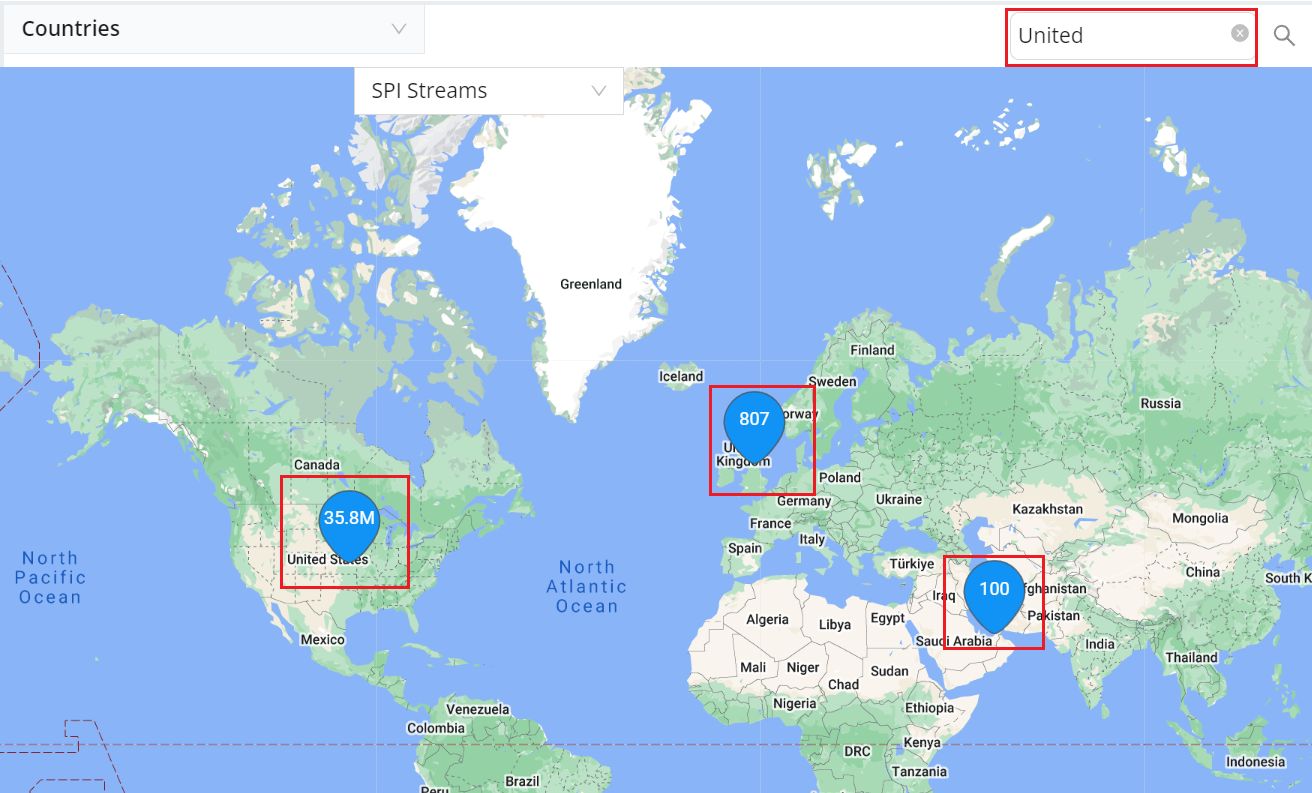
The Map view integrated in the dimension table is displayed.
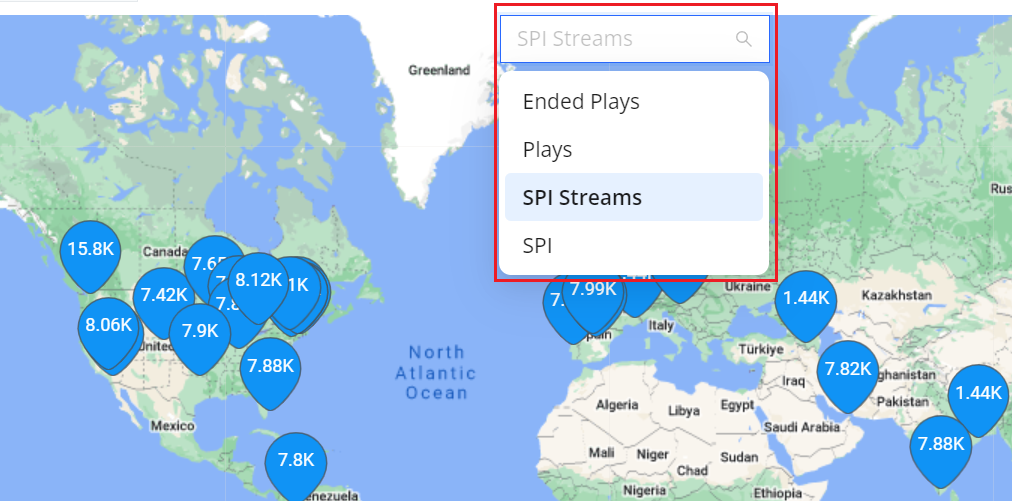
Select the metric in the metric drop-down.
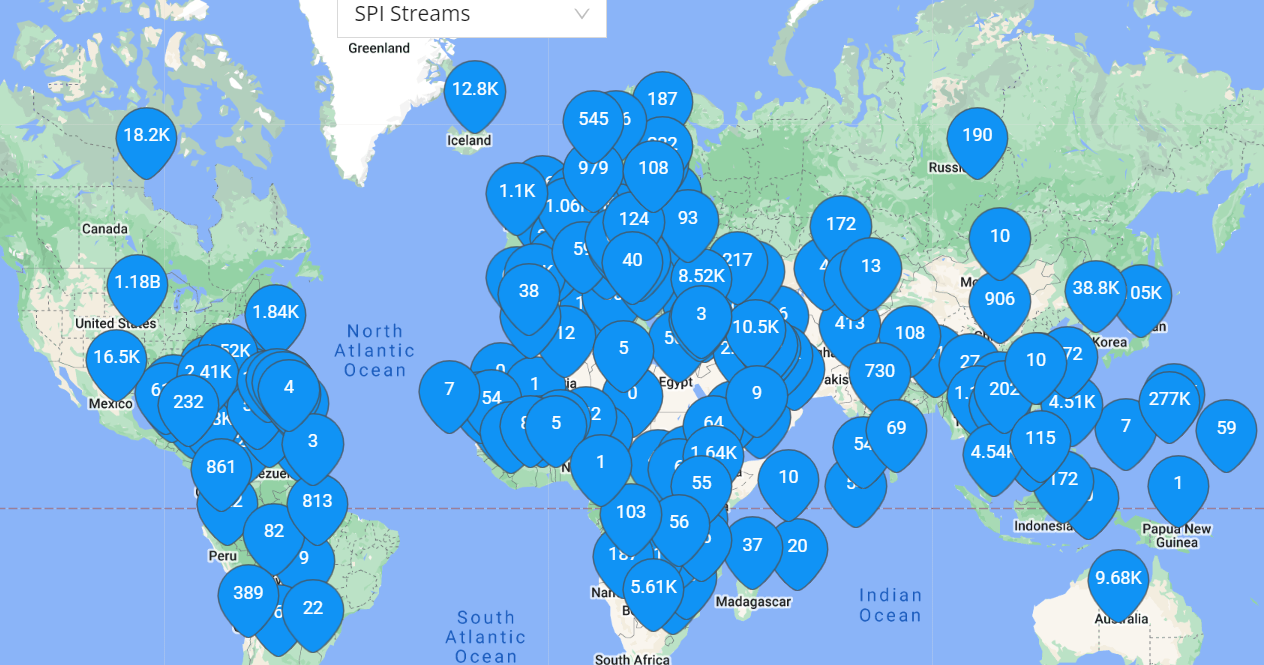
The map updates with the selected metric.
Search for a specific place using the search bar.
You can enable the full-screen map view by clicking the full-screen  button.