
Filters and Segments
Audience supports both filters and segments to help you focus your audience and data analysis on specific data sets, such as viewers who watched a series or episode, first video watched, last video watched, viewer location, device type, and many other session and viewer attributes. Although they share similar settings, filters and segments define different types of data sets for different types of analysis.
-
Filters provide content session-based data sets, returning only data for the sessions that match the specified content session criteria. For example, filtering on Series=Game of Thrones and Device Type=Roku, returns session data for only the content sessions during which viewers watched Game of Thrones on Roku devices.
-
Segments provide viewer-based data sets, returning all the data related to the viewers that match the specified criteria. For example, segmenting on viewers who watched Series=Game of Thrones and Device Type=Roku returns all the data for the viewers that watched Game of Thrones on Roku devices, including data from the sessions during which these viewers watched other series on other device types.
Note: When using filters or segments to do data analysis on households, be aware that household data often overlaps due to shared conditions. For example, many of the same households may be obtained when using filters for age ranges greater than 18, and less than or equal to 18 because households have members from both age ranges. Additionally, when combining two separate groups of households, the combined total may not reach 100% of the separate household groups due to the variation of demographic attributes across households.
You can use custom ad dimensions beyond the standard ad dimensions to build more advanced advertising-related filters and segments. For more information, see Custom Ad Dimensions .
The “Viewer Custom Tags” category is available if you have already provided viewer IDs to Conviva using Conviva Sensor, and also submitted subscriber metadata files to Conviva. The “Viewer Custom Tags” category enables you to build more advanced subscriber-related filters, and segments. For more information on the subscriber metadata file requirements and how to create them, contact Conviva representatives.
Note:
It is important to understand ad and content session association when using Ad attributes in filters or segments.
When the content session ID of an ad session is the same as the content session ID in only one content session, the ad session is associated with that content session.
When the content session ID of an ad session is the same as the content session ID in more than one content sessions, the ad session is associated with the content session that has a start time closest to the ad session start time.
Filters in these dashboards do not support custom ad dimensions:
Audience Dashboard
Ads Dashboard
Viewer Acquisition Dashboard
Viewer Retention Dashboard
With custom ad dimensions, you can build more advanced advertising-related filters, segments, and analytics workbench analysis, for example, add the Sale Type dimension to filter sessions that played either direct sold ads or programmatic ads, and analyze the performances of the ad types.
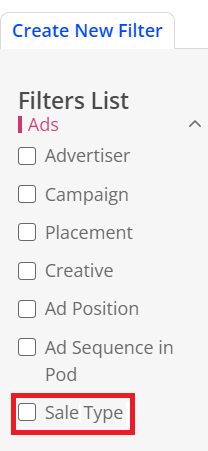
Note: Contact your Conviva representative to get started with custom ad dimensions. Your Conviva representative will guide you through the requirements and setup.
Using Filters
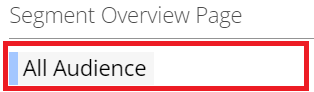
Filters appear in the top-left tool bar under the page title, and default to All Audience. Clicking the filter setting opens Filters List.
Audience supports several types of filters that enable you to customize the sessions to which filter criteria are applied.
In the Content filter category, you can also use the Ads filter option to select either Content with Ads or Content without Ads to further narrow the scope of the filter settings.
For more details, see Filter Types.
Filters List is categorized by the following items:
-
Audience
-
Content
-
Ads
-
Context
-
First Stream
-
Custom Tags
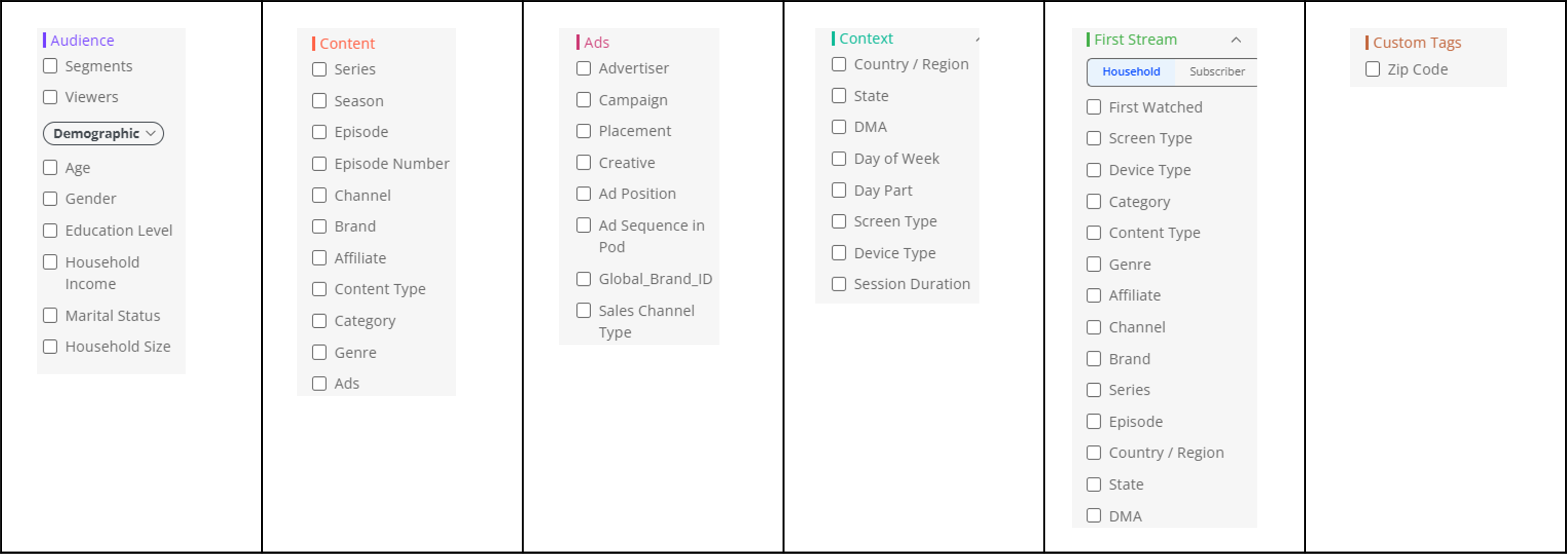
Note: The filters list might be different on different pages. For example, only Audience and First Stream list are displayed on the Viewer Acquisition page.
The selected filter settings apply the criteria for matching sessions and display only the data for the matching sessions in the dashboard. You can build complex filter expressions using logical AND operations for different filter attributes. This example filters for sessions of Known Viewers, Season 1, and Adorable Animals.
Note: For more details about applying a segment as a filter setting, see Filters Based on Segments and Viewers.
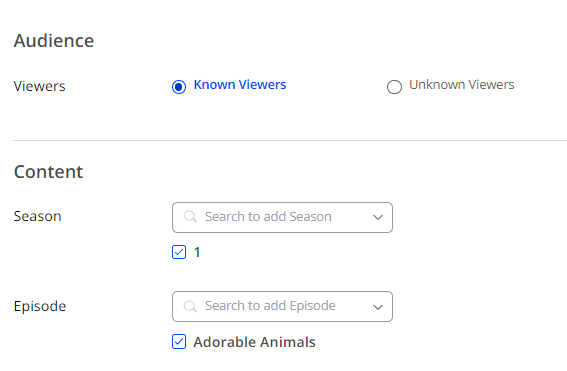
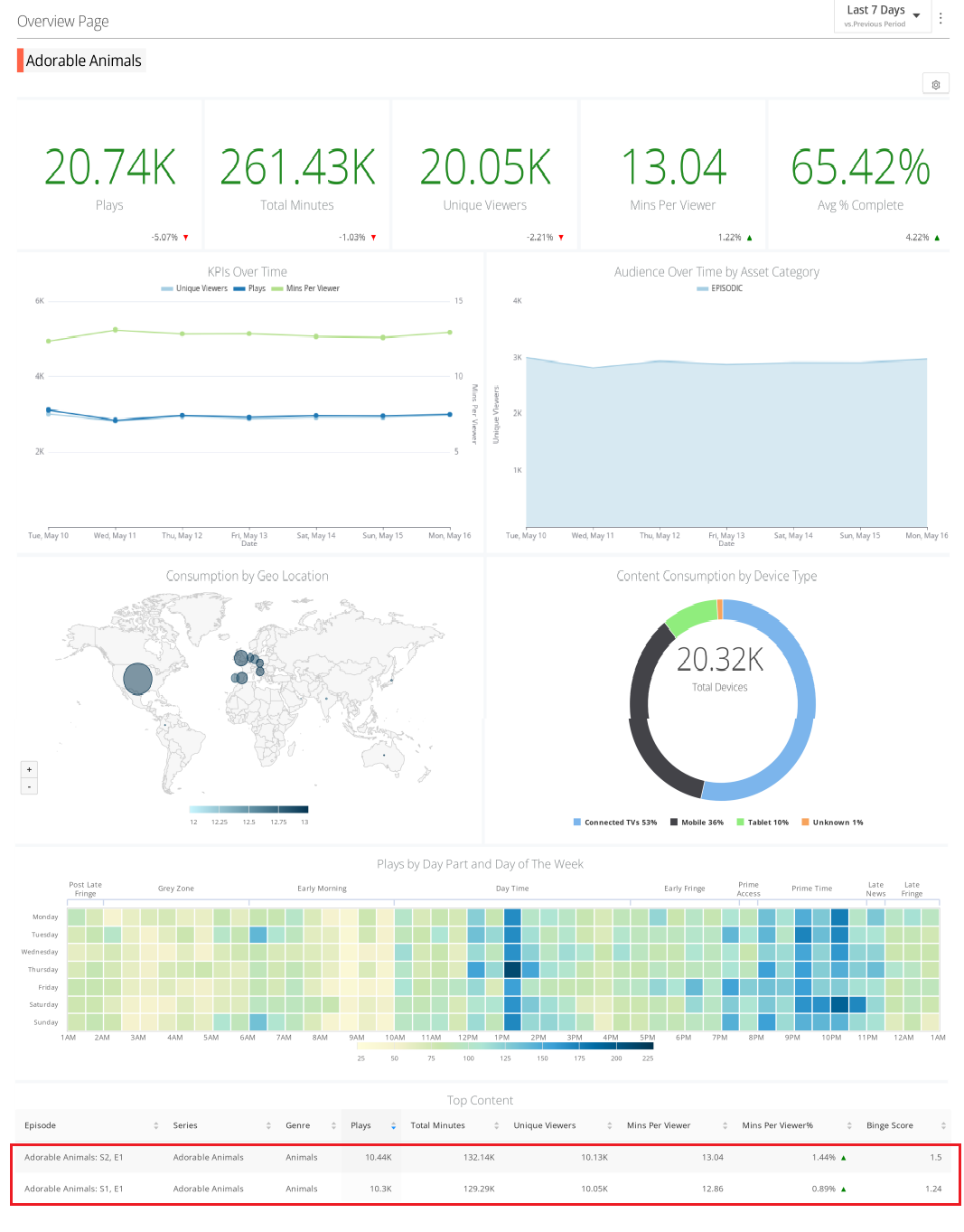
In the dashboards, applying a filter for the Adorable Animals series to the Overview dashboard provides summary metrics and other KPIs for only this series. Filters allow you to display the data for only the sessions that match the specified filter settings.
Percent Range for Demographic Attributes within Households
Percentage composition ranges for values of demographic attributes enables you to create a more specific filter and segment to get more detailed data and do deeper data analysis based on the data.
For example, to focus analysis on households where all the residents have a bachelor's degree, set the percentage composition range for bachelor's degrees as 100% to 100%; to focus viewer analysis on viewers who are from a household where the female number percentage is equal to or greater than 70%, set the percentage composition range for female as 70% to 100%.
Filters Based on Segments and Viewers
When applying Filter settings, you can select Audience options for Segment and Viewer to create session-based data from a viewer-based segment or group of viewers. This type of data set includes only the session-based data for the matching viewers and other filter critieria.
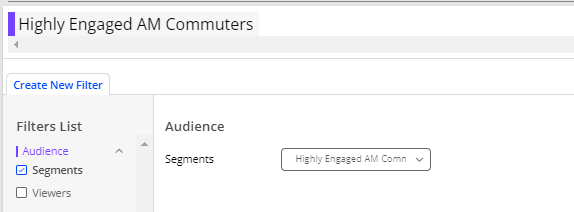
With this data set, you can track the set of sessions for viewers from different segments, such as Highly Engaged Viewer and Late Night Watcher. Use the Overview page to analyze the viewer behavior, for example demographics and consumption by device.
For advanced viewer analysis, you can save the filter data set as a segment to track the viewership of this set of viewers. For more details, see Creating Segments Based on Filter Settings.
Setting Advanced Filters
Advanced filter settings enable you to set more complex session filter conditions, such as series containing specific words and episode numbers greater than a set number, to view more specific data. For example, use Does not Contain condition to remove trailers from the contents when you only want to analyze the feature films; use Contains Game of Thrones for Episode setting and is greater than 1 for Episode Number setting to return session data for only the content sessions during which viewers watched Episode whose title contains Game of Thrones and the episode number of the episode is greater than 1.
-
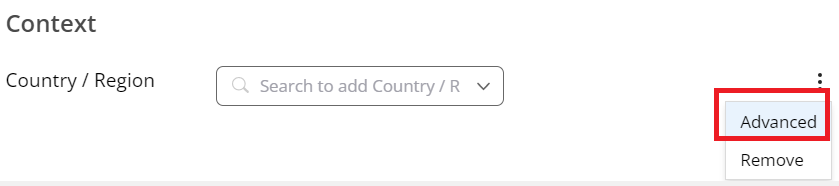
When creating or updating a filter, from the kebab icon, click Advanced.
-
In the advanced mode, you can select one of these conditions from the drop down list.
Filter Name Positive Condition Negative Condition Episode Number Is Equal to
Is greater than
Is less than Any Filters that Exclude Episode Number Is Equal to
Contains
Begins with
Is not Equal to
Does not Contain
-
Optional. Click the plus icon to add more advanced settings for the filter.

Note: Whenever a negative condition is used along with a positive condition on the same field, Conviva will automatically combine them using AND logic.
-
Click Apply.
Using Segments
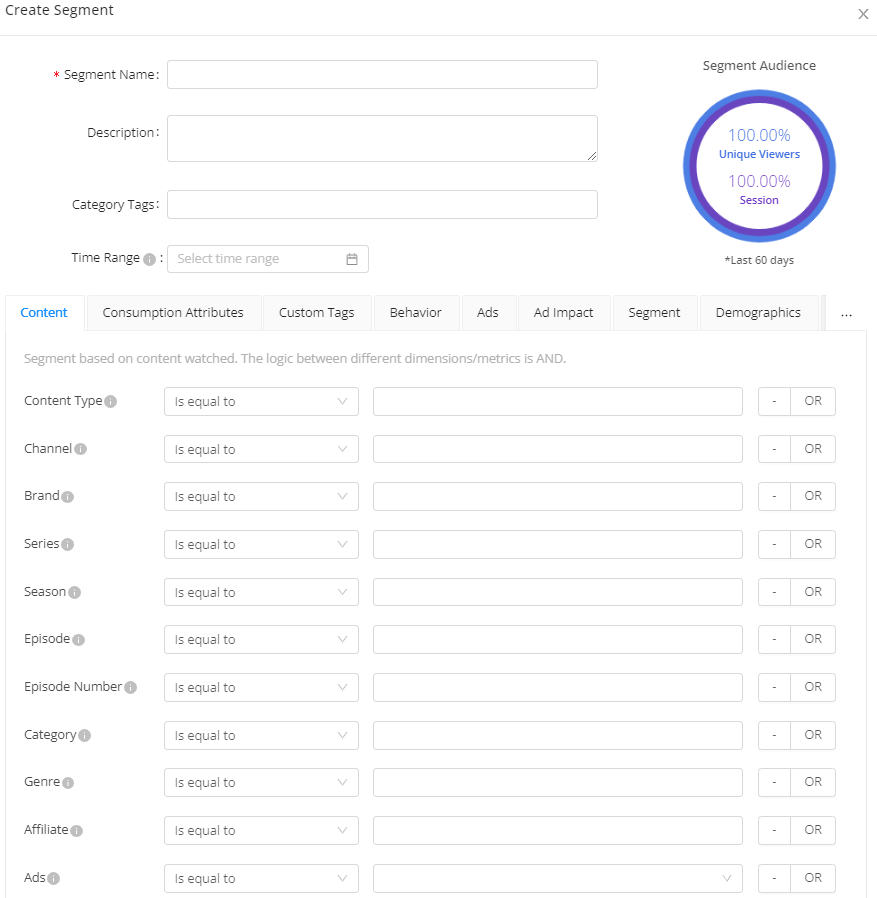
Segment options appear in the top-right tool bar under the page title. The segment options include a time range and tab selections for segment attributes. You can build complex segment expressions using logical AND operations for different segment attributes within each tab, logical OR operations for multiple attribute settings, and logical AND operations apply across the tab selections.
You can also use the Segment tab to join an existing segment with the current segment, as well as apply logical OR groupings with additional existing segments. For more details, see Complex Segments.
Audience supports different types of segments for advance viewership analysis.
| Segment Type | Description |
|---|---|
| Behavior Segments | Conviva default segments for common behavior categories of viewers, such as Highly Engaged Viewers and Weekend Only Watcher. For more details, see Audience Segments. |
| User Created Segments |
Data sets of all the data of viewers who match the specified segment attributes. For more details, see Segment Management. |
| User Created Joined Segments |
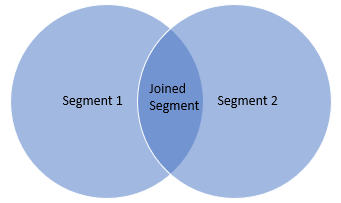
Data sets of intersecting segments. Use the Segment attribute to build a data set of viewers that match (logical AND) multiple segment attributes. Joining viewer-based segments limits the data set to the intersect of the joined segments.
For more details, see Complex Segments. |
| Segments Based on Filters | Data sets of all the data of viewers who match the specified filtered session attributes. |
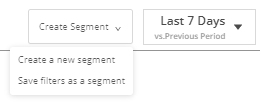
To create a segment, click Create a new segment to open the segment options.
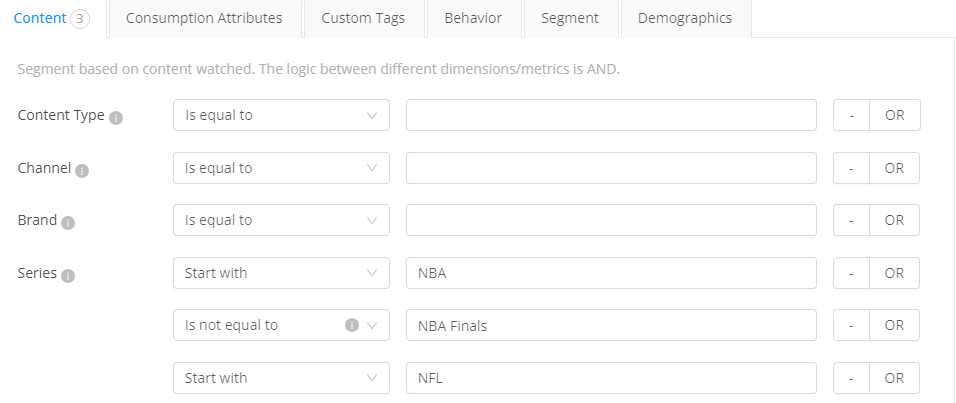
For example, these segment settings create a data set of viewers that watched any NBA series but did not watch the NBA Finals, and also watched any NFL series.
Note: Segments are calculated only with valid Viewer IDs.
Segments using the Ad Impact options can be created based on ad metrics, such as ad impressions. Segments using the Ads options can be created based on ad dimensions, such as advertiser and placement. As a use case, Publishers can create a segment that experienced high ad load and compare that engagement and retention with segments of viewers that had low ad load or no ads.
Percent Range for Demographic Attributes within Households
Percentage composition ranges for values of demographic attributes enables you to create a more specific filter and segment to get more detailed data and do deeper data analysis based on the data.
For example, to focus analysis on households where all the residents have a bachelor's degree, set the percentage composition range for bachelor's degrees as 100% to 100%; to focus viewer analysis on viewers who are from a household where the female number percentage is equal to or greater than 70%, set the percentage composition range for female as 70% to 100%.
Creating Segments Based on Filters
When applying Filter settings, you can also save the session-based filtered data set as a viewer-based segment. The segment will contain viewer-based data for the group of viewers that have sessions matching the filter settings.
To save the current filter data as a segment, click Create Segment and select Save filters as a segment.
With this data set, you can track the set of viewers that watched the specific filtered sessions. Use the Segment Overview page to analyze the segment viewing and overlap patterns for up to 10 segments, for example what percent of sporting event session viewers overlap with the multi-device segment.
Creating Segments Based on Existing Segments
You can create a new segment in a more efficient way by copying the existing segment that is similar with the one you will create and editing the values based on your requirements. For more details, see Copying an Existing Segment.