
The Trends dashboard offers multiple layout options for metric widget and dimension table positions, allowing customized data display to align data with your analytic preferences.
These layout options include:
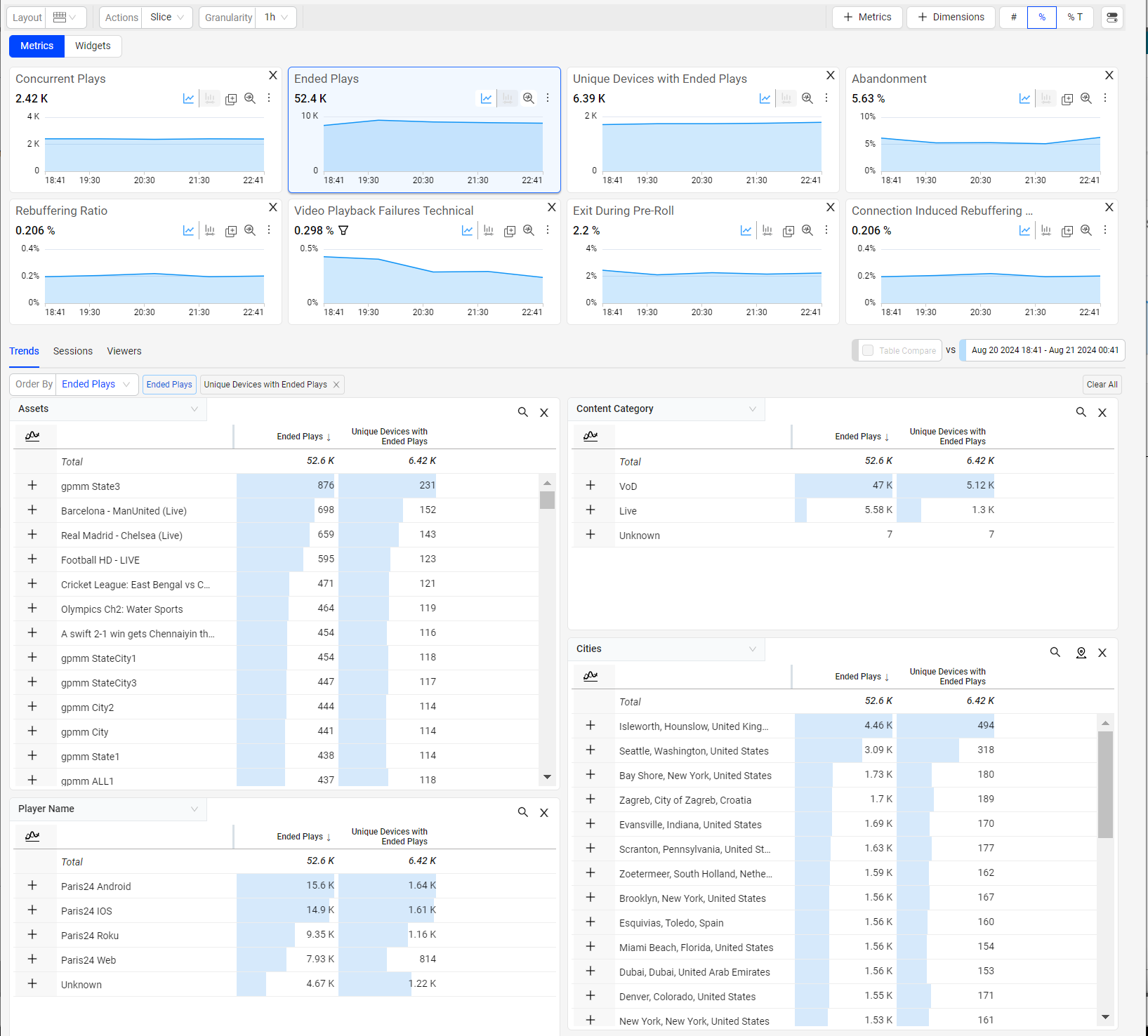
Metric widgets on top, dimension tables below (default layout)
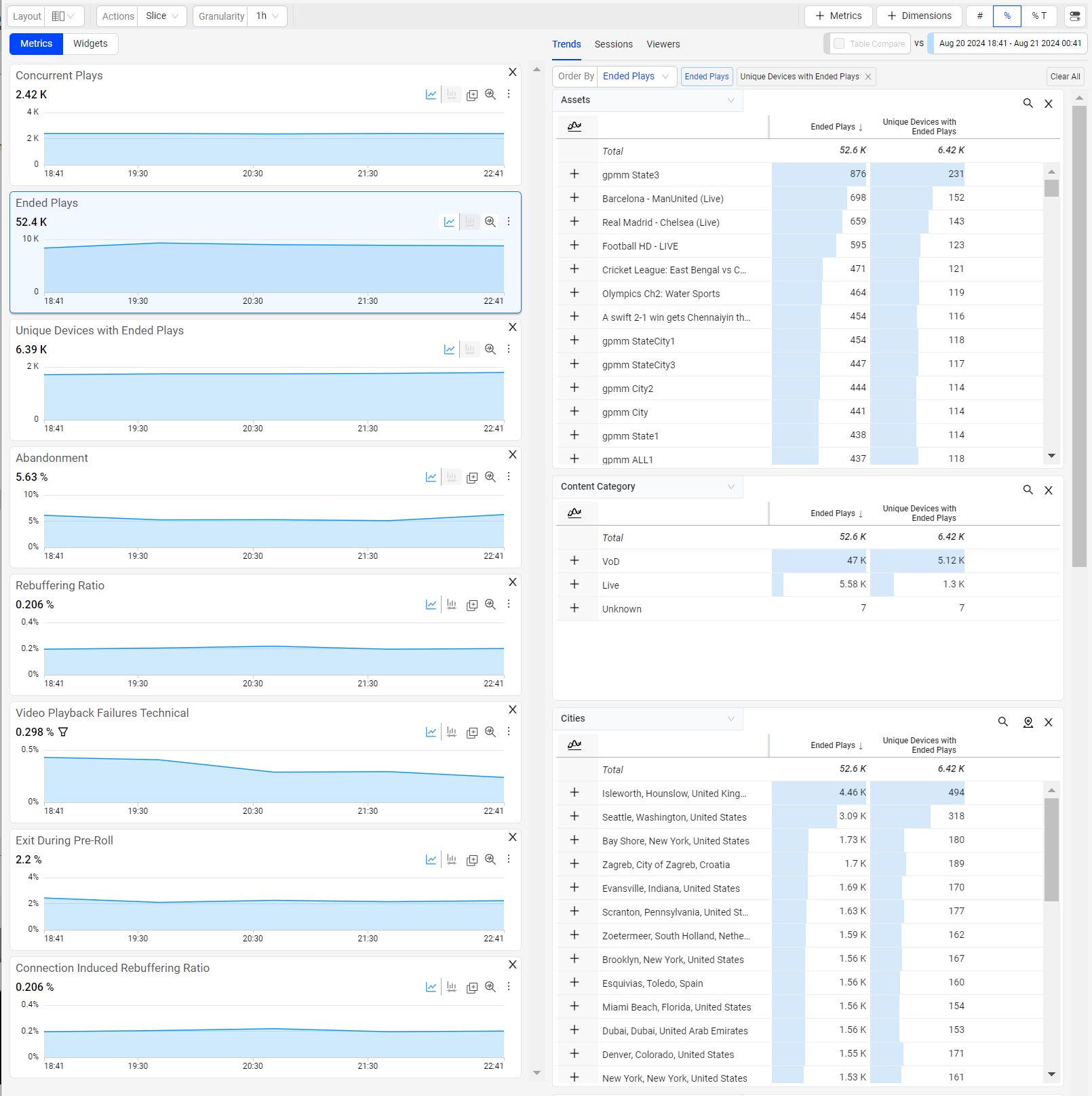
Metric widgets on left, dimension tables right
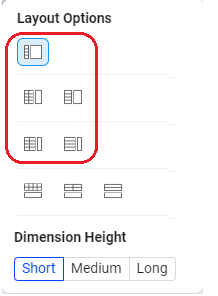
Various metric widget and dimension table sizes, to expand and contract the displayed metric time series and dimension table values
Selecting Custom Layouts in Trends
To select the layout, click the Layout button and select the desired layout option along with the dimension height.
The default setting is metric widgets on top with dimension tables below.
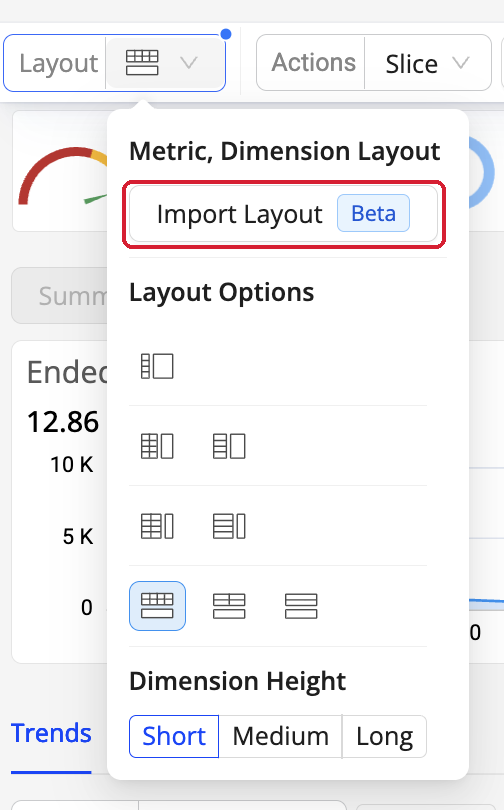
The Layout menu — Import Layout and Layout Options.
Importing a Layout from Another Dashboard Beta
A shared Trends dashboard often carries the right filters, date range, and comparison, but not the metrics and dimensions you normally investigate with. Import Layout replaces the current dashboard's metrics and dimensions with those of any saved dashboard or preset in one click, while keeping the current filters, date range, and comparisons.
In a Trends dashboard, open Layout > Metric, Dimension Layout > Import Layout.
In Select from Dashboards, search saved dashboards and click one to apply it. Mark frequently used dashboards as Favourite to find them faster.
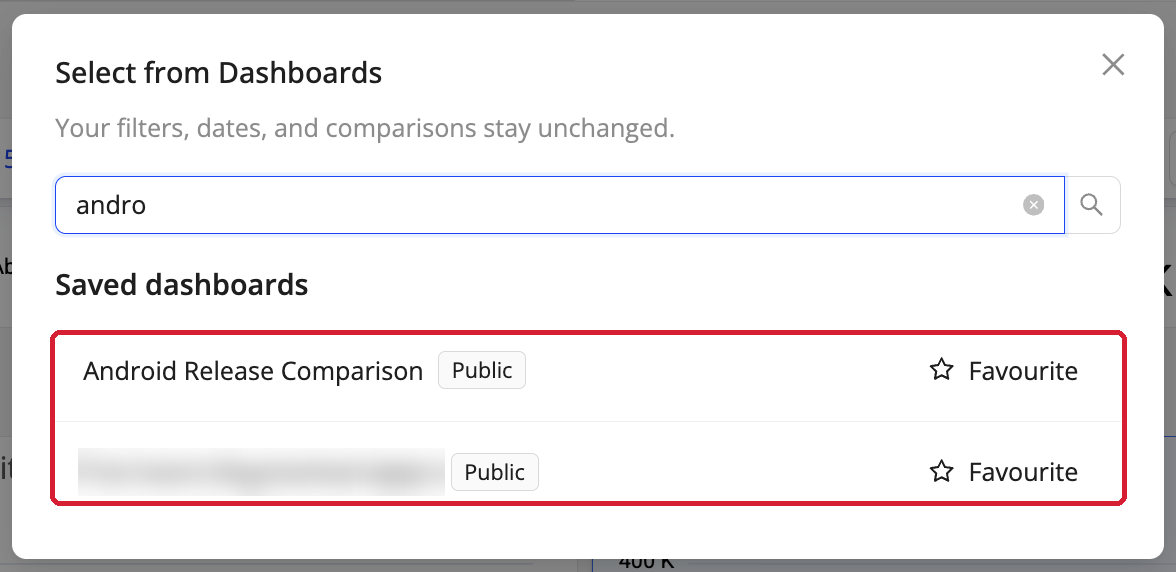
Select from Dashboards — search or mark a dashboard as Favourite.
- A Dashboard Applied: <name> label appears above the dashboard. Import another layout at any time, or remove the label (×) to return to the original layout.
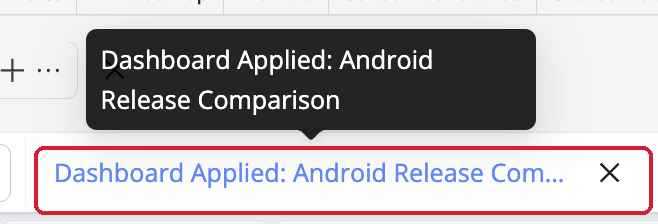
The Dashboard Applied label — remove it to revert to the original layout.
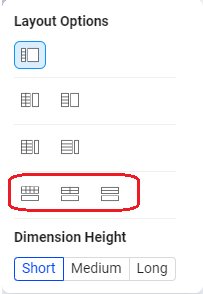
Metric Widgets on Top, Dimension Tables Below (Default)
Use these options to select this layout and adjust the metric widget size.
|
|
Metric Widgets on Left, Dimension Tables Right
Use these options to select this layout and adjust the metric widget size.
|
|