
Viewer Experience gives customer care teams the details of a viewer's streaming sessions for a given time period. Summary and session-level metrics show the number of plays, total minutes watched, Streaming Performance Index (SPI), startup and playback failures, rebuffering, and average peak bitrate. From there, open the performance measurements for each session.
Open Viewer Experience by clicking a viewer ID on a Diagnostics page, or by selecting Viewers in the navigation pane and entering a viewer ID or public IP address (IPv4 or IPv6). Summary metrics appear at the top, followed by that viewer's sessions in order of session start time.
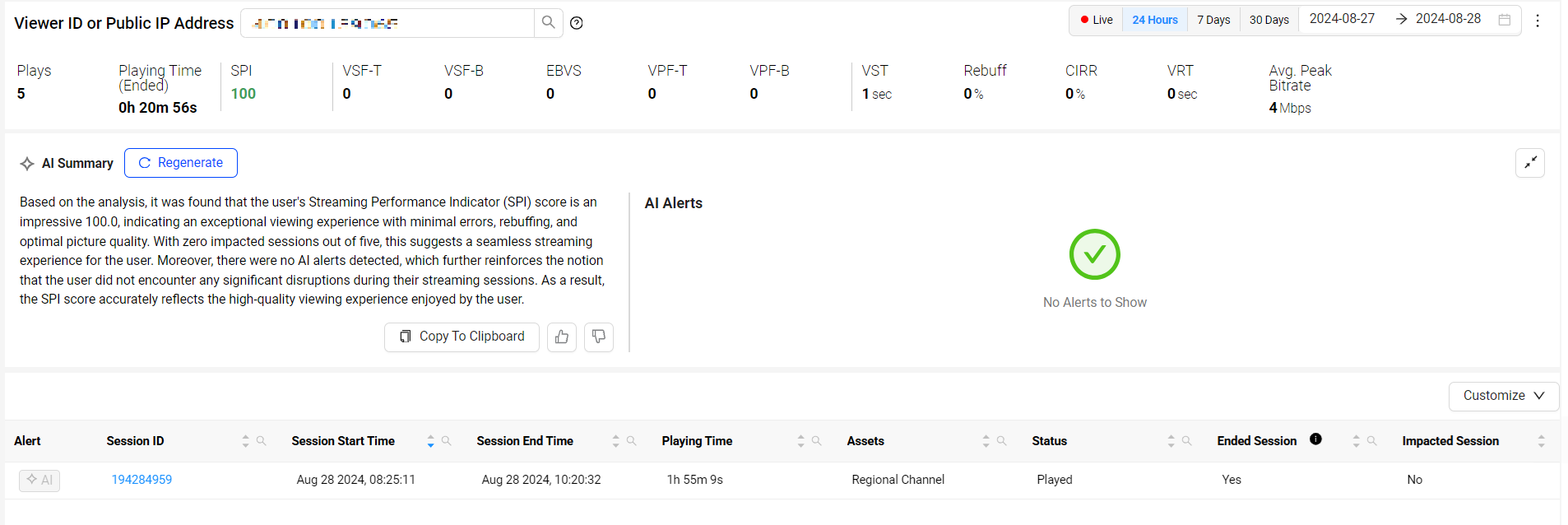
To open Viewer Experience:
In the navigation pane, click Viewers. In Viewer ID or Public IP Address, enter a viewer ID or a public IP address (IPv4 or IPv6), then click the search icon.
The viewer ID is passed from the player in the
c3.viewer_idmetadata tag. Viewer IDs also appear in Viewer Sessions, AI Alerts, and Session Source Data (SSD) files.Or, in Trends, click the Diagnostics icon for a metric, select a 3-hour period in the time series, and open the Viewer Sessions tab. Click a data bucket to list sessions, then click a viewer ID.
On the Viewer Experience page, use the date picker to select 24 Hours, 7 Days, 30 Days, Live, or a custom date range.
Viewer Experience includes:
- Viewing experience metrics for every session in the selected time period.
- Session data for each session, such as session ID, start and end times, playing time, device name, and session status.
- Session details with metrics and metadata for a selected session.
Viewer Experience Metrics
Viewer Experience metrics summarize the viewer's overall experience during the selected period. In this example, the viewer had 2 plays, a high SPI score, very low startup time, low rebuffering, and a high average bitrate.

Viewer Experience Metrics in Live Mode
The summary includes every session in the selected period. Live mode shows only active sessions, so the summary and the session list can differ. Summary data is not applicable in Live mode.

AI Summary (Beta)
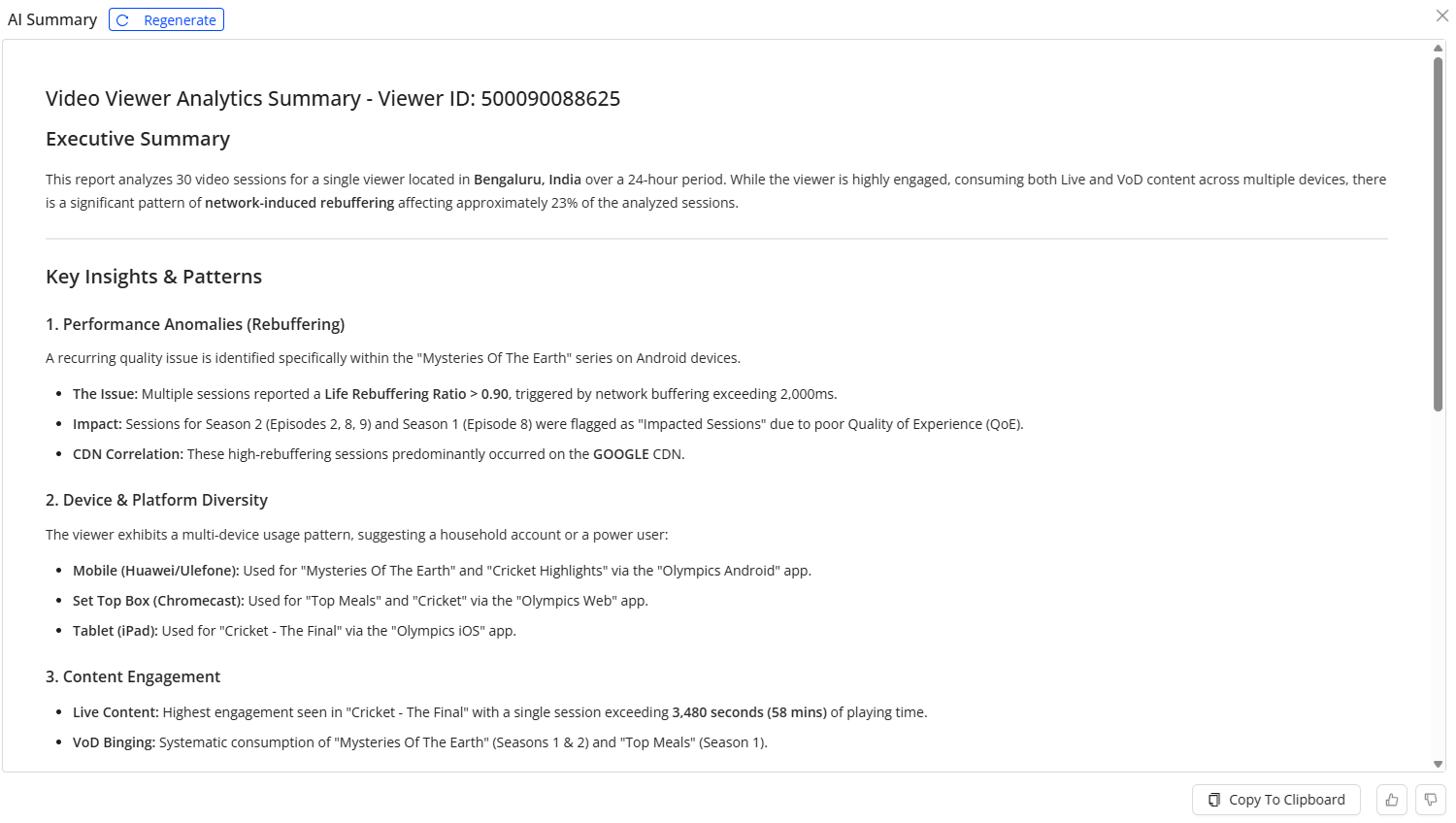
AI Summary generates a consolidated summary of all video sessions for a viewer ID or public IP address. It aggregates session-level performance and engagement data into a high-level overview of session behavior and performance. Analysis of the key metrics identifies patterns and deviations, and presents concise insights without requiring a review of each session. This shortens troubleshooting and supports decisions at the viewer or IP level. AI Summary follows existing data access controls and reporting, so summarized insights stay within the same access rules as the underlying sessions.
Session Data
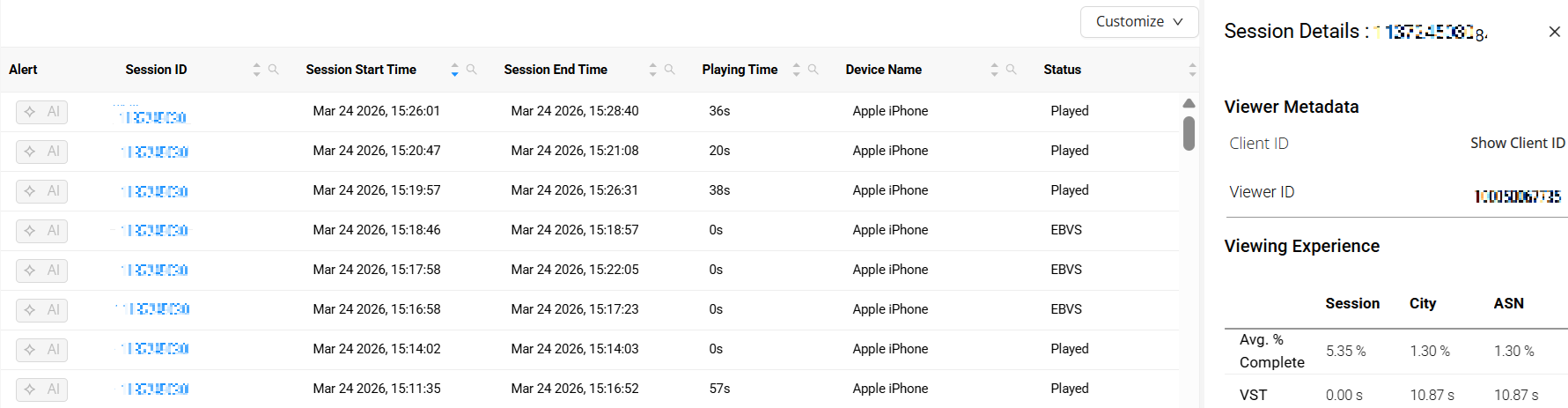
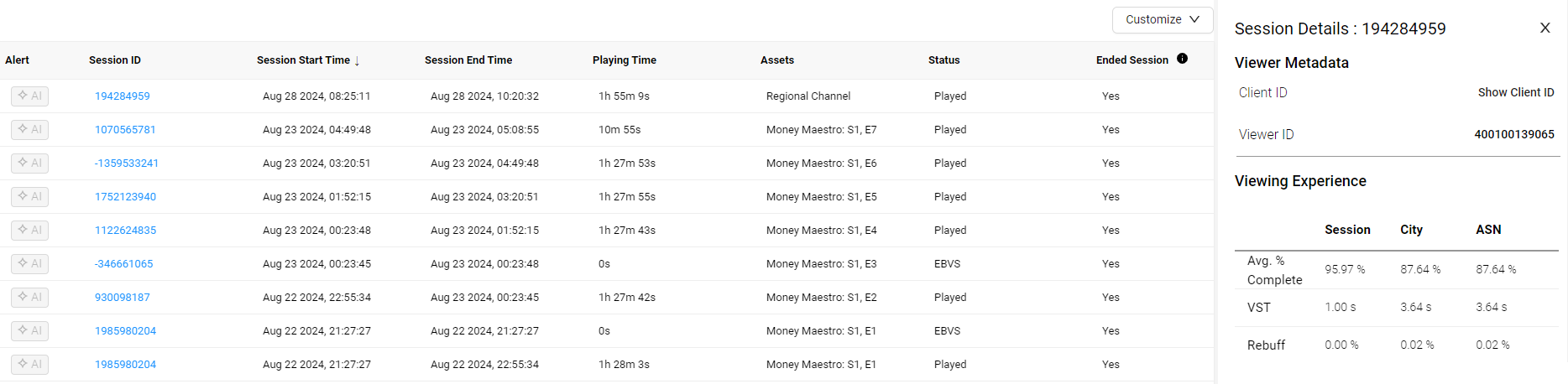
Session data describes the basic performance of each session. This example shows three sessions that played. Up to 49 sessions are displayed on a page.

Session Details
Click a session row to show or hide detailed performance data. Use the details to identify issues such as excessive rebuffering and video startup delays, and to see whether an issue is limited to the selected viewer or also appears for that viewer's city and ISP/ASN. If the issue is widespread, use alerts and dashboards to investigate the cause.
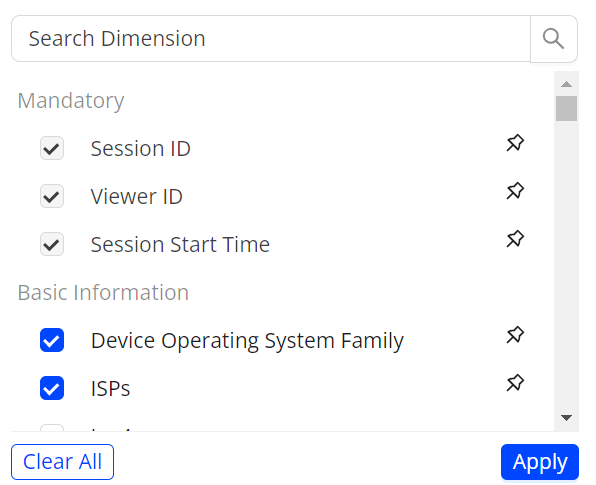
Click Customize to change the displayed metadata. Additional metadata is available for configured dimensions. Use the pin icon to keep a column at the start of the table.
Hover over a column name to sort the column or search for a specific value.
The following table summarizes the session-specific performance data that appears.
| Session Status | Displayed Performance Data |
|---|---|
| Played |
|
|
Video Start Failures Technical (VSF-T) Video Start Failures Business (VSF-B) |
|
| Exits Before Video Start (EBVS) |
|
|
Video Playback Failures Technical (VPF-T) Video Playback Failures Business (VPF-B) |
|
| Not Played |
|
All statuses (Played, VSF, EBVS, VPF, and Not Played) also display metadata:
- Content metadata: Stream URL,
isAd, Content Category, Asset Name - Location metadata: Location, ISP & ASN, IP address
- CDN metadata: CDN
- Device metadata: Device Name, Device Operating System, Device Manufacturer, Device Hardware Type, Device Operating System Version, Browser Name, Device Model, Device Operating System Family, Device Marketing Name
- Player metadata: Player Name, Player Framework Name, Player Framework Version
- Other metadata: tags configured and passed to the player during integration
For metric definitions, see the Metric Dictionary.
View the session tags in Session Details. The Advance Tags toggle shows more tags. The Other Metadata section shows the tags that are enabled as dimensions.
Save, Share, and Make Default
Click the kebab icon, then select Save, Share, or Make default.
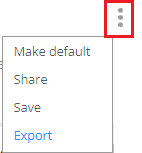
Export Session Data to a CSV File
Export the viewer's session details as a comma-separated values (.csv) file. Open the file in a spreadsheet or another analysis tool.
To export, click the kebab icon in the upper right, then click Export.
Device Validation
Device Validation checks that metadata set during integration is accurate. Accurate metadata is what Conviva uses to build filters for analysis.
For device validation of CDN, device metadata, custom tags, and metrics, see Device Validation using Viewer Module.