
Ended Status is a Conviva system dimension that records how each session ended, so you can separate sessions the player closed from sessions Conviva closed because heartbeats stopped arriving. It is available in Trends as a filter, a drill-down, and a group-by, and it appears as a field in the Viewer Timeline, Viewer Sessions, and the Viewer module.
Ended Status is a system dimension: it is available by default and is not created or counted in Dimension Management.
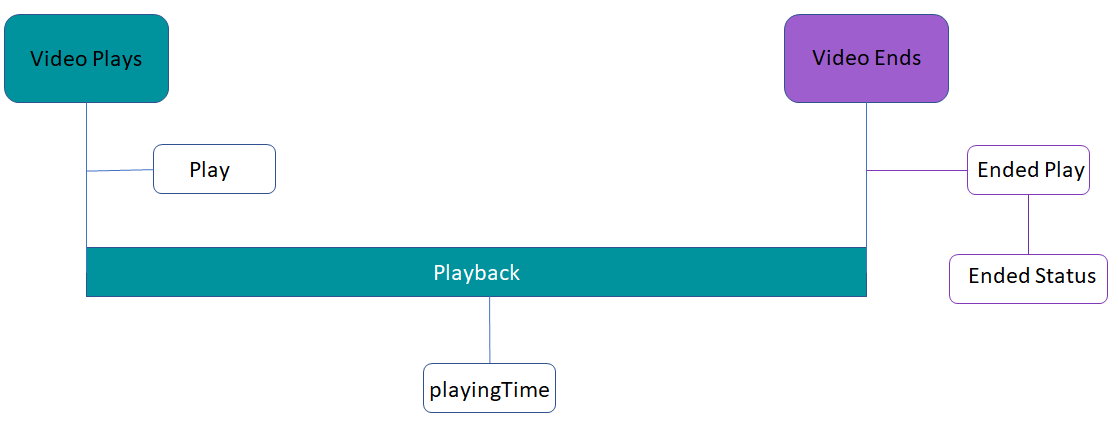
Ended Status is recorded when the session ends, alongside the Ended Play.
Ended Status Values New Sep 30, 2026
Ended Status takes one of three values. The readable label is what appears in dimension tables, Viewer Sessions, and exports.
| Value | Meaning |
|---|---|
| Graceful End | The player or Conviva Sensor explicitly reported that the session ended. This is the normal, expected termination. |
| By Expiration | No heartbeat arrived within the expiration window, so Conviva closed the session. The client stopped reporting — the app was backgrounded or killed, the device slept, or the network dropped. |
| Not Ended | The session is still active, or it was revived after a late heartbeat arrived. |
For the length of the expiration window and how Conviva treats a session that revives afterwards, see Session Expiration and Revived Session Handling.
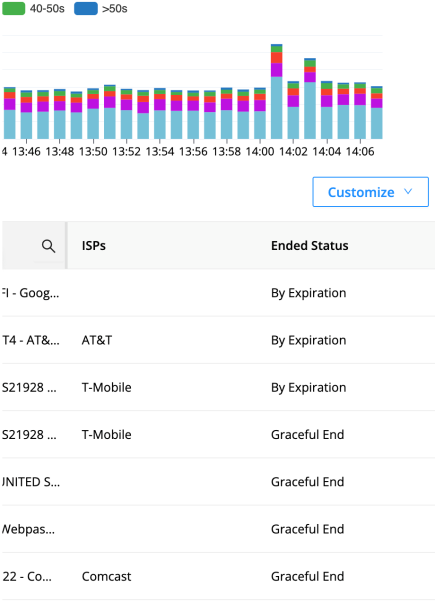
Ended Status shown per session in Viewer Sessions.
Using Ended Status in Trends New Sep 30, 2026
Ended Status is available in Trends with a Beta badge. It behaves like any other dimension: add it from the dimension selector popup, use it as a filter chip, open it as a dimension table, or combine it with other dimensions — for example, Exits Before Video Start (EBVS) by Device Type and Ended Status.
Expired sessions inflate EBVS and other exit-related metrics, because a client that stopped reporting looks the same as a viewer who left. Filtering on Ended Status tells the two apart: a rise concentrated in By Expiration points at app or player instability, while a rise in Graceful End is ordinary viewer behavior.
Example: top errors on expired sessions
To find which errors drive failures on sessions that Conviva closed:
- In Trends, click + in the filter bar and add Ended Status equals By Expiration.
- Select the Video Playback Failures Technical (VPF-T) metric chip and open the Technical Error Code dimension table.
- Read off which errors drive failures on expired sessions.
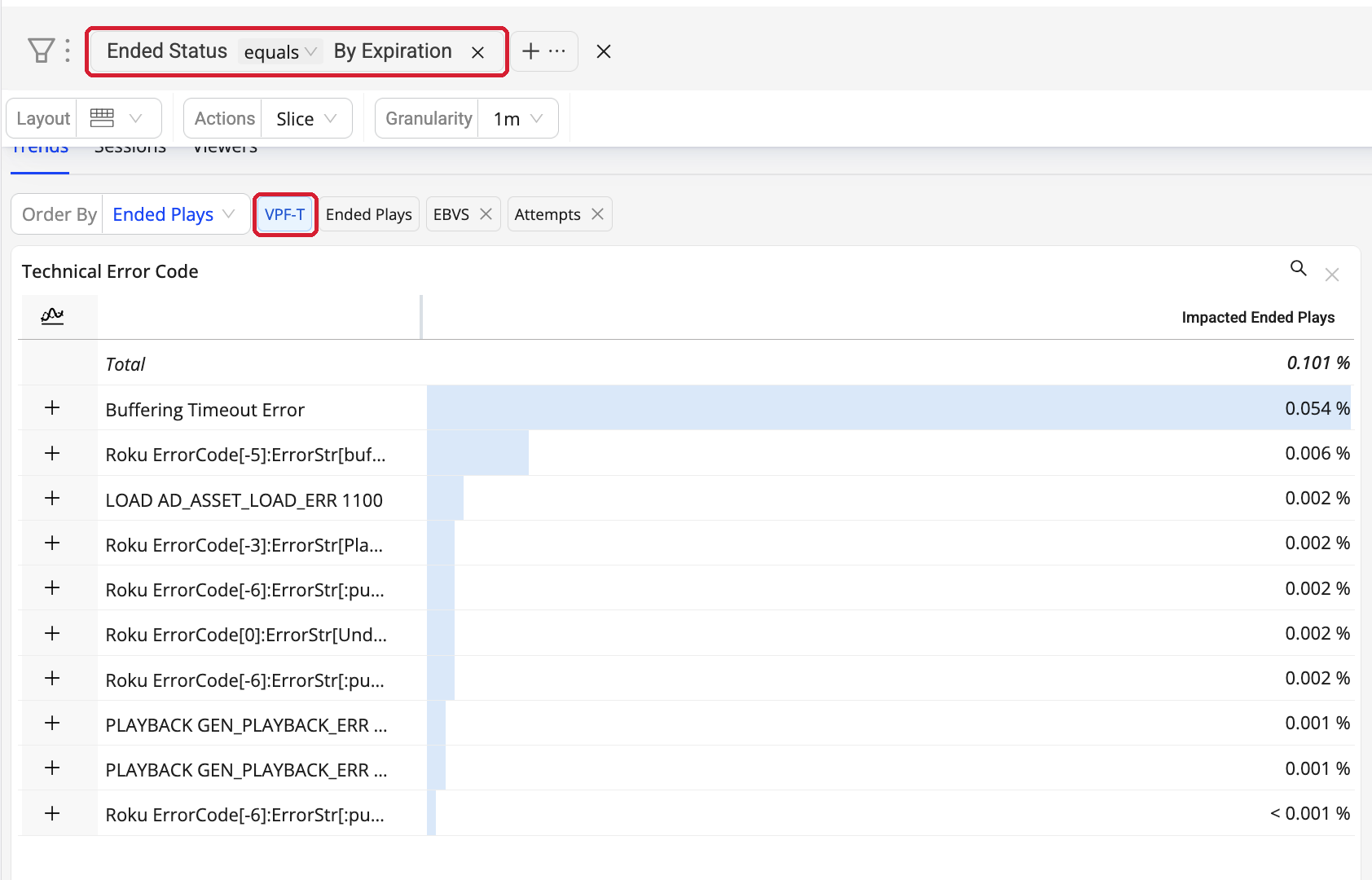
In this example, Buffering Timeout Error accounts for more than half of all impacted Ended Plays.
Related Details
| Details | Description |
|---|---|
| Dashboards and Presentation |
|
| Dimensions | Yes. Ended Status is a Conviva system dimension — it is available by default and does not need to be created in Dimension Management. |
| Diagnostics | N/A |
| Manual Alert Support | No |
| AI Alert Support | No |
| Metric Adjustment | None |
For the full list of dimensions and metrics, see Metrics.