
Prerequisites
Obtain your account's CUSTOMER_KEYs.**Conviva provides a test account and a production account for Test and Production environments, respectively. You can find your CUSTOMER_KEY here: Pulse - Account Info. Ask your Conviva representative for assistance if you have problems accessing it.
Pass the gatewayUrl parameter to init() method of Conviva SDK. The gatewayUrl is specific for your account and shall ONLY be used for tests, never for production deployment.
Sample gatewayUrl for Testing:
https://<*customer_key*>.ts-testonly.conviva.com
IMPORTANT: If there's any doubt on how to set the gateway URL, consult your Conviva representative - this is a critical parameter. For production, Conviva library uses the automatically-assigned gatewayUrl.
Use Touchstone 2.0 in Pulse to perform self-validation and debugging of video sensor integration
For Conviva JavaScript Sensor Integration, you can use any custom gateway URL with a proxy service setup. This is applicable for JavaScript version 4.7.13 onwards.
Plan your metadata
Conviva supports Pre-defined, Device, and Custom metadata. Work with your project team to determine the need to collect any custom metadata. It's also recommended to work with your Conviva representative to create your metadata plan prior to integration.
Integration Summary
Integration Summary
Download the library and add dependencies.
Update the Brightcove Studio player configuration with the CUSTOMER_KEY.
- Implement the metadata by following the instructions to use the pre-defined keys, as well as custom metadata, if applicable.
Implement the
Conviva.Analytics.reportAppBackgrounded()/Conviva.Analytics.reportAppForegrounded()methods to report background events.Implement the
Conviva.Analytics.reportAppEvent()method to report app events (user actions, user dialogue, etc).Report Network Metrics.
- No action required from application as Conviva Brightcove plugin handles cleanup of Conviva.
Test and Validate
Test your integration using Touchstone. Follow the instructions and tutorials at Self-Validation Use Cases Videos.
Be sure to replace your TEST CUSTOMER_KEY with the PRODUCTION key to go live with your application, and generate the session traffic to the following Touchstone gateway URL:
https://.ts-testonly.conviva.com Done! Analyse your data in Pulse and improve your viewer experience - let's make video experience better!
1. Install Conviva Library
Host the Conviva Libraries and Include the Plugin
|
Host the Conviva Libraries |
Download the libraries explicitly from Conviva GitHub and host them in a web server accessible over internet: |
||||||||
|---|---|---|---|---|---|---|---|---|---|
|
Plugin and Player Inclusions |
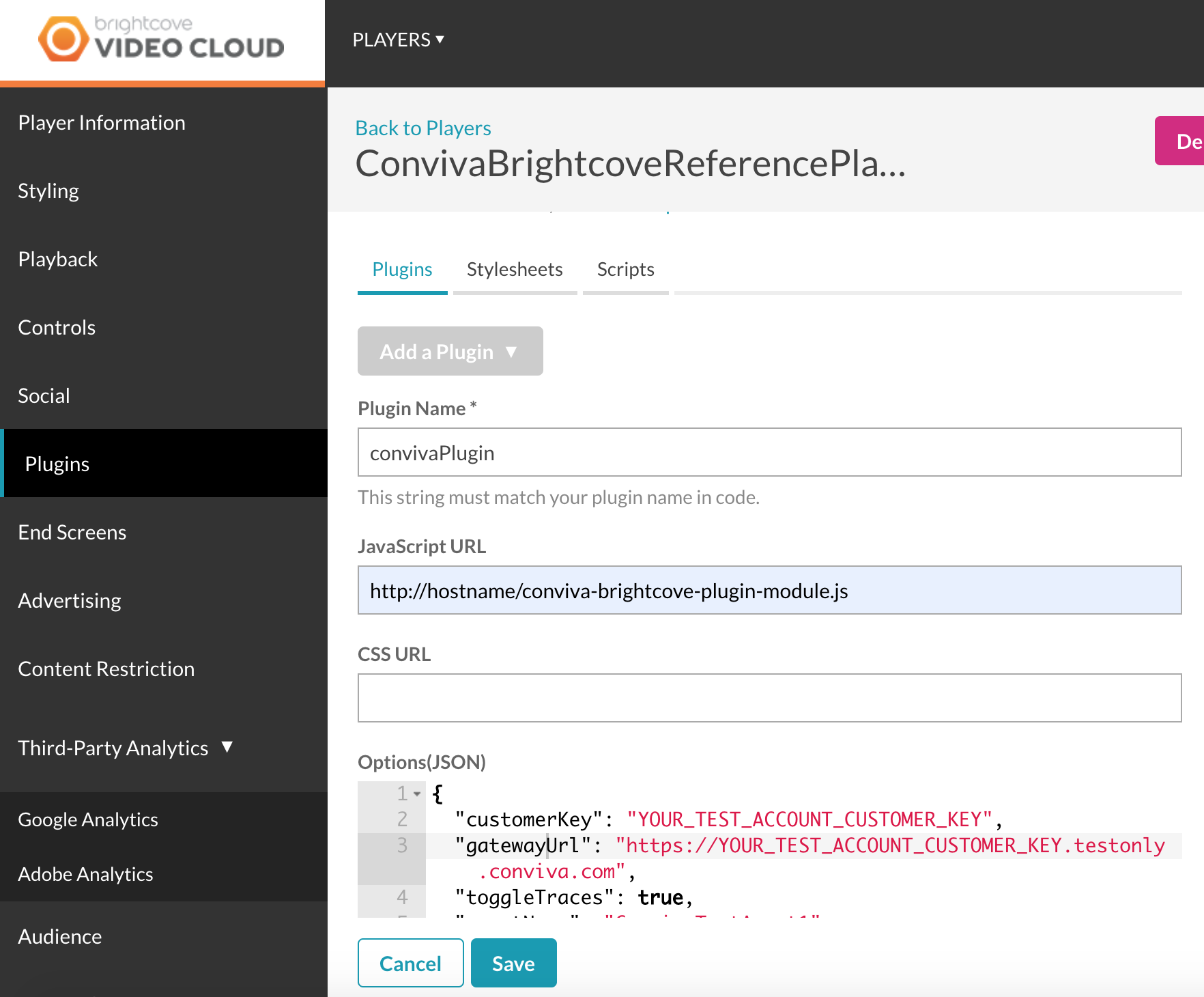
Please refer to the Brightcove Plugin development and use the Studio's Players plugin to edit the player you have already created.
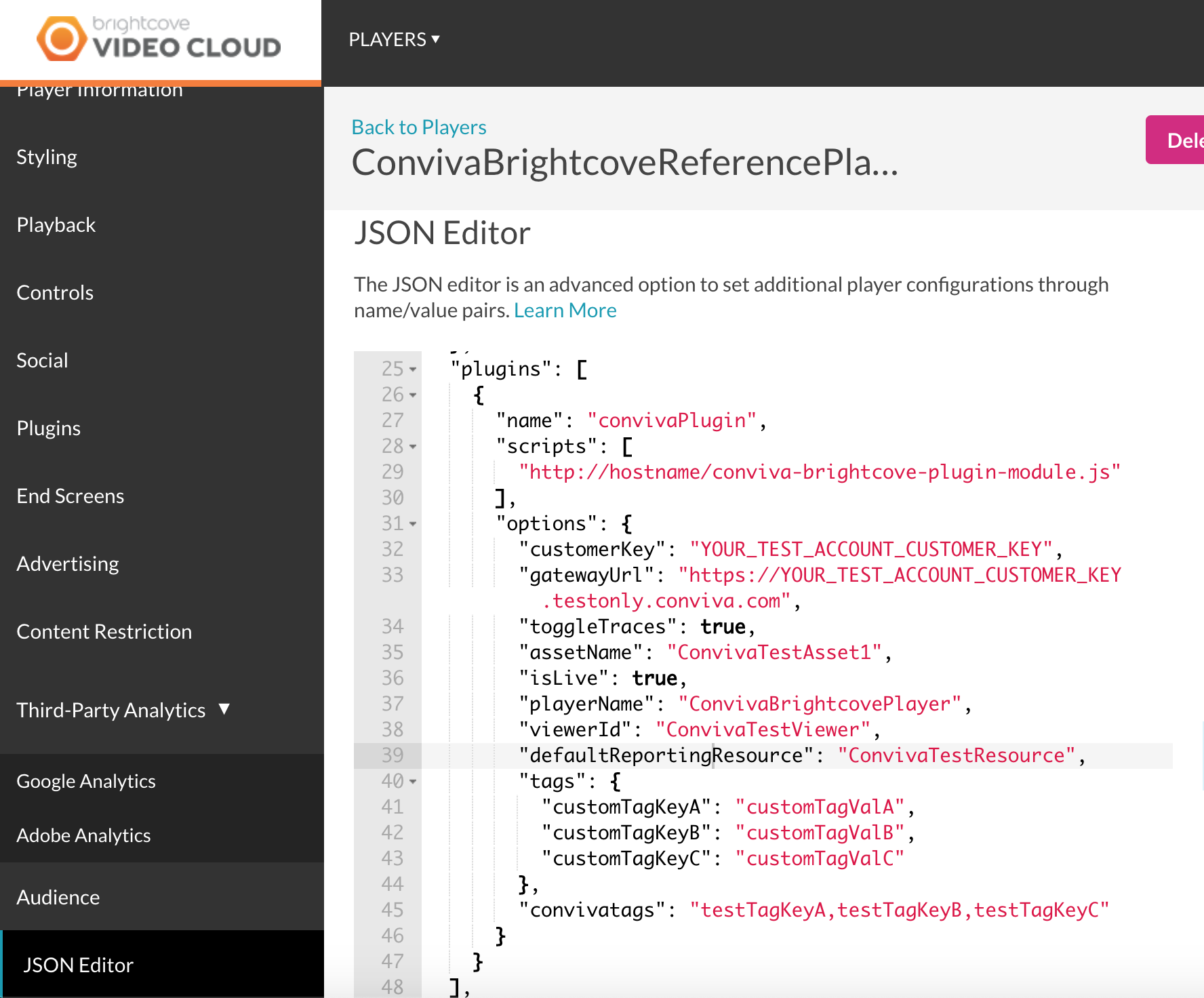
Parameters to be passed in the Options are:
IMPORTANT: No need to set Expected Errors Due to Dual Stack IPv4/v6 Network SupportExpected Errors Due to Dual Stack IPv4/v6 Network SupportWhen the Conviva SDK is initialized with production settings, the SDK sends a single request to the endpoints below:
Sending both requests enables correlation of IPv4 and IPv6 addresses in dual-stack networks. If only IPv4 or IPv6 addressing is used (single-stack networking), it is expected that one request will fail. All the following requests will be sent to the endpoint below which supports both IPv4 and IPv6:
|
Initialize the video object |
CONVIVA SDK relies on an instance of |
|---|
2. Configure Metadata
Metadata enables analysis of your data using different dimensions, for example, content, audience, device, workflow, player, and operating system.
Conviva categorizes metadata tags into three buckets (Predefined, Device, Custom).
Pre-defined Video Metadata
mediainfo and playlist objects. Please refer to the Brightcove mediainfo and playlist pages for more details.
If both mediainfo and playlist are unavailable, then the required metadata is fetched from the Brightcove Studio Plugin Options JSON.
Constants for Pre-defined Video Metadata
Constants for Pre-defined Video Metadata
| Key / Constant | Implementation Note |
|---|---|
| assetName | Autocollected from playlist, mediainfo or Studio's Options (JSON).
This is the asset name for a session. Configure depending on your metadata strategy.
Click to view the high level algorithm: |
| isLive | Autocollected using the mediainfo.duration or player.duration() or Studio's Options (JSON).
Click to view the high level algorithm: |
| playerName | Report using the Studio's Options (JSON). A string value used to distinguish video players (applications). Simple values that are unique across all of your integrated platforms work best here. Do not include the build or version number in this property. The intention is to have a simple way of differentiating data from different players. |
| viewerId | Autocollected from mediainfo, playlist or Studio's Options (JSON).
Required for Viewers plugin. A unique identifier to distinguish individual
viewers or devices through Conviva's Viewers plugin.
The value shall be unique abstract user's identifier. If user is anonymous, do
not set any value for this tag.
Click to view the high level algorithm: |
| streamUrl |
Autocollected using The manifest URL of the video stream.The Conviva backend config server attempts to map a portion of StreamURL into a CDN name. For example: In the URL The URL values reported in the streamURL are case insensitive. The streamURLs with either all capitals or all lower case are acceptable. |
| defaultReportingResource |
Report from For example, if the streamURL is The DEFAULT_Resource value is case sensitive. If the resource name is initially reported as AKAMAI (uppercase) and subsequently modified in the app to akamai (lowercase), it is necessary to inform Conviva about the change because both need to be mapped in the Conviva backend configuration server to ensure that both point to the same CDN name (AKAMAI).
Click to view the high level algorithm: |
| DURATION | Autocollected using the mediainfo.duration or player.duration().
Click to view the high level algorithm: |
| encodedFramerate | Autocollected from mediainfo, playlist or Studio's Options (JSON).
Encoded frame rate of the video stream in frames per second.
Click to view the high level algorithm: |
| FRAMEWORK_NAME | Autocollected as "BrightcovePlayer". |
| FRAMEWORK_VERSION | Autocollected using bc.VERSION or videojs.VERSION based on availability of API. |
| "c3.app.version" | Report the application build version using the Studio's Options (JSON) tags field. |
Device Metadata Instructions
Device Metadata monitored by Conviva Brightcove plugin (if applicable):
Custom Metadata
Refer to App Manager->Setup Metadata page for your account to find the custom tags which shall be implemented.
Please refer to the Brightcove player page that explains how to create and set custom fields.
We use tags and convivatags to create custom tags. You can use both methods to fit your needs and create custom tags for your sessions.
tags:
To add custom tags, add it as part of Options in the plugin configuration as shown below. Each key-value pair is sent as a custom tag.
"tags": {
"customTagKeyC": "customTagValC",
"customTagKeyB": "customTagValB",
"customTagKeyA": "customTagValA"
}
convivatags:
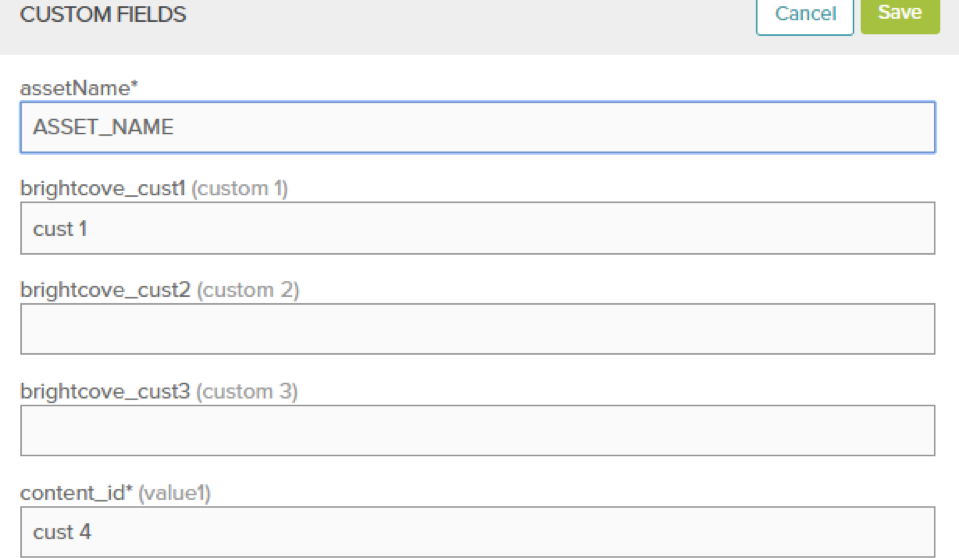
Use it to represent custom tags for each asset. Depending on the current video, this helps specify tags dynamically. All the keys are specified as comma-separated string. Conviva plugin detects the value corresponding to those fields in the custom_fields specific for an asset.
"convivatags": "test_tag_key_a,test_tag_key_b,test_tag_key_c,c3_cm_contenttype"
In the example above, we look for values of test_tag_key_a, test_tag_key_b, test_tag_key_c, and c3_cm_contenttype in the custom fields for the asset, and then send those key-value pairs as custom tags.
Conviva Plugin looks for the Internal Key to get the corresponding value from custom_fields. This value is then internally mapped to Display Name to show as custom tags.
Use the Internal Key to set the pre-defined content metadata.
IMPORTANT: To assign content category labels, such as Audio, Trailer, Tile Play, or Short Video, use the c3.cm.categoryType pre-defined content metadata constant.
| Display Name | Internal Key | Type | Description |
|---|---|---|---|
| "c3.cm.contentType" | "c3_cm_contenttype" | string | Advanced content delivery methods along with Live and VOD. Acceptable values: "Live", "Live-Linear", "DVR", "Catchup", "VOD". |
| "c3.cm.channel" | "c3_cm_channel" | string | The channel on which the content is consumed.
Example: "ABC". |
| "c3.cm.brand" | "c3_cm_brand" | string | The name of the brand to which the content belongs.
Examples: "ABC X", "ABC Y". |
| "c3.cm.affiliate" | "c3_cm_affiliate" | string | Affiliate or MVPD name for TV Everywhere authenticated services.
Examples: "Xfinity", "Comcast". |
| "c3.cm.categoryType" | "c3_cm_categorytype" | string |
Content business categories of interest. Use this constant to assign content category labels, such as Audio, Trailer, Tile Play, or Short Video. Examples: "Episodic", "Movies", "News", "Sports", "Events", "Informercials", "Shorts", "Promos", "Audio", "Tile Play", "Short Videos", "Trailer". |
| "c3.cm.name" | "c3_cm_name" | string | Name of CMS Provider.
Examples: "CMS", "ROVI", "TMS". |
| "c3.cm.id" | "c3_cm_id" | string | Unique asset identifier to query CMS system to gather additional asset metadata information for a specific asset.
Example: "003b094d-fc5c-3d5a-8ed0-301bf848291e". |
| "c3.cm.seriesName" | "c3_cm_seriesname" | string | The name of Series. Set the value only if the metadata cannot be gathered from CMS System. Null if not applicable.
Examples: "Friends", "Null". |
| "c3.cm.seasonNumber" | "c3_cm_seasonnumber" | string | The Season number. Set the value only if the details cannot be inferred from Asset Provider Server. Null if not applicable.
Examples: "1", "Null". |
| "c3.cm.showTitle" | "c3_cm_showtitle" | string | The name of the Episode or Show Title. Set the value only if the details cannot be inferred from Asset Provider Server. Null if not applicable.
Examples: "The One with All the Cheesecakes", "Null". |
| "c3.cm.episodeNumber" | "c3_cm_episodenumber" | string | The Episode number. Set the value only if the details cannot be inferred from Asset Provider Server. Null if not applicable.
Examples: "3", "Null". |
| "c3.cm.genre" | "c3_cm_genre" | string | The Primary content genre. Set the value only if the details cannot be inferred from Asset Provider Server. Null if not applicable.
Examples: "Drama", "Null". |
| "c3.cm.genreList" | "c3_cm_genrelist" | string | The list of the applicable content genre. Set the values in a comma separated list only if the details cannot be inferred from Asset Provider Server. Null if not applicable.
Examples: "Drama, Crime, Political, Violence", "Null" |
| "c3.cm.utmTrackingUrl" | "c3_cm_utmtrackingurl" | string | Provide the UTM parameters in the URL to track the effectiveness of the online marketing campaign across traffic sources and publishing media. Conviva uses CONTAINS logic to parse the individual UTM parameters from the URL provided, so either the full URL or just the UTM parameters is acceptable.
Example values: This tag is only applicable for web and mobile devices. |
mediaInfo:
mediainfo is fetched for every content video information present, and varies with each content. To view and change it, navigate to the media page and click the Edit button in the Video Information section.
By clicking the Edit button, you can make changes and save them. In this window you can also edit and change the custom_fields:
playlist:
If mediainfo is unavailable, then the Conviva library retrieves information like the assetName, videoId and custom_fields from the playlist object.
Note: If mediainfo and playlist are not present, the Conviva library sets the assetName, custom_fields and tags from the options in the plugin.
This sample code shows how to add a playlist using playlist id in video cloud:
<video
id="myPlayerID"
data-playlist-id="5235575980001"
data-account="3895904659001"
data-player="HJfCx9w7Z"
data-embed="default"
data-application-id
class="video-js"
controls
width="300"
height="150"></video>

<script src= "http://players.brightcove.net/3895904659001/HJfCx9w7Z_default/index.min.js"></script>
<script type="text/javascript">
videojs('myPlayerID').ready(function () {
var myPlayer = this;
});
</script>
Update/Amend Metadata
Metadata cannot be amended in Conviva Brightcove plugin and all the metadata are automatically collected by Conviva Brightcove plugin.
Ad Events and Metadata
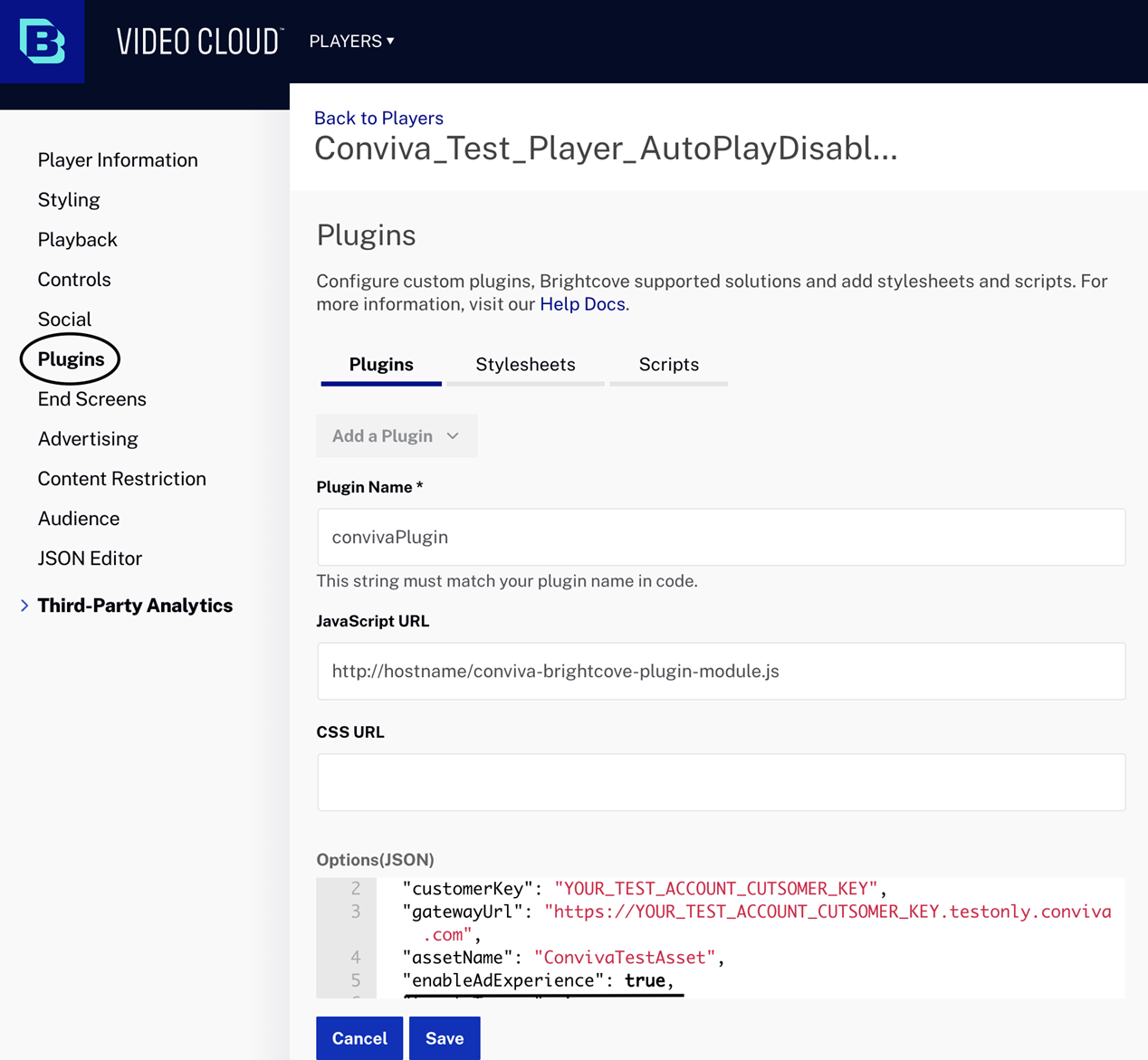
Conviva Brightcove plugin automatically detects ad events and handles them accordingly if your application has ads. To enable this feature, the enableAdExperience setting is passed to the Conviva plugin using Options (JSON) and set to true.
Report Ad Break
Conviva Brightcove Plugin automatically detects ad break events and handles them accordingly.
3. Report Events and Metadata
4. Handle User Actions
Handle specific user actions such as app backgrounding / foregrounding by using the corresponding API as prescribed on the corresponding pages.
Use the corresponding API as prescribed on the corresponding pages.
Use the corresponding API as prescribed on the corresponding pages.
User Actions: Backgrounding
|
Handle backgrounding event (e.g., "home"/"power off" buttons) |
|
|---|---|
|
On foregrounding |
|
Data Collection and User Preferences
Data Collection and User Preferences
By default, Conviva collects a set of data for better user analytics. However, the appropriate legal agreement with Conviva is required in order for Conviva to begin collecting data that would be considered PII, personal information, personal data or the like under applicable data privacy laws such as the General Data Protection Regulation (GDPR) and the California Consumer Privacy Act (CCPA). Further below in this document, there is a description of the user-preference APIs that control data collection, including opt-out and deletion of data, in compliance with data privacy laws. These APIs are in addition to existing, offline processes for opt-out and data deletion requests.
This document describes the identifiers that the libraries are capable of collecting, however actual collection of identifiers is contingent upon the customer's legal department providing written instructions to Conviva to begin collection. At the discretion of the customer's legal department, some or all of these identifiers may be collected. Conviva provides this flexibility to allow the customer to determine the precise identifiers to be collected.
Send unique identifier's data such as unique identifier for a device or user, for example deviceId, Mac
address, advertisingIdentifier, and other identifiers,
use the Conviva.Analytics.setUniqueIdentifier(/* object / identifiers, / function */ callback=):
identifiers:JSON object with key value pairs of identifiers and values.callback:Optional callback function that needs to be notified if the identifiers were honored or collected by Conviva.
Below mentioned are the sample result messages from Conviva:
"Data collection successful"
"End-user chose to opt-out of personal data collection"
"End-user used privacy settings and chose to opt-out of personal data collection"
Refer to the sample code mentioned below:
var identifiers = {};
identifiers["androidId"] = "xyzabd123cvqn";
Conviva.Analytics.setUniqueIdentifier(identifiers, function (msg) {
console.log("Result of the setUniqueIdentifier API:" + msg);
});
Control the data collection, set the user preference to collect or stop collecting PII data items
using Conviva.Analytics.setUserPreferenceForDataCollection(/* object / identifiers, / boolean
*/forAllApps):
identifiers:stringkey/value pair, where key indicates a probable data name and value is false/true. A value of false causes the SDK to stop collecting that specific data item.forAllApps:booleanvalue indicates if the preference applies to current app or all apps on the device. A value of true indicates all apps; false indicates only the current app.
Refer to the sample code mentioned below:
var identifiers = {};
identifiers["androidId"] = "false";
Conviva.Analytics.setUserPreferenceForDataCollection(identifiers, false);
Set the user preference to delete and stop collecting specific data items using Conviva.Analytics.setUserPreferenceForDataDeletion(/* object */ identifiers):
identifiers:stringkey/value pair, where key indicates a probable data name and value is false/true. A value of false causes the SDK to stop collecting that specific data item.
Refer to the sample code mentioned below:
var identifiers = {};
identifiers["androidId"] = "true";
Conviva.Analytics.setUserPreferenceForDataCollection(identifiers);
5. Report Network Metrics
Report Network Metrics
Metrics like connection type which is common for all the concurrent playback within one Analytics instance can be reported.
Conviva.Analytics.reportDeviceMetric(/* Conviva.Constants.Network / metricKey, / string */ metricValue):
metricKey:Conviva.Constants.Networktype key for reporting Network Metrics.metricValue: Value of the reported network metric.
Refer to the sample code mentioned below:
Conviva.Analytics.reportDeviceMetric(Conviva.Constants.Network.CONNECTION_TYPE, "WiFi");
The table below shows the representation string values for setting connection type:
| Internet Connection Type | Representation String |
|---|---|
| Wireless | WiFi |
| Wired | Ethernet |
| Cellular 2G | 2G |
| Cellular 3G | 3G |
| Cellular 4G | 4G |
| Other/Unknown | OTHER |
6. Report Custom Events
Player Insight is an advanced feature which allows you to track custom events that are not related to video rendering, but rather specific to your player's functionality. These events and their attributes are then tabulated in the Player Insight dashboard at Conviva SEI (Pulse). Contact your Conviva representative to enable Player Insights in Pulse.
You may send a custom Player Insight event that can be associated with a video playback using the following method:
Report app-level events by the method Conviva.Analytics.reportAppEvent(/* string / eventType, / object */ eventDetail=):
eventType: Mandatory argument of event type of the app event ofstringtype.eventDetail: Optional argument of event details of the app event ofobjecttype.
|
Report app-level events |
|
|---|
7. Clean Up Session
Conviva Brightcove plugin automatically handles the cleanup of Conviva.
If none of the ended, abort, dispose events are triggered, the clients need to handle the player exit scenario to ensure one of these events are getting triggered. Alternatively, clients can manually end the Conviva session by calling the ConvivaVideoAnalytics.reportPlaybackEnded() method.
Limitations
Known Brightcove Plugin limitations:
| Metric Name | Impact | Conditions | Issue |
|---|---|---|---|
| Audio, Subtitles, or Closed Captions Language | Incorrectly reported | For HLS in Safari | The player is not reporting the track type (subtitle or closed caption) as the same as in the HLS manifest file. |
| DASH protocol for other browsers | If DASH protocol has only lang attribute mentioned in the manifest file, then both lang and label attributes report the same value.
|
||
By default, the Brightcove player auto-collects the lang value as *main* if the lang and label attributes are missing in the DASH manifest file. |
|||
| Not Supported | DASH Protocol with embedded webvtt content | Only supports subtitles of type webvtt that are not embedded with video. | |
| DASH Protocol with TTML content | Doesn't support subtitles and closed captions of type TTML. | ||
| Peak Bitrate | Inaccurate | HLS on Safari | Brightcove Player relies on the Safari native engine to fetch bitrate, which does not report the audio bitrate for HLS content, and provides the bitrate switch information when the segments are downloaded rather than streamed. |
| Under-reported | For HLS Demux | Audio bitrate information is not available using player.tech(true).vhs or player.tech(true).hls APIs. |
|
| Average % Complete | Under-reported | Player state is PAUSED
Content is available in cache
Toggle Play Pause within ~400ms |
Conviva reports only PAUSED state.
Conviva Brightcove Plugin infers the PLAYING state based on the play head position poll logic, which takes ~400ms to identify the player state. |
| Connection Induced Rebuffering (CIRR) | Under-reported | Mid Stream Low Bandwidth | Brightcove Player reports extra seek event while playing the content intermittently during buffering. |
| Under-reported | Manually change video quality | Brightcove Player reports extra seek event when video quality is changed from player settings. | |
| Exits Before Video Start (EBVS) | Over-reported | Low Bandwidth
Skipping to the next item in the playlist after the current one reports PLAYER_TIMEOUT |
Brightcove Player does not report the error event for the next item. |
| Over-reported | Mid Stream Failure
Skipping to the next item in the playlist after the current one reports PLAYER_TIMEOUT |
Brightcove Player does not report the error event for the next item. | |
| Minutes Ended Play | Under-reported | Player state is PAUSED
Content is available in cache Toggle Play Pause within ~400ms |
Conviva reports only PAUSED state.
Conviva Brightcove Plugin infers the PLAYING state based on the play head position poll logic, which takes ~400ms to identify the player state. |
| Minutes Unique Device | Under-reported | Player state is PAUSED
Content is available in cache Toggle Play Pause within ~400ms |
Conviva reports only PAUSED state.
Conviva Brightcove Plugin infers the PLAYING state based on the play head position poll logic, which takes ~400ms to identify the player state. |
| Play Head Time | Incorrectly reported | Player Seek | Conviva Brightcove Plugin reports the seek to position in the play head time instead of seek started. |
| Tag: has_ads_requested | Under-reported | Player with ads | Brightcove Player is unable to send the ads-request in case of playlist items intermittently. |
| Total Minutes | Under-reported | Player state is PAUSED
Content is available in cache Toggle Play Pause within ~400ms |
Conviva reports only PAUSED state.
Conviva Brightcove Plugin infers the PLAYING state based on the play head position poll logic, which takes ~400ms to identify the player state. |
| Video Restart Time (VRT) | Under-reported | MS Edge and Seek | During user seek, by dragging or clicking any position, player reports multiple seek events and intermittent PLAY state. |
| Over-reported | Chrome and system sleeps | Player reports seek events resulting into reporting buffering related to seek. | |
| Over-reported | Mid Stream Low Bandwidth | Brightcove Player reports extra seek event while playing the content intermittently during buffering. | |
| Video Start Failures (VSF) | Under-reported | Low Bandwidth
Skipping to the next item in the playlist after the current one reports PLAYER_TIMEOUT |
Brightcove Player does not report the error event for the next item. |
| Under-reported | Mid Stream Failure
Skipping to the next item in the playlist after the current one reports PLAYER_TIMEOUT |
Brightcove Player does not report the error event for the next item. | |
| Viewer Hours | Under-reported | Player state is PAUSED
Content is available in cache Toggle Play Pause within ~400ms |
Conviva reports only PAUSED state.
Conviva Brightcove Plugin infers the PLAYING state based on the play head position poll logic, which takes ~400ms to identify the player state. |
| All Conviva Metrics | Not reported | MPEG DASH on Mac/iOS Safari | MPEG DASH playback is not supported on Brightcove and Mac/iOS Safari, therefore no Conviva metrics can be collected. |
| Inaccurate | Preroll, Midroll, and Postroll Ads
Skipping the playlist item after the end of Midroll |
Brightcove Player starts playing the Postroll ad of the current item and the main content of the next item simultaneously without playing the Preroll ad.
Conviva recommends not to have Postroll ads until the issue is fixed by Brightcove. |
|
| Inaccurate |
Muxed Content on Mac Safari Mid Stream Low Bandwidth |
Brightcove player reports a false PLAYING state intermittently followed by an increment of playhead position even though the playback is stalled. The Conviva Brightcove Plugin infers the PLAYING state based on the playhead position poll logic instead of buffering. |
|
| Not reported | VPAID Linear 2.0 ads are unreachable | Playback is halted upon starting the playback. Google IMA does not report the error nor starts the playback. | |
| Ad Start Failure (ASF) | Over-reported | Auto Start Enabled
Auto Advance enabled Do not Preload Preroll Ads Player type playlist Ads are unreachable |
Duplicate 'ads-request' and 'adserror' events are triggered for non-first playlist items. |
| Under-reported | VPAID Linear 2.0 ads are unreachable | Playback is halted upon starting the playback. Google IMA does not report the error nor starts the playback. | |
| Over-reported | Mid-roll ads are unreachable
Ads metadata is loaded |
Duplicate ima3-log error events are triggered for mid-roll ads. | |
| Under-reported | Low Bandwidth
Previous playlist item throws the timeout error |
Error event is not triggered for the current playlist item. | |
| Attempts | Over-reported |
iOS Safari Preroll, Midroll, or Postroll Ads integrated in Player Version 6.60.0 onwards |
‘Abort’ event is reported at the end of each ad. |
| Metadata Name | Impact | Conditions | Issue |
|---|---|---|---|
| Device Manufacturer | Not Autocollected | Desktop Browsers: - Windows 7 - Windows 10 - Linux | The Conviva library autocollects this information from the User Agent String and cannot infer this metadata for desktop browsers. |
| Device Marketing Name | Not Autocollected | Desktop Browsers: - Windows 7 - Windows 10 - Linux - Mac | The Conviva library autocollects this information from the User Agent String and cannot infer this metadata for desktop browsers. |
| Device OS Version | Not Autocollected | Desktop Browsers: - Windows 7 - Windows 10 - Linux | The Conviva library autocollects this information from the User Agent String and cannot infer this metadata for desktop browsers. |
8. Self Validation
Upon completion of your integration, perform self-validation to ensure metric and metadata accuracy. The self-validation guide with test cases and video tutorials is available here.