Device validation lets you test and verify the accuracy of metadata set during integration. Accurate metadata is essential for successful integration, since Conviva uses the metadata you pass to create filters for data analysis.
This section explains how to validate CDN, device metadata, custom tags, and metrics using the Viewer Module.
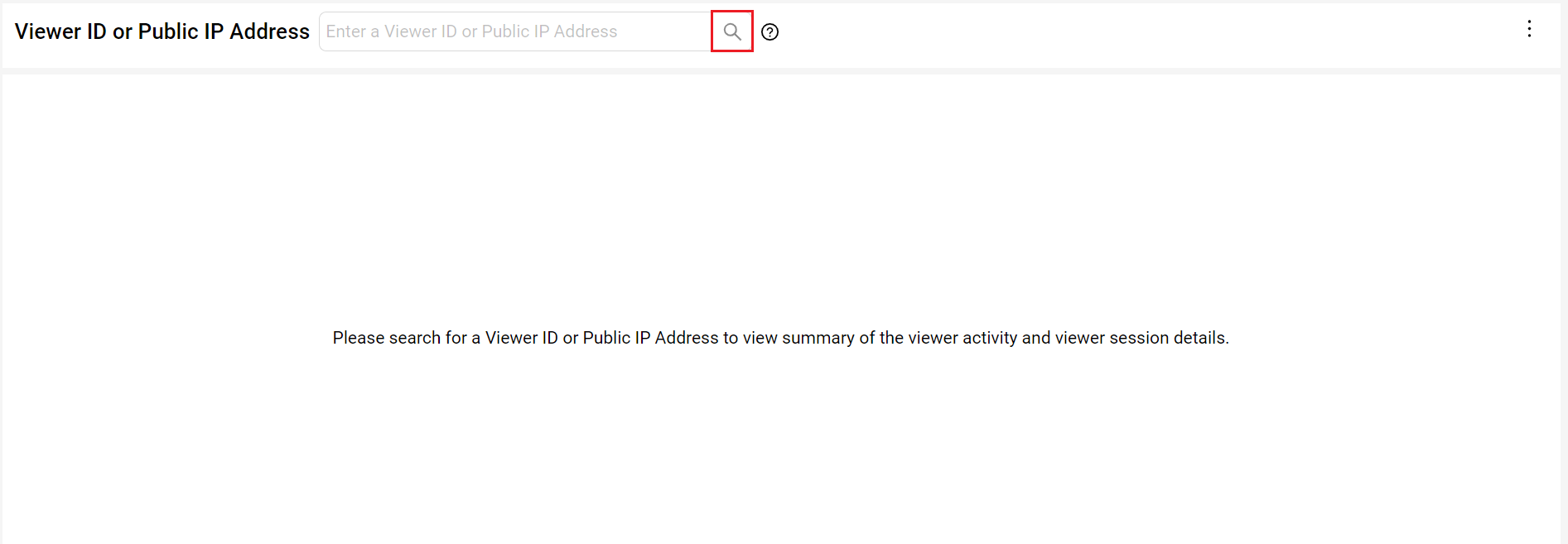
In the navigation pane, click Viewers to see the Viewer Module page.
Enter the Viewer ID or Public IP Address in the search bar and click the search icon.
Verifying Content Delivery Network (CDN)
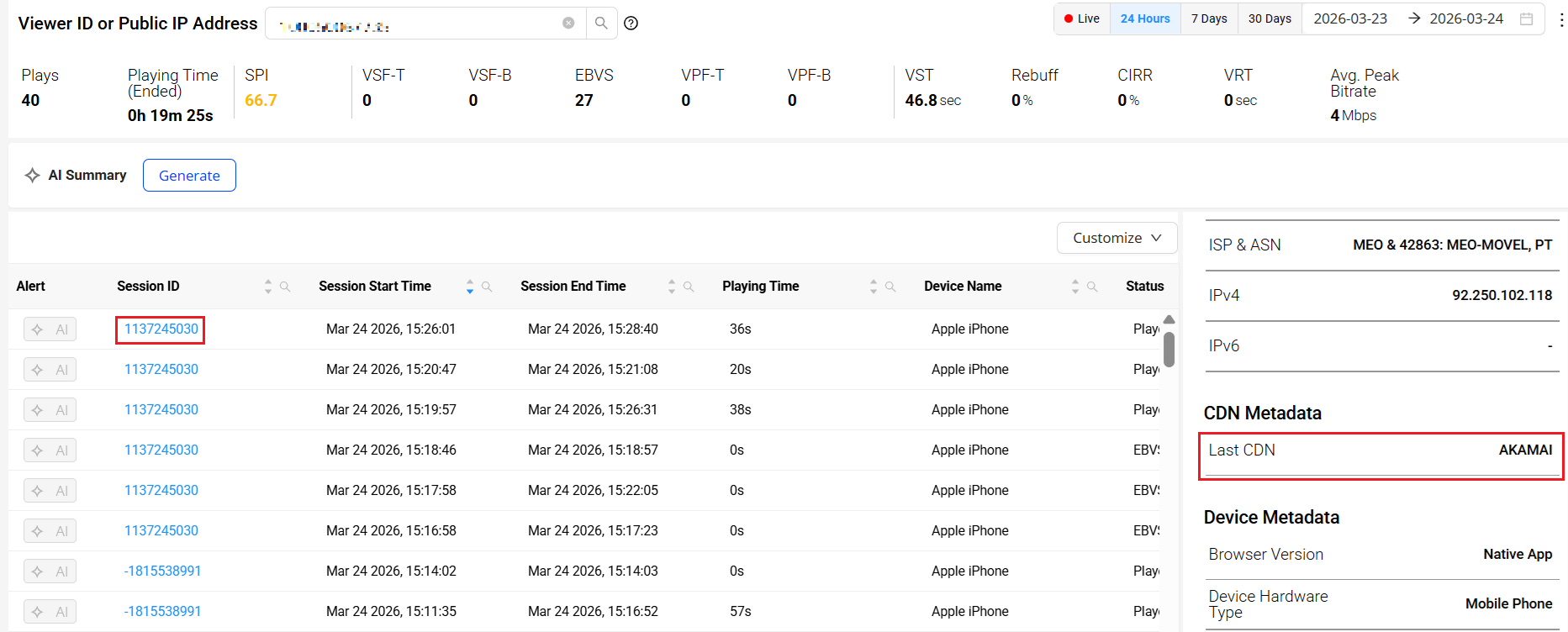
On the Viewer Module page after searching, click any column adjacent to the Session ID to see the Session Details.
Scroll down to the CDN Metadata section in the session details to view the Last CDN value.
Click to expand the image.
Verifying Device Metadata
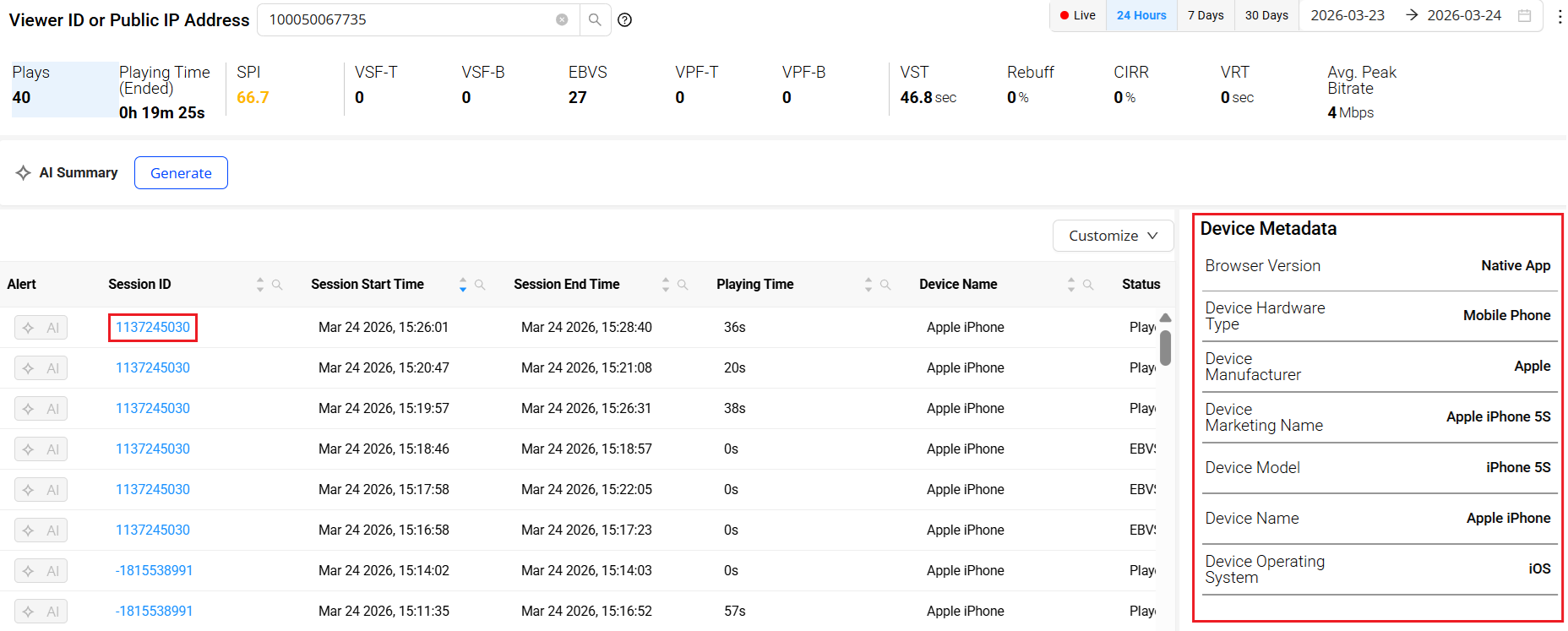
Click any column adjacent to the Session ID to see the Session Details.
Scroll down to the Device Metadata section in the session details.
Click to expand the image.
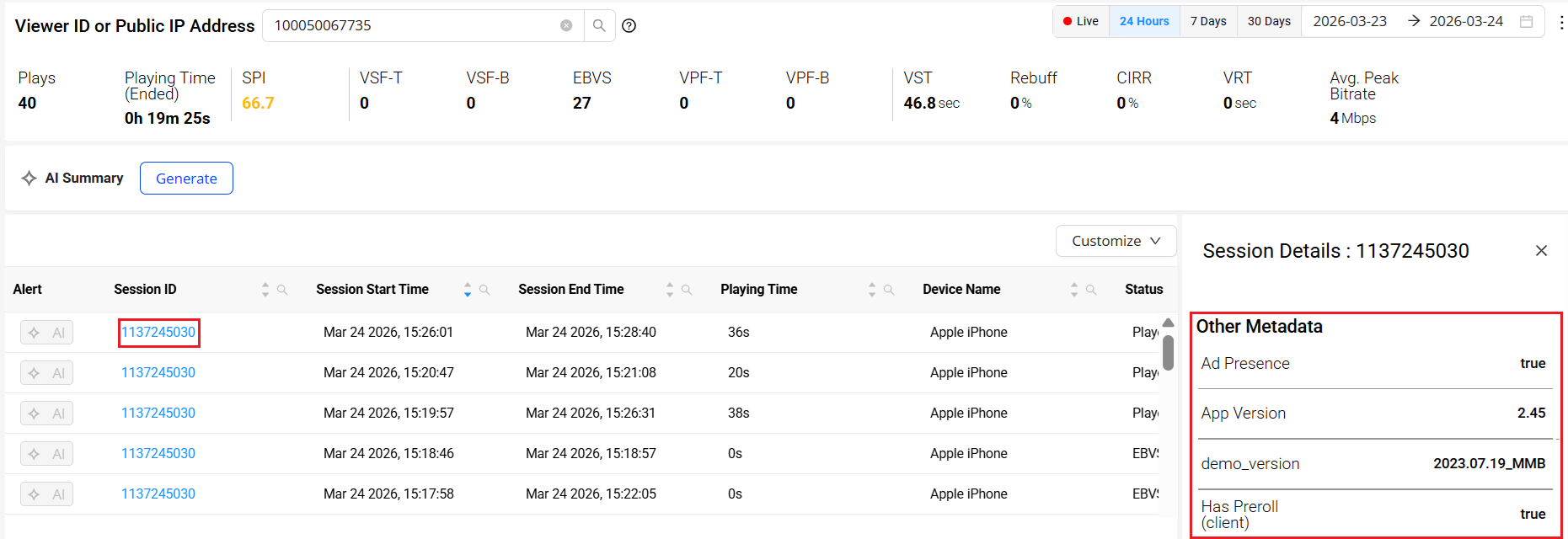
Verifying Custom Tags
Click any column adjacent to the Session ID to see the Session Details.
Scroll down to the Other Metadata section in the session details to see the custom tag values.
Click to expand the image.
Verifying Metrics
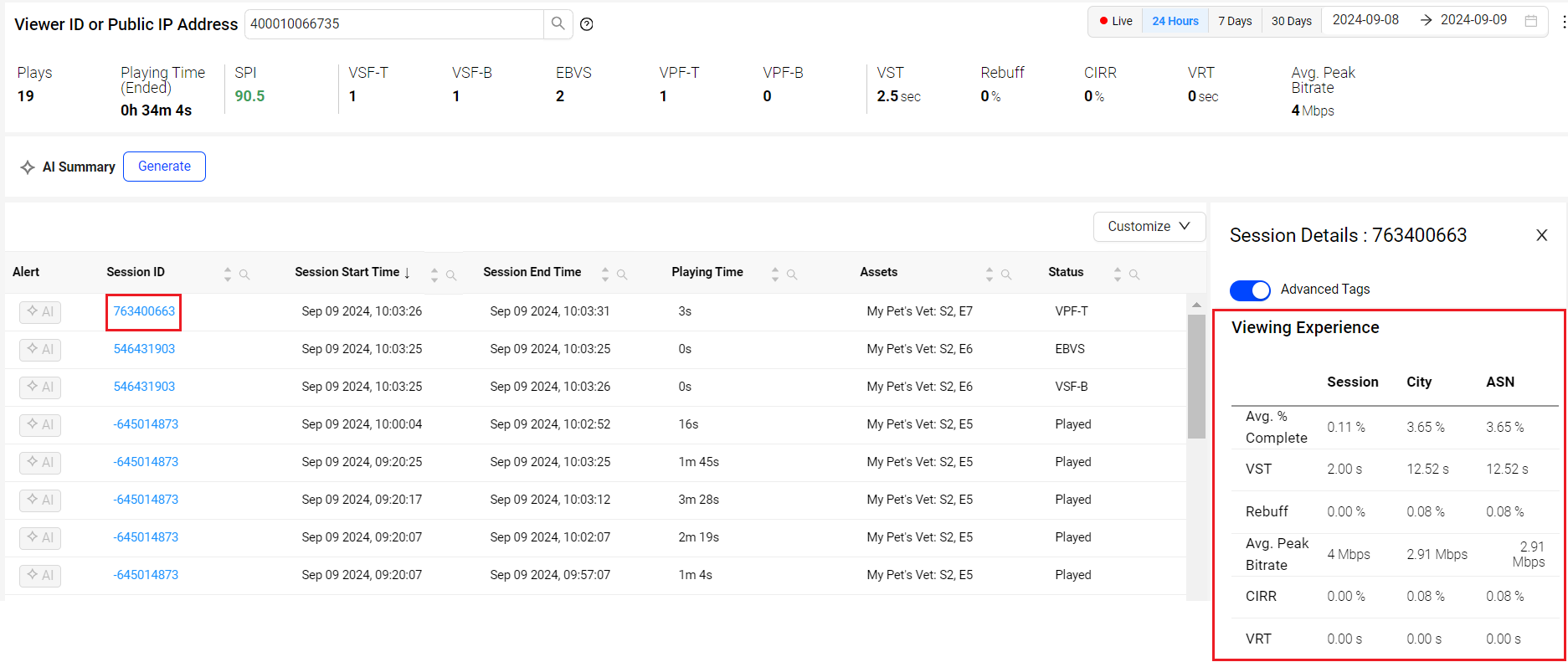
Click any column adjacent to the Session ID to see the Session Details.
Scroll down to the Viewing Experience section in the session details to see the metric details.
Click to expand the image.