Conviva Web (JavaScript) Sensor Integration

Explains how to install and integrate the Conviva Web (JavaScript) sensor to collect video streaming experience data.

Updated 2026-08-03 javascript, stream, sensor, sensor developer center, sensor integration
This documentation is for JS SDK 4.0.3 and above. If you are using the legacy SDK, we highly recommend you upgrade to the new SDK below. To migrate from the legacy SDK to the new SDK, refer to the migration API mapping document here and a summary of the migration benefits here.

Conviva DPI Web (JavaScript) Sensor

Conviva Web (JavaScript) Sensor SDK Integrations

Web (JavaScript) Integration Instructions

Low-code integration of Conviva DPI sensor enables automatic and semantic-less data collection, and tracks application specific events and state changes.

Integrate the Conviva DPI Web (JavaScript) SDK into the Web application. Use NPM-based SDK integration for React/Angular, and Script-based SDK integration for legacy or lightweight environments.

Integration Methods

  • AI-Assisted (Beta): Use a prompt to instruct AI coding assistants, such as Cursor, Claude, or GitHub Copilot to automatically integrate the SDK, without requiring human guidance beyond initial inputs.**Prompt for NPM-based Integration
Integrate Conviva JS DPI SDK using https://github.com/Conviva/conviva-js-appanalytics

**Prompt for Script-based Integration

Integrate Conviva JS DPI SDK using https://github.com/Conviva/conviva-js-script-appanalytics

For more details to help get started with DPI integration, see:

DPI Integration Overview

Manual: Access the respective GitHub page NPM-based or Script-based, to follow the integration intsructions and copy code snippets. Follow this method if you prefer step-by-step control over the SDK integration. For more details to help get started with DPI integration, see:

Migration from version 0.x.x to version 1.x.x

While migrating from Conviva Web (JavaScript) version 0.x.x to version 1.x.x, you need to replace some older code as per the following table:

JavaScript

Version 0.x.x

Codes to be removed

Version 1.x.x

Codes to be added

NPM-based
import { convivaAppTracker, trackPageView, trackCustomEvent, setUserId } from '@convivainc/conviva-js-appanalytics';
import { PerformanceTimingPlugin } from '@convivainc/conviva-js-appanalytics-performance-timing';
import { ErrorTrackingPlugin, enableErrorTracking } from '@convivainc/conviva-js-appanalytics-error-tracking';
import { LinkClickTrackingPlugin, enableLinkClickTracking, enableButtonClickTracking } from '@convivainc/conviva-js-appanalytics-click-tracking';
import { convivaAppTracker, trackPageView, trackCustomEvent, setUserId, setClientId, getClientId } from '@convivainc/conviva-js-appanalytics';
NPM-based
convivaAppTracker({
appId: 'YOUR_APP_NAME_AS_STRING',
convivaCustomerKey: 'CONVIVA_ACCOUNT_CUSTOMER_KEY',
appVersion: "1.1.0",
contexts: {
performanceTiming: true
},
plugins: [ PerformanceTimingPlugin(), ErrorTrackingPlugin(), LinkClickTrackingPlugin()]
});
convivaAppTracker({
appId: 'YOUR_APP_NAME_AS_STRING',
convivaCustomerKey: 'CONVIVA_ACCOUNT_CUSTOMER_KEY',
appVersion: "1.1.0"
});
NPM-based
enableLinkClickTracking(); // Tracks all link clicks on the page
enableButtonClickTracking();
enableErrorTracking();
No need to add any codes after removing the corresponding code.
Script-based
<script type="text/javascript">

(function(p, i) {
if (!p[i]) {
p.GlobalSnowplowNamespace = p.GlobalSnowplowNamespace || [];
p.GlobalSnowplowNamespace.push(i);
p[i] = function() {
(p[i].q = p[i].q || []).push(arguments)
};
p[i].q = p[i].q || [];
}
}(window, "apptracker"));
</script>

#### include convivaAppTracker.js as script tag.
<script src= "<<URL / Path to convivaAppTracker.js>>"></script>
<script type="text/javascript">

(function(p, i) {
if (!p[i]) {
p.GlobalConvivaNamespace = p.GlobalConvivaNamespace || [];
p.GlobalConvivaNamespace.push(i);
p[i] = function() {
(p[i].q = p[i].q || []).push(arguments)
};
p[i].q = p[i].q || [];
}
}(window, "apptracker"));
</script>

#### include convivaAppTracker.js as script tag.
<script src= "<<URL / Path to convivaAppTracker.js>>"></script>
Script-based
window.apptracker('convivaAppTracker',  {
appId: 'YOUR_APP_NAME_AS_STRING',
convivaCustomerKey: 'CONVIVA_ACCOUNT_CUSTOMER_KEY',
appVersion: "1.1.0",
contexts: {
performanceTiming: true
},
});
window.apptracker('convivaAppTracker',  {
appId: 'YOUR_APP_NAME_AS_STRING',
convivaCustomerKey: 'CONVIVA_ACCOUNT_CUSTOMER_KEY',
appVersion: "1.1.0"
});
Script-based
window.apptracker('enableLinkClickTracking');
window.apptracker('enableButtonClickTracking');
window.apptracker('enableErrorTracking');
No need to add any codes after removing the corresponding code.

Google Tag Manager (GTM) Integration with Conviva Web (JavaScript) Sensor

GTM Integration Instructions

Integrate Google Tag Manager with Conviva Web (JavaScript) DPI Sensor.

Steps

Description

Prerequisites
  • Conviva Customer Key: As provided by Conviva or your analytics admin.

  • App ID: Choose a name for your application (for example, WEB App, LGTV Web App).

  • GTM Container: Select an existing container, or create a new container. Select Web as the target platform.

  • App Name and Version for the shop (for example, "SFCC Shop" / "1.0.0")

  • Conviva Web (JavaScript) Sensor: Get the latest sensor from here.

Add Template to GTM

(Follow either Option A or Option B)

  • Option A: Add template from the GTM's template gallery (recommended)

Open GTM container and navigate to the Templates tab.

  • Under Tag Templates, click Search Gallery.

  • Search for "Conviva" and select Conviva DPI JS SDK.

  • Click Add to add the template to the workspace.

  • Option B: Import the template from the GitHub.

Download the template.tpl file from the GitHub repository.

  • Open GTM container and navigate to: Templates > Tag Templates > New.

  • Click the three-dot menu (...) and select Import.

  • Select the downloaded template.tpl file and click Save.

Create Variables

Navigate to Variables -> User-Defined Variables -> New to create the following variables. Use the exact names so that tags can reference them.

  • Constant Variables

Conviva -- Customer Key: Your Conviva Customer Key.

  • Conviva -- App ID:Application ID, for example, WEB App.

  • Conviva -- App Version: Application version, for example a1.0.0/

Data Layer Variables (For each variable, set the version of Data Layer Variable Version to Version 2.)

  • General
Variable Name Data Layer Key Used By
Conviva -- Custom Event Name convivaEventName Track Custom Event
Conviva -- Custom Event Data convivaEventData Track Custom Event
Conviva -- User ID convivaUserId Set User ID / Init
Conviva -- Page View Title convivaPageViewTitle Track Page View
Conviva -- Error Message convivaErrorMessage Track Error
Conviva -- Error Filename convivaErrorFilename Track Error
Conviva -- Custom Tags convivaCustomTags Set Custom Tags
Conviva -- Unset Tag Keys convivaUnsetTagKeys Unset Custom Tags
  • Revenue (required)
Variable Name Data Layer Key Tag Field
Conviva -- Revenue Order Amount convivaRevenueOrderAmount Total order amount (number)
Conviva -- Revenue Order ID convivaRevenueOrderId Order ID (string)
Conviva -- Revenue Currency convivaRevenueCurrency Currency (string, ISO 4217)
  • Revenue (optional): Create a variable for each optional field you need and map it to the corresponding tag field. Using dedicated fields ensures the template's type validation works correctly (numeric fields are validated as numbers, string fields are validated as non-empty strings).
Variable Name Data Layer Key Tag Field Expected Type
Conviva -- Revenue Tax convivaRevenueTax Tax amount Number
Conviva -- Revenue Shipping convivaRevenueShipping Shipping cost Number
Conviva -- Revenue Discount convivaRevenueDiscount Discount / coupon value Number
Conviva -- Revenue Cart Size convivaRevenueCartSize Cart size Number
Conviva -- Revenue Payment Method convivaRevenuePaymentMethod Payment method String
Conviva -- Revenue Payment Provider convivaRevenuePaymentProvider Payment provider String
Conviva -- Revenue Order Status convivaRevenueOrderStatus Order status String
Conviva -- Revenue Items List convivaRevenueItems Purchased items (variable) Array of objects
  • Revenue -- Extra Metadata: For any additional fields beyond the ones above, use the Revenue data object (variable) field. This is for extra metadata that does not have a dedicated tag field.
Variable Name Data Layer Key Tag Field
Conviva -- Revenue Data convivaRevenueData Revenue data object (variable)
Create Triggers

Navigate to Triggers -> New to create following triggers.

Trigger Name Type Event Name Used By
Conviva -- Init Initialization -- All Pages (no filters) Init tag
Conviva -- DOM Ready DOM Ready (no filters) Page View tag
Conviva -- History Change History Change (no filters) Page View tag (SPA/hybrid)
Conviva -- Custom Event Custom Event conviva_customEvent Custom Event tag
Conviva -- Revenue Custom Event conviva_revenue Revenue tag
Conviva -- Set User ID Custom Event conviva_setUserId Set User ID tag
Conviva -- Track Error Custom Event conviva_trackError Track Error tag
Conviva -- Set Custom Tags Custom Event conviva_setCustomTags Set Custom Tags tag
Conviva -- Unset Custom Tags Custom Event conviva_unsetCustomTags Unset Custom Tags tag
  • MPA (multi-page app): Use DOM Ready only -- fires as soon as the page structure is ready, before images and heavy resources finish loading.

  • SPA or hybrid: Attach both DOM Ready and History Change to the same Page View tag so both the initial load and in-app route changes are tracked.

Create Tags

Navigate to Tags -> New, then select the Conviva DPI JS SDK tag type for each tag below.

Init Tag Ordering and Pre-Init Queue (The behavior depends on which SDK version are using.)

SDK Version Init Tag Ordering Pre-Init Queue
v2.0.0 and above (default) Recommended to fire first, but not strictly required. The SDK has a built-in pre-init queue -- any tags that fire before Init completes are automatically buffered and replayed once initialization finishes. No events are lost. Built into the SDK. No configuration needed.
v1.5.5 Required to fire before all other Conviva tags. Tags that fire before Init will fail because the tracker is not ready. Use the Initialization -- All Pages trigger for the Init tag. Not available. You must ensure Init fires first.
Use SDK v2.0.0 or above for the best experience. The pre-init queue eliminates timing issues and simplifies your GTM setup. You don't need to worry about tag firing order.
Initialize (init)

Loads the SDK and initializes tracking. Fire once per page.

  • Required Fields
Field Value
Conviva Customer Key {{Conviva -- Customer Key}}
App ID {{Conviva -- App ID}}
  • Optional Fields
Field Value
App Version Version string,for example, {{Conviva -- App Version}}
Script source Conviva-hosted (recommended) or Customer-hosted.
Init with Cohort Replay When checked, loads Conviva Session Replay before the main SDK.
User ID Set if known at init time (for example, {{Conviva -- User ID}}). Otherwise use the Set User ID tag later.
Client ID Sync clientId from another instance (mobile app, subdomain). Leave empty to auto-generate.
Default custom tags Key/value table applied via setCustomTags after init.
Enable Client ID in cookies Share clientId across subdomains via cookies.
Enable Client ID in cookies See Device Metadata in Advanced Configuration.
  • Trigger
Conviva -- Init  (Initialization -- All Pages)
Even with SDK v2.0.0's pre-init queue, using **Initialization -- All Pages** is still recommended as a best practice to minimize queue buffering time.
Track Page View

Sends a page-view event. Required for correct session and page metrics.

Field Description
Page Title Override Optional. Leave empty to use document.title. Use {{Conviva -- Page View Title}} to override.

Trigger

Site Type Triggers
MPA Conviva -- DOM Ready
SPA / Hybrid Conviva -- DOM Ready and Conviva -- History Change (attach both to the same tag)
Track Custom Event

Sends a named custom event with optional data.

Field Value
Event name* {{Conviva -- Custom Event Name}}
Event data (table) Optional fixed key/value pairs.
Event data object (variable) {{Conviva -- Custom Event Data}}

If both the table and the variable are set, they are merged. Variable keys take priority.

Trigger

Conviva -- Custom Event  (Custom Event: conviva_customEvent)

dataLayer Push

dataLayer.push({
event: 'conviva_customEvent',
convivaEventName: 'button_click',
convivaEventData: { buttonId: 'cta-hero', section: 'homepage' }
});
If you push multiple conviva_customEvent events on the same page, GTM's Data Layer Variables may return merged/stale data from a previous push. See Avoiding Merged Event Data in Advanced Configuration to resolve this.

Forwarding existing events to Conviva

If your site already pushes events to GA4 or another analytics tool (for example, purchase, add_to_cart, video_play) and you want to forward them to Conviva without adding a separate conviva_customEvent push, use the following approach.

Step 1: Create a Custom JavaScript variable: Conviva -- Current Event Data

This variable reads data directly from the triggering push, bypassing GTM's merged composite state:

function() {
var dl = window.dataLayer || [];
var skip = { 'event': true, 'gtm.uniqueEventId': true, 'gtm.start': true };
for (var i = dl.length - 1; i >= 0; i--) {
var push = dl[i];
if (push && typeof push.event === 'string' && push.event.indexOf('gtm.') !== 0) {
var data = {};
for (var key in push) {
if (!skip[key] && push.hasOwnProperty(key)) data[key] = push[key];
}
return data;
}
}
return {};
}

Step 2: Configure the Conviva Custom Event tag

Field Value
Event name* {{Event}} (GTM built-in — always returns the current event name)
Event data object (variable) {{Conviva -- Current Event Data}}

Step 3 – Choose a trigger strategy

  • **Option A:Piggyback on existing triggers **(recommended) Add the Conviva Custom Event tag to your existing GA4/analytics triggers. When GA4 fires on purchase, the Conviva tag fires on the same trigger — {{Event}} returns purchase automatically. No new dataLayer pushes or trigger configurations required.

  • Option B:Regex catch-all triggerCreate a new Custom Event trigger, enable Use regex matching, and set the event name to cover all events you want to forward:

purchase|add_to_cart|video_play|checkout_complete

One trigger and one Conviva tag handle all matched event types.

Why not use Data Layer Variables? GTM merges all dataLayer.push() calls into a single composite state. A Data Layer Variable reading a key that appears in multiple pushes returns the last-written value — which may be from a different, earlier event. The {{Conviva -- Current Event Data}} Custom JS variable reads directly from the individual push object at fire time, so each firing gets only that push's own keys.
Track Revenue

Sends a purchase/revenue event with fixed event name conviva_revenue_event. Enables revenue metrics: Total Revenue, Revenue per Visitor, Average Order Value, Average Cart Size.

Required Fields

Field Value Expected Type
Total order amount* {{Conviva -- Revenue Order Amount}} Number (for example, 49.99). Tag fails if non-numeric.
Order ID* {{Conviva -- Revenue Order ID}} String. Tag fails if empty.
Currency* {{Conviva -- Revenue Currency}} String, ISO 4217 (for example, USD). Tag fails if empty.

Optional Fields

Field Value Expected Type
Tax amount Number Skipped with console log
Shipping cost Number Skipped with console log
Discount / coupon value Number Skipped with console log
Cart size Number Skipped with console log
Payment method String Skipped if empty
Payment provider String Skipped if empty
Order status String Skipped if empty
Purchased items (variable) Array of objects Validated as array
Additional metadata (table) Key/value pairs Extra fields added to event
Revenue data object (variable) Object For extra metadata only (fields without a dedicated tag field)

Line-Item Object Keys

Each item in the Purchased items array supports:

productId, name, sku, category, unitPrice, quantity, discount, brand, variant

Trigger

Conviva -- Revenue  (Custom Event: conviva_revenue)

dataLayer Push

dataLayer.push({
event: 'conviva_revenue',
// Required
convivaRevenueOrderAmount: 49.99,
convivaRevenueOrderId: 'ord_12345',
convivaRevenueCurrency: 'USD',
// Optional -- individual fields (type-validated by the template)
convivaRevenueTax: 4.50,
convivaRevenueShipping: 5.99,
convivaRevenueDiscount: 2.00,
convivaRevenueCartSize: 2,
convivaRevenuePaymentMethod: 'card',
convivaRevenuePaymentProvider: 'Stripe',
convivaRevenueOrderStatus: 'completed',
convivaRevenueItems: [
{ productId: 'p1', name: 'Monthly Plan', unitPrice: 24.99, quantity: 1 },
{ productId: 'p2', name: 'Add-on', unitPrice: 19.99, quantity: 1, discount: 1.00 }
],
// Extra metadata -- only for fields without a dedicated tag field
convivaRevenueData: {
couponCode: 'SAVE10',
channel: 'web'
}
});
Set User ID

Sets or updates the viewer/user ID. Fire after login or when user identity is known.

Field Description
User ID* {{Conviva -- User ID}}

Trigger

Conviva -- Set User ID  (Custom Event: conviva_setUserId)

dataLayer Push

dataLayer.push({
event: 'conviva_setUserId',
convivaUserId: 'user_abc123'
});
Set Custom Tags

Sets global key/value tags applied to all subsequent events.

Field Description
Custom tags (table) Fixed key/value pairs
Custom tags (variable) {{Conviva -- Custom Tags}}

If both are set, they are merged. Variable keys take priority.

Trigger

Conviva -- Set Custom Tags  (Custom Event: conviva_setCustomTags)

dataLayer Push

dataLayer.push({
event: 'conviva_setCustomTags',
convivaCustomTags: { genre: 'sports', tier: 'premium' }
});
Unset Custom Tags

Removes previously set custom tag keys.

Field Description
Tag keys to unset* Comma-separated list of keys, or a GTM variable returning a string/array. Use {{Conviva -- Unset Tag Keys}}.

Trigger

Conviva -- Unset Custom Tags  (Custom Event: conviva_unsetCustomTags)

dataLayer Push

dataLayer.push({
event: 'conviva_unsetCustomTags',
convivaUnsetTagKeys: 'genre,tier'
});
Track Error

Reports an error for error-rate analysis.

Field Description
Error Message* {{Conviva -- Error Message}}
Error Filename {{Conviva -- Error Filename}} (optional)
Error Object (variable) Optional GTM variable returning the full error object

Trigger

Conviva -- Track Error  (Custom Event: conviva_trackError)

dataLayer Push

dataLayer.push({
event: 'conviva_trackError',
convivaErrorMessage: 'Video playback failed',
convivaErrorFilename: 'player.js'
});
dataLayer Reference

Quick reference for all supported events. Push the event key and data keys in the same dataLayer.push() call.

Event Required Keys Optional Keys
conviva_customEvent convivaEventName convivaEventData
conviva_setUserId convivaUserId --
conviva_trackError convivaErrorMessage convivaErrorFilename
conviva_revenue

convivaRevenueOrderAmount,

convivaRevenueOrderId,

convivaRevenueCurrency

convivaRevenueTax, convivaRevenueShipping, convivaRevenueDiscount, convivaRevenueCartSize, convivaRevenuePaymentMethod, convivaRevenuePaymentProvider, convivaRevenueOrderStatus, convivaRevenueItems, convivaRevenueData
conviva_setCustomTags convivaCustomTags --
conviva_unsetCustomTags convivaUnsetTagKeys --
Script Source Options

Main SDK

Option Description
Conviva-hosted (default) Loads from Conviva CDN (sensor.conviva.com). Select a version from the dropdown (default: v2.0.1), or type a custom version to override.
Customer-hosted Provide the full URL to your self-hosted convivaAppTracker.js.
SDK v2.0.1 (default) includes the built-in pre-init queue. If you select v1.5.5, see Init Tag Ordering and Pre-Init Queue for important differences.

Cohort Replay SDK

When Init with Cohort Replay is enabled:

Option Description
Conviva-hosted (default) Loads from Conviva CDN. Select a version (default: v1.0.2), or type a custom version.
Customer-hosted Provide the full URL to your self-hosted replay bundle.

Replay always loads before the main SDK. The template handles this automatically.

Customer-Hosted Permissions

The template only allows scripts from sensor.conviva.com by default. If you host scripts on your own domain, you must update the template permissions:

  1. In GTM navigate to Templates and open the Conviva DPI JS SDK template.

  2. Click the Permissions tab.

  3. Under Injects scripts, add your domain (for example, https://cdn.example.com/*).

  4. Save the template.

Without this step, GTM blocks the script silently.

Advanced Configuration

Consent Mode

To gate tracking on user consent, assign the Init tag to a consent-based trigger instead of "Initialization -- All Pages". All other Conviva tags depend on Init, so gating Init effectively gates all tracking.

For the SDK v2.0.0 and above, with the pre-init queue, tags that fire before a consent-gated Init are automatically buffered and replayed once consent is granted and Init runs. On v1.5.5, those tags would fail.

Cross-Subdomain Client ID

Check Enable Client ID in cookies in the Init tag to share clientId across subdomains such as, app.example.com and www.example.com).

Client ID from URL or dataLayer

To sync clientId from another context (for example, a mobile app passing it via URL), create a Custom JavaScript variable named Conviva -- Client ID:

function() {
var q = window.location.search || '';
var match = /[?&]convivaClientId=([^&]*)/.exec(q);
if (match && match[1]) return decodeURIComponent(match[1].replace(/\+/g, ' '));
var dl = window.dataLayer || [];
for (var i = dl.length - 1; i >= 0; i--) {
if (dl[i].convivaClientId) return String(dl[i].convivaClientId).trim();
}
return '';
}

Set the Init tag's Client ID field to {{Conviva -- Client ID}}.

Avoiding Merged Event Data

GTM merges all dataLayer.push() calls into one global state. If you push multiple custom events rapidly, variables may return stale data from a previous push. To always read the most recent push, use Custom JavaScript variables instead of Data Layer Variables for the Custom Event tag:

Conviva -- Custom Event Name (from last push):

function() {
var dl = window.dataLayer || [];
for (var i = dl.length - 1; i >= 0; i--) {
if (dl[i].event === 'conviva_customEvent' && dl[i].convivaEventName)
return dl[i].convivaEventName;
}
return '';
}

Conviva -- Custom Event Data (from last push):

function() {
var dl = window.dataLayer || [];
for (var i = dl.length - 1; i >= 0; i--) {
if (dl[i].event === 'conviva_customEvent' && dl[i].convivaEventData != null)
return dl[i].convivaEventData;
}
return {};
}

Then in your Custom Event tag, set Event name to {{Conviva -- Custom Event Name (from last push)}} and Event data object (variable) to {{Conviva -- Custom Event Data (from last push)}}.

Forwarding Existing Events to Conviva

If your site already pushes events to GA4 or another analytics tool and you want to forward them to Conviva without changing your existing dataLayer pushes, use one Conviva Custom Event tag with GTM's built-in {{Event}} variable — no per-event configuration needed.

Create a Custom JavaScript variable: Conviva -- Current Event Data

function() {
var dl = window.dataLayer || [];
var skip = { 'event': true, 'gtm.uniqueEventId': true, 'gtm.start': true };
for (var i = dl.length - 1; i >= 0; i--) {
var push = dl[i];
if (push && typeof push.event === 'string' && push.event.indexOf('gtm.') !== 0) {
var data = {};
for (var key in push) {
if (!skip[key] && push.hasOwnProperty(key)) data[key] = push[key];
}
return data;
}
}
return {};
}

This variable scans backwards through window.dataLayer, skips GTM internal events (gtm.*), and returns only the keys from the most recent user push — never stale merged data.

Configure the Conviva Custom Event tag:

Field Value
Event name* {{Event}} (GTM built-in — returns the name of the currently firing event)
Event data object (variable) {{Conviva -- Current Event Data}}

Trigger options:

Option How
Piggyback on existing triggers (recommended) Add the Conviva Custom Event tag to your existing GA4/analytics triggers. No new triggers or dataLayer pushes needed. {{Event}} picks up the event name automatically.
Regex catch-all trigger Create a new Custom Event trigger with Use regex matching enabled. Set event name tofor example, purchase|add_to_cart|video_play. One trigger covers all matched events.

Device Metadata

Expand the Device Metadata group in the Init tag to pass device information. All fields are optional.

Field Example Value
Device brand Apple, Samsung SmartTV
Device manufacturer Samsung, Apple
Device model iPhone 6 Plus, MacBookPro
Device type Dropdown: Desktop, Mobile, Tablet, Smart TV, Games Console, Set Top Box, Vehicle, Other
Device version NAForMac
Operating system name MAC, WINDOWS, LINUX, IOS, ANDROID
Operating system version 10.13.6, 8.1
Device category Dropdown: WEB, AND, APL, CHR, LGTV, SAMSUNGTV, TV, STB, PS, XB, RK, etc.
Framework name Web
Framework version 1.0.0

Tag Sequencing

With SDK v2.0.0 and above, tag sequencing is generally not needed -- the pre-init queue handles timing automatically. However, if you are using v1.5.5, or want explicit ordering for other reasons, use Tag Sequencing:

  1. Open the dependent tag: Advanced Settings > Tag Sequencing.

  2. Check the Fire a tag before [this tag] fires option and select your Init tag.

Salesforce Commerce Cloud Integration with Conviva Web (JavaScript) Sensor

Salesforce Commerce Cloud Integration Instructions

Integrate Salesforce Commerce Cloud with Conviva Web (JavaScript) DPI Sensor.

Steps

Description

Prerequisites
  • CUSTOMER_KEY as provided by Conviva or your analytics admin.

  • App Name and Version for the shop (for example, "SFCC Shop" / "1.0.0")

  • Conviva Web (JavaScript) Sensor. Get the latest sensor from here. Download convivaAppTracker.js script file

  • Upload the script file into your Salesforce Commerce Cloud's Static folder (for example, /static/conviva/)

Include Sensor

Open the Site’s base package htmlHead.isml file (for example, app_storefront_base/cartridge/templates/default/common/htmlHead.isml) and add the following code before any other scripts:

<script>   
(function(p, i) {
if (!p[i]) {
p.GlobalConvivaNamespace = p.GlobalConvivaNamespace || [];
p.GlobalConvivaNamespace.push(i);
p[i] = function() {
(p[i].q = p[i].q || []).push(arguments)
};
p[i].q = p[i].q || [];
}
}(window, "apptracker"));
</script>
Initialize Tracker

In the Site's base package htmlHead.isml file (for example, app_storefront_base/cartridge/templates/default/common/htmlHead.isml), add the following code immediately after the tracker include script:

  • appId: App identifier (for example, SFCC Desktop Store)

  • convivaCustomerKey: Account Key from Pulse

  • appVersion: Semantic version string of the App

Code

// convivaAppTracker -> global namespace for calls   
window.apptracker('convivaAppTracker', 
{     
appId: 'YOUR_SFCC_APP_NAME',     
convivaCustomerKey: 'YOUR_CUSTOMER_KEY',     
appVersion: 'YOUR_APP_VERSION'   
}
); 
</script>
Set UserID

Set the User ID if you have any logged-in customer ID (for example, customer.profile.customerNo) before any auto-collection events:

<script>   
window.apptracker('setUserId', '${customer.profile.customerNo}'); 
</script>
It tags all events with the Shopper’s ID.
Track Page View

Track page view events after the pages get rendered completely. For Salesforce SPA (Single Page Application) or componentized pages, call the Page View on route/content changes. By default, it uses document.title unless you pass a custom title.

<script>   
// fire when content is ready   
window.apptracker('trackPageView'); 
</script>
Track Custom Events

Track any custom events (for example, Add to Cart)

<script>   
window.apptracker('trackCustomEvent', {     
name: 'add_to_cart',     
data: {       
productId: '${product.ID}',       
price:     '${product.priceModel.price}'     
}   
}); 
</script>

Shopify Merchant Store Integration with Conviva Web (JavaScript) Sensor

Shopify Merchant Store Integration Instructions

Integrate Conviva Web (JavaScript) DPI Sensor with Shopify Merchant Store.

Enabled for Conviva Web (JavaScript) Sensor version 1.1.17 and above.

Prerequisites for Shopify Marchant Store Integration

  • CUSTOMER_KEY as provided by Conviva or your analytics admin.

  • App Name and Version for the shop (for example, My Store Shopify/1.0.0)

  • Conviva Web (JavaScript) Sensor. Download the latest convivaAppTracker.js script file from here.

  • Upload the convivaAppTracker.js script file to your hosted server.

Configuring Conviva Web (JavaScript) SDK in Shopify Theme

Perform the following steps in Shopify Theme to install the tracker and enable it for auto-collecting UI events.

Steps

Description

Add Tracker
  1. Open your Shopify Online Store.

  2. From the menu, navigate Store Dashboard > Sales channels > Online Store > Themes.

  3. On the Themes page, click the three dots ellipsis icon next to the Customize button to see the list of available options.

  4. Click Edit code.

  5. Add the following code to the theme.liquid (layout/theme.liquid) file, before the tag.


Initialize Tracker

Open the theme.liquid file and add the following code with:

  • appId: App identifier (for example, My Store Shopify)

  • convivaCustomerKey: Account Key from Conviva Pulse

  • appVersion: Semantic version string of the App (for example, 1.0.0)

<script>
(function(p, i) {
if (!p[i]) {
p.GlobalConvivaNamespace = p.GlobalConvivaNamespace || [];
p.GlobalConvivaNamespace.push(i);
p[i] = function() {
(p[i].q = p[i].q || []).push(arguments)
};
p[i].q = p[i].q || [];
}
window.apptracker('convivaAppTracker',  {
appId: 'YOUR_STORE_APP_NAME',
convivaCustomerKey: 'YOUR_CUSTOMER_KEY',
appVersion: "YOUR_APP_VERSION"
});
}(window, "apptracker"));
</script>
Set UserID

Set the User ID if you have any logged-in customer ID (for example, ShopifyAnalytics.lib.user().traits().uniqToken).

In the theme.liquid file, add the following script before any auto-collection events:

<script>   

if (ShopifyAnalytics && ShopifyAnalytics.lib && ShopifyAnalytics.lib.user) {
// Make sure the same value can be accessible and used in the pixel side. 
// In this example, we use uniqueToken and event.clientId respectively for 
// Theme and pixel side, as both carries same value.
var userId = ShopifyAnalytics.lib.user().traits().uniqToken;
window.apptracker("setUserId", userId);
}

</script>

Install Conviva Web (JavaScript) SDK in Shopify Web Pixel

Perform the following steps in Shopify Web Pixel to install the tracker and enable it for page view and custom events tracking.

Shopify Web Pixel integration is mandatory for tracking the checkout related events.
Steps

Description

Add Tracker
  1. Open your Shopify Online Store.

  2. From the menu, navigate Settings > Customer Events.

  3. Click Add or Modify Custom Pixels.

  4. Add the convivaAppTracker.js script.

const script = document.createElement('script');
script.setAttribute(src,  “<host_path>/convivaAppTracker.js”);
script.setAttribute('async', '');
document.head.appendChild(script);
Initialize Tracker

Initialize the tracker with the same value of appId, convivaCustomerKey, and appVersion, as specified for Shopify Theme integration.

(function(p, i) {
if (!p[i]) {
p.GlobalConvivaNamespace = p.GlobalConvivaNamespace || [];
p.GlobalConvivaNamespace.push(i);
p[i] = function() {
(p[i].q = p[i].q || []).push(arguments)
};
p[i].q = p[i].q || [];
}
window.apptracker('convivaAppTracker',  {
appId: 'YOUR_STORE_APP_NAME',
convivaCustomerKey: 'YOUR_CUSTOMER_KEY',
appVersion: "YOUR_APP_VERSION",
enableCommonEvents: false, //config to control common events
});
}(window, "apptracker"));
Track Page View

Track page view events after the pages get rendered completely. Subscribe to Shopify’s Pixel Event API to track page view events.

For complete property list, see Shopify’s Web Pixel Event API documentation.

To track the page views, subscribe to the events:

analytics.subscribe('page_viewed', (event) => {
// set the user id, since we use unique Token from Shopify, this event.clientId has same value.
// If a different value is set in theme side, use the same value to set it in pixel side as well.
window.apptracker("setUserId", <Your User ID>); 
window.apptracker('trackPageView');
});
Always subscribe and set it.
Track Custom Events
  • Subscribe to all standard events:
analytics.subscribe("all_standard_events", trackEcoEvent);
function trackEcoEvent(event) {
if (!window.apptracker) {
return;
}
// Set user ID
window.apptracker("setUserId", <Your User ID>);

// Set tags if any
let tags = {};
window.apptracker('setCustomTags', tags);

// Report event
let eventData = {};

switch (event.name) {
case "page_viewed":
// do nothing if already subscribed
break;
case "ui_extension_errored":
window.apptracker('trackError', {
// track only specific event data
message: event?.data.error.message,
filename: event?.data.error.extensionName,
error: {
stack: event?.data.error.trace
}
});
break;
default:
// track all event data
let eventData = {
...event?.data,
};
window.apptracker('trackCustomEvent', {
name: event?.name,
data: eventData
});
break;
}
}

OR

  • Subscribe to the specific events:
analytics.subscribe('checkout_started', (event) => {
window.apptracker("setUserId", <Your User ID>); // set the user id

const checkout = event?.data.checkout;
// send specific details from the event
window.apptracker('trackCustomEvent', {
name: "Checkout Started",
// Send specific event details
data: {
value: checkout.totalPrice.amount,
created_at: event?.timestamp,
order_number: checkout.order.id,
order_id: checkout.order.id
}
});

// OR

// send all event details as data
let eventData = {
...event?.data,
};
window.apptracker('trackCustomEvent', {
name: "Checkout Started",
data: eventData
});
});

Conviva DPI Sensor Installation

To integrate the ConvivaDPI sensor, follow the README file instructions in the GitHub repository.

The following values are set on the player initialization. Any time these values are cleared during application handling, such viewer logout/logins and background/foreground changes, Conviva recommends storing these values in persistent memory. If these identifiers are not kept persistence, the unique devices and active devices/users values may be inflated: *Conviva.sdkConfig*, *ConvivaEndpoint*, and *ConvivaRemoteConfig*.

Conviva VSI Web (JavaScript) Sensor

Quick Integration

The quick integration page for JavaScript contains the code snippets that you'll need at various stages of stream sensor integration and serves as a quick reference.

Follow these instructions to complete the Conviva VSI Sensor integration on JavaScript players:

Step 1: Install Conviva Library

  • Install the Conviva library and add dependencies.

  • Initialize the main Conviva objects.

  • Use the Conviva sensor for custom integrations.

Developer Steps

  • Install the Conviva library and add dependencies.

  • Initialize the Conviva.Analytics object using your CUSTOMER_KEY.

  • Create videoAnalytics object to report video related events.

  • Create adAnalytics object to report ad related events.

Step 2: Configure Metadata

  • Most metadata is autocollected.

  • Configure additional custom metadata tags (if applicable).

Developers Steps

  • Use the pre-defined metadata key/value pairs.

  • Optionally, set custom metadata.

Step 3: Report Events and Metadata

  • Use Conviva methods to report video stream events and metadata. Conviva computes stream data and metrics.

Developer Steps

  • Implement the videoAnalytics.reportPlaybackRequested(contentInfo) method to report playback attempt requests along with metadata (content, workflow, audience, and other relevant metadata).

  • Use the videoAnalytics.reportPlaybackEnded() method to report end of playback.

Step 4: Integrate Video Players

  • Use Conviva methods to integrate supported or custom video players.

  • Use Conviva methods to integrate supported or custom ad managers.

Developer Steps

  • Integrate any video player with the same programming language it is written in.

  • Use plug-in modules for the most commonly used video players to auto-detect events or use the videoAnalytics object to report events from your custom video player.

  • Integrate any ad SDK using the programming language it is written in.

  • Use plug-in modules for the most commonly used ad SDKs to auto-detect events or use the adAnalytics class methods to report events from your custom ad manager.

Step 5: Handle User Actions

Use Conviva methods to report custom events.

Use Conviva methods to control data collection and delete collected data.

Developer Steps

  • Report video related events and application-level events.

  • Manage Data Collection and User Preferences.

Step 6: Clean Up Session

  • Use Conviva release methods to clean up objects on player application exit.

Developer Steps

  • When video playback ends, implement videoAnalytics.reportPlaybackEnded();.

  • When ad content ends, implement adAnalytics.reportAdEnded();.

  • On application exit, implement adAnalytics.release();, videoAnalytics.release();, Conviva.Analytics.release();.

Prerequisites

  • Obtain your account's CUSTOMER_KEYs.**Conviva provides a test account and a production account for Test and Production environments, respectively. You can find your CUSTOMER_KEY here: Pulse - Account Info. Ask your Conviva representative for assistance if you have problems accessing it.

  • Pass the gatewayUrl parameter to init() method of Conviva SDK. The gatewayUrl is specific for your account and shall ONLY be used for tests, never for production deployment.

    Sample gatewayUrl for Testing:

    https://<*customer_key*>.ts-testonly.conviva.com

    IMPORTANT: If there's any doubt on how to set the gateway URL, consult your Conviva representative - this is a critical parameter. For production, Conviva library uses the automatically-assigned gatewayUrl.

    Use Touchstone 2.0 in Pulse to perform self-validation and debugging of video sensor integration

  • For Conviva JavaScript Sensor Integration, you can use any custom gateway URL with a proxy service setup. This is applicable for JavaScript version 4.7.13 onwards.

  • Plan your metadata

    Conviva supports Pre-defined, Device, and Custom metadata. Work with your project team to determine the need to collect any custom metadata. It's also recommended to work with your Conviva representative to create your metadata plan prior to integration.

  • Integration Summary

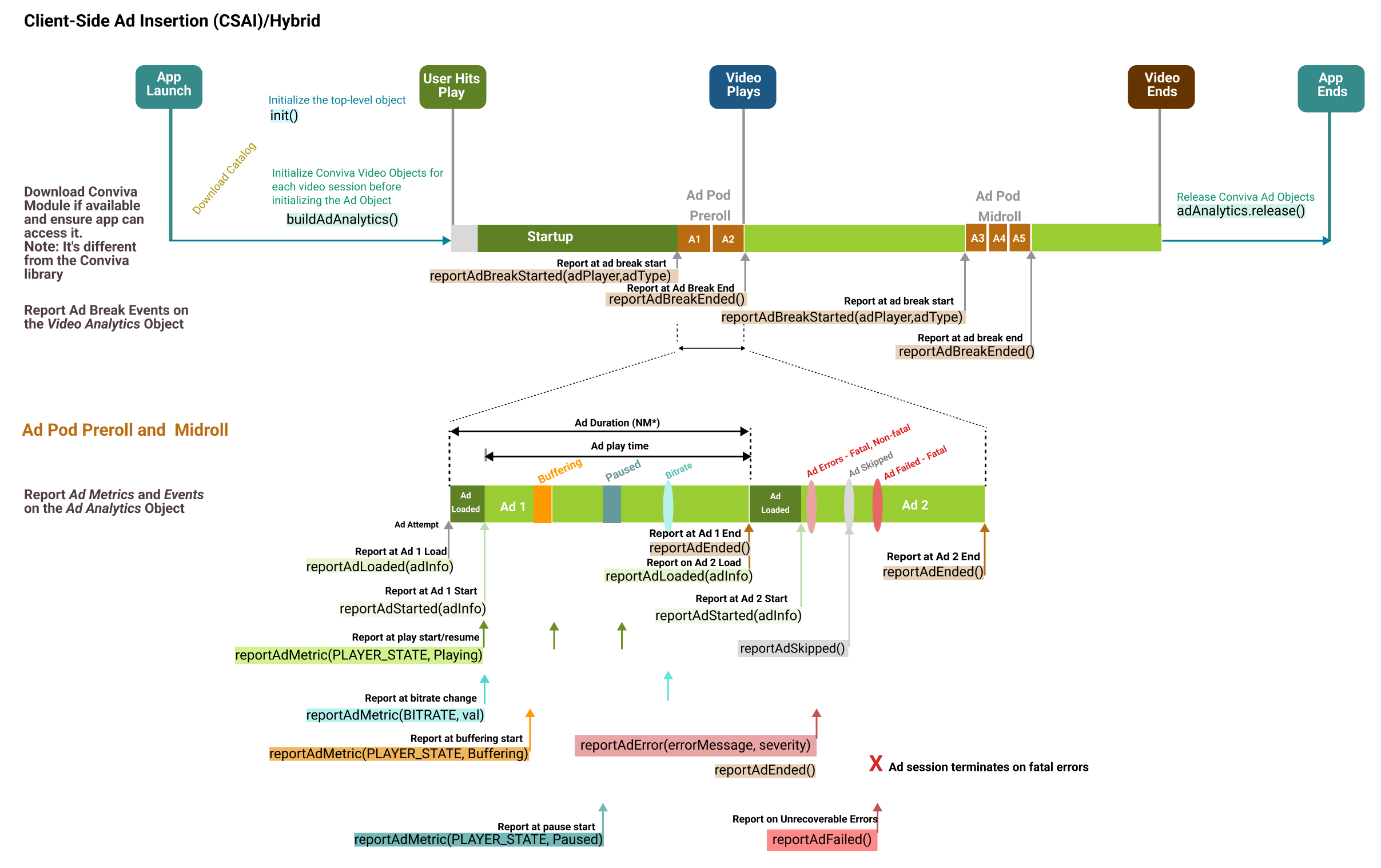
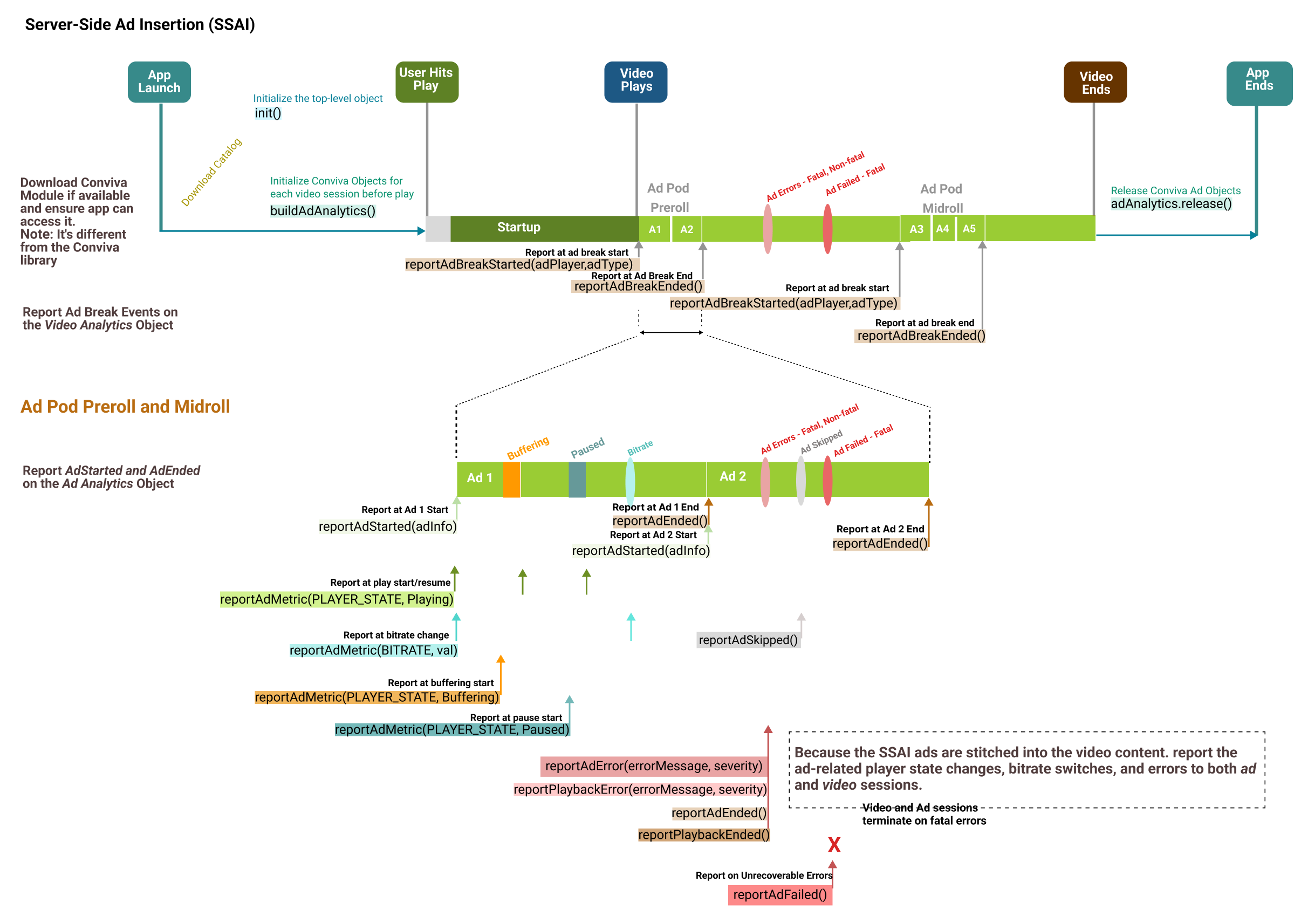
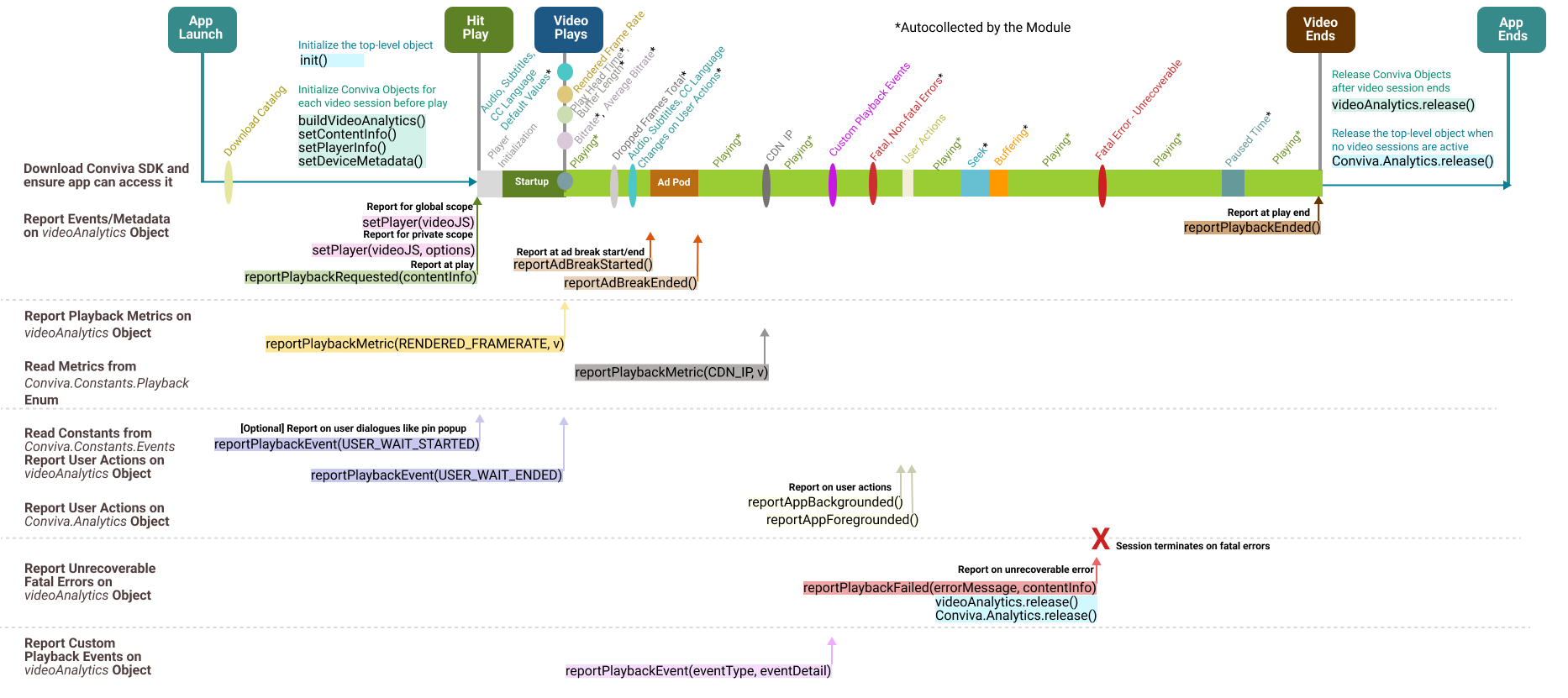
    Click an image to view a summary of the API call sequence:**

    JavaScript Custom Integration (SDK Only)
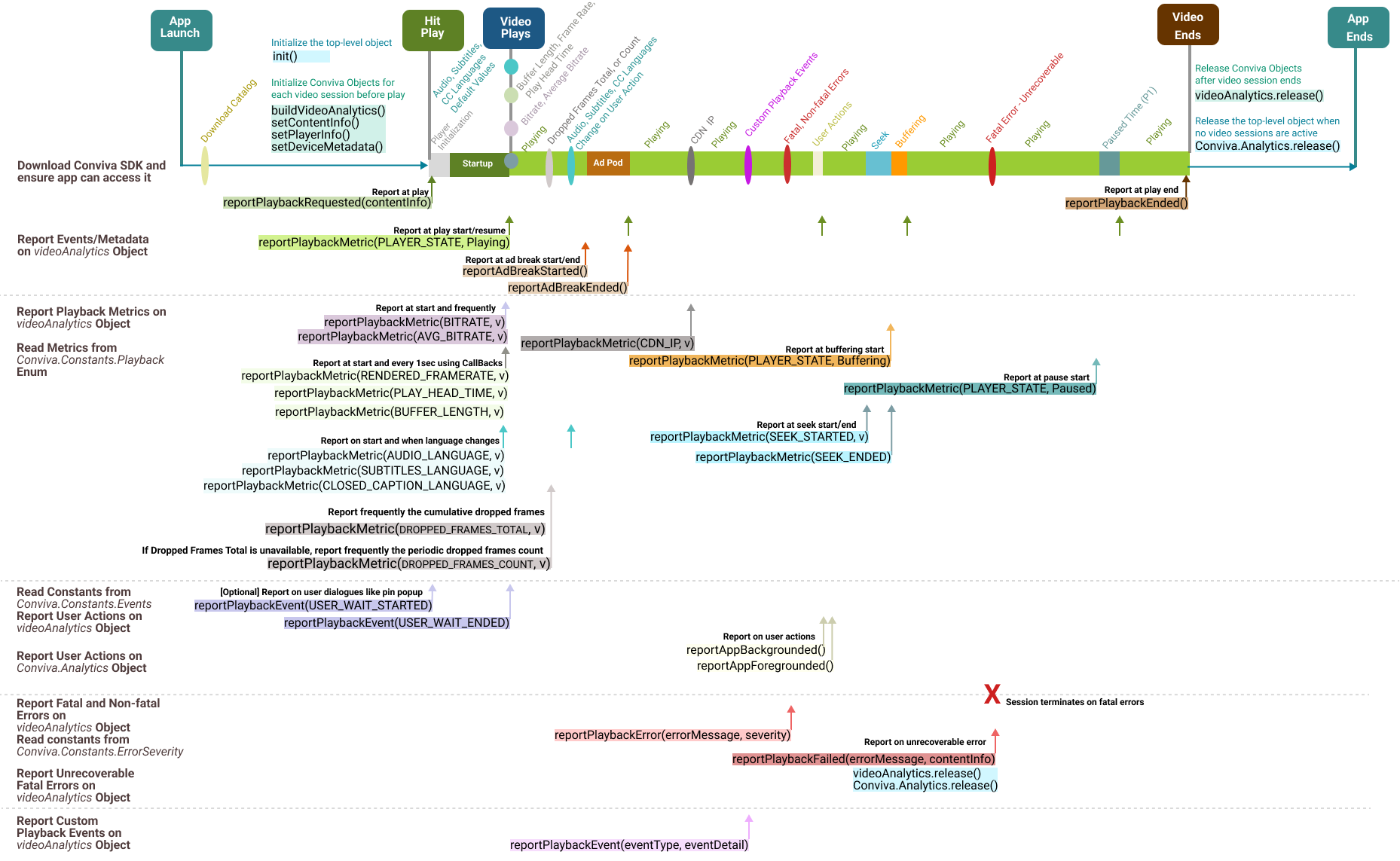
    Conviva JavaScript VideoJS Player Module
    Use for video players other than VideoJS, HTML5VideoElement, **Samsung Taizen AVPlay, Chromecast CAF, Playstation Trilithium, Playstation WebMAF. Report all the playback metrics, such as bitrate, player states, seek, and buffering.

    For API call details, refer to JavaScript Custom Integration API List.

    Use for VideoJS video players. Autocollects most playback metrics, such as bitrate, player states, seek, and buffering.

    For API call details, refer to JavaScript VideoJS Module Integration API List.

    Conviva JavaScript Chromecast CAF Player Module
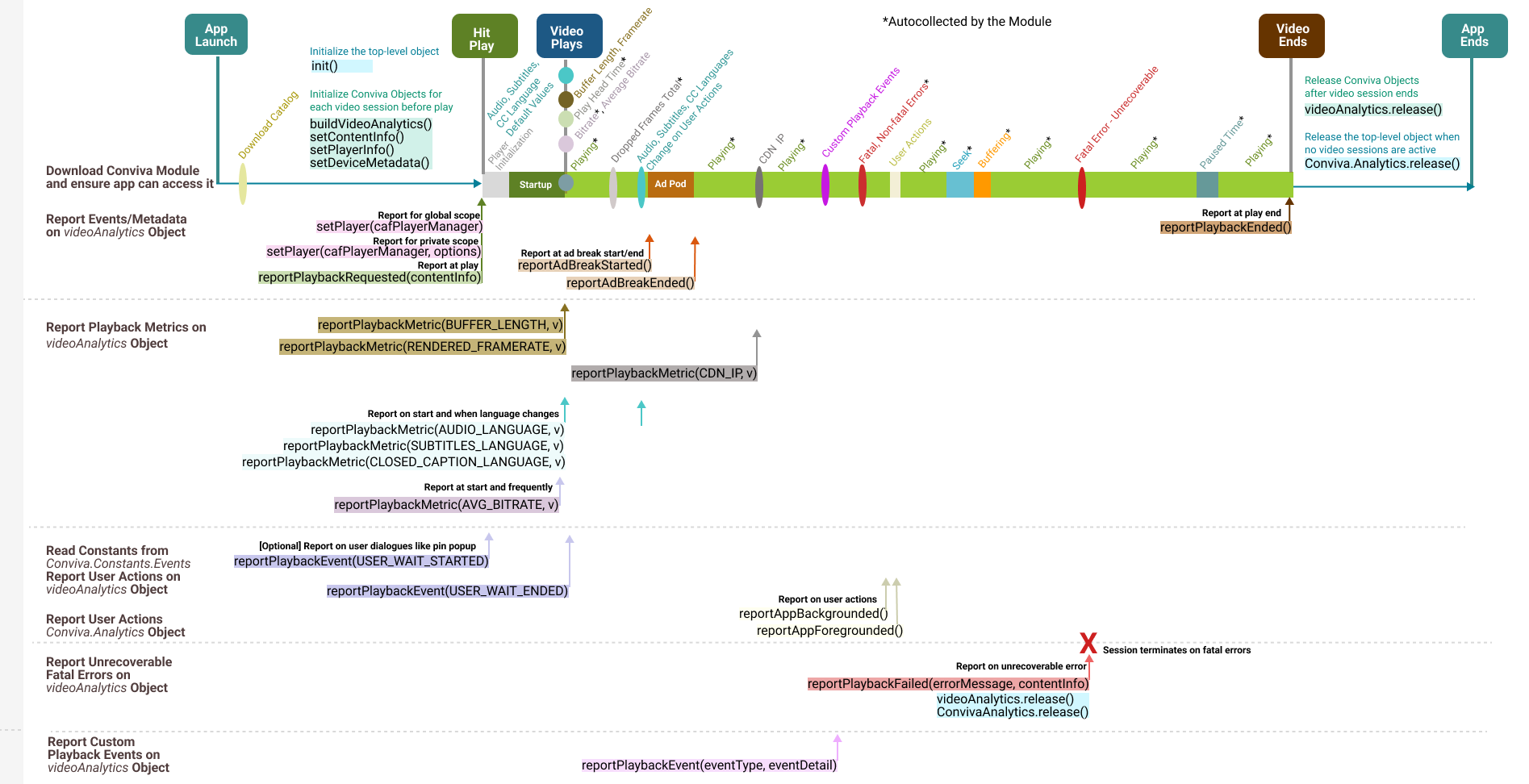
    Conviva JavaScript Samsung Tizen AVPlay Module
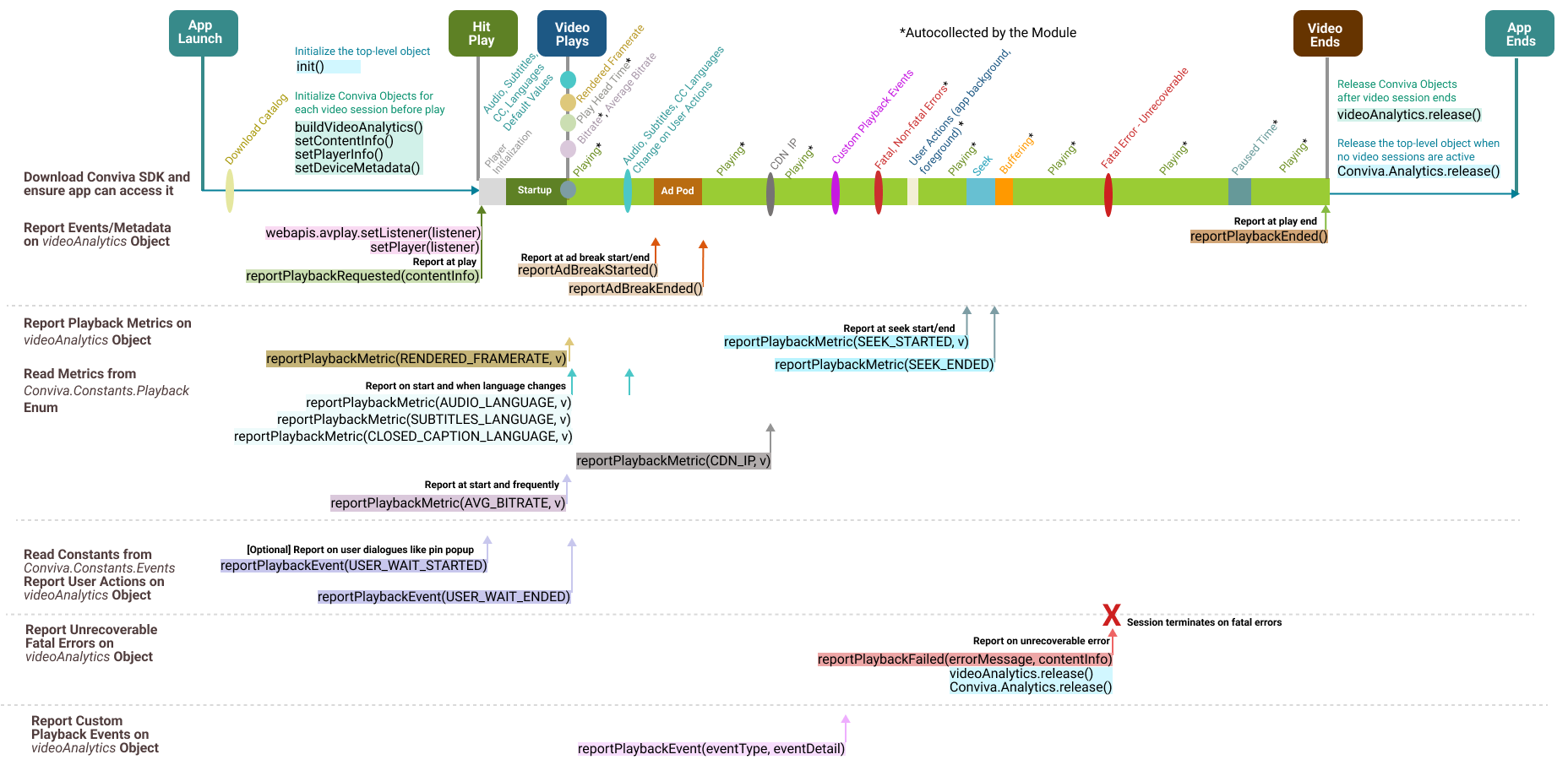
    Use for Chromecast CAF video players. Autocollects most playback metrics, such as bitrate, player states, seek, and buffering.

    For API call details, refer to JavaScript Chromecast CAF Module Integration API List.

    Use for Samsung Tizen AVPlay video players. Autocollects most playback metrics, such as bitrate, player states, and user actions.

    For API call details, refer to JavaScript Samsung Tizen Module Integration API List.

    Integration Summary Steps

    1. Install Conviva Library

    • Download the library and add dependencies.

    • Initialize the Conviva.Analytics using your CUSTOMER_KEY.

    • Create an instance of videoAnalytics object to report video related events.

    • If your player has ads: Create an instance of adAnalytics object to report ad related events.

    1. Configure Metadata

    • Implement the metadata by following the instructions to use the pre-defined keys, as well as custom metadata, if applicable.

    • Implement device metadata. By default, Conviva sensor modules autocollects few device metadata.

    1. Report Events and Metadata

    • Implement the videoAnalytics.reportPlaybackRequested(contentInfo) method to report playback attempt request along with metadata (content, workflow, audience, and other relevant metadata).

    • Use the videoAnalytics.reportPlaybackEnded() method to report the of end playback.

    1. Integrate Video Players

    • Add Conviva module dependency for your video player (if available), and pass player instance to Conviva by calling videoAnalytics.setPlayer(playerInstance). If following custom integration guidelines, implement video and metric reporting as prescribed by the corresponding specification.

    • Add Conviva module dependency for your ad player (if available), and pass ad manager instance to Conviva by calling adAnalytics.setAdListener(adManagerInstance, extraInfo). If following custom ad manager guidelines, implement ad metadata, events and metric reporting as prescribed by the corresponding specification.

    1. Handle User Actions

    1. Clean Up

    Call 'release' methods to cleanup Conviva.Analytics, videoAnalytics, adAnalytics objects upon application exit.

    Test and Validate

    1. After integration, perform a sanity check following the test cases in the Stream Sensor Sanity Test Plans spreadsheet. For the full validation test, use the test cases in the Stream Sensor Full Test Plans spreadsheet.

    2. Use Touchstone in Pulse to perform self-validation and debugging of video sensor integration.

    Be sure to replace your TEST CUSTOMER_KEY with the PRODUCTION key to go live with your application, and generate the session traffic to the following Touchstone gateway URL:https://.ts-testonly.conviva.com
    1. Done! Analyse your data in Pulse and improve your viewer experience - let's make video experience better!

    API Reference Documentation

    The JavaScript SDK API reference documentation can be found here.

    1. Install Conviva Library

    Add Conviva Libraries and Configure Dependencies

    Add core SDK

    You can add the Conviva libraries by choosing one of the following options:

    • Install using the npm package manager
    • Install using the yarn package manager
    • Download and add the library explicitly from Conviva GitHub

    From Core SDK version 4.4.3 onwards Conviva supports installation through npm and yarn package managers.

    To install using the npm package manager, use:

    npm install @convivainc/conviva-js-coresdk --save

    To install using the yarn package manager, use:

    yarn add @convivainc/conviva-js-coresdk

    To download and add the library explicitly from Conviva GitHub, refer: https://github.com/Conviva/conviva-js-coresdk

    From Core SDK version 4.1.1 onwards, Conviva shares 2 different files:

    • conviva-core-sdk.debug.js with complete Conviva logs for development or debug environments

    • conviva-core-sdk.js with stripped down version of the logs with reduced SDK for production environments

    Refer to this sample code which includes the Conviva JS SDK:

    // Production Environment
    <script type="text/javascript" src="<PATH>/conviva-core-sdk.js"></script>
    
    // Development/Debug Environment
    <script type="text/javascript" src="<PATH>/conviva-core-sdk.debug.js"></script>
    

    Add dependencies

    If using one of the players Conviva provides a module for, refer to Integrate Video Players for the details of player integration.

    Add dependencies for Ad SDKs

    If using one of the Ad SDKs Conviva provides a module for, download and add the library explicitly:

    https://github.com/Conviva/conviva-js-imasdk

    Refer to Integrate Ad Managers for the details of ad manager integration.

    Initialize the top level object

    Initialize the top level Conviva Analytics object:

    Conviva.Analytics.init(/* string / customerKey, / object / callbackFunctions, / object */settings=):

    • customerKey: string to identify specific customer account. Different keys shall be used for development / debug versus production environment. Find your keys on the account info page in Pulse;

    • callbackFunctions: If null, uses Conviva's default system utility functions of Time, Timer, HTTP, Storage Load/Save, Log. For most of the web based platforms you can pass null and for others you need to implement the system utility functions.

    Click the arrow to view the reference implementation:

    var callbackFunctions = {};
    
    callbackFunctions[Conviva.Constants.CallbackFunctions.CONSOLE_LOG] = function (message, logLevel) {
    if (typeof console === 'undefined') return;
    if (console.log && logLevel === Conviva.Constants.LogLevel.DEBUG ||
    logLevel === Conviva.Constants.LogLevel.INFO) {
    console.log(message);
    } else if (console.warn && logLevel === Conviva.Constants.LogLevel.WARNING) {
    console.warn(message);
    } else if (console.error && logLevel === Conviva.Constants.LogLevel.ERROR) {
    console.error(message);
    }
    };
    
    callbackFunctions[Conviva.Constants.CallbackFunctions.MAKE_REQUEST] = function (httpMethod, url, data, contentType, timeoutMs, callback) {
    var xmlHttpReq = new XMLHttpRequest();
    
    xmlHttpReq.open(httpMethod, url, true);
    
    if (contentType && xmlHttpReq.overrideMimeType) {
    xmlHttpReq.overrideMimeType = contentType;
    }
    if (contentType && xmlHttpReq.setRequestHeader) {
    xmlHttpReq.setRequestHeader('Content-Type', contentType);
    }
    if (timeoutMs > 0) {
    xmlHttpReq.timeout = timeoutMs;
    xmlHttpReq.ontimeout = function () {
    // Often this callback will be called after onreadystatechange.
    // The first callback called will cleanup the other to prevent duplicate responses.
    xmlHttpReq.ontimeout = xmlHttpReq.onreadystatechange = null;
    if (callback) callback(false, "timeout after " + timeoutMs + " ms");
    };
    }
    
    xmlHttpReq.onreadystatechange = function () {
    if (xmlHttpReq.readyState === 4) {
    xmlHttpReq.ontimeout = xmlHttpReq.onreadystatechange = null;
    if (xmlHttpReq.status == 200) {
    if (callback) callback(true, xmlHttpReq.responseText);
    } else {
    if (callback) callback(false, "http status " + xmlHttpReq.status);
    }
    }
    };
    
    xmlHttpReq.send(data);
    };
    
    callbackFunctions[Conviva.Constants.CallbackFunctions.SAVE_DATA] = function (storageSpace, storageKey, data, callback) {
    var localStorageKey = storageSpace + "." + storageKey;
    try {
    localStorage.setItem(localStorageKey, data);
    callback(true, null);
    } catch (e) {
    callback(false, e.toString());
    }
    };
    
    callbackFunctions[Conviva.Constants.CallbackFunctions.LOAD_DATA] = function (storageSpace, storageKey, callback) {
    var localStorageKey = storageSpace + "." + storageKey;
    try {
    var data = localStorage.getItem(localStorageKey);
    callback(true, data);
    } catch (e) {
    callback(false, e.toString());
    }
    };
    
    callbackFunctions[Conviva.Constants.CallbackFunctions.GET_EPOCH_TIME_IN_MS] = function () {
    var d = new Date();
    return d.getTime();
    };
    
    callbackFunctions[Conviva.Constants.CallbackFunctions.CREATE_TIMER] = function (timerAction, intervalMs) {
    var timerId = setInterval(timerAction, intervalMs);
    var cancelTimerFunc = (function () {
    if (timerId !== -1) {
    clearInterval(timerId);
    timerId = -1;
    }
    });
    return cancelTimerFunc;
    };
    
    • settings: object of Conviva settings to enable debug. Shall NOT be set in production - skip this parameter.

    No need to set gatewayUrl and LogLevel settings for your production release explicitly. The Conviva sensor has the right default value.The allowed parameters are:

    • Conviva.Constants.GATEWAY_URL: once enabled, the data will appear in Pulse for performing self-validation of video sensor integration. For more information, see Self-validation using Touchstone.

    • Conviva.Constants.LOG_LEVEL: set to Conviva.Constants.LogLevel.DEBUG for debug-level log verbosity.

    Sample code illustrating initialization with/without debug:

    if (DEBUG) {
    var settings = {};
    settings[Conviva.Constants.GATEWAY_URL] = "YOUR Touchstone Service URL";
    settings[Conviva.Constants.LOG_LEVEL] = Conviva.Constants.LogLevel.DEBUG; // Add this line only when debugging the SDK; this line impacts the performance with increased logging, in all other cases.
    
    Conviva.Analytics.init(TEST_CUSTOMER_KEY, callbackFunctions, settings);
    } else {
    // production release
    Conviva.Analytics.init(PRODUCTION_CUSTOMER_KEY, callbackFunctions);
    }
    

    IMPORTANT: No need to set GATEWAY_URL and LOG_LEVEL settings for your production release. The Conviva sensor provides the default values for production. Use conviva-core-sdk.js for the production release.

    Expected Errors Due to Dual Stack IPv4/v6 Network Support

    When the Conviva sensor is initialized with production settings, the SDK sends a single request to the endpoints below:

    • [customer_key].ipv4.cws.conviva.com for IPv4 only

    • [customer_key].ipv6.cws.conviva.com for IPv6 only

    Sending both requests enables correlation of IPv4 and IPv6 addresses in dual-stack networks. If only IPv4 or IPv6 addressing is used (single-stack networking), it is expected that one request will fail. All the following requests will be sent to the endpoint below which supports both IPv4 and IPv6:

    • [customer_key].cws.conviva.com

    Initialize the video object

    Create videoAnalytics object.

    This object will be used throughout the entire application lifecycle to report video related events.

    var videoAnalytics = Conviva.Analytics.buildVideoAnalytics();
    

    Initialize the ad object

    Create adAnalytics object.

    This object will be used throughout the entire application lifecycle to report ad related events.

    var adAnalytics = Conviva.Analytics.buildAdAnalytics(videoAnalytics);
    

    This method requires videoAnalytics object created at the previous step passed as a parameter.

    2. Configure Metadata

    Metadata enables analysis of your data using different dimensions, for example, content, audience, device, workflow, player, and operating system.

    Conviva categorizes metadata tags into three buckets (Predefined, Device, Custom).

    Pre-defined Video and Content Metadata

    Conviva defines the constants or fixed string keys for commonly used metadata. These metadata keys provide critical information about video and ad content, versioning, workflow.

    test

    IMPORTANT: In case of Conviva modules used for ads or video integration, Conviva autocollects certain fields to simplify the integration. Please refer to the particular module specification for details.

    The table below provides the pre-defined metadata fields.

    IMPORTANT: Conviva modules for video players only capable of autocollecting few metadata (such as FRAMEWORK_NAME, FRAMEWORK_VERSION, DURATION, ASSET_NAME...) and the rest of the metadata shall be set by your application. Please refer to the particular module metadata section for details.

    IMPORTANT: To assign content category labels, such as Audio, Trailer, Tile Play, or Short Video, use the c3.cm.categoryType pre-defined content metadata constant.

    Constants for Pre-defined Video and Content Metadata

    Key / Constant Type Implementation Note

    Conviva.Constants.ASSET_NAME

    string The unique name for each stream/video asset. Values are up to your choice, but a human-readable text prefixed with the unique video ID works best in most Conviva sensors.This provides for clarity in reports and makes most popular content easily identifiable. Pattern: [videoID] Video Title

    The following are typical patterns for VOD (movies and episodic content) and Live streams: Movie Pattern: [{contentId}] {Movie Title} Sample Value: [12345] The ABC Movie Episode Pattern: [{contentId}] {Show Title} - S:{Season Number}:E{Episode Number} - {Episode Title} Sample Value: [67890] The XYZ Show - S3:E1 - The Pilot Episode Live Stream Pattern: [{channelNumber}] {Chanel Name} Sample Value: [10] PQRS Bay Area

    Conviva.Constants.IS_LIVE

    enum Denotes whether the content is video on-demand or a live stream. Affects the computation and availability of the Conviva metrics. Acceptable values: Conviva.Constants.StreamType.VOD Conviva.Constants.StreamType.LIVE
    Conviva.Constants.PLAYER_NAME string A string value used to distinguish video players (applications). Simple values that are unique across all of your integrated platforms work best here. If the same player used across multiple platforms, e.g., Tizen, LG TV, WEB, give separate names for each application / platofrm: e.g., "JS Tizen", "JS LGTV", "JS WEB". Do not include the build or version number in this property. The intention is to have a simple way of differentiating data from different players / platforms.
    Conviva.Constants.VIEWER_ID string Required for Viewers Module. A unique identifier to distinguish individual viewers or devices through Conviva's Viewers Module. The value shall be unique abstract user's identifier. If user is anonymous, do not set any value for this tag.
    Conviva.Constants.STREAM_URL string

    The manifest URL of the video stream. The Conviva backend config server attempts to map a portion of StreamURL into a CDN name. For example: In the URL https://www.akamai.net/avengers.m3u8, akamai.net maps to the AKAMAI label. Conviva VSI users can then retrieve metrics based on the mapped CDN name (AKAMAI, in this case).

    The URL values reported in the streamURL are case insensitive. The streamURLs with either uppercase or all lowercase are acceptable.
    Conviva.Constants.DEFAULT_RESOURCE string

    This value specifies the video server or CDN name from where the streaming resource is played. Set this field when the video server resource cannot be inferred from the STREAM_URL.

    For example, if the streamURL is https://cbd12348.cdn.cms.somewebsitehostname.com/abc.txt, it is not possible to infer the AKAMAI name from the streamURL, and in such a case, it is necessary to report the DEFAULT_Resource as AKAMAI.

    The DEFAULT_Resource value is case sensitive. If the resource name is initially reported as AKAMAI (uppercase) and subsequently modified in the app to akamai (lowercase), it is necessary to inform Conviva about the change because both need to be mapped in the Conviva backend configuration server to ensure that both point to the same CDN name (AKAMAI).
    Conviva.Constants.DURATION integer Duration of the video content, in seconds.
    Conviva.Constants.ENCODED_FRAMERATE integer Encoded frame rate of the video stream in frames per second.
    Conviva.Constants.FRAMEWORK_NAME string Video Player Framework Name.

    NOTE: Autocollected if Conviva module used for video player integration, required for custom integration. Otherwise, set using the API videoAnalytics.setPlayerInfo(/object/ playerInfo):

    var playerInfo = {};
    playerInfo[Conviva.Constants.FRAMEWORK_NAME] = "YOUR_FRAMEWORK_NAME";
    videoAnalytics.setPlayerInfo(playerInfo);
    
    Conviva.Constants.FRAMEWORK_VERSION string Video Player Framework Version.

    NOTE: Autocollected if Conviva module used for video player integration, required for custom integration. Otherwise, set using the API videoAnalytics.setPlayerInfo(/object/ playerInfo):

    var playerInfo = {};
    playerInfo[Conviva.Constants.FRAMEWORK_VERSION] = "1.2.3";
    videoAnalytics.setPlayerInfo(playerInfo);
    
    "c3.app.version" string Application build version. Shall have the same value for both ads and video.
    "c3.cm.contentType" string Advanced content delivery methods along with Live and VOD.

    Acceptable values: "Live", "Live-Linear", "DVR", "Catchup", "VOD".

    "c3.cm.channel" string The channel on which the content is consumed.

    Example: "ABC".

    "c3.cm.brand" string The name of the brand to which the content belongs.

    Examples: "ABC X", "ABC Y".

    "c3.cm.affiliate" string Affiliate or MVPD name for TV Everywhere authenticated services.

    Examples: "Xfinity", "Comcast".

    "c3.cm.categoryType" string

    Content business categories of interest.

    Use this constant to assign content category labels, such as Audio, Trailer, Tile Play, or Short Video.

    Examples: "Episodic", "Movies", "News", "Sports", "Events", "Informercials", "Shorts", "Promos", "Audio", "Tile Play", "Short Videos", "Trailer".

    "c3.cm.name" string Name of CMS Provider.

    Examples: "CMS", "ROVI", "TMS".

    "c3.cm.id" string Unique asset identifier to query CMS system to gather additional asset metadata information for a specific asset.

    Example: "003b094d-fc5c-3d5a-8ed0-301bf848291e".

    "c3.cm.seriesName" string The name of Series. Set the value only if the metadata cannot be gathered from CMS System. Null if not applicable.

    Examples: "Friends", "Null".

    "c3.cm.seasonNumber" string The Season number. Set the value only if the details cannot be inferred from Asset Provider Server. Null if not applicable.

    Examples: "1", "Null".

    "c3.cm.showTitle" string The name of the Episode or Show Title. Set the value only if the details cannot be inferred from Asset Provider Server. Null if not applicable.

    Examples: "The One with All the Cheesecakes", "Null".

    "c3.cm.episodeNumber" string The Episode number. Set the value only if the details cannot be inferred from Asset Provider Server. Null if not applicable.

    Examples: "3", "Null".

    "c3.cm.genre" string The Primary content genre. Set the value only if the details cannot be inferred from Asset Provider Server. Null if not applicable.

    Examples: "Drama", "Null".

    "c3.cm.genreList" string The list of the applicable content genre. Set the values in a comma separated list only if the details cannot be inferred from Asset Provider Server. Null if not applicable.

    Examples: "Drama, Crime, Political, Violence", "Null"

    "c3.cm.utmTrackingUrl" string The UTM parameters in the URL track the effectiveness of online marketing campaign across traffic sources and publishing media. Autocollected from window.location.search, if not set by the application. Conviva uses CONTAINS logic to parse the individual UTM parameters from the URL provided, so either the full URL or just the UTM parameters is acceptable.

    Example values: http://www.example.com/?utm_source=newsletter1&utm_medium=email&utm_campaign=summer-sale&utm_content=toplink or utm_source=newsletter1&utm_medium=email&utm_campaign=summer-sale&utm_content=toplink

    This tag is only applicable for web and mobile devices.

    Device Metadata

    Any Device metadata such as device brand, manufacturer, model, type, version, operating system name and version, category which are common for all the concurrent playback with in one Analytics instance can be reported using the Conviva.Analytics.setDeviceMetadata(/* object */ deviceMetadata):

    • deviceMetadata: object containing the key - value pairs of Conviva.Constants.DeviceMetadata and

    string/Conviva.Constants.DeviceType/Conviva.Constants.DeviceCategory types.

    We recommend consulting to your Conviva representative in case you decide to customize your device metadata.

    Device metadata is also used for inferring the device tags dimensions. If Conviva modules are used for ads or video integration, Conviva autocollects certain fields to simplify the integration. Please refer to the particular module specification for more details. Check the aspects of implementation with your Conviva representative, as it may require setting custom device metadata.

    Device Metadata Instructions (Click to Expand):

    The table below provides the list of pre-defined metadata for device metadata.

    var deviceMetadata = {};
    deviceMetadata[Conviva.Constants.DeviceMetadata.CATEGORY] = Conviva.Constants.DeviceCategory.WEB;
    // set the rest of the required metadata fields as per the table below
    Conviva.Analytics.setDeviceMetadata(deviceMetadata);
    

    The table below provides the list of device metadata keys of Conviva.Constants.DeviceMetadata type:

    Key Type Description Example Values
    BRAND string Brand of the device "Apple", "Samsung", "Huawei", "Google"
    MANUFACTURER string Manufacturer of the device "Samsung", "Apple", "HTC", "Sony"
    MODEL string

    Model of the device

    [Critical Key] For more details, refer to the API Reference document, and search for the key.

    "iPhone 6 Plus", "HTC One", "Roku 3"
    TYPE Conviva.Constants. DeviceType Type of the device. Only allows the DeviceType values and discards any other string values Conviva.Constants.DeviceType. DESKTOP

    Conviva.Constants.DeviceType. CONSOLE_LOG

    Conviva.Constants.DeviceType. MOBILE

    OS_NAME string Name of the operating system used by the device, in uppercase "WINDOWS", "LINUX", "IOS", "MAC", ANDROID", "FIREOS", "ROKU", "PLAYSTATION",

    "CHROMEOS"

    OS_VERSION string Version of the operating system used by the device "10.10.1", "8.1", "T-INFOLINK2012-1012", "Fire OS 5"
    CATEGORY Conviva. Constants. DeviceCategory

    Device Category to which the used device belongs to. Only allows the

    Constants.DeviceCategory values and discards any other string values

    [Critical Key] For more details, refer to the API Reference document, and search for the key.

    Conviva.Constants.DeviceCategory.WEB

    Conviva.Constants.DeviceCategory. ANDROID

    Conviva.Constants.DeviceCategory. PLAYSTATION

    SCREEN_RESOLUTION_WIDTH int Width of the current display in pixels.
    Autocollected using window.screen.width API for most of the web-based platforms.
    1280, 1440, 1366, 1920
    SCREEN_RESOLUTION_HEIGHT int Height of the current display in pixels.
    Autocollected using window.screen.height API for most of the web-based platforms.
    720, 900, 768, 1080
    SCREEN_RESOLUTION_SCALE_FACTOR float

    The ratio of the current display hardware-based pixels to the device-independent pixels.

    Autocollected as 1,if the value not set by application.

    Autocollected using window.screen.devicePixelRatio API for most of the web-based platforms.
    1.5, 2, 1

    Custom Metadata

    Refer to App Manager->Setup Metadata page for your account to find the custom tags which shall be implemented.

    Set custom tags in a similar way for either video or ads, by adding the tags to the contentInfo / adInfo objects, passed into corresponding methods of videoAnalytics / adAnalytics objects.

    Conviva recommends to label the custom tags as "MyCustomTag1" or "my_custom_tag", and not use the c3.cm format, for instance, c3.cm.MyCustomTag1. Conviva reserved the c3.cm naming convention for the pre-defined or required metadata.

    Update/Amend Metadata

    The device metadata can be immediately set when the values are available.

    To update or amend pre-defined and custom tags for video, use the videoAnlaytics.setContentInfo(/object/ contentInfo):

    • contentInfo: object containing the key - value pairs of metadata tags for video content.

    Example usage:

    var contentInfo = {};
    contentInfo[Conviva.Constants.ASSET_NAME] = "[channel_id] Live Channel Name";
    // set the values for the other pre-defined keys as appropriate
    contentInfo["c3.cm.contentType"] = "Live-Linear";
    // set the values for custom tags as required per definition for your account
    contentInfo["my_custom_tag_key"] = "my_custom_tag_value";
    
    videoAnalytics.setContentInfo(contentInfo);
    

    IMPORTANT: Please note that different Conviva products, such as Conviva Video and Conviva Viewer Insights may have different logic with respect to handling updated values. Conviva recommends to update the metadata only when it is available and do not set any default values before the metadata is available.

    3. Report Events and Metadata

    Report Video Play Start

    For each play, report playback attempt requests

    videoAnalytics.reportPlaybackRequested(/* object */ contentInfo):
    
    • contentInfo: object containing the key - value pairs of metadata tags for video content.

    The keys / constants and expected values of the required metadata tags are defined in the Implement Metadata section below.

    Refer to the below example illustrating usage of this API:

    var contentInfo = {};
    contentInfo["key"] = "value";
    videoAnalytics.reportPlaybackRequested(contentInfo);
    

    IMPORTANT: It's critical to make this API call correctly to monitor video experience - monitoring session created from this moment, and key metrics are captured based on this event. For example, if this call done late (say, when video starts rather than user clicks 'play'), the Video Startup Time will be under-reported, Video Start Failures will be missed, etc.

    Please note that each video should be monitored separately - call this method for each new video played.

    IMPORTANT: If some of the content metadata tags aren't available at start, they can be set later or amended by videoAnalytics.setContentInfo(contentInfo) API - refer here for details. Please note, in most cases that it's required to set content metadata before the player reports "play" for the first time, to accurately attribute metadata to the video asset.

    Invoke reportPlaybackRequested() On: Invoke reportPlaybackEnded() On:
    User clicks play button User stops the video User starts another video Video ends
    Video starts in autoplay mode
    User replays video again
    A new video starts in playlist Video item ends in playlist

    Report Ad Breaks to Video Session

    IMPORTANT:The SDK autocollects the reportAdBreakStarted() / reportAdBreakEnded() events in case of the Conviva Ad Modules used.

    Report Ad Break

    To handle ads, inform videoAnalytics object that ad break is started:

    videoAnalytics.reportAdBreakStarted(/* Conviva.Constants.AdType / adType, / Conviva.Constants.AdPlayer */ adPlayer):

    • adType: specifies type of the ad (server side / client side).

    • adPlayer: informs Conviva sensor which player is used to play the ads - the same as main video content or separate instance. Depending on that, the videoAnalytics will apply corresponding logic to track it correctly.

    The ideal event for invoking this method is on main video pause, to clear stage for Ad playback.

    If the same video player instance used for ads as for the video, call it when application requests the ads.

    Refer to the below sample code for illustration of how reporting shall be done in these scenarios:

    Client-side Ads

    // Ad Break Start for client side ad insertion with separate player instance for ads
    videoAnalytics.reportAdBreakStarted(Conviva.Constants.AdType.CLIENT_SIDE, Conviva.Constants.AdPlayer.SEPARATE);
    
    // Ad Break Start for client side ad insertion with same player instance for ads
    videoAnalytics.reportAdBreakStarted(Conviva.Constants.AdType.CLIENT_SIDE, Conviva.Constants.AdPlayer.CONTENT);
    

    Server-side Ads

    // Server-side ads are embedded within the main video content.
    // Ad Break Start for server side ad insertion
    videoAnalytics.reportAdBreakStarted(Conviva.Constants.AdType.SERVER_SIDE, Conviva.Constants.AdPlayer.CONTENT);
    

    On ad break ended

    videoAnalytics.reportAdBreakEnded();
    

    Report Video Play End

    For each play end, report playback ended
    videoAnalytics.reportPlaybackEnded();
    

    4. Integrate Video Players

    Conviva core SDK is universal and player agnostic, therefore it can be used to integrate any video player using the programming language it's written for.

    For ease and speed of integration, Conviva also provides plug-in modules for the most commonly used video players.

    The modules allow to autocollect events from the particular player.

    If instructions for your player are not shown below, please follow the instructions for "Custom Integration", or contact your Conviva representative.

    HTML5VideoElement

    This documentation is for JS SDK 4.0.10 and above. If you are using the legacy SDK, we highly recommend you upgrade to the new SDK. The HTML5 Video Element module supports Typescript for versions 4.0.10 and above.

    Conviva HTML5 Video Element module autocollects events emitted by HTML5 and <video> tag (HTMLVideoElement). Therefore, it's not necessary to report these events explicitly by using "reportPlaybackMetric()" API. It's still required to report application events such as bitrate, backgrounding, metadata, session close, ad-related events.

    By default, the native HTML5 Video Element does not support the HLS/SS/MPD protocols. For your reference, this document showcases the inclusion of reference MSE packages of HLS/DASH/SS. You can include any MSE package for your application.

    Add the Conviva HTML5 Video Element module dependency

    You can add the Conviva HTML5 Video Element module dependency by choosing one of the following options:

    • Install using the npm package manager
    • Install using the yarn package manager
    • Download and add the library explicitly from Conviva GitHub

    From HTML5 Video Element module version 4.0.7 onwards, Conviva supports installation through npm and yarn package managers.

    To install using the npm package manager, use:

    npm install @convivainc/conviva-js-html5 --save

    To install using the yarn package manager, use:

    yarn add @convivainc/ conviva-js-html5

    To download and add the library explicitly from Conviva GitHub, refer: https://github.com/Conviva/conviva-js-html5

    Refer to this sample code to include the Conviva library and MSE open source:

    Via HTML:

    <script type="text/javascript" src="<PATH>/hasplayer.js"></script> // Smooth Streaming support
    <script type="text/javascript" src="<PATH>/dash.all.min.js"></script> // Dash Support
    <script type="text/javascript" src="<PATH>/hls.min.js"></script> // HLS Support
    
    <script type="text/javascript" src="<PATH>/conviva-core-sdk.js"></script>
    <script type="text/javascript" src="<PATH>/conviva-html5native-impl.js"></script>
    

    Via import/require:

    const Conviva = require('<path>/conviva-js-coresdk');
    const ConvivaHtml5Module = require('<path>/ conviva-js-html5');
    

    Application doesn't need to implement the system utility functions of Time, Timer, HTTP, Storage Load/Save, Log as Conviva HTML5VideoElement module uses Conviva's default ones.

    Conviva.Analytics.init(customerKey, null, settings);
    

    Set player reference to Conviva videoAnalytics

    videoAnalytics.setPlayer(HTMLVideoElement);
    

    If Core SDK and html5 module are loaded in private scope instead of global scope, then pass the html5 module object as the second argument in the setPlayer API.

    Important: The application sets the player reference immediately after the player instance is available.

    var options = {};
    options[Conviva.Constants.CONVIVA_MODULE] = ConvivaHtml5Module;
    
    var videoAnalytics = Conviva.Analytics.buildVideoAnalytics();
    videoAnalytics.setPlayer(HTMLVideoElement, options);
    

    Starting that moment, Conviva library will listen for all relevant events automatically.

    Metrics monitored by Conviva HTML5 Video Element module (if applicable):

    Key Implementation Note
    videoAnalytics.reportPlaybackError() (VSF/VPF) The module listens for the video errors fired by the player using error event callback.

    To report application level errors impacting user experience, call videoAnalytics.reportPlaybackError(/* string */ message) explicitly.

    Conviva.Constants.Playback.PLAYER_STATE Autocollected.
    Conviva.Constants.Playback.BITRATE Report if the MSE implementation used supports collecting bitrate, as HTMLVideoElement natively doesn't support reporting of the bitrate by default.
    Conviva.Constants.Playback.SEEK_STARTED Autocollected.
    Conviva.Constants.Playback.SEEK_ENDED Autocollected.
    Conviva.Constants.Playback.PLAY_HEAD_TIME Autocollected.
    Conviva.Constants.Playback.BUFFER_LENGTH Autocollected.
    Conviva.Constants.Playback.RENDERED_FRAMERATE Report if the MSE implementation used supports collecting rendered framerate, as HTMLVideoElement natively doesn't support reporting of the rendered framerate by default.
    Conviva.Constants.Playback.CDN_IP Report CDN IP address in string format.

    Implement Metadata

    Metadata monitored by Conviva HTML5 Video Element module (if applicable):

    Key Implementation Note
    Conviva.Constants.DURATION Autocollected using HTMLVideoElement.duration for VOD contents.
    Conviva.Constants.FRAMEWORK_NAME Autocollected as "HTML5".
    Conviva.Constants.FRAMEWORK_VERSION Notapplicable as HTML5 Video Element doesn't have version.

    Report the device metadata of CATEGORY and TYPE explicitly by the application, as Conviva can autocollect the remaining metadata from the UAS. Refer to the code sample below:

    var deviceMetadata = {};
    // set the corresponding Conviva.Constants.DeviceType
    deviceMetadata[Conviva.Constants.DeviceMetadata.TYPE] = Conviva.Constants.DeviceType.DESKTOP;
    deviceMetadata[Conviva.Constants.DeviceMetadata.CATEGORY] = Conviva.Constants.DeviceCategory.WEB;
    Conviva.Analytics.setDeviceMetadata(deviceMetadata);
    

    To implement the rest of metadata, refer to the above sections of common pre-defined, pre-defined video, and custom metadata definitions for implementation details.

    Known HTML5 Limitations

    Metric Name Impact Conditions Issue
    Average Bitrate Not reported HTML5 Specs Bitrate is not reported by default as per the HTML5 Spec.
    Average % Complete Under reported Player state is PAUSED

    Content is available in cache

    Toggle Play Pause within ~1sec

    Conviva reports only PAUSED state without intermediate PLAYING state.

    Conviva HTML5 Module infers the PLAYING state based on the play head position poll logic, which takes ~1 sec to identify the player state.

    Under reported Low bandwidth

    Video toggles between buffer and play

    Delay in reporting the PLAYING state and reports extra BUFFERING state.

    Conviva HTML5 Module infers the PLAYING state based on the play head position poll logic, which takes ~1 sec to identify the player state.

    Over reported Seek video by dragging progress bar while the content is playing

    Windows Internet Explorer / Edge

    Player remains in PLAYING state without intermediate BUFFERING state.

    HTML5VideoElement does not set the player state to PAUSED in IE/Edge browsers on start of seek, unlike other browsers.

    Conviva recommends the application to set the player state to PAUSED in case of IE/Edge during start of seek and resume play on seek end.

    Connection Induced Rebuffering Ratio (CIRR) Over reported HLS/MPD/SS: unreachable content during mid-stream Player reports BUFFERING state instead of generating a fatal error.
    Under reported Live and VOD content

    Low bandwidth

    Player reports seek events when there is low bandwidth.
    Under reported

    Live SSAI content

    Low bandwidth

    HTML5 module is receiving explicit pause state from the player while buffering.
    Over reported Low bandwidth

    Video toggles between buffer and play

    Delay in reporting the PLAYING state and reports extra BUFFERING state.

    Conviva HTML5 Module infers the PLAYING state based on the play head position poll logic, which takes ~1 sec to identify the player state.

    Over reported Mac Device Sleep

    Firefox Browser

    HTML5 Video Element does not pause the content when the device goes to sleep. (Chrome browser pauses the content when the device goes to sleep.)
    Exit Before Video Start (EBVS) Over reported HLS/MPD/SS: unreachable content during playback start Player reports BUFFERING state instead of generating a fatal error.
    Minutes Ended Play Under reported Player state is PAUSED

    Content is available in cache

    Toggle Play Pause within ~1sec

    Conviva reports only PAUSED state without intermediate PLAYING state.

    Conviva HTML5 Module infers the PLAYING state based on the play head position poll logic, which takes ~1 sec to identify the player state.

    Under reported Low bandwidth

    Video toggles between buffer and play

    Delay in reporting the PLAYING state and reports extra BUFFERING state.

    Conviva HTML5 Module infers the PLAYING state based on the play head position poll logic, which takes ~1 sec to identify the player state.

    Over reported Seek video by dragging progress bar while the content is playing

    Windows Internet Explorer / Edge

    Player remains in PLAYING state without intermediate BUFFERING state.

    HTML5VideoElement does not set the player state to PAUSED in IE/Edge browsers on start of seek, unlike other browsers.

    Conviva recommends the application to set the player state to PAUSED in case of IE/Edge during start of seek and resume play on seek end.

    Minutes Unique Device Under reported Player state is PAUSED

    Content is available in cache

    Toggle Play Pause within ~1sec

    Conviva reports only PAUSED state without intermediate PLAYING state.

    Conviva HTML5 Module infers the PLAYING state based on the play head position poll logic, which takes ~1 sec to identify the player state.

    Under reported Low bandwidth

    Video toggles between buffer and play

    Delay in reporting the PLAYING state and reports extra BUFFERING state.

    Conviva HTML5 Module infers the PLAYING state based on the play head position poll logic, which takes ~1 sec to identify the player state.

    Over reported Seek video by dragging progress bar while the content is playing

    Windows Internet Explorer / Edge

    Player remains in PLAYING state without intermediate BUFFERING state.

    HTML5VideoElement does not set the player state to PAUSED in IE/Edge browsers on start of seek, unlike other browsers.

    Conviva recommends the application to set the player state to PAUSED in case of IE/Edge during start of seek and resume play on seek end.

    Rebuffering Ratio (RR) Over reported HLS/MPD/SS: unreachable content during mid-stream Player reports BUFFERING state instead of generating a fatal error.
    Over reported Low bandwidth

    Video toggles between buffer and play

    Delay in reporting the PLAYING state and reports extra BUFFERING state.

    Conviva HTML5 Module infers the PLAYING state based on the play head position poll logic, which takes ~1 sec to identify the player state.

    Over reported Mac Device Sleep

    Firefox Browser

    HTML5 Video Element does not pause the content when the device goes to sleep. (Chrome browser pauses the content when the device goes to sleep.)
    *Total Minutes* Under reported Player state is PAUSED

    Content is available in cache

    Toggle Play Pause within ~1sec

    Conviva reports only PAUSED state without intermediate PLAYING state.

    Conviva HTML5 Module infers the PLAYING state based on the play head position poll logic, which takes ~1 sec to identify the player state.

    Under reported Low bandwidth

    Video toggles between buffer and play

    Delay in reporting the PLAYING state and reports extra BUFFERING state.

    Conviva HTML5 Module infers the PLAYING state based on the play head position poll logic, which takes ~1 sec to identify the player state.

    Over reported Seek video by dragging progress bar while the content is playing

    Windows Internet Explorer / Edge

    Player remains in PLAYING state without intermediate BUFFERING state.

    HTML5VideoElement does not set the player state to PAUSED in IE/Edge browsers on start of seek, unlike other browsers.

    Conviva recommends the application to set the player state to PAUSED in case of IE/Edge during start of seek and resume play on seek end.

    *Video Restart Time (VRT)* Over reported Live, SSAI, and VOD content

    Low bandwidth

    Player reports seek events when there is low bandwidth.
    Under reported Seek video by dragging progress bar while the content is playing

    Windows Internet Explorer / Edge

    Player remains in PLAYING state without intermediate BUFFERING state.

    HTML5VideoElement does not set the player state to PAUSED in IE/Edge browsers on start of seek, unlike other browsers.

    Conviva recommends the application to set the player state to PAUSED in case of IE/Edge during start of seek and resume play on seek end.

    Video Start Failures (VSF) Under reported HLS/MPD/SS: unreachable content during playback start Player reports BUFFERING state instead of generating a fatal error.
    Video Startup Time (VST) Over reported Play the content Delay in reporting the PLAYING state after the first frame is rendered.

    Conviva HTML5 Module infers the PLAYING state based on the play head position poll logic, which takes ~1 sec to identify the player state.

    Video Playback Failures (VPF) Under reported HLS/MPD/SS: unreachable content during playback start Player reports BUFFERING state instead of generating a fatal error.
    Viewer Hours Under reported Player state is PAUSED

    Content is available in cache

    Toggle Play Pause within ~1sec

    Conviva reports only PAUSED state without intermediate PLAYING state.

    Conviva HTML5 Module infers the PLAYING state based on the play head position poll logic, which takes ~1 sec to identify the player state.

    Under reported Low bandwidth

    Video toggles between buffer and play

    Delay in reporting the PLAYING state and reports extra BUFFERING state.

    Conviva HTML5 Module infers the PLAYING state based on the play head position poll logic, which takes ~1 sec to identify the player state.

    Over reported Seek video by dragging progress bar while the content is playing

    Windows Internet Explorer / Edge

    Player remains in PLAYING state without intermediate BUFFERING state.

    HTML5VideoElement does not set the player state to PAUSED in IE/Edge browsers on start of seek, unlike other browsers.

    Conviva recommends the application to set the player state to PAUSED in case of IE/Edge during start of seek and resume play on seek end.

    Metadata Name Impact Conditions Issue
    Device Manufacturer Not Autocollected Desktop Browsers: - Windows 7 - Windows 10 - Linux The Conviva library autocollects this information from the User Agent String and cannot infer this metadata for desktop browsers.
    Device Marketing Name Not Autocollected Desktop Browsers: - Windows 7 - Windows 10 - Linux - Mac The Conviva library autocollects this information from the User Agent String and cannot infer this metadata for desktop browsers.
    Device OS Version Not Autocollected Desktop Browsers: - Windows 7 - Windows 10 - Linux The Conviva library autocollects this information from the User Agent String and cannot infer this metadata for desktop browsers.

    Custom Integration

    For reference, the deprecated legacy JavaScript SDK integration documentation can be found here.

    Conviva sensor can be used to integrate video players using explicit metric reporting using the videoAnalytics object. The major steps required are listed below:

    Report playback failures

    To report fatal playback error AND quit the session: videoAnalytics.reportPlaybackFailed(/* string / errorMessage, / object */ contentInfo=):

    • errorMessage: string is the message specifying the error. Report the reason of the failure, avoid including metadata.

    • contentInfo: is optional. If not provided, Conviva sensor will use metadata previously reported by setContentInfo() or metadata passed along with

    reportPlaybackRequested() call.

    To report fatal playback error AND keep the session open (e.g., in case of player internal re-try or fallback logic) or triggered before session creation AND create session (e.g., in case of preload enabled or while loading metadata):

    videoAnalytics.reportPlaybackError(/* string / errorMessage, / Conviva.Constants.ErrorSeverity */ severity):

    • errorMessage: string is the message specifying the error. Report the reason of the failure, avoid including metadata.

    • severity: integer specifies the severity of the error. The enum for fatal error is Conviva.Constants.ErrorSeverity.FATAL and the enum for warning is Conviva.Constants.ErrorSeverity.WARNING.

    Example usage:

    // report error and cleanup immediately. The contentInfo provides metadata for the failed video.
    videoAnalytics.reportPlaybackFailed(errorMessage, contentInfo);
    
    // report the error but keep the session open
    videoAnalytics.reportPlaybackError(errorMessage, Conviva.Constants.ErrorSeverity.FATAL);
    
    // report error and create session when playback starts to report it in the session.
    videoAnalytics.reportPlaybackError(errorMessage, Conviva.Constants.ErrorSeverity.FATAL);
    videoAnalytics.reportPlaybackRequested(contentInfo);
    

    Report playback metrics

    videoAnalytics.reportPlaybackMetric(/* Conviva.Constants.Playback / key, / string | integer | long | Conviva.Constants.PlayerState */ val..):

    • key: Conviva.Constants.Playback type.

    • val: It accepts multiple/zero values for the second argument.

    Example usage:

    // integer parameter in kbps for this key Conviva.Constants.Playback.BITRATE
    videoAnalytics.reportPlaybackMetric(Conviva.Constants.Playback.BITRATE, 3600);
    

    The table below defines the events required to be implemented, with the corresponding parameters for each event key:

    Key Type Implementation Note
    Conviva.Constants.Playback.PLAYER_STATE *enum Conviva.Constants. PlayerState* Report any player state changes such as Playing, Buffering, Paused.
    Conviva.Constants.Playback.BITRATE *int (kbps)*

    Report new peak bitrate value on change event (video + audio, or video only if audio isn't available).

    For the Average Peak Bitrate definition, refer to Average Peak Bitrate in the Metric Dictionary.

    Conviva.Constants.Playback.AVG_BITRATE *int (kbps)*

    Report new average bitrate value on change event (video + audio, or video only if audio isn't available).

    For the Avg. Average Bitrate definition, refer to Avg. Average Bitrate in the Metric Dictionary.

    Conviva.Constants.Playback.SEEK_STARTED *Optional: int (ms)* Report start of seeking or scrubbing by user. If seek position is known, report as the method argument.
    Conviva.Constants.Playback.SEEK_ENDED no argument Report end of seeking or scrubbing by user.
    Conviva.Constants.Playback.PLAY_HEAD_TIME *long (ms)* Report current playback position.
    Conviva.Constants.Playback.BUFFER_LENGTH *long (ms)* Report current Buffer length of the player.
    Conviva.Constants.Playback.RENDERED_FRAMERATE *long (fps)* Report rendered framerate in fps.
    Conviva.Constants.Playback.CDN_IP string (IP address) Report CDN IP address in string format.
    Conviva.Constants.Playback.DROPPED_FRAMES_TOTAL int Report the cumulative dropped frames count.
    Conviva.Constants.Playback.DROPPED_FRAMES_COUNT int

    Report the periodic dropped frames count for a specific time interval.

    : Report this only if information about total dropped frames count is not available.
    Conviva.Constants.Playback.AUDIO_LANGUAGE string Report the audio language code and name in the [langCode]:langName format, for example, [en]:English. When only one of them is available, report it as such, for example,en or English.
    Conviva.Constants.Playback.SUBTITLES_LANGUAGE string Report the subtitles language code and name in the [langCode]:langName format, for example, [en]:English. When only one of them is available, report it as such, for example,en or English.
    Conviva.Constants.Playback.CLOSED_CAPTIONS_LANGUAGE string Report the closed captions language code and name in the [langCode]:langName format, for example, [en]:English. When only one of them is available, report it as such, for example,en or English.

    IMPORTANT: At any given time, a player can report the language of either the subtitles or the closed captions. When it reports one of them, the other language is set to off if it has already been reported. Report these languages (if they're available) on session start as well as when the user changes them on the current playback. Example:

    // report closed_captions_language = "[en]:English" (language code and name are available)
    videoAnalytics.reportPlaybackMetric(Conviva.Constants.Playback.CLOSED_CAPTIONS_LANGUAGE, "[en]:English");
    // report the subtitles_language = "fr" (consider only language code is available)
    // reporting the subtitles will set the previously-reported closed_captions_language = "off"
    videoAnalytics.reportPlaybackMetric(Conviva.Constants.Playback.SUBTITLES_LANGUAGE, "fr");
    

    If the audio, subtitle, or closed captions language option was initially enabled but later disabled, ensure to report the most recent language option value as off. Example:

    videoAnalytics.reportPlaybackMetric(Conviva.Constants.Playback.SUBTITLES_LANGUAGE, "off");
    

    Implement Callback function for polled metrics

    There are certain metrics which do not have events, hence SDK provides a callback to update these values at a certain frequency. Once player has been initialized, implement a callback for the player so that the SDK can get continuous measures of the player such as play head time, buffer length and rendered framerate.

    videoAnalytics.setCallback(/* function */ callback):

    • callback: callback function with the metrics which needs frequent updates.

    NOTE: Since this API callback is called every 1 sec, it is recommended that no other metrics than the one specified be updated. It must not retain strong references to instances in outer scopes.

    // Sample Code Snippet
    videoAnalytics.setCallback(function() {
    videoAnalytics.reportPlaybackMetric(Conviva.Constants.Playback.BUFFER_LENGTH, bufferLength);
    videoAnalytics.reportPlaybackMetric(Conviva.Constants.Playback.PLAY_HEAD_TIME, playheadTimeMs);
    videoAnalytics.reportPlaybackMetric(Conviva.Constants.Playback.RENDERED_FRAMERATE, renderedFramerate);
    });
    

    Implement Metadata

    For Custom Integration, Conviva sensor does not capture any metadata automatically.

    To implement the rest of metadata, refer to the above sections of common pre-defined, pre-defined video, and custom metadata metadata definitions for implementation details.

    Known JS SDK Limitations

    Please refer to the Platform specific page for limitations.

    Metadata Name Impact Conditions Issue
    Device Manufacturer Not Autocollected Desktop Browsers: - Windows 7 - Windows 10 - Linux The Conviva library autocollects this information from the User Agent String and cannot infer this metadata for desktop browsers.
    Device Marketing Name Not Autocollected Desktop Browsers: - Windows 7 - Windows 10 - Linux - Mac The Conviva library autocollects this information from the User Agent String and cannot infer this metadata for desktop browsers.
    Device OS Version Not Autocollected Desktop Browsers: - Windows 7 - Windows 10 - Linux The Conviva library autocollects this information from the User Agent String and cannot infer this metadata for desktop browsers.

    Video.js

    This documentation is for JS SDK 4.2.0 and above. The Video.js module supports Typescript for versions 4.1.12 and above.

    Conviva Video.js module autocollects events emitted by Video.js player. Therefore, it's not necessary to report these events explicitly by using "reportPlaybackMetric()" API. It's still required to report application events such as backgrounding, metadata, session close, ad-related events.

    Add the Conviva Video.js module dependency

    You can add the Conviva Video.js module dependency by choosing one of the following options:

    • Install using the npm package manager
    • Install using the yarn package manager
    • Download and add the library explicitly from Conviva GitHub

    From Video.js module version 4.1.10 onwards, Conviva supports installation through npm and yarn package managers.

    To install using the npm package manager, use:

    npm install @convivainc/conviva-js-videojs --save

    To install using the yarn package manager, use:

    yarn add @convivainc/conviva-js-videojs

    To download and add the library explicitly from Conviva GitHub, refer: https://github.com/Conviva/conviva-js-videojs

    Refer to the following sample code to load Video.js components first followed by Conviva modules:

    Via HTML:

    <script src="<PATH>/video.min.js"></script>
    
    <script type="text/javascript" src="<PATH>/conviva-core-sdk.js"></script>
    <script type="text/javascript" src="<PATH>/conviva-videojs-module.js"></script>
    

    Via import/require:

    import Conviva from '@convivainc/conviva-js-coresdk'
    import ConvivaVideojsModule from'@convivainc/conviva-js-videojs'
    
    const Conviva = require('<path>/conviva-js-coresdk');
    const ConvivaVideojsModule = require('<path>/conviva-js-videojs');
    

    Application doesn't need to implement the system utility functions of Time, Timer, HTTP, Storage Load/Save, Log as Conviva Video.js module uses Conviva's default ones.

    Conviva.Analytics.init(customerKey, null, settings);
    

    Set player reference to Conviva videoAnalytics

    videoAnalytics.setPlayer(videojs);
    

    If Core SDK and Video.js module are loaded in private scope instead of global scope, then pass the Video.js module object as the second argument in the setPlayer API.

    var options = {};
    options[Conviva.Constants.CONVIVA_MODULE] = ConvivaVideojsModule;
    
    var videoAnalytics = Conviva.Analytics.buildVideoAnalytics();
    videoAnalytics.setPlayer(videojs, options);
    

    Starting that moment, Conviva library will listen for all relevant events automatically.

    Metrics monitored by Conviva Video.js module (if applicable):

    Key Implementation Note
    videoAnalytics.reportPlaybackError() (VSF/VPF) The module listens for the video errors fired by the player using error, contenterror, and aderror event callbacks. To report application level errors that impact user experience, call videoAnalytics.reportPlaybackError(/* string */ message, /* Conviva.Constants.ErrorSeverity */ severity) explicitly. Application should close the session, only if the player will not recover from the playback failure. For example, when error code is 4, video.js does not provide the option for user to play the video. Hence, the player will never recover from the failure.
    Conviva.Constants.Playback. PLAYER_STATE Autocollected
    Conviva.Constants.Playback.BITRATE

    Autocollected by default. Report the peak bitrate, if the application has information in few scenarios where it is not reported by Video.js.

    For the Average Peak Bitrate definition, refer to Average Peak Bitrate in the Metric Dictionary.

    Conviva.Constants.Playback.AVG_BITRATE

    Autocollected by default. Report the average bitrate, if the application has information in few scenarios where it is not reported by Video.js.

    For the Avg. Average Bitrate definition, refer to Avg. Average Bitrate in the Metric Dictionary.

    Conviva.Constants.Playback.SEEK_STARTED Autocollected
    Conviva.Constants.Playback.SEEK_ENDED Autocollected
    Conviva.Constants.Playback.PLAY_HEAD_TIME Autocollected
    Conviva.Constants.Playback.BUFFER_LENGTH Autocollected
    Conviva.Constants.Playback.RENDERED_FRAMERATE Report if the application implementation supports collecting rendered framerate, as Video.js doesn't support reporting of the rendered framerate by default.
    Conviva.Constants.Playback.CDN_IP Report CDN IP address in string format.
    Conviva.Constants.Playback.DROPPED_FRAMES_TOTAL Autocollected using videoPlayer.getVideoPlaybackQuality().droppedVideoFrames.
    Conviva.Constants.Playback.AUDIO_LANGUAGE Autocollected
    Conviva.Constants.Playback.SUBTITLES_LANGUAGE Autocollected
    Conviva.Constants.Playback.CLOSED_CAPTIONS_LANGUAGE Autocollected

    IMPORTANT: The Conviva VideoJS plugin auto-collects and reports the language change events in [langCode]:langName format, for example, [en]:English. When only one of them is available, the plugin reports it as such, for example, en or English.

    Implement Metadata

    Metadata monitored by Conviva Video.js module (if applicable):

    Key Implementation Note
    Conviva.Constants.STREAM_URL Autocollected using videojs().currentSource().src.
    Conviva.Constants.IS_LIVE Autocollected using videojs().getDuration().
    Conviva.Constants.DURATION Autocollected using videojs().getDuration() for VOD contents.
    Conviva.Constants.FRAMEWORK_NAME Autocollected as "Video JS".
    Conviva.Constants.FRAMEWORK_VERSION Autocollected using videojs.VERSION.
    Load the video.js library in global scope, so that the videojs object is available in global scope.
    Device Metadata Implementation Note
    Conviva.Constants.DeviceMetadata.SCREEN_RESOLUTION_WIDTH Autocollected using window.screen.width.
    Conviva.Constants.DeviceMetadata.SCREEN_RESOLUTION_HEIGHT Autocollected using window.screen.height.
    Conviva.Constants.DeviceMetadata.SCREEN_RESOLUTION_SCALE_FACTOR Autocollected using window.devicePixelRatio.

    Report the device metadata of CATEGORY and TYPE explicitly by the application, as Conviva can autocollect the remaining metadata from the UAS. Refer to the code sample below:

    var deviceMetadata = {};
    // set the corresponding Conviva.Constants.DeviceType
    deviceMetadata[Conviva.Constants.DeviceMetadata.TYPE] = Conviva.Constants.DeviceType.DESKTOP;
    deviceMetadata[Conviva.Constants.DeviceMetadata.CATEGORY] = Conviva.Constants.DeviceCategory.WEB;
    Conviva.Analytics.setDeviceMetadata(deviceMetadata);
    

    To implement the rest of metadata, refer to the above sections of common pre-defined, pre-defined video, and custom metadata metadata definitions for implementation details.

    Clean up Conviva objects

    Report end of playback when playback ends or when all the ads are completed, whichever occurs last. Conviva objects must be released when the webpage lifecycle ends. Refer to Conviva Cleanup for more details.

    Known Video.js Limitations

    Metric Name Impact Conditions Issue
    Audio, Subtitles, or Closed Captions Language Incorrectly reported For HLS in Safari The player is not reporting the track type (subtitle or closed caption) as the same as in the HLS manifest file.
    For DASH in Safari When there is no label attribute in the manifest file, it reports the id attribute value.
    DASH protocol for other browsers If DASH protocol has only lang attribute mentioned in the manifest file, then both lang and label attributes report the same value.
    By default, the module auto-collects the lang value as *main* if the lang and label attributes are missing in the DASH manifest file.
    Not Supported DASH Protocol with embedded webvtt content Only supports subtitles of type webvtt that are not embedded with video.
    DASH Protocol with TTML content Doesn't support subtitles and closed captions of type TTML.
    Peak Bitrate Delay in reporting HLS, SS and DASH Peak Bitrate reporting is delayed when the player enters the PLAY state. Player is giving the event late.
    Under reported For HLS VOD in Android Chrome Peak Bitrate information is not available.
    Under reported For HLS Demux Audio bitrate information is not available using player.tech(true).vhs or player.tech(true).hls APIs.
    Under reported HLS on Safari Browser does not report the peak bitrate for HLS content.
    Under reported MP4 Content Bitrate information is not available.
    Connection Induced Rebuffering Ratio (CIRR) Over reported Midstream failure When content is unreachable, the Player reports a BUFFERING state instead of generating a fatal error.
    Under reported Live and VOD content, Low bandwidth Player reports seek events when there is a low bandwidth.
    Rebuffering Ratio (RR) Under reported Drag during user seek When a user seeks by dragging, the player reports PAUSE before moving to BUFFERING.
    Over reported Midstream failure When content is unreachable, the Player reports BUFFERING state instead of generating a fatal error.
    Video Playback Failures (VPF) Under reported Midstream failure When content is unreachable, the Player reports BUFFERING state instead of generating a fatal error.
    Video Restart Time (VRT) Over reported Live and VOD content, Low bandwidth Player reports seek events when there is a low bandwidth.
    Video Start Failures (VSF) Under reported DASH in MAC Safari The player does not report an error event when content is unreachable.
    Under reported Video segment download failure The player does not report an error event, when manifest is accessible, but segment files are not accessible.
    Over reported For MP4 content, the first item in the playlist is unreachable The player reports an error event twice, when content is unreachable and is the first item in the playlist.
    Video Startup Time (VST) Over reported For HLS in IE 11 Windows 7 Player state change does not occur until playback begins. Also for HLS Live content, playhead time is not updated until the spinner is rendered on the screen.
    All Metrics Replay is not supported For MP4 content in IE 11 The reference application of Video.js does not replay the streams and Conviva could not claim support.
    Not reported iOS Safari Browser in iOS OS 14.4 version and IPhone 7 Conviva reports player state as UNKNOWN after the mid-roll ad is completed, as intermittently currenttime() returns constant, even though the video playback resumes end of mid-roll content.
    Inaccurate Muxed Content on Mac Safari and Mid Stream Low Bandwidth The Video.js player intermittently reports a false PLAYING state followed by an increment of playhead position even though the playback is stalled. The Conviva Video.js plugin infers the PLAYING state based on the playhead position poll logic instead of buffering.
    Metadata Name Impact Conditions Issue
    Device Manufacturer Not Autocollected Desktop Browsers: - Windows 7 - Windows 10 - Linux The Conviva library autocollects this information from the User Agent String and cannot infer this metadata for desktop browsers.
    Device Marketing Name Not Autocollected Desktop Browsers: - Windows 7 - Windows 10 - Linux - Mac The Conviva library autocollects this information from the User Agent String and cannot infer this metadata for desktop browsers.
    Device OS Version Not Autocollected Desktop Browsers: - Windows 7 - Windows 10 - Linux The Conviva library autocollects this information from the User Agent String and cannot infer this metadata for desktop browsers.

    Chromecast v2 (Deprecated)

    Conviva recommends migrating to Chromecast CAF for better support and more accurate metrics.

    Conviva Chromecast v2 module autocollects events emitted by Player Manager. Therefore, it's not necessary to report these events explicitly by using "reportPlaybackMetric()" API. It's still required to report application events such as backgrounding, metadata, session close, ad-related events.

    Add the Conviva Chromecast v2 module dependency

    You can add the Conviva Chromecast v2 module dependency by choosing one of the following options:

    • Install using the npm package manager
    • Install using the yarn package manager
    • Download and add the library explicitly from Conviva GitHub

    From Chromecast v2 module version 4.0.8 onwards, Conviva supports installation through npm and yarn package managers.

    To install using the npm package manager, use:

    npm install @convivainc/conviva-js-chromecast-v2 --save

    To install using the yarn package manager, use:

    yarn add @convivainc/conviva-js-chromecast-v2

    To download and add the library explicitly from Conviva GitHub, refer: https://github.com/Conviva/conviva-js-chromecast-v2

    Refer to this sample code which includes the Chromecast v2 modules followed by Conviva modules:

    <script type="text/javascript" src="//www.gstatic.com/cast/sdk/libs/receiver/2.0.0/cast_receiver.js"></script>
    <script type="text/javascript" src="//www.gstatic.com/cast/sdk/libs/mediaplayer/1.0.0/media_player.js"></script>
    
    <script type="text/javascript" src="<PATH>/conviva-core-sdk.js"></script>
    <script type="text/javascript" src="<PATH>/conviva-chromecast-v2module.js"></script>
    

    Application doesn't need to implement the system utility functions of Time, Timer, HTTP, Storage Load/Save, Log as Conviva Chromecast v2 module uses Conviva's default ones.

    Conviva suggest that you initialize Conviva on LOAD_START event from PlayerManager Instance in Chromecast.

    Conviva.Analytics.init(customerKey, null, settings);
    

    Set player reference to Conviva videoAnalytics

    var extraListeners = {};
    extraListeners[Conviva.Constants.MEDIA_ELEMENT] = mediaElement;
    
    videoAnalytics.setPlayer(castPlayerManager, extraListeners);
    

    Since that moment, Conviva library will listen for all relevant events automatically.

    Metrics monitored by Conviva Chromecast v2 module (if applicable):

    Key Implementation Note
    videoAnalytics.reportPlaybackError() (VSF/VPF) The module listens for the video errors fired by the player using error event callback.

    To report application level errors impacting user experience, call videoAnalytics.reportPlaybackError(/* string */ message) explicitly.

    Conviva.Constants.Playback.PLAYER_STATE Autocollected.
    Conviva.Constants.Playback.BITRATE Autocollected by default.Report the bitrate, if the application has information in few scenarios where it is not reported by Chromecast v2.
    Conviva.Constants.Playback.SEEK_STARTED Autocollected.
    Conviva.Constants.Playback.SEEK_ENDED Autocollected.
    Conviva.Constants.Playback.PLAY_HEAD_TIME Autocollected.
    Conviva.Constants.Playback.BUFFER_LENGTH Report if the application implementation supports collecting buffer length, as Chromecast v2 doesn't support reporting of the buffer length by default.
    Conviva.Constants.Playback.RENDERED_FRAMERATE Report if the application implementation supports collecting rendered framerate, as Chromecast v2 doesn't support reporting of the rendered framerate by default.
    Conviva.Constants.Playback.CDN_IP Report CDN IP address in string format.
    Conviva.Constants.Playback.DROPPED_FRAMES_TOTAL Autocollected using the mediaElement.getVideoQuality().droppedVideoFrames.

    Implement Metadata

    Metadata monitored by Conviva Chromecast v2 module (if applicable):

    Key Implementation Note
    Conviva.Constants.DURATION Autocollected using mediaElement.duration.
    Conviva.Constants.FRAMEWORK_NAME Autocollected as "Cast Player".
    Conviva.Constants.FRAMEWORK_VERSION Autocollected using cast.receiver.VERSION.
    Device Metadata Implementation Note
    Conviva.Constants.DeviceMetadata.BRAND Autocollected as "Google".
    Conviva.Constants.DeviceMetadata.MANUFACTURER Autocollected as "Google".
    Conviva.Constants.DeviceMetadata.MODEL Notapplicable as Chromecast doesn't have an API to fetch the model.
    Conviva.Constants.DeviceMetadata.TYPE Autocollected as Conviva.Constants.DeviceType.SETTOP.
    Conviva.Constants.DeviceMetadata.OS_NAME Autocollected as "Chrome OS".
    Conviva.Constants.DeviceMetadata.OS_VERSION Autocollected using UAS CrKey/firmwareVersion.
    Conviva.Constants.DeviceMetadata.CATEGORY Autocollected as Conviva.Constants.DeviceCategory.CHROMECAST.
    Conviva.Constants.DeviceMetadata.SCREEN_RESOLUTION_WIDTH Autocollected using window.screen.width.
    Conviva.Constants.DeviceMetadata.SCREEN_RESOLUTION_HEIGHT Autocollected using window.screen.height.
    Conviva.Constants.DeviceMetadata.SCREEN_RESOLUTION_SCALE_FACTOR Autocollected using window.devicePixelRatio.

    To implement the rest of metadata, refer to the above sections of common pre-defined, pre-defined video, and custom metadata metadata definitions for implementation details.

    Clean up Conviva objects

    Report end of playback where cast framework's MEDIA_FINISHED event is handled and Conviva objects should be released where window.onunload event is handled , refer to Conviva Cleanup for more details.

    Known Chromecast v2 Module Limitations

    Metric Name Impact Conditions Issue
    Average Bitrate Not reported For HLS VOD or HLS LIVE content with single bitrate option Chromecast is not reporting cast.framework.events.EventType.BITRATE_CHANGED event during video playback. If you have access to bitrate information, please use reportPlaybackMetric API to report it manually.
    Connection Induced Rebuffering Ratio (CIRR) Under reported Low bandwidth during LIVE content The player reports PAUSE before moving to BUFFERING during low bandwidth scenarios.
    Under reported Resume playback after PAUSE When resuming content playback without any seek operation, the player triggers extra cast.framework.events.EventType.SEEKING and cast.framework.events.EventType.SEEKED events.
    Rebuffering Ratio (RR) Under reported Low bandwidth during LIVE content The player reports PAUSE before moving to BUFFERING during low bandwidth scenarios.
    Under reported Low bandwidth during Live content when resuming from Pause state Chromecast reports extra seek start and seek end events during network rebuffering during low bandwidth and when resuming from Pause state.
    Video Restart Time (VRT) Over reported Resume playback after PAUSE When resuming content playback without any seek operation, the player triggers extra cast.framework.events.EventType.SEEKING and cast.framework.events.EventType.SEEKED events.
    Over reported Low bandwidth during Live content when resuming from Pause state Chromecast reports extra seek start and seek end events during network rebuffering during low bandwidth and when resuming from Pause state.
    Video Startup Time (VST) Under reported Delay in cast or errors prior to a successful cast Conviva metric collection requires a successful cast to a receiver display (e.g., TV with Chromecast on HDMI port).
    Metadata Name Impact Conditions Issue
    Screen Resolution Incorrectly-Reported 4K Display Chromecast screen resolution API outputs 1080p resolution for all displays, including 4K display.

    Chromecast CAF

    This documentation is for JS SDK 4.0.18 and above. The Chromecast CAF module supports Typescript for versions 4.0.11 and above.

    Conviva Chromecast CAF module autocollects events emitted by Player Manager. Therefore, it's not necessary to report these events explicitly by using "reportPlaybackMetric()" API. It's still required to report application events such as backgrounding, metadata, session close, ad-related events.

    Add the Conviva Chromecast CAF module dependency

    You can add the Conviva Chromecast CAF module dependency by choosing one of the following options:

    • Install using the npm package manager
    • Install using the yarn package manager
    • Download and add the library explicitly from Conviva GitHub

    From Chromecast CAF module version 4.0.9 onwards, Conviva supports installation through npm and yarn package managers.

    To install using the npm package manager, use:

    npm install @convivainc/conviva-js-chromecast-caf --save

    To install using the yarn package manager, use:

    yarn add @convivainc/conviva-js-chromecast-caf

    To download and add the library explicitly from Conviva GitHub, refer: https://github.com/Conviva/conviva-js-chromecast-caf

    Refer to this sample code which includes the Chromecast CAF modules followed by Conviva modules.

    Via HTML:

    <script type="text/javascript" src="//www.gstatic.com/cast/sdk/libs/caf_receiver/v3/cast_receiver_framework.js"></script>
    
    <script type="text/javascript" src="<PATH>/conviva-core-sdk.js"></script>
    <script type="text/javascript" src="<PATH>/conviva-chromecast-cafmodule.js"></script>
    

    Application doesn't need to implement the system utility functions of Time, Timer, HTTP, Storage Load/Save, Log as Conviva Chromecast CAF module uses Conviva's default ones.

    Via Import/Require:

    import Conviva from '@convivainc/conviva-js-coresdk'
    import ConvivaChromecastCafModule from'@convivainc/conviva-js-chromecast-caf '
    
    const Conviva = require('<path>/conviva-js-coresdk');
    const ConvivaChromecastCafModule = require('<path>/conviva-js-chromecast-caf ');
    

    Conviva suggest that you initialize Conviva on LOAD_START event from PlayerManager Instance in Chromecast.

    Conviva.Analytics.init(customerKey, null, settings);
    

    Set player reference to Conviva videoAnalytics

    The cafPlayerManager argument is the instance of PlayerManager which is common for generic or custom UI.

    // Generic UI
    <cast-media-player></cast-media-player>
    
    // Custom UI
    <video class="castMediaElement"></video>
    var context = cast.framework.CastReceiverContext.getInstance();
    var cafPlayerManager = context.getPlayerManager();
    
    videoAnalytics.setPlayer(cafPlayerManager);
    

    If Core SDK and ChromecastCaf module are loaded in private scope instead of global scope, then pass the ChromcastCaf module object as the second argument in the setPlayer API.

    // Generic UI
    <cast-media-player></cast-media-player>
    
    // Custom UI
    <video class="castMediaElement"></video>
    var context = cast.framework.CastReceiverContext.getInstance();
    var cafPlayerManager = context.getPlayerManager();
    
    var options = {};
    options[Conviva.Constants.CONVIVA_MODULE] = ConvivaChromecastCafModule;
    
    var videoAnalytics = Conviva.Analytics.buildVideoAnalytics();
    videoAnalytics.setPlayer(cafPlayerManager, options);
    

    Starting that moment, Conviva library will listen for all relevant events automatically.

    Metrics monitored by Conviva Chromecast CAF module (if applicable):

    Key Implementation Note
    videoAnalytics.reportPlaybackError() (VSF/VPF) The module listens for the video errors fired by the player using cast.framework.events.EventType.ERROR event callback.

    To report application level errors impacting user experience, call videoAnalytics.reportPlaybackError(/* string */ message) explicitly.

    Conviva.Constants.Playback.PLAYER_STATE Autocollected.
    Conviva.Constants.Playback.BITRATE Autocollected by default. Report the bitrate, if the application has information in few scenarios where it is not reported by Chromecast CAF.
    Conviva.Constants.Playback.SEEK_STARTED Autocollected.
    Conviva.Constants.Playback.SEEK_ENDED Autocollected.
    Conviva.Constants.Playback.PLAY_HEAD_TIME Autocollected.
    Conviva.Constants.Playback.BUFFER_LENGTH Report if the application implementation supports collecting buffer length, as Chromecast CAF doesn't support reporting of the buffer length by default.
    Conviva.Constants.Playback.RENDERED_FRAMERATE Not collected as the CAF PlayerManager.getStats().decodedFrames API is unreliable.
    Conviva.Constants.Playback.CDN_IP Report CDN IP address in string format.
    Conviva.Constants.Playback.DROPPED_FRAMES_TOTAL Autocollected using the PlayerManager.getStats().droppedFrames API.

    Implement Metadata

    Metadata monitored by Conviva Chromecast CAF module (if applicable):

    Key Implementation Note
    Conviva.Constants.STREAM_URL Autocollected using PlayerManager.getMediaInformation().contentId API.
    Conviva.Constants.DURATION Autocollected using PlayerManager.getMediaInformation().getDurationSec() API.
    Conviva.Constants.FRAMEWORK_NAME Autocollected as "Cast Receiver v3".
    Conviva.Constants.FRAMEWORK_VERSION Autocollected using cast.framework.VERSION API.
    Device Metadata Implementation Note
    Conviva.Constants.DeviceMetadata.BRAND Autocollected as "Google".
    Conviva.Constants.DeviceMetadata.MANUFACTURER Autocollected as "Google".
    Conviva.Constants.DeviceMetadata.MODEL Notapplicable as Chromecast doesn't have an API to fetch the model.
    Conviva.Constants.DeviceMetadata.TYPE Autocollected as Conviva.Constants.DeviceType.SETTOP.
    Conviva.Constants.DeviceMetadata.OS_NAME Autocollected as "Chrome OS".
    Conviva.Constants.DeviceMetadata.OS_VERSION Autocollected using UAS CrKey/firmwareVersion.
    Conviva.Constants.DeviceMetadata.CATEGORY Autocollected as Conviva.Constants.DeviceCategory.CHROMECAST.
    Conviva.Constants.DeviceMetadata.SCREEN_RESOLUTION_WIDTH Autocollected using window.screen.width.
    Conviva.Constants.DeviceMetadata.SCREEN_RESOLUTION_HEIGHT Autocollected using window.screen.height.
    Conviva.Constants.DeviceMetadata.SCREEN_RESOLUTION_SCALE_FACTOR Autocollected using window.devicePixelRatio.

    To implement the rest of metadata, refer to the above sections of common pre-defined, pre-defined video, and custom metadata metadata definitions for implementation details.

    Clean up Conviva objects

    Report end of playback where cast framework's MEDIA_FINISHED event is handled and Conviva objects should be released where window.onunload event is handled. Refer to Conviva Cleanup for more details.

    Known Chromecast CAF Module Limitations

    Metric Name Impact Conditions Issue
    Average Bitrate Not reported For HLS VOD or HLS LIVE content with single bitrate option Chromecast is not reporting cast.framework.events.EventType.BITRATE_CHANGED event during video playback. If you have access to bitrate information, please use reportPlaybackMetric API to report it manually.
    Average Frame Rate Not reported Play the content few seconds Conviva CAF module does not auto collect the RENDERED_FRAMERATE until the CAF provides accurate values. (PlayerManager.getStats().decodedFrames API gives more than 60fps sometimes.)
    Connection Induced Rebuffering Ratio (CIRR) Under reported Low bandwidth during LIVE content The player reports PAUSE before moving to BUFFERING during low bandwidth scenarios.
    Under reported Resume playback after PAUSE When resuming content playback without any seek operation, the player triggers extra cast.framework.events.EventType.SEEKING and cast.framework.events.EventType.SEEKED events.
    Rebuffering Ratio (RR) Under reported Low bandwidth during LIVE content The player reports PAUSE before moving to BUFFERING during low bandwidth scenarios.
    Under reported Low bandwidth during Live content when resuming from Pause state Chromecast reports extra seek start and seek end events during network rebuffering during low bandwidth and when resuming from Pause state.
    Video Restart Time (VRT) Over reported Resume playback after PAUSE When resuming content playback without any seek operation, the player triggers extra cast.framework.events.EventType.SEEKING and cast.framework.events.EventType.SEEKED events.
    Over reported Low bandwidth during Live content when resuming from Pause state Chromecast reports extra seek start and seek end events during network rebuffering during low bandwidth and when resuming from Pause state.
    Video Startup Time (VST) Under reported Delay in cast or errors prior to a successful cast Conviva metric collection requires a successful cast to a receiver display (e.g., TV with Chromecast on HDMI port).
    Metadata Name Impact Conditions Issue
    Screen Resolution Incorrectly-Reported 4K Display Chromecast screen resolution API outputs 1080p resolution for all displays, including 4K display.

    Samsung TV Tizen AVplay

    This documentation is for JS SDK 4.0.19 and above.

    Conviva Samsung TV Tizen module autocollects events emitted by Tizen avplay. Therefore, it's not necessary to report these events explicitly by using "reportPlaybackMetric()" API. It's still required to report application events such as seek, metadata, session close, ad-related events.

    Add the Conviva Samsung TV Tizen module module dependency

    You can add the Conviva Samsung TV Tizen module dependency by choosing one of the following options:

    • Install using the npm package manager
    • Install using the yarn package manager
    • Download and add the library explicitly from Conviva GitHub

    From Samsung TV Tizen module version 4.0.2 onwards, Conviva supports installation through npm and yarn package managers.

    To install using the npm package manager, use:

    npm install @convivainc/conviva-js-samsung-tizen --save

    To install using the yarn package manager, use:

    yarn add @convivainc/conviva-js-samsung-tizen

    To download and add the library explicitly from Conviva GitHub, refer: https://github.com/Conviva/conviva-js-samsung-tizen

    Add the below mentioned configurations in the config.xml file in the application to provide the required privileges and the background support:

    
    <widget>
    <content src="index.html"/>
    <tizen:privilege name=
    "http://developer.samsung.com/privilege/avplay"/>
    <tizen:privilege name=
    "http://developer.samsung.com/privilege/productinfo"/>
    <tizen:privilege name=
    "http://developer.samsung.com/privilege/network.public"/>
    <tizen:profile name="tv-samsung"/>
    <tizen:setting background-support="enable"/>
    </widget>
    

    Refer to the sample code which loads the Tizen components first and then the Conviva libraries:

    <script type="text/javascript" src="$WEBAPIS/webapis/webapis.js">
    </script>
    
    <script type="text/javascript"src="<PATH>/conviva-core-sdk.js">
    </script>
    <script type="text/javascript" src="<PATH>/conviva-tizen-module.js">
    </script>
    

    Application doesn't need to implement the system utility functions of Time, Timer, HTTP, Storage Load/Save, Log as Conviva Samsung TV Tizen module uses Conviva's default ones.

    Conviva suggest that you initialize Conviva on window.onload() in Tizen.

    Conviva.Analytics.init(customerKey, null, settings);
    

    Set player reference to Conviva videoAnalytics

    IMPORTANT: The application listener should be set prior to reporting of the setPlayer API.

    // Sample code snippet
    var listener = {
    onbufferingstart: function () {},
    onbufferingprogress: function (percent) {…},
    onbufferingcomplete: function () {…},
    oncurrentplaytime: function (currentTime) {…},
    onevent: function (eventType, eventData) {…},
    onsubtitlechange: function (duration, text, data3, data4) {…},
    ondrmevent: function (drmEvent, drmData) {…},
    onstreamcompleted: function () {
    convivaVideoAnalytics.reportPlaybackEnded();
    },
    onerror: function (eventType) {…}
    };
    webapis.avplay.setListener(listener);
    convivaVideoAnalytics.setPlayer(listener);
    convivaVideoAnalytics.reportPlaybackRequested();
    
    try {
    webapis.avplay.open(url);
    webapis.avplay.prepareAsync(function () {
    try {
    webapis.avplay.play();
    } catch (e) {
    // error: play
    convivaVideoAnalytics.reportPlaybackFailed("error: play");
    }
    }, function () {
    // prepareAsync failure callback
    convivaVideoAnalytics.reportPlaybackFailed(
    "prepareAsync failure callback");
    });
    } catch (e) {
    // error: open or prepareAsync
    convivaVideoAnalytics.reportPlaybackFailed(
    "error: open or prepareAsync");
    }
    

    Starting that moment, Conviva library will listen for all relevant events automatically.

    Metrics monitored by Conviva Samsung TV Tizen module (if applicable):

    Key Implementation Note
    (VSF/VPF)

    The module listens for the video errors fired by the player using onerror() listener callback. To report application level errors impacting user experience, call videoAnalytics.reportPlaybackError(/* string */ message) explicitly.

    To report any playback failures triggered due to prepareAync failures call videoAnalytics.reportPlaybackFailed(/* string */ message) explicitly.

    Conviva.Constants.Playback. PLAYER_STATE Autocollected.
    Conviva.Constants.Playback.BITRATE Autocollected by default. Report the bitrate, if the application has information in few scenarios where it is not reported by Tizen.
    Conviva.Constants.Playback.SEEK_STARTED

    Report the start of seeking or scrubbing by user. Report seek position as second argument.

    Click to view the reference implementation:

    // Register the key handler for seek, fast forward and rewind:
    // seekStartFlag to prevent multiple clicks from sending multiple 
    // pss events.
    var seekStartFlag = true; 
    
    /**
    * Jump forward 3 seconds (3000 ms).
    */
    fastforward: function () {
    var seekToPos = 3000; //Value of the seek time in milliseconds
    try {
    if(seekStartFlag) {
    convivaVideoAnalytics.reportPlaybackMetric(
    Conviva.Constants.Playback.SEEK_STARTED, 
    webapis.avplay.getCurrentTime() + seekToPos); ***
    }
    ffSuccess = function() {
    seekStartFlag = true;
    convivaVideoAnalytics.reportPlaybackMetric(
    Conviva.Constants.Playback.SEEK_ENDED);
    };
    ffError = function(e) {
    seekStartFlag = true;
    convivaVideoAnalytics.reportPlaybackMetric(
    Conviva.Constants.Playback.SEEK_ENDED);
    };
    webapis.avplay.jumpForward(seekToPos, ffSuccess, ffError);
    } catch (e) {
    }
    },
    
    /**
    * Seek to 3 seconds (3000 ms).
    */
    seek : function () {
    var seekToPos = 3000; //Value of the seek time in milliseconds
    try {
    if(seekStartFlag) {
    seekStartFlag = false;
    convivaVideoAnalytics.reportPlaybackMetric(
    Conviva.Constants.Playback.SEEK_STARTED,
    seekToPos);
    }
    seekSucess = function() {
    seekStartFlag = true;
    convivaVideoAnalytics.reportPlaybackMetric(
    Conviva.Constants.Playback.SEEK_ENDED);
    };
    seekFail = function() {
    seekStartFlag = true;
    convivaVideoAnalytics.reportPlaybackMetric(
    Conviva.Constants.Playback.SEEK_ENDED);
    };
    webapis.avplay.seekTo(seekToPos, seekSucess , seekFail);
    } catch (e) {
    }
    },
    
    /**
    * Rewind 3 seconds (3000 ms).
    */
    rew: function () {
    var seekToPos = 3000; //Value of the seek time in milliseconds
    try {
    if(seekStartFlag) {
    seekStartFlag = false;
    convivaVideoAnalytics.reportPlaybackMetric(
    Conviva.Constants.Playback.SEEK_STARTED, 
    webapis.avplay.getCurrentTime() - seekToPos);
    }
    rewSuccess = function() {
    seekStartFlag =true;
    convivaVideoAnalytics.reportPlaybackMetric(
    Conviva.Constants.Playback.SEEK_ENDED);
    };
    rewError = function(e) {
    seekStartFlag = true;
    convivaVideoAnalytics.reportPlaybackMetric(
    Conviva.Constants.Playback.SEEK_ENDED);
    };
    webapis.avplay.jumpBackward(seekToPos, rewSuccess, rewError);
    } catch (e) {
    }
    }
    
    Conviva.Constants.Playback.SEEK_ENDED

    Report the end of seeking or scrubbing by user.

    Click to view the reference implementation:

    // Register the key handler for seek, fast forward and rewind:
    // seekStartFlag to prevent multiple clicks from sending multiple
    // pss events.
    var seekStartFlag = true;
    
    /**
    * Jump forward 3 seconds (3000 ms).
    */
    fastforward: function () {
    var seekToPos = 3000; //Value of the seek time in milliseconds
    try {
    if(seekStartFlag) {
    convivaVideoAnalytics.reportPlaybackMetric(
    Conviva.Constants.Playback.SEEK_STARTED,
    webapis.avplay.getCurrentTime() + seekToPos); ***
    }
    ffSuccess = function() {
    seekStartFlag = true;
    convivaVideoAnalytics.reportPlaybackMetric(
    Conviva.Constants.Playback.SEEK_ENDED);
    };
    ffError = function(e) {
    seekStartFlag = true;
    convivaVideoAnalytics.reportPlaybackMetric(
    Conviva.Constants.Playback.SEEK_ENDED);
    };
    webapis.avplay.jumpForward(seekToPos, ffSuccess, ffError);
    } catch (e) {
    }
    },
    
    /**
    * Seek to 3 seconds (3000 ms).
    */
    seek : function () {
    var seekToPos = 3000; //Value of the seek time in milliseconds
    try {
    if(seekStartFlag) {
    seekStartFlag = false;
    convivaVideoAnalytics.reportPlaybackMetric(
    Conviva.Constants.Playback.SEEK_STARTED,
    seekToPos);
    }
    seekSucess = function() {
    seekStartFlag = true;
    convivaVideoAnalytics.reportPlaybackMetric(
    Conviva.Constants.Playback.SEEK_ENDED);
    };
    seekFail = function() {
    seekStartFlag = true;
    convivaVideoAnalytics.reportPlaybackMetric(
    Conviva.Constants.Playback.SEEK_ENDED);
    };
    webapis.avplay.seekTo(seekToPos, seekSucess , seekFail);
    } catch (e) {
    }
    },
    
    /**
    * Rewind 3 seconds (3000 ms).
    */
    rew: function () {
    var seekToPos = 3000; //Value of the seek time in milliseconds
    try {
    if(seekStartFlag) {
    seekStartFlag = false;
    convivaVideoAnalytics.reportPlaybackMetric(
    Conviva.Constants.Playback.SEEK_STARTED,
    webapis.avplay.getCurrentTime() - seekToPos);
    }
    rewSuccess = function() {
    seekStartFlag =true;
    convivaVideoAnalytics.reportPlaybackMetric(
    Conviva.Constants.Playback.SEEK_ENDED);
    };
    rewError = function(e) {
    seekStartFlag = true;
    convivaVideoAnalytics.reportPlaybackMetric(
    Conviva.Constants.Playback.SEEK_ENDED);
    };
    webapis.avplay.jumpBackward(seekToPos, rewSuccess, rewError);
    } catch (e) {
    }
    }
    
    Conviva.Constants.Playback.PLAY_HEAD_TIME Autocollected.
    Conviva.Constants.Playback.BUFFER_LENGTH

    Not Applicable as Tizen doesn't have an API to detect the Buffer Length.

    Conviva.Constants.Playback.RENDERED_FRAMERATE Report if the application implementation supports collecting rendered framerate, as Tizen doesn't support reporting of the rendered framerate by default.
    Conviva.Constants.Playback.CDN_IP Report CDN IP address in string format.

    Connection Type is autocollected by Tizen module using the webapis.network.getActiveConnectionType():

    Raw Value Significance Mapping
    0 webapis.network.NetworkActiveConnectionType.DISCONNECTED Offline
    1 webapis.network.NetworkActiveConnectionType.WIFI WiFi
    2 webapis.network.NetworkActiveConnectionType.CELLULAR OTHER
    3 webapis.network.NetworkActiveConnectionType.ETHERNET Ethernet

    Implement Metadata

    Metadata monitored by Conviva Samsung TV Tizen module (if applicable):

    Key Implementation Note
    Conviva.Constants.DURATION Autocollected using webapis.avplay.getDuration().
    Conviva.Constants.FRAMEWORK_NAME Autocollected as "Tizen AVPlayer".
    Conviva.Constants.FRAMEWORK_VERSION Autocollected using avplay.getVersion().
    Conviva.Constants.APPLICATION_VERSION Autocollected using tizen.application.getAppInfo().version.
    Device Metadata Implementation Note
    Conviva.Constants.DeviceMetadata.BRAND Autocollected as "Samsung".

    Conviva.Constants.DeviceMetadata.MANUFACTURER

    Autocollected as "Samsung".
    Conviva.Constants.DeviceMetadata.MODEL Autocollected using webapis.productinfo.getRealModel().
    Conviva.Constants.DeviceMetadata.TYPE Autocollected as Conviva.Constants.DeviceType.SMARTTV.
    Conviva.Constants.DeviceMetadata.OS_NAME Autocollected as "Tizen".
    Conviva.Constants.DeviceMetadata.OS_VERSION Autocollected using tizen.systeminfo.getCapability("http://tizen.org/feature/platform.version").
    Conviva.Constants.DeviceMetadata.CATEGORY Autocollected asConviva.Constants.DeviceCategory.SAMSUNG_TV.
    Conviva.Constants.DeviceMetadata. SCREEN_RESOLUTION_WIDTH Autocollected using screen.width.
    Conviva.Constants.DeviceMetadata.SCREEN_RESOLUTION_HEIGHT Autocollected using screen.height.
    Conviva.Constants.DeviceMetadata.SCREEN_RESOLUTION_SCALE_FACTOR Autocollected as 1.

    To implement the rest of metadata, refer to the above sections of common pre-defined, pre-defined video, and custom metadata metadata definitions for implementation details.

    Handle Application Background and Foreground

    Set the background-support flag to enable in your applications config.xml file to allow Tizen Module to monitor video playback in background. The behavior of the playback and Conviva monitoring varies based on this flag as mentioned below.

    With background-support enabled, here is the behavior of the application and Conviva metrics measurement:

    • Once the application is taken to background when video is playing, the audio continues to play, the Conviva Tizen module autocollects App Event for the background and Conviva monitoring continues until the app is active.

    • Once the application is resumed to bring it to foreground, the Conviva Tizen module autocollects the App Event for foreground and continues to monitor the playback.

    With background-support disabled, here is the behavior of the application and Conviva metrics measurement:

    • Once the application is taken to background when video is playing, the audio stops playing, the Conviva Tizen module autocollects App Event for the background and Conviva monitoring halts until the app is active.

    • Once the application is resumed to bring it to foreground, the Conviva Tizen module autocollects the App Event for foreground and continues to monitor the playback.

    Data Collection and User Preferences

    Conviva Tizen module is capable of collecting, however actual collection of identifiers is contingent upon the customer's legal department providing written instructions to Conviva to begin collection. At the discretion of the customer's legal department, some or all of these identifiers may be collected. Conviva provides this flexibility to allow the customer to determine the precise identifiers to be collected.

    Following tags are used to collect data:

    • tizenDuid: DUID of the device and valid until factory reset.

    Refer Data Collection and User Preferences to control data collection, opt-out and deletion of data.

    Clean up Conviva objects

    The cleanup should be invoked where Application's tizen.application.getCurrentApplication().exit() is handled, refer to Conviva Cleanup for more details.

    Known Samsung TV Tizen Module Limitations

    Metric Name Impact Conditions Issue
    Average Bitrate Incorrectly Reported All Devices The getCurrentStreamInfo API gives the bitrate prior to the actual switch to that bitrate, in some devices RESOLUTION_CHANGED is the exact event on which the bitrate switches visually.
    Not Reported
    • webapis.avplay 6.0 Samsung TV 7.0 (2023) models

    • webapis.avplay 4.1 Samsung TV 5.0 (2019) models

    • HLS protocol

    The getCurrentStreamInfo API reports 0 as the audio and video bitrate value.
    Over-Reported
    • webapis.avplay 4.0 Samsung TV 5.5 (2020) model

    • webapis.avplay 3.0 Samsung TV 4.0 (2018) models

    • webapis.avplay 1.0 Samsung TV 3.0 (2017) models Samsung TV 2.4 (2016) models

    • HLS (MUX) protocol

    The getCurrentStreamInfo API provides an extra audio bitrate along with video bitrate.
    Initially Autocollected Value Remains Unchanged
    • webapis.avplay 1.0 Samsung TV 2.3 (2015) models
    The Average Bitrate value remains constant during the course of playback, instead of being a changeable value.
    Under-reported

    webapis.avplay 1.0 Samsung TV 2.3 (2015) models

  • Allow playback for longer duration in low bandwidth during middle of playback.
    • Dash VOD
  • The getCurrentStreamInfo API provides only video information.
    Connection Induced Rebuffering Ratio (CIRR) Under-reported
    • webapis.avplay 4.1 Samsung TV 5.0 (2019) models

    • HLS VOD low bandwidth

    When the player is buffering, it reports the player state as Pause.
    Under-reported
    • webapis.avplay 4.0 Samsung TV 5.5 (2020) models HLS and DASH VOD protocols

    • webapis.avplay 3.0 Samsung TV 4.0 (2018) models HLS (MUX) protocol

    • webapis.avplay 1.0 Samsung TV 3.0 (2017) models HLS (MUX) and DASH Live protocols

    • Allow playback for longer duration in low bandwidth during middle of playback.

    Error is reported.
    Over-reported
    • webapis.avplay 4.0 Samsung TV 5.5 (2020) models HLS Live protocol and Dropped connection

    • Content unreachable during middle of playback.

    Error is not reported.
    Rebuffering Ratio (RR) Under-reported
    • webapis.avplay 4.0 Samsung TV 5.5 (2020) models HLS and DASH VOD protocols

    • webapis.avplay 3.0 Samsung TV 4.0 (2018) models HLS (MUX) protocol

    • webapis.avplay 1.0 Samsung TV 3.0 (2017) models HLS (MUX) and DASH Live protocols

    • Allow playback for longer duration in low bandwidth during middle of playback

    Error is reported.
    Over-reported
    • webapis.avplay 4.0 Samsung TV 5.5 (2020) models HLS Live protocol and Dropped connection

    • Connection unreachable during middle of playback

    Error is not reported.
    Under-reported
    • webapis.avplay 3.0 Samsung TV 4.0 (2018) models HLS VOD low bandwidth
    When the player is buffering, it reports the player state as Pause.
    Video Playback Failures (VPF) Under-reported
    • webapis.avplay 4.1 Samsung TV 5.0 (2019) models HLS VOD

    • webapis.avplay 1.0 Samsung TV 2.4 (2016) models HLS LIVE

    • Connection unreachable during middle of playback

    The event reports onstreamcompleted instead of onerror.
    Under-reported - webapis.avplay 4.0Samsung TV 5.5 (2020) modelsHLS Live protocol and Dropped connection - webapis.avplay 4.1 Samsung TV 5.0 (2019) models DASH Live and MP4 protocols - webapis.avplay 3.0 Samsung TV 4.0 (2018) models HLS Live
    • webapis.avplay 1.0 Samsung TV 3.0 (2017) models HLS Live protocol
    • Content unreachable during middle of playback.
    Errors are not reported.
    Over-reported
    • webapis.avplay 4.0 Samsung TV 5.5 (2020) models HLS and DASH VOD protocols

    • webapis.avplay 3.0 Samsung TV 4.0 (2018) models HLS (MUX) protocol

    • webapis.avplay 1.0 Samsung TV 3.0 (2017) models HLS (MUX) and DASH Live protocol

    • Allow playback for longer duration in low bandwidth during middle of playback

    Error is reported.

    Under-reported

    • webapis.avplay 4.0 Samsung TV 5.5 (2020) models HLS Live protocol and Dropped connection

    • Content unreachable during middle of playback

    Error is not reported.
    Over-reported
    • webapis.avplay 4.0 Samsung TV 5.5 (2020) models HLS VOD and DASH VOD protocols

    • Allow playback for longer duration in low bandwidth during start of playback

    Few frames are played just prior to reporting of error.
    Video Restart Time (VRT) Under-reported
    • webapis.avplay 4.1 Samsung TV 5.0 (2019) models HLS VOD protocol

    User-initiated Seek

    When the player is buffering, it reports the player state as Pause.
    Exits Before Video Start (EBVS) Over-reported
    • webapis.avplay 4.1 Samsung TV 5.0 (2019) models DASH SS and MP4 protocols

    • webapis.avplay 3.0 Samsung TV 4.0 (2018) models All protocols

    • Content unreachable during start of playback

    Errors are not reported.
    Under-reported
    • webapis.avplay 4.0 Samsung TV 5.5 (2020) models HLS Live and MP4 protocols

    • Allow playback for longer duration in low bandwidth during start of playback

    Error is reported.
    Video Start Failures (VSF) Under-reported
    • webapis.avplay 4.1 Samsung TV 5.0 (2019) models DASH SS and MP4 protocols

    • webapis.avplay 3.0 Samsung TV 4.0 (2018) models All protocols

    • Content unreachable during start of playback

    Errors are not reported.

    Over-reported

    • webapis.avplay 4.0 Samsung TV 5.5 (2020) models HLS LIVE and MP4 protocols

    • Allow playback for longer duration in low bandwidth during start of playback.

    Error is reported.

    Under-reported

    • webapis.avplay 4.0 Samsung TV 5.5 (2020) models HLS VOD and DASH VOD protocols

    • Allow playback for longer duration in low bandwidth during start of playback.

    Few frames are played just prior to reporting of Error.
    Peak Bitrate Under-reported All Devices

    Sometimes, the getCurrentStreamInfo API reports 0 as the video bitrate value.

    Metadata Name Impact Conditions Issues
    Video Resolution Initially Autocollected Value Remains Unchanged.
    • webapis.avplay 4.1 Samsung TV 5.0 (2019) models HLS and SS Live Protocol

    • webapis.avplay 3.0 Samsung TV 4.0 (2018) models All protocols

    • webapis.avplay 1.0 Samsung TV 3.0 (2017) models HLS VOD Muxed, HLS Live and DASH VOD protocol

    Tizen does not report changes in video resolution during playback. The video width and height values autocollected initially remains constant during the course of the video playback even when there is a change in video resolution.

    Issue: Tizen does not report changes in video resolution during playback. The video width and height values auto-collected initially remains constant during the course of the video playback even when there is a change in video resolution.

    PlayStation Trilithium

    This documentation is for JS SDK 4.0.10 and above.

    Conviva PlayStation Trilithium module autocollects events emitted by Video player. Therefore, it's not necessary to report these events explicitly by using "reportPlaybackMetric()" API. It's still required to report application events such as seek, backgrounding, metadata, session close, ad-related events.

    Add the Conviva PlayStation Trilithium module dependency

    You can add the Conviva PlayStation Trilithium module dependency by choosing one of the following options:

    • Install using the npm package manager
    • Install using the yarn package manager
    • Download and add the library explicitly from Conviva GitHub

    From PlayStation Trilithium module version 4.0.2 onwards, Conviva supports installation through npm and yarn package managers.

    To install using the npm package manager, use:

    npm install @convivainc/conviva-js-playstation-trilithium --save

    To install using the yarn package manager, use:

    yarn add @convivainc/conviva-js-playstation-trilithium

    To download and add the library explicitly from Conviva GitHub, refer: https://github.com/Conviva/conviva-js-playstation-trilithium

    Refer to this sample code which includes the Conviva modules:

    include ('<PATH>/conviva-core-sdk.js');
    include ('<PATH>/conviva-playstation-trilithium-module.js');
    

    Application need to explicitly implement the system utility functions of Timer, HTTP, Storage Load/Save and Log, Time can be used of Conviva's default ones.

    Click to view the reference implementation:

    var callbackFunctions = {};
    
    callbackFunctions[Conviva.Constants.CallbackFunctions.MAKE_REQUEST] = 
    function (isPOST, url, data, contentType, timeout, callback)) {
    if (typeof(data) !== "string") {
    data = JSON.stringify(data);
    }
    var _s = this;
    if (!_s._httpClientObject) {
    _s._httpClientObject = engine.createHttpClient();
    }
    
    var httpRequestObject = 
    _s._httpClientObject.request((isPOST ? "POST" : "GET"), url);
    if (isPOST) {
    httpRequestObject.sendBody(data);
    }
    httpRequestObject.onError = 
    function (httpStatusCode, content, size) {
    callback(false, null);
    }
    httpRequestObject.onComplete = function (response) {
    callback(true, response);
    }
    httpRequestObject.start();
    return function () {
    httpRequestObject.cancel();
    };
    };
    
    callbackFunctions[Conviva.Constants.CallbackFunctions.SAVE_DATA] = 
    function (storageSpace, storageKey, data, callback) {
    var localStorageKey = storageSpace + "." + storageKey;
    try {
    engine.storage.local[localStorageKey] = data;
    callback(true, null);
    } catch (e) {
    callback(false, e.toString());
    }
    };
    
    callbackFunctions[Conviva.Constants.CallbackFunctions.LOAD_DATA] = 
    function (storageSpace, storageKey, callback) {
    var localStorageKey = storageSpace + "." + storageKey;
    try {
    var data = engine.storage.local[localStorageKey];
    callback(true, data);
    } catch (e) {
    callback(false, e.toString());
    }
    };
    
    callbackFunctions[Conviva.Constants.CallbackFunctions.CREATE_TIMER] = 
    function (timerAction, intervalMs) {
    var timerId = setInterval(timerAction, intervalMs);
    var cancelTimerFunc = (function () {
    if (timerId !== -1) {
    clearInterval(timerId);
    timerId = -1;
    }
    });
    return cancelTimerFunc;
    };
    
    var intervals = {};
    var intervalsCount = 0;
    function setInterval(func, time) {
    var intervalId = 
    intervalsCount ? ++intervalsCount : intervalsCount = 1;
    intervals[intervalId] = function () {
    if (intervals[intervalId]) {
    if (intervals[intervalId].active) {
    func();
    setTimeout(intervals[intervalId], time);
    } else {
    delete intervals[intervalId];
    }
    }
    }
    intervals[intervalId].active = true;
    setTimeout(intervals[intervalId], time);
    return intervalId;
    }
    
    function clearInterval(intervalId) {
    intervals[intervalId].active = false;
    }
    
    Conviva.Analytics.init(customerKey, callbackFunctions);
    

    Set player reference to Conviva videoAnalytics

    videoAnalytics.setPlayer(videoPlayer); // created using engine.createVideo()
    

    Starting that moment, Conviva library will listen for all relevant events automatically.

    Metrics monitored by Conviva PlayStation Trilithium module (if applicable):

    Key Implementation Note
    videoAnalytics.reportPlaybackError() (VSF/VPF) The module listens for the video errors fired by the player using onError event callback.

    To report application level errors impacting user experience, call videoAnalytics.reportPlaybackError(/* string */ message) explicitly.

    Conviva.Constants.Playback.PLAYER_STATE Autocollected.
    Conviva.Constants.Playback.BITRATE Autocollected by default. Report the bitrate, if the application has information in few scenarios where it is not accurtely reported by Trilithium.
    Conviva.Constants.Playback.SEEK_STARTED

    Report the start of seeking or scrubbing by user. Report seek position as second argument.

    Click to view the reference implementation:

    var seeking = false;
    var seekStartTime;
    var seekMultiple;
    var seekStartOffset;
    
    function SeekRight(video) {
    if (!video) {
    return;
    }
    if (!seeking) {
    seeking = true;
    seekStartTime = (+new Date) / 1000.0;
    seekMultiple = 0;
    seekStartOffset = video.currentTime;
    }
    seekMultiple = seekMultiple + 1;
    seek();
    }
    
    function SeekLeft(video) {
    if (!video) {
    return;
    }
    if (!seeking) {
    seeking = true;
    seekStartTime = (+new Date) / 1000.0;
    seekMultiple = 0;
    seekStartOffset = video.currentTime;
    }
    seekMultiple = seekMultiple - 1;
    seek();
    }
    
    function SeekToTime() {
    if (seeking) {
    var nowTime = (+new Date)/1000.0;
    var targetTime =  
    seekStartOffset + (nowTime - seekStartTime) * seekMultiple;
    if (targetTime < 0) {
    targetTime = 0;
    }
    return targetTime;
    } else {
    return -1;
    }
    }
    
    function seek() {
    if (seeking && SeektoTime() != -1) {
    convivaVideoAnalytics.reportPlaybackMetric(
    Conviva.Constants.Playback.SEEK_STARTED, 
    Math.round(SeekToTime() * 1000));
    // Seeks the video to the set position
    video.currentTime = SeekToTime(); 
    seeking = false;
    }
    }
    
    Conviva.Constants.Playback.SEEK_ENDED Notapplicable as the video.currentTime is used for seeking or scrubbing by application.
    Conviva.Constants.Playback.PLAY_HEAD_TIME Autocollected using video.currentTime.
    Conviva.Constants.Playback.BUFFER_LENGTH Not applicable as Trilithium doesnt have an API to detect the Buffer Length.
    Conviva.Constants.Playback.RENDERED_FRAMERATE Report if the application implementation supports collecting rendered framerate, as Trilithium doesn't support reporting of the rendered framerate by default.
    Conviva.Constants.Playback.CDN_IP Report CDN IP address in string format.

    Connection Type is autocollected by Trilithium module using the engine.stats.network.type

    Internet Connection Type Representation String
    wi-fi WiFi
    ethernet Ethernet
    3G 3G
    Unknown OTHER

    Implement Metadata

    Metadata monitored by Conviva PlayStation Trilithium module (if applicable):

    Key Implementation Note
    Conviva.Constants.DURATION Autocollected using videoPlayer.duration for VOD contents.
    Conviva.Constants.FRAMEWORK_NAME Autocollected as "Trilithium".
    Conviva.Constants.FRAMEWORK_VERSION Autocollected using engine.stats.version.
    Device Metadata Implementation Note
    Conviva.Constants.DeviceMetadata.MANUFACTURER Autocollected as "Sony".
    Conviva.Constants.DeviceMetadata.MODEL Autocollected using engine.stats.device.platform.
    Conviva.Constants.DeviceMetadata.TYPE Autocollected as Conviva.Constants.DeviceType.CONSOLE.
    Conviva.Constants.DeviceMetadata.OS_NAME Autocollected as "PlayStation 4 OS" in case of PS4 device.
    Conviva.Constants.DeviceMetadata.OS_VERSION Autocollected using the UAS.
    Conviva.Constants.DeviceMetadata.CATEGORY Autocollected as Conviva.Constants.DeviceCategory.PLAYSTATION.
    Conviva.Constants.DeviceMetadata.SCREEN_RESOLUTION_WIDTH Report using the screen object received from Trilithium engine.
    Conviva.Constants.DeviceMetadata.SCREEN_RESOLUTION_HEIGHT Report using the screen object received from Trilithium engine.

    To implement the rest of metadata, refer to the above sections of common pre-defined, pre-defined video, and custom metadata metadata definitions for implementation details.

    Known PlayStation Trilithium Module Limitations

    Metric Name Impact Conditions Issue
    Average Bitrate Under-reported HLS Demuxed Content Only video bitrate is reported by videoObject.currentBitrate API, instead of the combined bitrate (Audio + Video).
    Connection Induced Rebuffering Ratio (CIRR) Over-reported MP4 content, content is unreachable during mid-stream. Fatal errors are not reported by the player and player remains in BUFFERING state.
    Rebuffering Ratio (RR) Over-reported MP4 content, content is unreachable during mid-stream. Fatal errors are not reported by the player and player remains in BUFFERING state.
    Video Playback Failures (VPF) Under-reported MP4 content, content is unreachable during mid-stream. Fatal errors are not reported by the player.

    PlayStation WebMAF

    This documentation is for JS SDK 4.0.18 and above.

    Conviva PlayStation WebMAF module autocollects events emitted by Video player. Therefore, it's not necessary to report these events explicitly by using "reportPlaybackMetric()" API. It's still required to report application events such as metadata, session close, ad-related events.

    Add the Conviva PlayStation WebMAF module dependency

    You can add the Conviva PlayStation WebMAF module dependency by choosing one of the following options:

    • Install using the npm package manager
    • Install using the yarn package manager
    • Download and add the library explicitly from Conviva GitHub

    From PlayStation WebMAF module version 4.0.2 onwards, Conviva supports installation through npm and yarn package managers.

    To install using the npm package manager, use:

    npm install @convivainc/conviva-js-playstation-webmaf --save

    To install using the yarn package manager, use:

    yarn add @convivainc/conviva-js-playstation-webmaf

    To download and add the library explicitly from Conviva GitHub, refer: https://github.com/Conviva/conviva-js-playstation-webmaf

    Refer to this sample code to include the Conviva modules:

    <script type="text/javascript" src="<PATH>/conviva-core-sdk.js"></script>
    <script type="text/javascript" src="<PATH>/conviva-webmaf-module.js"></script>
    

    Application need to explicitly implement the system utility functions of Storage Load/Save and Timer, HTTP, Log, Time can be used of Conviva's default ones.

    Click to view the reference implementation:

    var callbackFunctions = {};
    
    callbackFunctions[Conviva.Constants.CallbackFunctions.SAVE_DATA] = 
    function (storageSpace, storageKey, data, callback) {
    var localStorageKey = storageSpace + "." + storageKey;
    try {
    var forever = new Date();
    forever.setTime(forever.getTime() + 10 * 365 * 24 * 3600 * 1000); // +10years
    document.cookie = 
    localStorageKey + "=" + data + "; expires=" + 
    forever.toGMTString() + "; path=/";
    callback(true, null);
    } catch (e) {
    callback(false, e.toString());
    }
    };
    
    callbackFunctions[Conviva.Constants.CallbackFunctions.LOAD_DATA] = 
    function (storageSpace, storageKey, callback) {
    var localStorageKey = storageSpace + "." + storageKey;
    try {
    var cookies = document.cookie;
    var start = cookies.indexOf(" " + localStorageKey + "=");
    if (start == -1) {
    start = cookies.indexOf(localStorageKey + "=");
    }
    if (start != -1) {
    start = cookies.indexOf("=", start) + 1;
    var end = cookies.indexOf(";", start);
    if (end == -1) {
    end = cookies.length;
    }
    var data = cookies.substring(start, end);
    callback(true, data);
    }
    } catch (e) {
    callback(false, e.toString());
    }
    };
    
    Conviva.Analytics.init(customerKey, callbackFunctions);
    

    Set player reference to Conviva videoAnalytics

    videoAnalytics.setPlayer(videometrics);
    

    Starting that moment, Conviva library will listen for all relevant events automatically.

    Metrics monitored by Conviva PlayStation WebMAF module (if applicable):

    Key Implementation Note
    videoAnalytics.reportPlaybackError() (VSF/VPF) The module listens for the video errors fired by the player using playerStreamingError, playerError and videometrics.onError event callbacks.

    To report application level errors impacting user experience, call videoAnalytics.reportPlaybackError(/* string */ message) explicitly.

    Conviva.Constants.Playback.PLAYER_STATE Autocollected.
    Conviva.Constants.Playback.BITRATE Autocollected by default. Report the bitrate, if the application has information in few scenarios where it is not accurately reported by WebMAF.
    Conviva.Constants.Playback.SEEK_STARTED Report the start of seeking or scrubbing by user. Report seek position as second argument.
    Conviva.Constants.Playback.SEEK_ENDED Report the end of seeking or scrubbing by user.
    Conviva.Constants.Playback.PLAY_HEAD_TIME Autocollected using videometrics.elapsed.
    Conviva.Constants.Playback.BUFFER_LENGTH Autocollected as -1(WebMAF videometrics.currentBufferLength gives always 0 value).
    Conviva.Constants.Playback.RENDERED_FRAMERATE Autocollected using videometrics.encodedFramerate.
    Conviva.Constants.Playback.CDN_IP Report CDN IP address in string format.
    Conviva.Constants.DROPPED_FRAMES_TOTAL Report if the application implementation supports collecting cumulative dropped frames count, as WebMAF doesn't support reporting of the Dropped Frames Total by default.
    Conviva.Constants.Playback.DROPPED_FRAMES_COUNT

    Report if the application implementation supports collecting the periodic dropped frames count for a specific time interval, as WebMAF doesn't support reporting of the Dropped Frames Count by default.

    Report this only if information about total dropped frames count is not available.

    Connection Type is autocollected by WebMAF module using the getDeviceInfo and networkStatusChange:

    Internet Connection Type Representation String
    wireless WiFi
    wired Ethernet
    disconnected/unknown/error/phone OTHER

    Implement Metadata

    Metadata monitored by Conviva PlayStation WebMAF module (if applicable):

    Key Implementation Note
    Conviva.Constants.DURATION Autocollected using videometrics.duration for VOD contents.
    Conviva.Constants.FRAMEWORK_NAME Autocollected as "WebMAF".
    Conviva.Constants.FRAMEWORK_VERSION Autocollected using WM_devSettings.version.
    Device Metadata Implementation Note
    Conviva.Constants.DeviceMetadata.MANUFACTURER Autocollected as "Sony".
    Conviva.Constants.DeviceMetadata.MODEL Autocollected as "PlayStation 4" using UAS in case of PS4 device.
    Conviva.Constants.DeviceMetadata.TYPE Autocollected as Conviva.Constants.DeviceType.CONSOLE.
    Conviva.Constants.DeviceMetadata.OS_NAME Autocollected as "PlayStation 4 OS" in case of PS4 device.
    Conviva.Constants.DeviceMetadata.OS_VERSION Notapplicable as WebMAF doesn't have an API to fetch the OS_VERSION.
    Conviva.Constants.DeviceMetadata.CATEGORY Autocollected as Conviva.Constants.DeviceCategory.PLAYSTATION.
    Conviva.Constants.DeviceMetadata.SCREEN_RESOLUTION_WIDTH Autocollected using getScreenResolution.
    Conviva.Constants.DeviceMetadata.RESOLUTION_HEIGHT Autocollected using getScreenResolution.

    To implement the rest of metadata, refer to the above sections of common pre-defined, pre-defined video, and custom metadata definitions for implementation details.

    Handle Application Background and Foreground

    Conviva PlayStation WebMAF module autocollects the AppBackground and AppForeground events by monitoring applicationStatus on the applicationStatusChange event.

    Because of PlayStation WebMAF behavior, applicationStatusChange event doesn't comes when application goes to background but comes after it comes to foreground but Conviva still recommend to handle background events.

    Known PlayStation WebMAF Limitations

    Metric Name Impact Conditions Issue
    Average Bitrate Incorrect HLS Content Change in bitrate is not reflected, so bitrate values are inconsistent.
    Average Frame Rate Incorrect Always PlayStation WebMAF API reports 24 per fps for frame rate, as hardcoded value.
    Connection Induced Rebuffering Ratio (CIRR) Over-reported MP4, HLS, DASH & Smooth streaming content, content is unreachable during mid-stream. Fatal errors are not reported by the PlayStation WebMAF Framework and player remains in BUFFERING state.
    Rebuffering Ratio (RR) Over-reported MP4, HLS, DASH & Smooth streaming content, content is unreachable during mid-stream. Fatal errors are not reported by the PlayStation WebMAF Framework and player remains in BUFFERING state.
    Under-reported User Seek PLAYING state to BUFFERING state is not accurately reported, as it's only reported just prior to the resumption of playback.
    Under-reported User Seek 2.7.0 Framework Version Player goes into PAUSED state when the user starts seeking content. After the user resumes to play the content, there is a delay in setPlayTime (native command for seek in WebMAF) callback, as it is only reported prior to the resumption of playback. Overall, BUFFERING is not reported in this scenario.
    Video Playback Failures (VPF) Under-reported MP4, HLS, DASH & Smooth streaming content, content is unreachable during mid-stream. Fatal errors are not reported by the PlayStation WebMAF Framework and player remains in BUFFERING state.
    Video Restart Time (VRT) Under-reported User Seek PLAYING state to BUFFERING state is not accurately reported, as it's only reported just prior to the resumption of playback.
    Under-reported User Seek 2.7.0 Framework Version Player goes into PAUSED state when the user starts seeking content. After the user resumes to play the content, there is a delay in setPlayTime (native command for seek in WebMAF) callback, as it is only reported prior to the resumption of playback. Overall, BUFFERING is not reported in this scenario.
    Video Start Failures (VSF) Under-reported MP4 content, content is unreachable Fatal errors are not reported by the player.
    Over-reported MP4, HLS, DASH & Smooth streaming content, low bandwidth scenarios. Fatal errors are reported and session ends in VSF.
    Metadata Name Impact Conditions Issue
    Asset Name Incorrectly-Reported Languages other than English Player supports only English language characters and all special characters.
    OS Version Not Detected Always PlayStation Framework does not support an API to report Software Version, as a result Conviva Library reports OS Version as "Unknown".
    After integrating the video player, review advanced use cases such as live program and playlist changes, fatal errors, and foreground and background actions that can be applicable for specific goals.

    Integrate Ad Managers

    Conviva core SDK is universal and player agnostic, therefore it can be used to integrate any Ad SDK using the programming language it's written for.

    For ease and speed of integration, Conviva also provides plug-in modules for the most common Ad SDKs.

    The modules allow to autocollect events from the particular player / Ad SDK.

    If instructions for your Ad SDK are not shown below, please follow the instructions for "Custom Ad Manager" integration, or contact your Conviva representative.

    Google IMA

    This documentation is for JS SDK 4.0.8 and above. If you are using the legacy SDK, we highly recommend you upgrade to the new SDK below. The Google IMA module supports Typescript for versions 4.0.10 and above.

    Conviva provides the module to autocollect ad events emitted by IMA SDK. Therefore, it's not necessary to report these events explicitly by using core SDK APIs.

    Add the Conviva IMA module dependency

    You can add the Conviva IMA module dependency by choosing one of the following options:

    • Install using the npm package manager
    • Install using the yarn package manager
    • Download and add the library explicitly from Conviva GitHub

    From Google IMA module version 4.0.3 onwards, Conviva supports installation through npm and yarn package managers.

    To install using the npm package manager, use:

    npm install @convivainc/conviva-js-imasdk --save

    To install using the yarn package manager, use:

    yarn add @convivainc/conviva-js-imasdk

    To download and add the library explicitly from Conviva GitHub, refer: https://github.com/Conviva/conviva-js-imasdk

    Refer to this sample code which includes the Google IMA components first followed by Conviva modules.

    Via HTML:

    <script type="text/javascript" src="//imasdk.googleapis.com/js/sdkloader/ima3.js"></script>
    
    <script type="text/javascript" src="<PATH>/conviva-core-sdk.js"></script>
    <script type="text/javascript" src="<PATH>/conviva-googleima-module.js"></script>
    

    Via Import/Require:

    import Conviva from '@convivainc/conviva-js-coresdk'
    import ConvivaGoogleimaModule from'@convivainc/conviva-js-imasdk'
    
    const Conviva = require('<path>/conviva-js-coresdk');
    const ConvivaGoogleimaModule = require('<path>/conviva-js-imasdk');
    

    Set Ad Listener to AdAnalytics

    To enable Ad metric & metadata autocollection, pass the adsLoader instance of the IMA SDK along with videoPlayer instance, AD_TAG_URL and preload information to adAnalytics:

    var info = {};
    
    // if adTagurl is known prior
    info[Conviva.Constants.AD_TAG_URL] = "adTagUrl";
    
    // if preloading is enabled or disabled
    info[Conviva.Constants.AD_PRELOAD_FEATURE] = true;
    
    // if conviva admodule is used
    info[Conviva.Constants.CONVIVA_MODULE] = ConvivaGoogleimaModule;
    
    // Mandatory as IMA SDK requires videoPlayer object to fetch ad manager by module.
    // Player object used to play content
    info[Conviva.Constants.IMASDK_CONTENT_PLAYER] = videoPlayer;
    
    // This API is used to initialise the IMA module and registers listeners for ad playback
    adAnalytics.setAdListener(adsLoader, info);
    

    Metrics monitored by Conviva Google IMA module (if applicable):

    Key Implementation Note
    adAnalytics.reportAdError() (ASF/APF) The module listens for the ad errors fired by the player using google.ima.AdErrorEvent.Type.AD_ERROR for adsLoader and google.ima.AdErrorEvent.Type.AD_ERROR, google.ima.AdError.Type.AD_LOAD and google.ima.AdError.Type.AD_PLAY for adsManager event callbacks.

    To report application level errors impacting user experience, call adAnalytics.reportAdError(/* string */ message) explicitly.

    Conviva.Constants.Playback.PLAYER_STATE Autocollected.
    Conviva.Constants.Playback.BITRATE Autocollected using getAd().getVastMediaBitrate() on google.ima.AdEvent.Type.LOADED and google.ima.AdEvent.Type.STARTED events.
    Conviva.Constants.Playback.SEEK_STARTED Report if the application implementation supports detecting start of seeking or scrubbing by user, as Google IMA doesn't support seek during ads by default. If seek position is known, report as the method argument.
    Conviva.Constants.Playback.SEEK_ENDED Report if the application implementation supports detecting end of seeking or scrubbing by user, as Google IMA doesn't support seek during ads by default.
    Conviva.Constants.Playback.PLAY_HEAD_TIME Report if the application implementation supports collecting play head time, as Google IMA doesn't support API for fetching play head time by default.
    Conviva.Constants.Playback.BUFFER_LENGTH Report if the application implementation supports collecting buffer length, as Google IMA doesn't support API for fetching buffer length by default.
    Conviva.Constants.Playback.RENDERED_FRAMERATE Report if the application implementation supports collecting rendered framerate, as Google IMA doesn't support API for fetching rendered framerate by default.
    Conviva.Constants.Playback.CDN_IP Report CDN IP address in string format.

    Implement Ad Metadata

    Conviva defines the set of the metadata keys to be used for metadata implementation. The implementation can be extended by adding custom tags - refer to Custom Metadata section.

    The Conviva IMA module automatically collects the available values for some of the metadata tags from the IMA SDK.

    Some of the tags though still have to be explicitly implemented. Please refer to the table below for the metadata tag definitions and details of the implementation. No action required if implementation note says "Autocollected".

    Key / Constant Implementation Note
    Conviva.Constants.STREAM_URL Autocollected using ad.getMediaUrl().
    Conviva.Constants.ASSET_NAME Autocollected using ad.getTitle().
    Conviva.Constants.IS_LIVE Autocollected as the same value from videoAnalytics - no need to set explicitly for adAnalytics.
    Conviva.Constants.PLAYER_NAME Autocollected as the same value from videoAnalytics - no need to set explicitly for adAnalytics.
    Conviva.Constants.VIEWER_ID Autocollected as the same value from videoAnalytics - no need to set explicitly for adAnalytics.
    Conviva.Constants.DURATION Autocollected using ad.getDuration().
    Conviva.Constants.ENCODED_FRAMERATE Report if the application implementation supports collecting encoded framerate, as Google IMA doesn't support reporting of the rendered framerate by default.
    Conviva.Constants.FRAMEWORK_NAME Autocollected as "Google IMA SDK".
    Conviva.Constants.FRAMEWORK_VERSION Autocollected using google.ima.VERSION.
    Conviva.Constants.APPLICATION_VERSION Autocollected using as the same value from videoAnalytics - no need to set explicitly for adAnalytics.

    Pre-defined Ad Metadata:

    Key Implementation Note
    "c3.ad.technology" Autocollected as "Client Side".
    "c3.ad.id" Autocollected using ad.getAdId().
    "c3.ad.system" Autocollected using ad.getAdSystem().
    "c3.ad.position" Autocollected using ad.getAdPodInfo().getPodIndex(). Set to "Pre-roll" for preroll ads, "Mid-roll" for midroll and Post-roll" for postroll ads.
    "c3.ad.isSlate" Not applicable for the CSAI.
    "c3.ad.mediaFileApiFramework" Autocollected using ad.getApiFramework().
    "c3.ad.adStitcher" Not applicable for the CSAI.
    "c3.ad.firstAdSystem" Autocollected using ad.getWrapperAdSystems()[len-1] when there is wrapper response else from ad.getAdSystem().
    "c3.ad.firstAdId" Autocollected using ad.getWrapperAdIds()[len-1] when there is wrapper response else from ad.getAdId().
    "c3.ad.firstCreativeId" Autocollected using ad.getWrapperCreativeIds()[len-1] when there is wrapper response else from ad.getCreativeId().
    "c3.ad.creativeId" Autocollected using ad.getCreativeId().

    Known IMA Limitations

    Metric Name Impact Condition Issue
    Ad Start Failures (ASF) Under reported Between Ad Request and Ad Start Ad sessions are measured from when Conviva receives an Ad Start event. As a result, ASF, AST and EBAS reported between the Ad Request and Ad Start events are under-reported.
    Ad Startup Time (AST) Under reported Always Ad sessions are measured from when Conviva receives an Ad Start event. As a result, ASF, AST and EBAS reported between the Ad Request and Ad Start events are under-reported.
    Exits Before Ad Start (EBAS) Under reported Between Ad Request and Ad Start Ad sessions are measured from when Conviva receives an Ad Start event. As a result, ASF, AST and EBAS reported between the Ad Request and Ad Start events are under-reported.
    Ad Attempts Under reported Microsoft Edge Google IMA SDK does not report enough events on Microsoft Edge. As a result, the Ad Attempts metric will be significantly lower on this browser.
    Rebuffering Ratio Under reported Safari browser Google IMA SDK does not report adBuffering if buffering occurs after Playstart. As a result, the Rebuffering Ratio metrics will be under-reported.
    >
    During application backgrounding while an ad is playing, we recommend pausing the ad until the application is moved to the foreground.

    Google IMA DAI Module

    This documentation is for JS SDK 4.0.15 and above. If you are using the legacy SDK, we highly recommend you upgrade to the new SDK below. The Google IMA DAI module supports Typescript for versions 4.2.1 and above.

    Conviva provides the module to autocollect ad events emitted by Google IMA DAI SDK. Therefore, it's not necessary to report these events explicitly by using core SDK APIs.

    Add the Conviva IMA DAI module dependency

    You can add the Conviva IMA DAI module dependency by choosing one of the following options:

    • Install using the npm package manager
    • Install using the yarn package manager
    • Download and add the library explicitly from Conviva GitHub

    From Google IMA DAI module version 4.1.0 onwards, Conviva supports installation through npm and yarn package managers.

    To install using the npm package manager, use:

    npm install @convivainc/conviva-js-daisdk --save

    To install using the yarn package manager, use:

    yarn add @convivainc/conviva-js-daisdk

    To download and add the library explicitly from Conviva GitHub, refer: https://github.com/Conviva/conviva-js-daisdk

    Refer to this sample code which includes the Google DAI components first followed by Conviva modules:

    Via HTML:

    <script type="text/javascript" src="https://imasdk.googleapis.com/js/sdkloader/ima3_dai.js"></script>
    
    <script type="text/javascript" src="<PATH>/conviva-core-sdk.js"></script>
    <script type="text/javascript" src="<PATH>/conviva-googledai-module.js"></script>
    

    Via Import/Require:

    import Conviva from '@convivainc/conviva-js-coresdk'
    import ConvivaGoogledaiModule from'@convivainc/conviva-js-daisdk'
    
    const Conviva = require('<path>/conviva-js-coresdk');
    const ConvivaGoogledaiModule = require('<path>/conviva-js-daisdk');
    

    Set Ad Listener to AdAnalytics

    To enable Ad metric and metadata autocollection, pass the StreamManager and HTMLVideoElement to adAnalytics:

    IMPORTANT: Once the StreamManager is created, follow the below instructions for every content playback as the streamManager events are de-registered internally on playback end.

    // Code snippet from the html listing the video tag
    <div id="video-player">
    <video id="content"></video>
    </div>
    
    // Code snippet of stream manager initialisation
    var videoPlayer = document.getElementById('content');
    
    var streamManager = new google.ima.dai.api.StreamManager(videoPlayer);
    
    var extraListeners = {};
    // Mandatory: HTMLVideoElement to fetch player level events of player state, pht, buffer length and errors by module.
    extraListeners[Conviva.Constants.IMASDK_CONTENT_PLAYER] = videoPlayer;
    
    // if conviva admodule is used
    extraListeners[Conviva.Constants.CONVIVA_MODULE] = ConvivaGoogledaiModule;
    
    // This API is used to initialise the IMA DAI module and registers listeners for ad playback
    adAnalytics.setAdListener(streamManager, extraListeners);
    
    // Ensure to register the event listeners after the setAdListener() as the order is important for reporting metrics
    streamManager.addEventListener([google.ima.dai.api.StreamEvent.Type.STARTED,
    google.ima.dai.api.StreamEvent.Type.FIRST_QUARTILE,
    google.ima.dai.api.StreamEvent.Type.MIDPOINT,
    google.ima.dai.api.StreamEvent.Type.THIRD_QUARTILE,
    google.ima.dai.api.StreamEvent.Type.COMPLETE], function(event) {
    }, false);
    

    Metrics autocollected by Conviva Google IMA DAI module:

    Key Implementation Note
    Errors(ASF/APF)

    The module listens for the ad errors fired by the player using google.ima.dai.api.StreamEvent.Type.ERROR for daiStreamManager and error for HTMLVideoElement event callbacks. Report any error related to the custom MSE implementations in application such as HLS.js errors (Hls.Events.ERROR) explicitly using adAnalytics.reportAdFailed(/* string */ message).

    Click to view the reference implementation:

    hls.on(Hls.Events.ERROR, function (event, data) {
    if (data.fatal) {
    if (isAdStarted) {
    adAnalytics.reportAdFailed(data.type + ': ' + data.details);
    }
    videoAnalytics.reportPlaybackFailed(
    data.type + ': ' + data.details);
    }
    }
    
    Conviva.Constants.Playback.PLAYER_STATE Autocollected using HTMLVideoElement callbacks and StreamManager events.
    Conviva.Constants.Playback.BITRATE Report the information obtained by custom MSE implementations such as HLS.js errors(Hls.Events.LEVEL_SWITCHING), as Google DAI SDK or the HTMLVideoElement doesn't provide the information of bitrate by default.
    Setting the bitrate to videoAnalytics will automatically set the bitrate to adAnalytics as well.
    Click to view the reference implementation:
    hls.on(Hls.Events.LEVEL_SWITCHING, function (event, data) {
    convivaVideoAnalytics.reportPlaybackMetric(
    Conviva.Constants.Playback.BITRATE, 
    parseInt(data.bitrate/1000), 
    10));
    }
    
    Conviva.Constants.Playback.SEEK_STARTED Autocollected using HTMLVideoElement callbacks if the application implementation supports seek during ads.
    Conviva.Constants.Playback.SEEK_ENDED Autocollected using HTMLVideoElement callbacks if the application implementation supports seek during ads.
    Conviva.Constants.Playback.PLAY_HEAD_TIME Autocollected using HTMLVideoElement callbacks.
    Conviva.Constants.Playback.BUFFER_LENGTH Autocollected using HTMLVideoElement callbacks.
    Conviva.Constants.Playback.RENDERED_FRAMERATE Report if the application implementation supports collecting rendered framerate, as Google IMA doesn't support API for fetching rendered framerate by default.
    Conviva.Constants.Playback.CDN_IP Report CDN IP address in string format.

    Implement Ad Metadata

    Conviva defines the set of the metadata keys to be used for metadata implementation. The implementation can be extended by adding custom tags - refer to Custom Metadata section.

    The Conviva IMA DAI module automatically collects the available values for some of the metadata tags from the IMA DAI SDK.

    Some of the tags though still have to be explicitly implemented. Please refer to the table below for the metadata tag definitions and details of the implementation. No action required if implementation note says "Autocollected".

    Key / Constant Implementation Note
    Conviva.Constants.STREAM_URL Autocollected using event.getStreamMetadata().url received on google.ima.dai.api.StreamEvent.Type.LOADED event callback.
    Conviva.Constants.ASSET_NAME Autocollected using ad.getTitle() for ads and set by default as "slate" for slates.
    Conviva.Constants.IS_LIVE Autocollected as the same value from videoAnalytics - no need to set explicitly for adAnalytics.
    Conviva.Constants.PLAYER_NAME Autocollected as the same value from videoAnalytics - no need to set explicitly for adAnalytics.
    Conviva.Constants.VIEWER_ID Autocollected as the same value from videoAnalytics - no need to set explicitly for adAnalytics.
    Conviva.Constants.DURATION Autocollected for ads using ad.getDuration(). Not autocollected for slates.
    Conviva.Constants.ENCODED_FRAMERATE Autocollected as the same value from videoAnalytics - no need to set explicitly for adAnalytics.
    Conviva.Constants.FRAMEWORK_NAME Autocollected as "Google IMA SDK".
    Conviva.Constants.FRAMEWORK_VERSION Notapplicable as Google IMA DAI doesn't have version.
    Conviva.Constants.APPLICATION_VERSION Autocollected as the same value from videoAnalytics - no need to set explicitly for adAnalytics.

    Pre-defined Ad Metadata

    Key Implementation Note
    "c3.ad.technology" Autocollected as "Server Side".
    "c3.ad.id" Autocollected using ad.getAdId(), if the API fails is set to default "NA" value. Autocollected as "NA" for slates.
    "c3.ad.system" Autocollected using ad.getAdSystem(), if the API fails is set to default "NA" value. Autocollected as "NA" for slates.
    "c3.ad.position" Autocollected using ad.getAdPodInfo().getPodIndex(). Set to "Pre-roll" for preroll ads, "Mid-roll" for midroll and postroll ads for DAI VOD streams. Set to "Mid-roll" by default for DAI Live Streams ads and slates.
    "c3.ad.isSlate" Autocollected as "true" for slates and "false" for ads.
    "c3.ad.mediaFileApiFramework" Autocollected as "NA".
    "c3.ad.adStitcher" Autocollected as "Google DAI".
    "c3.ad.firstAdSystem" Autocollected using ad.getWrapperAdSystems()[len-1] when there is wrapper response else from ad.getAdSystem(), if the API fails is set to default "NA" value. Autocollected as "NA" for slates.
    "c3.ad.firstAdId" Autocollected using ad.getWrapperAdIds()[len-1] when there is wrapper response else from ad.getAdId(), if the API fails is set to default "NA" value. Autocollected as "NA" for slates.
    "c3.ad.firstCreativeId" Autocollected using ad.getWrapperCreativeIds()[len-1] when there is wrapper response else from ad.getCreativeId(), if the API fails is set to default "NA" value. Autocollected as "NA" for slates.
    "c3.ad.creativeId" Autocollected using ad.getCreativeId().

    Applicable only for ads.

    Handling the Slate Sessions

    Slate session enables you to monitor slates. It is created when an AD_PERIOD_STARTED event triggers, and is set to NOT_MONITORED state to avoid affecting metrics. This session is closed with the occurrence of the AD_PERIOD_ENDED event.

    Conviva tracks the slate playback between the AD_PERIOD_STARTED and AD_PERIOD_ENDED events. The AD_PERIOD_STARTED event is triggered before the AD_BREAK_STARTED event, and the AD_PERIOD_ENDED event is triggered after the AD_BREAK_ENDED event.

    Metrics are not calculated for slate session, if an AD break does not include slates. Metrics are calculated only when the slate starts playing after the ADs. Notably, there isn't a specific event for slates, apart from AD_PERIOD_STARTED and AD_PERIOD_ENDED.

    For more information about the stream events see the Google DAI documentation.

    Known IMA DAI Limitations

    Metric Name Impact Condition Issue
    AdPodIndex Incorrectly reported Live Content The AdPodIndex for the Live content are reported incorrectly. The reported AdPodIndex are displayed as discrete values, not correctly sequenced.
    During application backgrounding while an ad is playing, we recommend pausing the ad until the application is moved to the foreground.

    Custom Ad Manager

    Report Ad Lifecycle Events

    In case of Custom Ad integration, Conviva does not autocollect any ad metrics or events.

    Implement the following ad events from your application to Conviva:

    • adAnalytics.reportAdLoaded(/* object */ adInfo) // invoke on ad load complete

    • adAnalytics.reportAdStarted(/* object */ adInfo) // invoke on ad playback start

    • adAnalytics.reportAdFailed(/* string / errorMessage, / object */ adInfo) // invoke when ad fails to load/play

    • adAnalytics.reportAdSkipped() // user skipped the ad

    • adAnalytics.reportAdEnded() // ad playback completed

    In the above methods, the parameter adInfo is a map containing the key - value pairs of metadata tags for ad content.

    Implement it with respect to the requirements prescribed in the next step.

    Implement Ad Metadata

    In case of Custom Ad integration, Conviva does not automatically collect ad metadata, except a few fields for common metadata pulled from the videoAnalytics object automatically. Implement the pre-defined common and ad metadata specified in the table below:

    Pre-defined Common Metadata:

    Key / Constant Type Implementation Note
    Conviva.Constants.STREAM_URL string Report the manifest URL of the ad stream.
    Conviva.Constants.ASSET_NAME string Report "ad title" or "[ad_id] ad_title".
    Conviva.Constants.IS_LIVE string Report the same value as for videoAnalytics
    Conviva.Constants.PLAYER_NAME string Autocollected from videoAnalytics object - no need to pass for adAnalytics
    Conviva.Constants.VIEWER_ID string Autocollected from videoAnalytics object - no need to pass for adAnalytics
    Conviva.Constants.DEFAULT_RESOURCE string Report Ad server resource the stream is played from. Set this field when the video server resource cannot be inferred from the STREAM_URL
    Conviva.Constants.DURATION integer Report the duration of the single ad clip, in seconds. For example, in a block of 3 ads each 30 seconds long, report 30 sec for each corresponding ad.
    Conviva.Constants.ENCODED_FRAMERATE integer Report the encoded frame rate of the ad stream in frames per second.
    Conviva.Constants.FRAMEWORK_NAME string

    Ad Player Framework Name. Report using the adAnalytics.setAdPlayerInfo(/object/ adPlayerInfo):

    var adPlayerInfo = {};
    adPlayerInfo[Conviva.Constants.FRAMEWORK_NAME] = "YOUR_FRAMEWORK_NAME";
    adAnalytics.setAdPlayerInfo(adPlayerInfo);
    
    Conviva.Constants.FRAMEWORK_VERSION string

    Ad Player Framework Version. Report using the adAnalytics.setAdPlayerInfo(/object/ adPlayerInfo):

    var adPlayerInfo = {};
    adPlayerInfo[Conviva.Constants.FRAMEWORK_VERSION] = "1.2.3";
    adAnalytics.setAdPlayerInfo(adPlayerInfo);
    
    Conviva.Constants.APPLICATION_VERSION string Autocollected as the same value from videoAnalytics - no need to pass for adAnalytics.

    Autocollected as the same value from videoAnalytics - no need to pass for adAnalytics.

    Pre-defined Ad Metadata:

    Key Type Description
    "c3.ad.technology" Conviva.Constants.AdType

    Set the technology of the ad belongs to.

    Allowed values: Conviva.Constants.AdType.CLIENT_SIDE, Conviva.Constants.AdType.SERVER_SIDE.

    "c3.ad.id" string The Ad ID extracted from the Ad Server that actually has the ad creative. For wrapper ads, this is the last Ad ID at the end of the wrapper chain. Example: "411687224".
    "c3.ad.system" string The name of the Ad System (i.e. the Ad Server). This Ad System represents the Ad Server that actually has the ad creative. For wrapper ads, this is the last Ad System at the end of the wrapper chain. Set to "NA" if not available. Examples: "Freewheel", "Innovid", "Extreme IO", "NA".
    "c3.ad.position" Conviva.Constants.AdPosition The position of the ad. Allowed values: Conviva.Constants.AdPosition.PREROLL, Conviva.Constants.AdPosition.MIDROLL, Conviva.Constants.AdPosition.POSTROLL.
    "c3.ad.isSlate" string A boolean value that indicates whether this ad is a slate or not. Set to "true" for slate and "false" for a regular ad. By default, set to "false".
    "c3.ad.mediaFileApiFramework" string The name of the creative media framework. Generally used for VPAID ads. Set to "NA" for non-VPAID ads. Examples: "VPAID", "NA".
    "c3.ad.adStitcher" string The name of the Ad Stitcher. If not using an Ad Stitcher, set to "NA". Examples: "Uplynk", "Google DAI", "Google Anvato", "YoSpace", "NA".
    "c3.ad.firstAdSystem" string Only valid for wrapper VAST responses. This tag must capture the "first" Ad System in the wrapper chain when a Linear creative is available or there is an error at the end of the wrapper chain. Set to "NA" if not available. If there is no wrapper VAST response then the Ad System and First Ad System should be the same. Examples: "GDFP", "NA".
    "c3.ad.firstAdId" string Only valid for wrapper VAST responses. This tag must capture the "first" Ad Id in the wrapper chain when a Linear creative is available or there is an error at the end of the wrapper chain. Set to "NA" if not available. If there is no wrapper VAST response then the Ad Id and First Ad Id should be the same. Examples: "709684096", "NA".
    "c3.ad.firstCreativeId" string Only valid for wrapper VAST responses. This tag must capture the "first" Creative Id in the wrapper chain when a Linear creative is available or there is an error at the end of the wrapper chain. Set to "NA" if not available. If there is no wrapper VAST response then the Ad Creative Id and First Ad Creative Id should be the same. Examples: "57861167296", "NA".
    "c3.ad.creativeId" string The creative id of the ad. This creative id is from the Ad Server that actually has the ad creative. For wrapper ads, this is the last creative id at the end of the wrapper chain. Set to "NA" if not available. Examples: "57861167296", "NA".

    Report Ad Metrics

    Report Ad-video metrics to adAnalytics by using adAnalytics.reportAdMetric(/* Conviva.Constants.Playback / key, / integer | string | long | Conviva.Constants.PlayerState */ value...):

    • key: Conviva.Constants.Playback type.

    • val: It accepts multiple/zero values for the second argument.

    adAnalytics.reportAdMetric(Conviva.Constants.Playback.BITRATE, 1024);
    

    Refer to the list of metric keys to be implememted in the table below:

    Key Type Implementation Note
    Conviva.Constants.Playback.PLAYER_STATE *Conviva.Constants. PlayerState* Report any player state changes such as Playing, Buffering, Paused shall be reported to CONVIVA SDK.
    Conviva.Constants.Playback.BITRATE *int (kbps)*

    Report new bitrate value on change event (video + audio, or video only if audio isn't available).

    Conviva.Constants.Playback.SEEK_STARTED *Optional: int (ms)* Report start of seeking or scrubbing by user. If seek position is known, report as the method argument.
    Conviva.Constants.Playback.SEEK_ENDED no argument Report end of seeking or scrubbing by user.
    Conviva.Constants.Playback.PLAY_HEAD_TIME *long (ms)* Report current playback position.
    Conviva.Constants.Playback.BUFFER_LENGTH *long (ms)* Report current buffer length of the player.
    Conviva.Constants.Playback.RENDERED_FRAMERATE *long (fps)* Report rendered framerate in fps.
    Conviva.Constants.Playback.CDN_IP string (IP address) Report CDN IP address in string format.

    API Diagrams for Custom Ad Integration

    Click an image to view the API call sequence:

    **CSAI** **SSAI**
    • NM* - During the Non-monitoring state, while the ad plays, the main video is not tracked. However, the ad metrics are tracked in Ad Experience and reported in Pulse Ad Metrics.

    • Ad Session is Ad Attempt to Ad End. Ad Actual Play Time is Ad Play to Ad End. Total Ad Duration is Ad Start to Ad End.

    • Reporting Ad Pod/Break Start and Ad Pod/Break End can provide additional insights about ad pods in the Conviva VSI Overview dashboard Improvement Opportunities data.

    • Stitched ad events are included in the video stream tracking.

    • Ad session is from Ad Start to Ad End.

    • Ad Actual Play Time is from Ad Play to Ad End.

    • For SSAI because AST is short, Ad Duration typically equals Ad Actual Play Time.

    • Ad errors are reported in both video sessions and Ad sessions.

    • Reporting Ad Pod/Break Start and Ad Pod/Break End can provide additional insights in the Conviva VSI Overview dashboard Improvement Opportunities data. Ad metrics are also tracked in Ad Experience and reported in Pulse ad metrics.

    Conviva Ad modules autocollect most of the metrics and metadata. For more details, contact your Conviva representative.

    5. Handle User Actions

    Conviva.Analytics.reportAppForegrounded();
    
    Conviva.Analytics.reportAppForegrounded();
    
    videoAnalytics.reportPlaybackEvent(Conviva.Constants.USER_WAIT_STARTED);
    
    videoAnalytics.reportPlaybackEvent(Conviva.Constants.USER_WAIT_ENDED);
    

    Report Network Metrics

    Metrics like connection type which is common for all the concurrent playback within one Analytics instance can be reported.

    Connection Type can be updated after session creation, before the first video frame is rendered.

    Conviva.Analytics.reportDeviceMetric(/* Conviva.Constants.Network / metricKey, / string */ metricValue):

    • metricKey: Conviva.Constants.Network type key for reporting Network Metrics.

    • metricValue: Value of the reported network metric.

    Refer to the sample code mentioned below:

    Conviva.Analytics.reportDeviceMetric(Conviva.Constants.Network.CONNECTION_TYPE, "WiFi");
    

    The table below shows the representation string values for setting connection type:

    Internet Connection Type Representation String
    Wireless WiFi
    Wired Ethernet
    Cellular 2G 2G
    Cellular 3G 3G
    Cellular 4G 4G
    Cellular 5G 5G
    Other OTHER

    If you can fetch wireless connection sub-type, such as "802.11 a", "802.11b", "802.11n", "802.11g", then pass the sub-type instead of "WiFi". If you can measure 4G data connection sub-type like "LTE", then pass the sub-type instead of "4G".

    Data Collection and User Preferences

    By default, Conviva does not collect any sets of data and relies on the customer application to pass relevant data for better user analytics. However, the appropriate legal agreement with Conviva is required in order for Conviva to begin collecting data that would be considered PII, personal information, personal data or the like under applicable data privacy laws such as the General Data Protection Regulation (GDPR) and the California Consumer Privacy Act (CCPA). Further below in this document, there is a description of the user-preference APIs that control data collection, including opt-out and deletion of data, in compliance with data privacy laws. These APIs are in addition to existing, offline processes for opt-out and data deletion requests.

    Use these APIs to set the unique user identifiers, however actual collection of identifiers are contingent upon the customer's legal department providing written instructions to Conviva to begin collection. At the discretion of the customer's legal department, some or all of these identifiers may be collected. Conviva provides this flexibility to allow the customer to determine the precise identifiers to be collected.

    Send unique identifier's data such as unique identifier for a device or user, for example deviceId, Mac address, advertisingIdentifier and other identifiers, use the Conviva.Analytics.setUniqueIdentifier(/* object / identifiers, / function */ callback=):

    • identifiers: JSON object with key value pairs of identifiers and values.

    • callback: Optional callback function that needs to be notified if the identifiers were honored or collected by Conviva.
      Below mentioned are the sample result messages from Conviva:
      "Data collection successful"
      "End-user chose to opt-out of personal data collection"
      "End-user used privacy settings and chose to opt-out of personal data collection"

    Control Data Collection and Delete Collected Data

    var identifiers = {};
    identifiers["androidId"] = "xyzabd123cvqn";
    Conviva.Analytics.setUniqueIdentifier(identifiers, function (msg) {
    console.log("Result of the setUniqueIdentifier API:" + msg);
    });
    

    Set the user preference to collect or stop collecting PII data items using Conviva.Analytics.setUserPreferenceForDataCollection(/* object / identifiers, / boolean */forAllApps):

    • identifiers:string key/value pair, where key indicates a probable data name and value is false/true. A value of false causes the SDK to stop collecting that specific data item.

    • forAllApps:boolean value indicates if the preference applies to current app or all apps on the device. A value of true indicates all apps; false indicates only the current app.

    Control the data collection

    var identifiers = {};
    identifiers["androidId"] = "false";
    Conviva.Analytics.setUserPreferenceForDataCollection(identifiers, false);
    

    Set the user preference to delete and stop collecting specific data items using Conviva.Analytics.setUserPreferenceForDataDeletion(/* object */ identifiers):

    identifiers: string key/value pair, where key indicates a probable data name and value is false/true. A value of false causes the SDK to stop collecting that specific data item.

    Delete collected data

    var identifiers = {};
    identifiers["androidId"] = "true";
    Conviva.Analytics.setUserPreferenceForDataCollection(identifiers);
    

    Report Custom Events

    Player Insight is an advanced feature which allows you to track custom events that are not related to video rendering, but rather specific to your player's functionality. These events and their attributes are then tabulated in the Player Insight dashboard at Conviva VSI (Pulse). Contact your Conviva representative to enable Player Insights in Pulse.

    You may send a custom Player Insight event that can be associated with a video playback using the following method:

    Report video-related events by the method videoAnalytics.reportPlaybackEvent(/* string / eventType, / object */ eventDetail=):

    • eventType: Mandatory argument of event type of the video player event of string type.

    • eventDetail: Optional argument of event details of the video player event of object type.

    Report video-related events

    // Sample code snippet illustrating event on explicit change of video quality in the player
    var eventType = "fullscreen";
    var attr = {};
    attr["old_quality"] = "SD";
    attr["new_quality"] = "HD";
    attr["player"] = "WEB player";
    videoAnalytics.reportPlaybackEvent(eventType, attr);
    

    Report app-level events by the method Conviva.Analytics.reportAppEvent(/* string / eventType, / object */ eventDetail=):

    • eventType: Mandatory argument of event type of the app event of string type.

    • eventDetail: Optional argument of event details of the app event of object type.

    Report app-level events

    // Sample for "share-click" event with 3 attributes
    var eventType = "share-click";
    var attr = {};
    attr["location"] =  "Toolbar";
    attr["assetName"] = "Sample Video";
    attr["shareService"] = "Facebook";
    Conviva.Analytics.reportAppEvent(eventType, attr);
    

    Identifiers for Persistent Memory

    The following value is set on the player initialization. Any time this value is cleared during application handling, such viewer logout/logins and background/foreground changes, Conviva recommends storing the value in persistent memory. If this identifier is not kept persistence, the unique devices and active devices/users values may be inflated: Conviva.sdkConfig

    6. Cleanup

    At video playback end, call

    videoAnalytics.reportPlaybackEnded();
    

    For Ad content, call

    // Only applicable for custom ad integration, don't call for modules
    adAnalytics.reportAdEnded();
    

    On application exit, or when the Conviva object is destroyed, release the objects

    adAnalytics.release(); // if initialized
    videoAnalytics.release();
    Conviva.Analytics.release();
    

    Advanced Use Cases

    You can use specific APIs in the Conviva sensor for various advanced use cases, such as:

    • Live or live linear streaming program changes

    • Video changes in the playlist

    • Playback does not recover from error and is reported once only

    • Multiple errors due to retry when playback does not recover

    • Playback recovers from a fatal error by switching to a different asset URL or CDN

    • A warning occurs when there's no impact on the playback

    • Handling user actions, such as user dialogues, backgrounding, and foregrounding

    • Auto-play disabled by browser

    To learn more about these advanced use cases, see here.

    Self Validation

    Upon completion of your integration, and before submission to Conviva QA team, developers should complete a comprehensive self-validation test pass of each Device Application.

    Perform self-validation of video sensor integration using Touchstone in Pulse.

    Conviva provides sample test cases with detailed steps and expected results.

    Developers should be checking for both metric and metadata accuracy. Based on our experience, comprehensive self-validation can reduce your QE cycles, saving your costly project time.