
Session Source Data
This document describes how to use legacy Session Source Data (SSD) reports. Session Source Data (SSD) is a daily offline historical log (view SSD sample) that provides session-level information for every video play or attempted play in a given day.
For the latest session summary data feeds from Conviva, see Conviva Connect.
Audience
SSD is beneficial to many critical business departments, but it's mainly used by:
- Business analysts
- Operations teams
- Research teams
Get Started with SSD Reports
-
Define Conviva Session
-
How to use SSD Fields
- filter against a particular metadata field in the SSD file, to identify issues or patterns in a set of sessions.
- filter against a particular SSD metric across one or many days.
- calculate key experience and engagement metrics (see Calculate Metrics).
- define and shape business KPIs (see Define KPIs).
- map a user journey: a common session ID can be used across multiple data sources (from SSD and other logs or feeds) to track the user journey through various systems (e.g. site/content discovery, page load, player load, CMS request, DRM request, ad request, CDN request, playback experience, next page/content viewed, app crashes, etc).
- analyze viewer usage/consumption patterns: by tracking how users are engaging with content, you can research trends and patterns within viewing habits. This information can be used in content licensing or production decisions.
-
Get the SSD Reports
- The SSD file format is CSV (comma-separated values). We use the standard described in RFC 4180: http://tools.ietf.org/html/rfc4180
- The SSD file name is in the format: DailySessionLog_<CUSTOMER_NAME>_<YYYY-MM-DD>.csv
- Each SSD file is paired with a manifest file, with the same name, but with a
.manifestextension. The manifest file (view manifest sample, open with any text editor) provides all the metadata relating to the specific SSD report. -
Tools to Use
Each row in the SSD file describes a video session. Conviva defines a Session as an instance of an attempt to play a video; the attempt can be an explicit viewer action or an implicit automatic player action. In VOD, the attempt would typically align with a specific asset; in linear live, the attempt may correspond to multiple played assets within the same session.
Prior to the release of the new Conviva Timelines Backend (TLB), each session in SSD (line in the log file) had a unique session ID, which could be used as the primary key. After the release of TLB, a session that is suspended and resumed will appear in different lines in the SSD log file with the same session ID. Each session line has a respective start time, with the first portion of the session showing the session start time and the second portion of the session showing the session resume time. In this case, the primary key to process the sessions is Session ID + Session Start Time.
Note: Before the release of TLB, there was a known issue where a session that was suspended and later resumed (for example, user pressing home button on phone or closing the laptop), could report only the final portion of the session (after resume). In this case, each session (line in the log file) had a unique session ID, which could be used as primary key.
In the SSD file, the Conviva session data (SSD fields) includes metadata, such as viewerID, and metrics (aggregated from event logs), such as Playing Time. The session time span is from the moment the client starts the session until the client terminates the session. The SSD file contains the snapshot of each session at the end of the day.
We have summarized all the fields in a table, please review the SSD field definitions at the end of this document.
You can use the SSD field data to:
You can also define custom metadata to focus your queries on your specific business needs. This processed information is intended for analysis using a third-party tool.
The most common method of delivery is via FTP, SFTP protocol or an S3 bucket. With FTP/SFTP/S3, storage and retention is controlled by your specific policy. We expect the daily Conviva Connect file to be delivered within 24-48 hours of the end of the day, based on the time-zone specified in your Conviva SEI account.
Typically users load SSD into a database such as MySQL or into analytics tools such as Tableau or Micro Strategy, to analyze the data and correlate with other data sets. Please see examples at the sample SQL queries provided for some of the metrics.
Note: When parsing legacy SSD and Connect files with .CSV data, any double quotes and commas passed to Conviva in the data columns are percent-encoded to prevent parsing errors and require percent-decoding. A sample Python decoding script in Spark is shown below. Conviva SSD and Connect files with Parquet data process double quotes and commas passed to Conviva without this decoding.
def decode_pct_encoding(s):
    import urllib
    if s is None:
        return "Unknown"
    else:
         return urllib.parse.unquote_plus(s)
spark.udf.register("decode_pct_encoding", decode_pct_encoding)
Conviva Metrics and KPIs
-
Metrics Guidelines
- client ID: from the Conviva Session ID, we isolate the client ID by using the first four segments. For example, the Client ID is highlighted in bold: 8025681:1708681910:125006299:1630859473:4109428019.
- session ID: from the Conviva Session ID, the session ID is the 5th segment, highlighted in bold: 8025681:1708681910:125006299:1630859473:4109428019.
Note: Legacy SSD session IDs are unsigned, random integers. Session IDs in Conviva Connect and Pulse applications are signed, random integers.
- ssd_date: when you load multiple SSD logs at a time, this field helps isolate a specific date as it is the date on which the SSD was generated. The SSD file name is in the format: DailySessionLog_<CUSTOMER_NAME>_<YYYY-MM-DD>.csv, so the format for ssd_date is YYYY-MM-DD. Use ssd_date in your SQL queries to translate it into a column in your database to identify which session reported on what date.
-
Metrics
- Rebuffering Ratio
- Connection Induced Rebuffering Ratio
- Average Bitrate
- Session Duration
- Video Startup Time
- Video Restart Time
- Video Startup Failures (VSF)
- Video Startup Failures Business (VSF-B)
- Video Startup Failures Technical (VSF-T)
- Video Playback Failures (VPF)
- Video Playback Failures Business (VPF-B)
- Video Playback Failures Technical (VPF-T)
- Exits Before Video Start (EBVS)
- Abandonment
-
KPIs
- Startuptime >= 0 AND playing time = (number) AND no error code, corresponds to a successful play.
- Startuptime = -1 AND playing time = 0 AND an error code, corresponds to a VSF.
- Startuptime = -1 AND playing time = 0 AND no error code, corresponds to an EBVS.
- StartupError = 0 and bufferingtime > 0 => Pass
- StartupError <> 0 or playing time < 1 => Fail
- StartupTime <= Threshold => Pass
- StartupTime > Threshold => Fail
- AvgBR >= Threshold => Pass
- AvgBR < Threshold => Fail
- (bufferingtime / bufferingtime + playingtime) * 100 <= Threshold => Pass
- (bufferingtime / bufferingtime + playingtime) * 100 > Threshold => Fail
SSD reports are used to calculate Conviva metrics based on historical session data. Please note some important guidelines to assist you with your calculations.
Lifetime and Interval Metrics
In this document we focus on metrics shown in ConvivaVSI. However, ConvivaVSI shows interval metrics, which are based on the last 24 hrs. Each SSD file provides lifetime metrics, which is a snapshot of the entire duration of the session up to that point. If a session spans days (e.g. crosses the midnight boundary in the account’s timezone), that session will appear in many SSD log entries: the first SSD log will be the session metrics for the first day (until midnight); the following day’s SSD log will include the complete session up to that point (e.g. from when it started the previous day); the third days' logs will include the data for three days. This is by design.
With SSD data, frequently you want to aggregate data based on a set of sessions, for a particular time period (i.e. all video playing time across all sessions for a specific date). To achieve that, we use interval metric calculations and we provide some examples how to calculate those from the SSD lifetime metrics.
SSD and SQL fields
In addition to the default fields in SSD, we created three additional fields for the SQL calculations in the How to Calculate Metrics (with SQL examples) section:
Please note that for the SQL calculations, we defined an alias for every SSD field. That is shown in the third column in the SSD field table.
Core Metrics:
Quality of Experience Metrics:
Engagement Metrics:
Startup
Quality KPI: Successfully started sessions
Quality KPI: Sessions with Startup Time below acceptable threshold
Quality KPI: Sessions Played with an acceptable bitrate
Quality KPI: Sessions Played with acceptable buffering ratio
How to Calculate Metrics (with SQL examples)
-
Attempts
-
Video Startup Failures (VSF)
-
Video Startup Failures Business (VSF-B)
-
Video Startup Failures Technical (VSF-T)
-
Video Playback Failures (VPF)
-
Video Playback Failures Business (VPF-B)
-
Video Playback Failures Technical (VPF-T)
-
Exits Before Video Start (EBVS)
-
Abandonment
Definition: Abandonment occurs when a viewer exits a video before the video starts with a wait time greater than the SPI threshold setting of 10 seconds for SPI Good and 8 seconds for SPI Best.

SELECT Interval_attempts AS attempts,
(abandonment_good_spi/attempts)*100 AS abandonment_good_spi_pct,
(abandonment_best_spi/attempts)*100 AS abandonment_best_spi_pct
FROM (
SELECT COUNT(*) AS Interval_attempts,
SUM(case when startup_error = 0 and playingtime = 0 and startuptime = -1 and (endtime - starttime) > 10 then 1 else 0 end) AS abandonment_good_spi,
SUM(case when startup_error = 0 and playingtime = 0 and startuptime = -1 and (endtime - starttime) > 8 then 1 else 0 end) AS abandonment_best_spi
FROM companyX
Where ssd_date = 2018-02-20)a -
Plays
- Strictly include sessions where at least one video frame was played:

select count(*) as play from CompanyX where playingtime > 0 and ssd_date = 2018-02-20; - In some cases, the player may report joined state, but the user might have exited before the first video frame was played. Joined time is indicated by Video Startup Time > 0. If the session joined but we don’t have the actual join time, we display -3 for Video Startup Time (instead of null). Therefore, for plays calculations, you can include sessions where Video Startup Time is –3 and Playing Time is > 0. See also What does VST = -3 stand for? in the FAQ section.

select count(*) as play from CompanyX where startuptime >0 or (startuptime = -3 and playingtime >= 0) and ssd_date = 2018-02-2; -
Rebuffering Ratio
-
Connection Induced Rebuffering Ratio (CIRR)
-
Average Bitrate
-
Session Duration
-
Bandwidth
-
Video Startup Time
-
Video Restart Time
-
Micro Playing Time
-
Micro Playing Count
-
Micro Rebuffering Time
-
Micro Rebuffering Interrupts
-
Long Rebuffering Time
-
Long Rebuffering Interrupts
-
Ended Plays
-
Unique Devices
-
Total Minutes
-
Average % Complete
Definition: All attempts made to play video.

Calculating interval based metric: no additional steps are needed to calculate interval based metrics for a given day.
SELECT count(*) AS attempts,
     FROM CompanyX WHERE ssd_date = 2018-02-20
Note: When computing attempts for a given date, use ssd_date to count the number of records in the SSD on that date of SSD file.
Definition: Video Startup Failures occur when a video fails to play video and generates an error code. The error codes indicate the nature of the failure.
Sessions with Startup Error = 1 represent Video Startup Failures (VSF). The SSD field Video Startup Failure Error List, lists all the error messages received from the client, for sessions that ended due to a VSF.

Average Video Start Failures (VSF) % can be aggregated using the calculation below:

Calculating interval based metric: when calculating interval based metrics (for the day) VSF needs to be adjusted by removing any start failures associated with sessions that start on the previous day:
Startup_error = True if (startup_error = 1)

SELECT Interval_attempts AS attempts,
      (VSF/Interval_attempts)*100 as VSF_pct,
FROM (
     SELECT
        count(*) AS Interval_attempts,
     SUM ( case WHEN (startup_error>0 and playingtime=0) then 1 else 0 end)  as VSF,
     FROM CompanyX  WHERE ssd_date = 2018-02-20   )a
Note: Conviva lists all the VSF errors the player reports within 90 seconds of the failure in the order in which they were reported. Modifying the player error reporting and error message text can help to clarify which error caused the failure.
Definition: Video Startup Failures Business occur when a video fails to play due to a business error. This generates an error code which indicates the nature of the failure.
Sessions with Startup Error = 1 represent Video Startup Failures Business (VSF-B). The SSD field Video Startup Failure Business Error List, lists all the error messages received from the client for sessions that ended due to a VSF-B.

Average Video Start Failures Business (VSF-B) % can be aggregated using the calculation below:

Calculating interval based metric: When calculating interval based metrics (for the day) VSF-B must be adjusted by removing any start failures associated with sessions that start on the previous day:
Startup_error_B = True if (B-VSF = 1)

SELECT Interval_attempts AS attempts,
    (VSF/Interval_attempts)*100 as VSF_pct,
FROM (
   SELECT
      count(*) AS Interval_attempts,
   SUM ( case WHEN (B_vsf>0 and playingtime=0) then 1 else 0 end)  as VSF,
   FROM CompanyX  WHERE ssd_date = 2018-02-20   )a
Note: Conviva lists all the VSF-B errors the player reports within 90 seconds of the failure in the order in which they were reported. Modifying the player error reporting and error message text can help to clarify which error caused the failure.
Definition: Video Startup Failures Technical occur when a video fails to play due to a technical error. This generates an error code which indicates the nature of the failure.
Sessions with Startup Error = 1 represent Video Startup Failures Technical (VSF-T). The SSD field Video Startup Failure Technical Error List, lists all the error messages received from the client for sessions that ended due to a VSF-T.

Average Video Start Failures Technical (VSF-T) % can be aggregated using the calculation below:

Calculating interval based metric: When calculating interval based metrics (for the day) VSF-T must be adjusted by removing any start failures associated with sessions that start on the previous day:
Startup_error_T = True if (T-VSF = 1)

SELECT Interval_attempts AS attempts,
    (VSF/Interval_attempts)*100 as VSF_pct,
FROM (
   SELECT
      count(*) AS Interval_attempts,
   SUM ( case WHEN (T_vsf>0 and playingtime=0) then 1 else 0 end)  as VSF,
   FROM CompanyX  WHERE ssd_date = 2018-02-20   )a
Note: Conviva lists all the VSF-T errors the player reports within 90 seconds of the failure in the order in which they were reported. Modifying the player error reporting and error message text can help to clarify which error caused the failure.
Definition: Video Playback Failures (VPF) occurs when the video play terminates due to a playback error. VPFs are an important measurement of service quality and audience engagement, especially when a large percentage of plays terminate due to VPF.

Average Video Playback Failures (VPF) % can be aggregated using the calculation below:
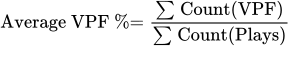
Calculating interval based metric: VPF needs to be adjusted by removing any sessions that started the previous day:
SELECT Plays, (VPF/Plays)*100 as VPF_pct,
    FROM (
        SELECT
           SUM ( case WHEN (startuptime != -1) then 1 else 0 end ) as Plays,
           SUM ( case WHEN (vpf>0) then 1 else 0 end)  as VPF,
        FROM CompanyX  WHERE ssd_date = 2018-02-20   )a
Note: Conviva lists all the VPF errors the player reports within 90 seconds of the failure in the order in which they were reported. Modifying the player error reporting and error message text can help to clarify which error caused the failure.
Definition: Video Playback Failures Business (VPF-B) occurs when the video play terminates due to a business playback error. VPF-Bs are an important measurement of service quality and audience engagement, especially when a large percentage of plays terminate due to VPF-B.

Average Video Playback Failures Business (VPF-B) % can be aggregated using the calculation below:

Calculating interval based metric: VPF-B must be adjusted by removing any sessions that started on the previous day:
SELECT Plays, (VPF/Plays)*100 as VPF_pct,
    FROM (
        SELECT
           SUM ( case WHEN (startuptime != -1) then 1 else 0 end ) as Plays,
           SUM ( case WHEN (B_vpf>0) then 1 else 0 end)  as VPF,
        FROM CompanyX  WHERE ssd_date = 2018-02-20   )a
Note: Conviva lists all the VPF-B errors the player reports within 90 seconds of the failure in the order in which they were reported. Modifying the player error reporting and error message text can help to clarify which error caused the failure.
Definition: Video Playback Failures Technical (VPF-T) occurs when the video play terminates due to a technical playback error. VPF-Ts are an important measurement of service quality and audience engagement, especially when a large percentage of plays terminate due to VPF-T.

Average Video Playback Failures Technical (VPF-T) % can be aggregated using the calculation below:

Calculating interval based metric: VPF-T must be adjusted by removing any sessions that started on the previous day:
SELECT Plays, (VPF/Plays)*100 as VPF_pct,
    FROM (
        SELECT
           SUM ( case WHEN (startuptime != -1) then 1 else 0 end ) as Plays,
           SUM ( case WHEN (T_vpf>0) then 1 else 0 end)  as VPF,
        FROM CompanyX  WHERE ssd_date = 2018-02-20   )a
Note: Conviva lists all the VPF-T errors the player reports within 90 seconds of the failure in the order in which they were reported. Modifying the player error reporting and error message text can help to clarify which error caused the failure.
Definition: Exits Before Video Start measures the number of viewing attempts that were terminated, typically by the viewer, before the video started. If an error is not generated, we count the failed attempt as an EBVS.
Sessions with Startup Time = -1, and Startup Error = 0 represent Exits Before Video Start (EBVS). An EBVS is similar to a VSF (it is a failure to play video), but an EBVS does not include a descriptive error message.
Exits Before Video Start (EBVS) can be aggregated to any grouping by using the number of attempts as the weighting factor.

Calculating interval based metric: The SQL shows the EBVS adjustement for interval calculations, by removing any start associated with sessions that started the previous day:
SELECT Interval_attempts AS attempts,
       (EBVS/Interval_attempts)*100 as EBVS_pct
       FROM (
           SELECT count(*) AS Interval_attempts,
           SUM( case when (startup_error = 0 and playingtime = 0 and startuptime = -1)
           then 1 else 0 end) as ebvs
FROM CompanyX WHERE ssd_date = 2018-02-20 )aDefinition: Plays shows the number of sessions where at least one video frame was displayed.
Plays are calculated as all attempted sessions that didn’t have a failure like VSF or EBVS ie., plays = attempts - sessions with VSF - sessions with EBVS. Based on your preference, you can use two methods to get Plays:
Calculating interval based metric: Plays requires no adjustments.
QoE Metrics
Definition: Rebuffering Ratio shows the percentage of buffering during viewing time. From this metric, we exclude the initial player startup buffering time (before the first video frame).

Calculating interval based metric: To calculate the Rebuffering Ratio for a day, adjust the Rebuffering Time and Playing Time by subtracting any Rebuffering Time or Playing Time accumulated in the previous day.
SELECT  Interval_buffering_time*100/(Interval_buffering_time + Interval_playing_time) as buffering_ratio
FROM (
  SELECT
    ROUND(SUM(case when a.bufferingtime >30*60*1000  then 30*60*1000 else a.bufferingtime -NVL(b.prior_buffering_time_ms,0) end  )/60000) AS Interval_buffering_time,
    ROUND(SUM(a.bufferingtime)/60000) AS life_buff_time ,
    ROUND(SUM(a.playingtime -NVL(b.prior_playing_time_ms,0) )/60000) AS Interval_playing_time
    FROM (
          SELECT playingtime,
                bufferingtime,
                convivasessionid,
                startuptime,
                starttime,
                ssd_date
                FROM CompanyX WHERE ssd_date = 2018-02-20 AND startuptime!=-1) a
                LEFT outer JOIN (
                  SELECT r.convivasessionid AS prior_session_id,
                         r.bufferingtime AS prior_buffering_time_ms,
                         r.playingtime AS prior_playing_time_ms,
                         r.startuptime as p_startuptime,
                         r.starttime as p_starttime
                  FROM CompanyX  r
                    WHERE r.ssd_date = 2018-02-19 ) b
                    ON (a.convivasessionid = b.prior_session_id and   a.starttime =b.p_starttime)
     where a.playingtime>0
) TmpDefinition: Rebuffering occurs when video play must wait for the buffer to fill because there's insufficient buffered video. Connection Induced Rebuffering is rebuffering unrelated to user-initiated seeks, but potentially caused by network conditions.
Note: The Zero CIRR Ended Plays % metric can be derived by identifying the sessions that played without CIRR and calculating that percentage of sessions from the total sessions that played.
The CIRR ratio shows the non-seek rebuffering time divided by total play time (expressed as a percentage). This ratio is calculated after video play ends.

Calculating interval based metric: Connection Induced Rebuffering Time and Playing Time need to be adjusted by subtracting any Connection Induced Rebuffering Time or Playing Time accumulated in the previous ssd_date.
SELECT Interval_cibuffering_time*100/(Interval_buffering_time + Interval_playing_time) as buffering_ratio
FROM(
  SELECT
    ROUND(SUM(case when a.bufferingtime >30*60*1000  then30*60*1000 else a.bufferingtime -NVL(b.prior_buffering_time_ms,0) end)/60000) AS Interval_buffering_time,
    ROUND(SUM(case when a.cibufferingtime >30*60*1000  then30*60*1000 else a.cibufferingtime -NVL(b.prior_cibuffering_time_ms,0) end)/60000) AS Interval_cibuffering_time,
    ROUND(SUM(a.bufferingtime)/60000) AS life_buff_time ,
    ROUND(SUM(a.playingtime -NVL(b.prior_playing_time_ms,0) )/60000) AS Interval_playing_time
    FROM(
          SELECT playingtime,
                cibufferingtime,
                bufferingtime,
                convivasessionid,
                startuptime,
                starttime,
                ssd_date
                FROM CompanyX WHERE ssd_date= 2018-02-20 AND startuptime!=-1) a
                LEFT outer JOIN(
                  SELECT r.convivasessionid ASprior_session_id,
                         r.cibufferingtime ASprior_cibuffering_time_ms,
                         r.bufferingtime ASprior_buffering_time_ms,
                         r.playingtime ASprior_playing_time_ms,
                         r.startuptime asp_startuptime,
                         r.starttime asp_starttime
                  FROM CompanyX  r
                   WHERE r.ssd_date= 2018-02-19 ) b
                   ON(a.convivasessionid = b.prior_session_id anda.starttime = b.p_starttime)
                   where a.playingtime > 0
   ) Tmp
CIR Interrupt Count shows the number of CIR interrupts during a session.
Definition: This metric shows the average bitrate of delivered content, across the entire audience, in a given time frame.
The calculation below shows the aggregate for the Average Bitrate for a set of sessions:

Calculating interval based metric: to calculate the Average Bitrate for a day interval, adjust the Playing Time by subtracting any Playing Time accumulated in the previous day.
SELECT Interval_bytesloaded/(Interval_playing_time) AS bitrate,
    life_bytesloaded/life_playing_time as lifebitrate
FROM
(
 SELECT
    ROUND(SUM(a.bytesloaded -NVL(b.prior_bytesloaded,0) )) AS Interval_bytesloaded,
    ROUND(SUM(a.bytesloaded )) AS life_bytesloaded,
    ROUND(SUM(a.playingtime )) AS life_playing_time,
    ROUND(SUM(a.playingtime -NVL(b.prior_playing_time_ms,0) )) AS Interval_playing_time

    FROM (
          SELECT playingtime,
                averagebitrate*playingtime as bytesloaded,
                convivasessionid,
                startuptime,
                starttime,
                ssd_date
                FROM CompanyX WHERE ssd_date = 2018-02-20 AND startuptime!=-1 and playingtime>0 and averagebitrate>0) a

            LEFT outer JOIN (
                  SELECT r.convivasessionid AS prior_session_id,
                         r.playingtime*r.averagebitrate AS prior_bytesloaded,
                         r.playingtime AS prior_playing_time_ms,
                         r.startuptime as p_startuptime,
                         r.starttime as p_starttime
                  FROM CompanyX  r
                   WHERE r.ssd_date = 2018-02-19  and r.playingtime >0 and r.averagebitrate>0) b
            ON (a.convivasessionid = b.prior_session_id and   a.starttime =b.p_starttime)
) TmpDefinition: Session duration is total time we have been monitoring the session.
The total duration of the session and can be approximated as:

Definition:
To calculate the session's total MB played, you can use the below calculation:

Definition: Video Startup Time is the number of seconds between the start of the Conviva monitoring starts and the first played video frame. We exclude any time trying to play or playing ads.
Average Video Startup Time (VST) can be aggregated using the Plays metric, as follows:
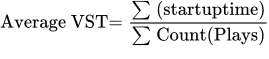
Calculating interval based metric: to calculate Video Startup Time for a specific day, remove any start times associated with sessions that started on the previous day. Please see SQL below for details:
SELECT
ROUND(SUM(a.jointime -NVL(b.p_jointime,0) )/ count(1)
) AS VST_ms
FROM (
      SELECT playingtime,
            bufferingtime,
            convivasessionid,
            startuptime as jointime,
            starttime,
            ssd_date
            FROM CompanyX WHERE ssd_date = 2018-02-20 AND startuptime >= 0) a
            LEFT outer JOIN (
              SELECT r.convivasessionid AS prior_session_id,
                     r.bufferingtime AS prior_buffering_time_ms,
                     r.playingtime AS prior_playing_time_ms,
                     r.startuptime as p_jointime,
                     r.starttime as p_starttime
              FROM CompanyX  r
              WHERE r.ssd_date = 2018-02-19 ) b
      ON (a.convivasessionid = b.prior_session_id and a.starttime = b.p_starttime)
where a.playingtime >0 and a.jointime >0Definition: This is the amount of time after seeking is completed by the user until video begins playing for the user (expressed in seconds).
Calculating interval based metric: Please see SQL below for details:
SELECT Interval_restarttime /(Interval_rejoinCount) AS VRT,
   FROM
      (
       SELECT
                 ROUND(SUM(a.rejoinCount -NVL(b.prior_rejoinCount,0) )) AS Interval_rejoinCount,
                 ROUND(SUM(a.vrestarttime -NVL(b.prior_vrestarttime ,0) )) AS Interval_restarttime
                 FROM (
                       SELECT vrestarttime,
                             rejoincount,
                             convivasessionid,
                             startuptime,
                             starttime,
                             ssd_date
                             FROM CompanyX WHERE ssd_date = 2018-02-20 AND startuptime!=-1 and playingtime>0)a
                         LEFT outer JOIN (
                               SELECT r.convivasessionid AS prior_session_id,
                                      r.vrestarttime AS prior_vrestarttime,
                                      r.rejoincount AS prior_resjoincount,
                                      r.startuptime as p_startuptime,
                                      r.starttime as p_starttime
                               FROM CompanyX  r
                                WHERE r.ssd_date = 2018-02-19  and r.playingtime ) b
                         ON (a.convivasessionid = b.prior_session_id and   a.starttime =b.p_starttime)
) TmpDefinition: The total time in milliseconds that a session spent in continuous play time that are less than 200 milliseconds. The player reports false play duration sometimes and this time is excluded from playing time.

Definition: The total count of number of times a session spent in continuous play time that are less than 200 milliseconds. The player reports false play duration sometimes and this time is excluded from playing time.

Definition: The total time in milliseconds that a session spent in continuous buffering that are less than 200 milliseconds. Micro buffering could result in jittering due to the video playback and this is not excluded from the session's buffering.

Definition: The total count of number of times a session spent in continuous buffering that are less than 200 milliseconds. Micro buffering could result in jittering due to the video playback and this is not excluded from the session's buffering.

Definition: The total time in milliseconds that a session spent in continuous buffering that are more than 90 seconds. A long buffering could be because of a player being stuck in buffering state and this is excluded from rebuffering time.

Definition: The total count of number of times a session spent in continuous buffering that are more than 90 seconds. A long buffering could be because of a player being stuck in buffering state and this is excluded from rebuffering time.

Engagement Metrics
Definition: An Ended Play is a viewing session that ended during the selected interval. The session must have at least one viewed video frame to count toward the Ended Play metric. This metric counts only viewing sessions that played and ended.

SELECT count(*)
                        from CompanyX a
WHERE a.ended_status > 0 and a.playingtime > 0Definition: We assign a unique client ID to each device. Unique Devices represents the count of those distinct client IDs which initiated at least one video session in the given time frame.
To count the number of unique devices, you will need to use the data in the 'conviva session id’. The Client ID is the first 4 segments (not the first 4 digits) and the specific session ID is the 5th segment. Using the sample below, the data highlighted in blue is the Client ID 8025681:1708681910:125006299:1630859473:4109428019.
Calculating interval based metric:


select count(distinct(clientId)) as uniq from CompanyX where startuptime !=-1 and ssd_date =2018-02-20;Definition: Playing time (mins) - The total number of minutes that a particular session/any aggregation played.
Calculating interval based metric: when calculating interval based metrics (for the day), Playtime needs to be adjusted by removing any playtime associated with sessions that start on the previous day. Example: aggregating Plays to a viewerID is done as follows:
SELECT
    a.gameId,
    ROUND(SUM(a.playingtime -NVL(b.prior_playing_time_ms,0) )/60000) AS Interval_play_time,
    ROUND(SUM(a.playingtime)/60000) AS life_play_time
    FROM (
      SELECT  playingtime,
             convivasessionid,
            startuptime,
             gameId,
             starttime,
             ssd_date
                FROM CompanyX WHERE ssd_date = 2018-02-20 AND startuptime!=-1) a
            LEFT outer JOIN (
                  SELECT r.convivasessionid AS prior_session_id,
                         r.playingtime AS prior_playing_time_ms,
                         r.startuptime as p_startuptime,
                         r.starttime as p_starttime
                  FROM CompanyX  r
                   WHERE r.ssd_date = 2018-02-19 ) b
                        ON (a.convivasessionid = b.prior_session_id and a.starttime =b.p_starttime)
                        group By a.gameId order by Interval_play_time desc
Definition: We calculate Average % Complete by dividing the total playing time for all sessions by the total content length. We don’t count the playing time for sessions where the content length isn’t available.
Frequently Asked Questions
-
Difference between ConvivaVSI Dashboard and SSD
- ConvivaVSI uses real-time, 1-minute or hourly interval metrics whereas SSD provides lifetime metrics and can provide a historical 1-day interval. The averages between the two will get closer the longer the window you use - i.e. a 24-hour average will result in a better match than a 1-hour average.
- Although ConvivaVSI and SSD share the same session level sanitization rules, ConvivaVSI adds additional aggregation logic based on metrics calculations. The idea here is for the consumer of Session Source Data to apply aggregation logic based on the desired use case.
- When calculation playtime metrics only use sessions that joined ie sessions that didn’t have VSF or EBVS.
- Playing time = 0 and Buffering time is NOT 0.
- You can also specify that any bit-rates over 10mbps be ignored (quite rare but that's one of ConvivaVSI's current sanitization mechanisms).
- Extremely long Buffering Time (but cap this value at 30 minutes).
- Calculate overall Buffering Ratio as:

-
What does VST = -3 stand for?
-
The current session is the revived portion of an expired session. Sessions expire when there is 120 seconds of inactivity. The expired and revived sessions have the same session ID, so you can group the sessions by session id (SID5). The session End flag of the expired session is set to 2 (Session End Status = 2), while the revived portion has VST of -3.
-
Conviva flags indicate that the startup time is not reliable.
-
Startup time exceeded 10 minutes and the VST is flagged as unknown.
-
Why do I see unexpected ASCII characters in certain fields?
-
How do I stitch SSD across multiple days?
-
What is the difference between -1 and 0 in Percent Complete?
There are differences between the data that you see within ConvivaVSI vs what you see in the SSD logs. This is by design, and there are a couple of reasons why SSD and ConvivaVSI have differences:
Pursuing an exact match between ConvivaVSI and offline SSD calculations is difficult and often inadvisable, but following the rules below will help make the calculations much closer.
Exclude the following SSD sessions from your calculations for playback metrics (buffering/bit-rate):
Include the following sessions:
A Note on Heartbeats:
Conviva uses Heartbeats to monitor the video sessions.
Heartbeats continue to be sent while the video is buffering, unless the internet connection itself has been interrupted and the Conviva library and backend cannot communicate. In this case, the library will continue monitoring and will send a "catch-up" heartbeat when the connection is re-established.
If the video is paused or the connection is lost for more than 2 minutes, then no heartbeats will be sent and the Conviva back-end will automatically clean-up the session. We do not count paused time, so if the viewer was paused for more than 2 minutes then the session will time out.
We still collect heartbeats during rebuffering, so this would not cause a session to timeout. However, if the player ends up in what we call a 'zombie state' (incessant/perpetual buffering) then that contributes to ConvivaVSI and SSD metrics. The only difference is that ConvivaVSI metrics cap buffering at 30 minutes, whereas SSD has no such cap. Logic in an SSD-analysis tool to account for this difference would be necessary to unify ConvivaVSI and SSD calculations.
VST=-3 means we don't have a specific Video Startup Time. Possible reasons include:
SSD reports are delivered as CSV files. The Session Tags column in SSD is customer defined and can contain arbitrary strings with special characters which could prevent parsing of CSV; therefore we use URI encoding to remove any offending characters. We recommend that you run URI decoding on the "Session Tags" field, by using various libraries that provide this decode functionality (available in all mainstream languages).
The data in SSD is already "stitched" for sessions that span across multiple days. SSD provides lifetime metrics, which means that when a session data spans across many days, the last session record contains the complete details of the metrics for that session. This is a quick mechanism to view SSD session data across multiple sets. Therefore, when combining SSD sessions, overriding earlier sessions with the most recent session provides the most accurate and quick mechanism to stitch session logs.
The value in Percentage Complete is rounded to the nearest integer value.
A value of 0 is a rounded value when percentage complete is less than 1%. This covers the occasions when the startup time>0 but the video only played for a very small period of time.
A value of -1 (usually for live content) indicates that we do not receive content length.
SSD Field Definitions
This guide provides a comprehensive list of all available SSD columns. You can customize your SSD reports to include only the columns you need for your metrics. Please contact Conviva Customer Support to add or remove columns from your reports.
Note: The maximum value size for any of the fields is 128 bytes.
|
Field Name |
Name in SSD File |
Alias (for query examples) |
Data Type |
Description |
|---|---|---|---|---|
| ViewerID | viewerId | viewerId | String |
Unique identifier of the viewer (sometimes called subscriber) watching content in that session. This is typically a number, or a hashed/masked identifier without any personally identifiable information. The same ViewerId can have multiple sessions. When the ViewerID is unavailable, this field populates the IP address. |
| Asset | asset | asset | String | The name of the asset that was viewed |
| Device/OS | device/os | deviceos | String | Device Operating System |
| Country | country | country | String | Country Name |
| State | state | state | String | State Name (geography, like California) |
| City | city | city | String | City Name (geography, like San Francisco) |
| ASN | asn | asn | Autonomous System Number for the ISP | |
| ISP | isp | isp | String | Internet Service Provider name |
| Start Time | start time (unix time) | starttime | Integer | The time when Conviva received the first heartbeat for the session. The format is Unix epoch time in seconds. |
| Startup Time | startup time (ms) | startuptime | Integer | The time in milliseconds between the start of the Conviva monitoring and the first played video frame. Startuptime excludes pre-roll ad time. -1 indicates an unsuccessful play (no startup time). -3 indicates the session connected but the client didn't send us the necessary information to determine when the video began playing. |
| Playing Time | playing time (ms) | playingtime | Integer | The amount of time when a player is actively displaying video content during a session. Note: This does not include rebuffering time. |
| Buffering Time | buffering time (ms) | bufferingtime | Integer | This is the amount of rebuffering time during the session. It does not include the initial buffering at startup. In ConvivaVSI, we display rebuffering as a percentage of the total viewing experience. |
| Interrupts | interrupts | interrupts | Integer | The number of times the session was interrupted for rebuffering. If a viewer paused and resumed a session then that is not counted as interrupt but if that action caused any buffering then it will be counted as an interrupt. |
| Average Bitrate | average bitrate (kbps) | averagebitrate | Integer | Average bitrate at which content was delivered during the session. The ability to determine bitrate depends on the player integration. Not all players are capable of delivering bitrate information. |
| Startup Error | startup error | startup_error | Integer | If value = 0 then video played and there was no startup error. If value = 1 then video failed to play and there was a startup error (see Video Startup Failure Error List). |
| Startup Error Business | startup error business | B_vsf | Integer | If value = 0 then video played and there was no business startup error. If value = 1 then video failed to play and there was a business startup error (see Video Startup Failure Business Error List). |
| Startup Error Technical | startup error technical | T_vsf | Integer | If value = 0 then video played and there was no technical startup error. If value = 1 then video failed to play and there was a technical startup error (see Video Startup Failure Technical Error List). |
| Session Tags | session tags | sessiontags | String | Session tags are player metadata that are defined when you integrate your player with Conviva. Each tag describes a piece of information that your player sends to Conviva. You can choose which of the available tags you want to include in SSD and the ConvivaVSI Viewer Module. You can have a unique set of tags based on your players and business needs and your Conviva Solutions Consultant can assist further with your list. While the player can send many tags, your account can have up to 10 active tags for use with SSD. Tags are key-value pairs in this format: key1=value1&key2=value2, e.g. cluster.name=production&protocol.type=cws |
| IP address | ip address | ipaddress | String | The viewer's video playing device public IP address. The IP address - as seen by the Conviva gateway - typically corresponds to the modem gateway IP address for fixed connections or the packet gateway IP address for mobile connections. IP addresses can be encrypted or dropped so they are not passed through the Conviva web gateway. |
| CDN | cdn | cdn | String | The last CDN used in the viewing session. If CDN switches occurred, then this CDN may be different from StreamURL. CDN identification procedures can be sophisticated and are outside the scope of this document. |
| Browser | browser | browser | String | Name of the browser used by the viewer's device. If no browser is involved in the streaming, such as with a mobile app or connected TV, the value will be "Non-Browser Apps." |
| Conviva Session ID | conviva session id | convivasessionid | String | Unique Conviva session identifier in this format: five integer numbers separated by a colon (:). Client ID is part of the Conviva session id - the first 4 blocks of the numbers separated by : represents client id. For example: Conviva session id value = "20048757:2397552430:4151350518:1876058113:4487054" then client id = 20048757:2397552430:4151350518:1876058113 & session id = 4487054 |
| StreamURL | stream url | streamurl | String | The video streaming URL of the first CDN used in the viewing session. |
| Video Startup Failure Error List | VSF error list | vsf_error_list | String | A list of fatal Video Startup Failure (VSF) errors that occurred during this session, separated by "&". A session with Startup Time = -1 and Playing Time = 0 and no error list, corresponds to an Exits Before Video Start (EBVS). |
| Video Startup Failure Business Error List | VSF-B error list | vsfb_error_list | String | A list of fatal Video Startup Failure Business (VSF-B) errors that occurred during this session, separated by "&". A session with Startup Time = -1 and Playing Time = 0 and no error list, corresponds to an Exits Before Video Start (EBVS). |
| Video Startup Failure Technical Error List | VSF-T error list | vsft_error_list | String | A list of fatal Video Startup Failure Technical (VSF-T) errors that occurred during this session, separated by "&". A session with Startup Time = -1 and Playing Time = 0 and no error list, corresponds to an Exits Before Video Start (EBVS). |
| Video Playback Failure Error List | VPF error list | vpf_error_list | String | A list of fatal Video Playback Failure (VPF) errors (including custom errors) that caused the playback to fail. |
| Video Playback Failure Business Error List | VPF-B error list | vpfb_error_list | String | A list of fatal Video Playback Failure Business (VPF-B) errors (including custom errors) that caused the playback to fail. |
| Video Playback Failure Technical Error List | VPF-T error list | vpft_error_list | String | A list of fatal Video Playback Failure Technical (VPF-T) errors (including custom errors) that caused the playback to fail. |
| Content Length | content length | contentlength | Integer | The length of the asset in milliseconds (ms). Only applicable for VOD. For LIVE, the content length is not known, therefore the value is set to -1. |
| Percent (%) complete | percentage complete | percentagecomplete | Integer | The percentage of video content the viewer watched during the session. % Complete is calculated by dividing the total playing time for the session by the total content length. % Complete is rounded to the nearest integer value. A value of -1 means we couldn't obtain content length (for example in live content). A value of 0 means that the video did not start or that the Percentage Complete is less than 1%. |
| Connection Induced Rebuffering Time | connection induced re-buffering time (ms) |
cibufferingtime | Integer | The time duration during which a viewer experiences non-seek rebuffering. |
| Connection Induced Rebuffering Interrupt Count | connection induced re-buffering interrupt count |
cibufferingcount | Integer | The number of CIR interrupts that occurred during the session. |
| Video Restart Time | video restart time (ms) | vrestarttime | Integer | This is the total amount of time - after seeking is completed by the user - until the video starts playing again. This is the sum of all the Video Restart Time, for the entire session. |
| Rejoined Count (or Video Restart Count in Pulse SSD) |
re-joined count | rejoincount | Integer | This is the count of number of times video rejoined after user seeked. |
| Video Playback Failures | VPF | vpf | Integer | Video Playback Failures (VPF) occurs when a fatal error causes a video playback to fail. The field is a binary value and is set to 1 if the session started successfully but ended with a fatal error. |
| Video Playback Failures Business | VPF_B | B_vpf | Integer | Video Playback Failures Business (VPF-B) occurs when the video play terminates due to a business playback error. The field is a binary value and is set to 1 if the session started successfully but ended with a business error. |
| Video Playback Failures Technical | VPF_T | T_vpf | Integer | Video Playback Failures Technical (VPF-T) occurs when the video play terminates due to a technical playback error. The field is a binary value and is set to 1 if the session started successfully but ended with a technical error. |
| Session End Status | ended status | ended_status | Integer | The Status is an integer (0-2) showing the status of the session for that SSD: 0 = Not Ended; at the SSD issue time, the session is still active. 1 = Gracefully ended; the session ended with a session ended event. 2 = Expired due to lack of heartbeat update; we received no heartbeat update for 2 minutes. |
| Session End Time | end time | endtime | Integer (unix time) | The time we received the last heartbeat update from this session. |
| Micro Playing Time | micro playing time (ms) | microplayingtime | Integer | The total time in milliseconds that a session spent in continuous play time that are less than 200 milliseconds. The player reports false play duration sometimes and this time is excluded from playing time. |
| Micro Playing Count | micro playing count | microplayingcount | Integer | The total count of number of times a session spent in continuous play time that are less than 200 milliseconds. The player reports false play duration sometimes and this time is excluded from playing time. |
| Micro Rebuffering Time | micro rebuffering time (ms) | microrebufferingtime | Integer | The total time in milliseconds that a session spent in continuous buffering that are less than 200 milliseconds. Micro buffering could result in jittering due to the video playback and this is not excluded from the session's buffering. |
| Micro Rebuffering Interrupts | micro rebuffering interrupts | microrebufferinginterrupts | Integer | The total count of number of times a session spent in continuous buffering that are less than 200 milliseconds. Micro buffering could result in jittering due to the video playback and this is not excluded from the session's buffering. |
| Long Rebuffering Time | long rebuffering time (ms) | longrebufferingtime | Integer | The total time in milliseconds that a session spent in continuous buffering that are more than 90 seconds. A long buffering could be because of a player being stuck in buffering state and this is excluded from rebuffering time. |
| Long Rebuffering Interrupts | long rebuffering interrupts | longrebufferinginterrupts | Integer | The total count of number of times a session spent in continuous buffering that are more than 90 seconds. A long buffering could be because of a player being stuck in buffering state and this is excluded from rebuffering time. |
| Last CDN Edge Server | last cdn edge server | lastcdnedgeserver | String | The identity of the CDN edge server that served the last segment, chunk, or manifest of the playback (collected as part of sensor integration). Note: This field is available only after sensor integration is completed, so that the CDN edge IP related information can be collected. To enable this field in your SSD configuration in Pulse, please contact Conviva Customer Support as the CDN edge IP information needs to be validated before enablement. |
| Last CDN GroupID | last cdn group id | lastcdngroupid | String | The CDN region ID or POP id that served the last segment, chunk, or manifest of the playback (collected as part of sensor integration). Note: This field is available only after sensor integration is completed, so that the CDN edge IP related information can be collected. To enable this field in your SSD configuration in Pulse, please contact Conviva Customer Support as the CDN edge IP information needs to be validated before enablement. |
| ErrorList | error list | error_list | String |
List of fatal errors that occurred during the session. The errors are separated by "&". The maximum value size for each error is 128 bytes. If the size exceeds the maximum length, the error message is truncated to 128 bytes. A session with Startup Time = -1 and Playing Time = 0 and no error list, corresponds to an Exits Before Video Start (EBVS). |