
With Application Manager, you can define metadata strategy for your device application and submit your device application for Conviva's validation. Application Manager contains several dashboards and you can easily navigate across the dashboards to qualify device applications, define and track metadata strategy, validate Conviva integrations, view validation results, and set Go-Live date for Conviva validated device applications.
For a complete list of the supported dashboards, see Application Manager Dashboards.
Metadata Strategy
Metadata is a powerful way to enrich your analytics. To benefit from Conviva's analytics platform, map your business needs to the metadata that your application passes to Conviva. For example, to measure the viewers' quality of experience with live content versus Video on Demand (VoD) content, pass the metadata that identifies whether the content is live or on demand.
For more information about defining the metadata strategy, see Define Metadata Strategy.
Structure and Navigation
Landing Page
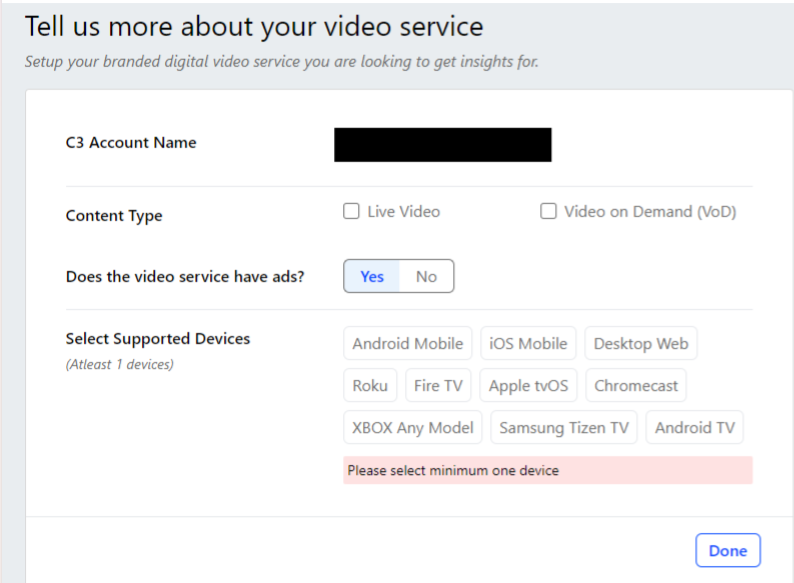
If you do not have any device applications set up in Application Manager, then the Tell us more about your video service page is displayed.
If you already have one or more device applications set up in Application Manager, then the Overview dashboard is displayed.
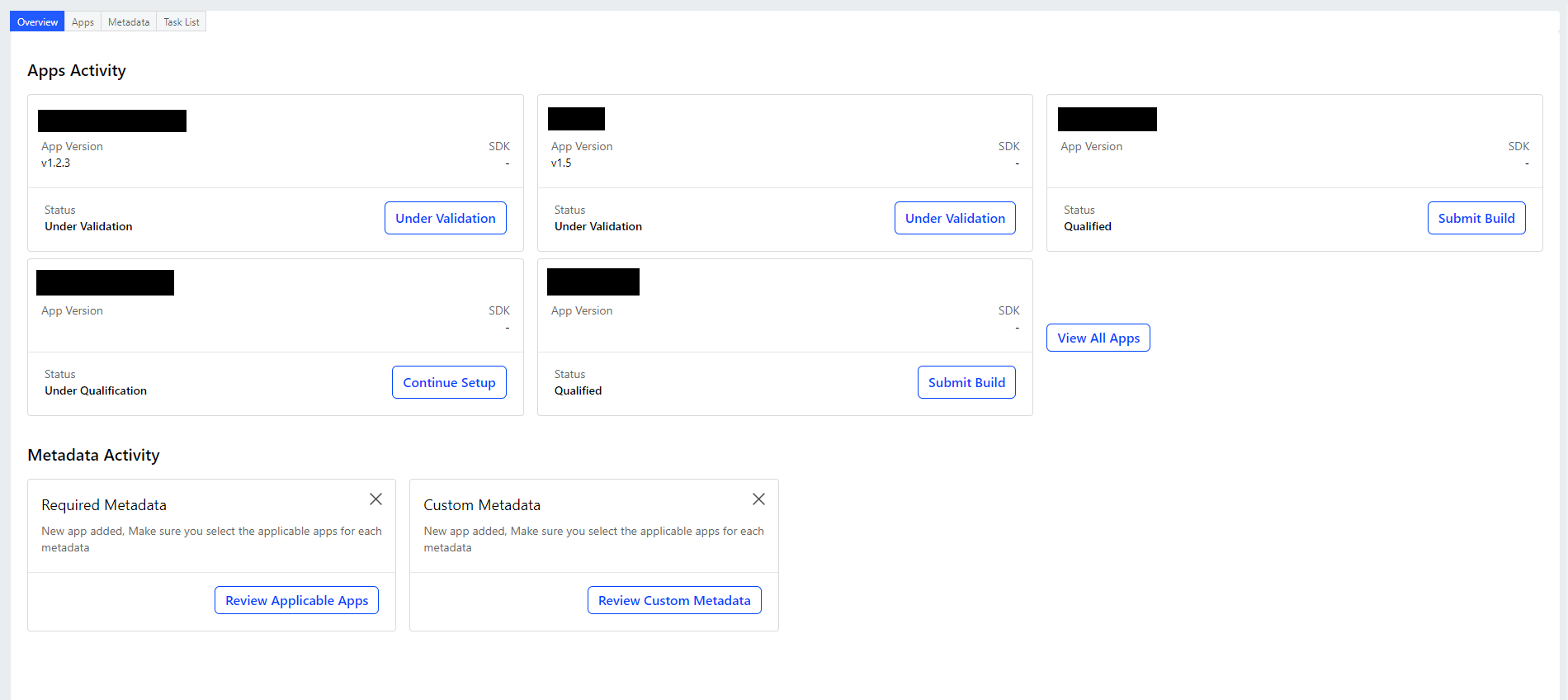
For more information about Video Integration's Overview dashboard, see Overview Dashboard.
Navigation Menu
The navigation menu allows you to navigate across all the dashboards in Video Integration.

Overview - An overview of your applications and metadata
Application - Qualify, integrate, and validate device applications
Metadata - Capture, maintain, and export metadata
Workflow
Qualify Device Application for Validation
The device application must be qualified to determine the test cases for validation testing. Inaccurate qualifications and Conviva Sensor SDK or library identification can lead to inaccurate results. For example, if you do not specify to Conviva that there are ads in pre-roll, then Conviva does not use any of the pre-roll test cases. This leads to inaccurate results.
After requesting for your device application's qualification, Conviva reviews the request. If the device application is approved for qualification, then a library or Conviva Sensor SDK is assigned to the qualified device application. If the device application is disqualified, then you must re-submit the device application for qualification with accurate information. You can view the qualification status for all of your device applications in the Apps dashboard.
For more information about qualifying your device applications, see Apps Dashboard.
Define Metadata Strategy
The metadata must be structured uniformly and consistently across all the integrated platforms. All properties, metadata tag keys, and values are case-sensitive.
Conviva categorizes the metadata tags into two buckets:
Custom Metadata - Metadata that extend your implementation using custom tag keys that are specific to your business requirement for either video or advertisement content.
Required (Pre-defined) Metadata - Conviva defines the constants or fixed string keys for commonly used metadata. These metadata keys provide critical information about video and advertisement content, versioning, and workflow.
Use Application Manager to:
Set up metadata for the device application
Validate metadata
Set Up Metadata
Conviva defines the required (pre-defined) metadata. If you use multiple products, then Conviva defines the required metadata commonly for all the products that you use. For example, if you use Conviva SEI and Conviva Content Analytics, then Conviva defines the required metadata commonly for both, Conviva Video and Conviva Content Analytics.
In addition, if you need custom metadata, then you can set up the custom metadata commonly for all the products that you use.
For more information about metadata set up, see Metadata Dashboard.
Submit Device Application Validation Request
After setting up your device application metadata in Application Manager, submit the qualified device application to Conviva for validation. If your device application passes Conviva validation completely or with minor issues, your device application is ready to be launched. If your device application fails Conviva validation, then you must fix the issues and re-submit the device application.
Use Video Integration to:
Submit the qualified device application for Conviva validation
Review the validation results
Submit Device Application for Validation
The qualified device application must be certified by Conviva for an integration. You submit the qualified device application for Conviva's validation to certify the device application. You can only submit a qualified device application for validation. The qualifications determine the individual test cases that Conviva uses to validate the build. Inaccurate qualifications can lead to inaccurate results.
You receive an email notification when the build is certified as Validation Passed, Validation Failed, or Validation Passed with Issues. If your device application passes the validation completely or with minor issues, then you can launch the device application. If your device application fails the validation, then you must fix the issues and re-submit the device application for validation.
For more information about validating your qualified device applications, see Apps Dashboard.
Prepare to Launch Device Application
The Apps dashboard displays the validation status for all device applications. If your device application passes the validation completely or with minor issues, then you can launch the device application.
Before launching your Conviva validated device application:
Configure the application to use the production version of your Conviva
CUSTOMER_KEY.Disable Touchstone so that the data flows into your production Pulse account.
If your device application fails the validation, then you must fix the issues and re-submit the device application for validation.