With Conviva AI alert cohorts, customize the root cause groups monitored for AI alert performance and view the cardinality of alerting cohort combinations to understand the scale of the alert monitoring.
The Conviva AI Alerting system actively monitors the specified cohorts for anomalies and calculates a cohort baseline with a variation range for metrics. It determines this range using the mean and standard deviation from historical data. The system evaluates the recent traffic against this range and detects an anomaly if the traffic exceeds the upper boundary range or threshold. Once an anomaly is detected, the system triggers the diagnosis process to decide whether to issue an alert, considering the sensitivity settings and root cause group of the event.
Each AI alert cohort requires a minimum level of ongoing activity during each 1-minute interval to qualify for alerting. This qualification is based on the crucial AI alert sensitivity settings.
25 Attempts
25 Concurrent Plays
25 Ended Plays
The system displays the sessions linked to the root cause group of each generated alert and the affected views due to the alert. Each AI alert has an assigned severity (Info, Warning, Critical) that helps determine the impact of the alert condition.
For more information on AI alerts, alert severity, and sensitivity controls, see AI Alerts.
Custom Dimension Values
Custom dimensions enhance AI Alerts by displaying the list of scanned dimension values and dimension combinations analyzed by the AI alert system and allowing the addition of new dimensions and dimension value combinations. Custom dimensions are configured as single dimensions or in groups of two or three to focus AI alerting on specific performance areas, such as an underperforming channel or a combination of CDN and OS family.
Default dimensions appear on the AI Cohorts page automatically. You can remove default dimensions and add them back using the same + and x controls as custom dimensions. Default and custom dimensions count toward a common combination limit.
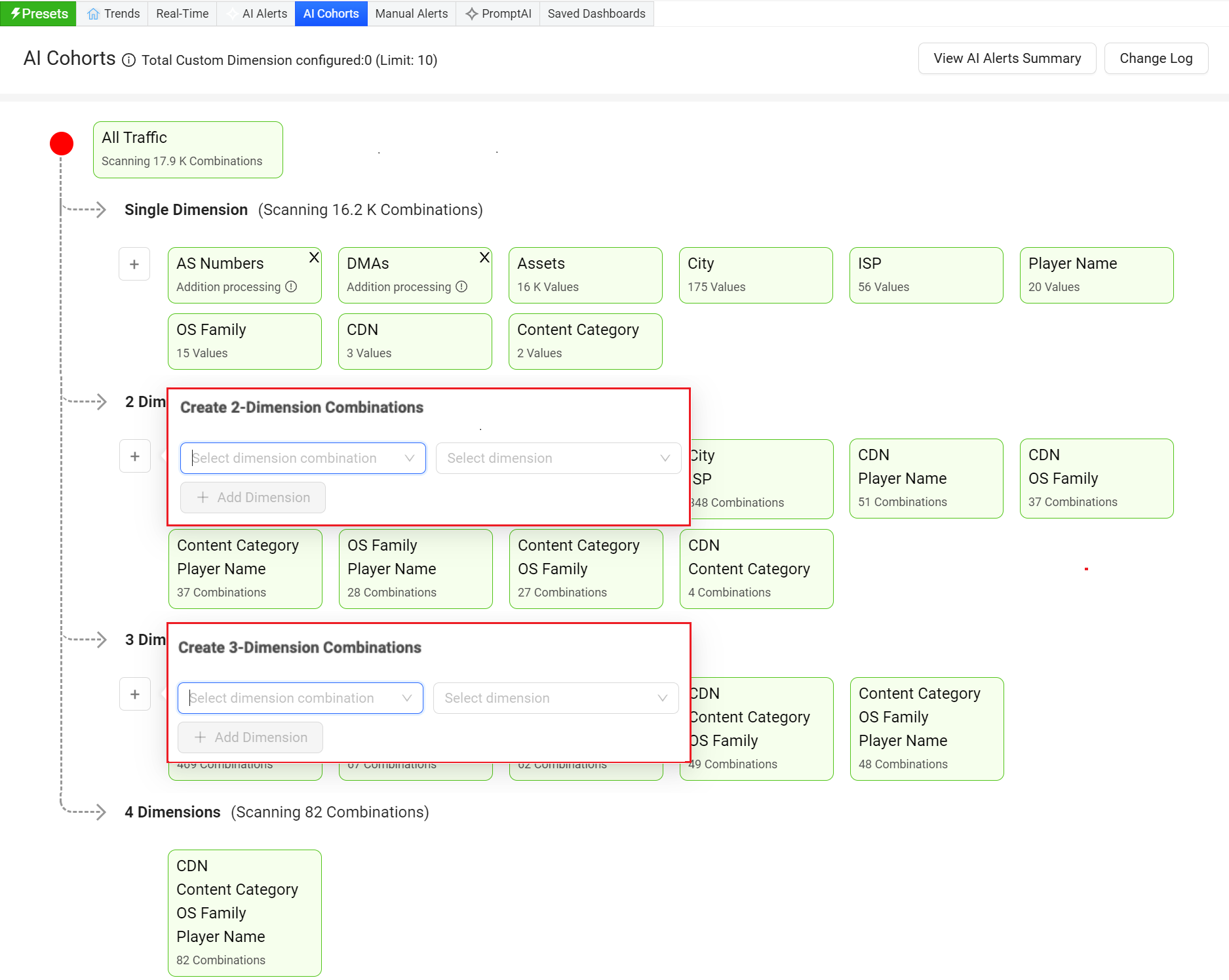
The AI Cohorts page clarifies the AI alert process by displaying the available dimension groups and dimension value combinations, both individually and in combinations. This format enhances understanding of the AI alert scanning process and highlights the valid dimension/value combinations actively monitored for AI alert conditions.
Each dimension value and combination of dimension values must reach a minimum of 25 Attempts, Concurrent Plays, or Ended Plays within the last minute to qualify for AI alert analysis. Consequently, many dimension combinations may not meet the criteria for valid AI alert combinations, which reduces the number of displayed combinations.
Dimension Combination Example
For example, the analyzed combinations for a group of two dimensions with two values each (four dimension / value combinations) may result in only two valid AI alerting combinations scanned for AI alert conditions.
| Dimensions / Values | Combinations of Dimensions / Values (4) |
Analyzed Combinations for AI Alert Conditions (2) |
|---|---|---|
| CDN: Akamai, Limelight |
Akamai: Windows (20 Attempts, 15 Plays, 15 Ended Plays)* Akamai: iOS (27 Attempts, 15 Plays, 15 Ended Plays) Limelight: Windows (33 Attempts, 25 Plays, 15 Ended Plays) Limelight: iOS (22 Attempts, 19 Plays, 19 Ended Plays)* |
Akamai: iOS Limelight: Windows
|
|
OS Family: Windows, iOS |
For information on combination limits, see Dimension Combination Limits.
Displaying Dimension Groups
Open the AI Cohorts page from either of these entry points:
- From the AI Alerts dashboard: click AI Alerts and then Scanning x Combinations.
Scanning x Combinations
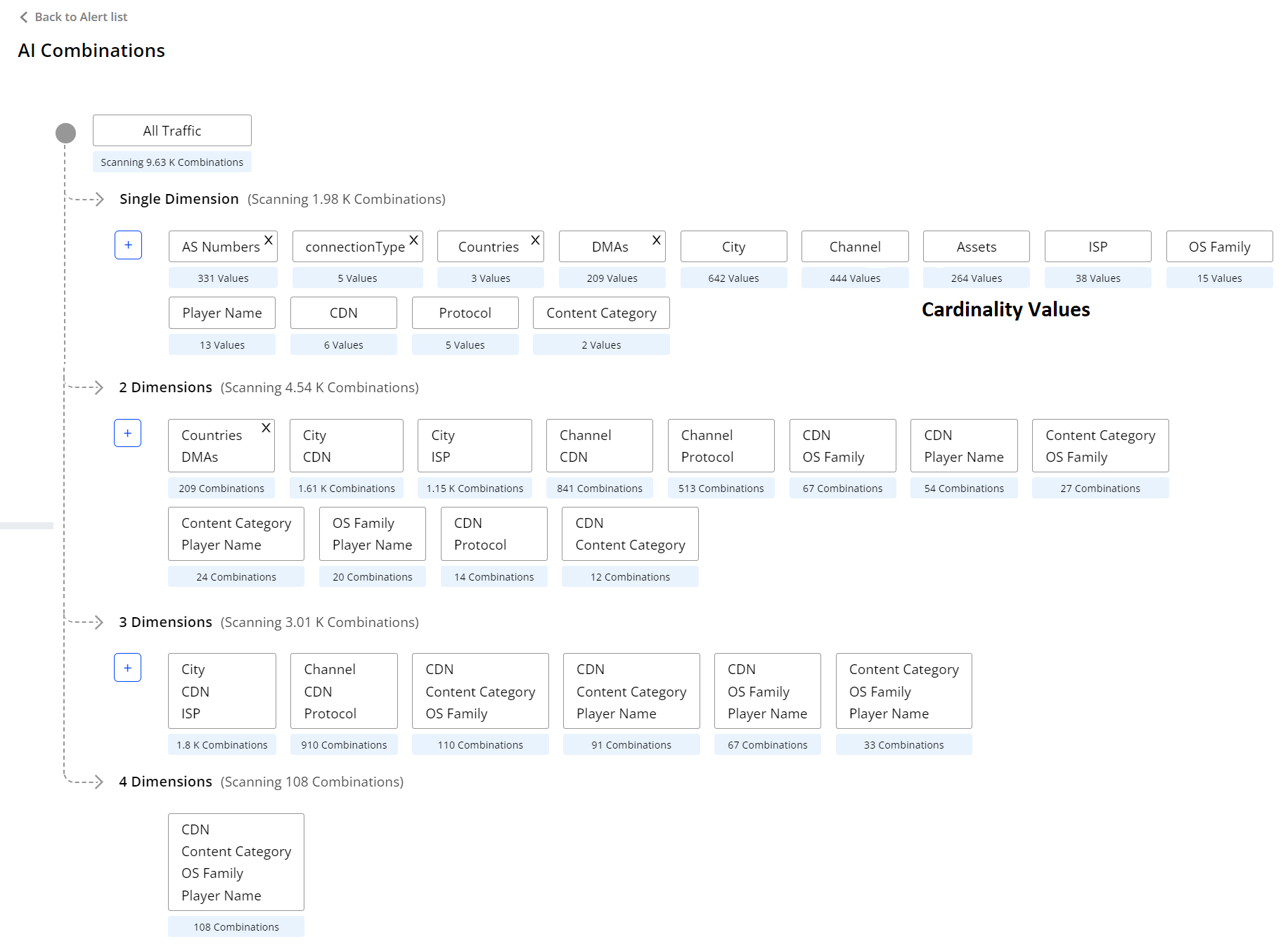
- From the AI Config page: click the AI Cohorts icon.
AI Cohorts
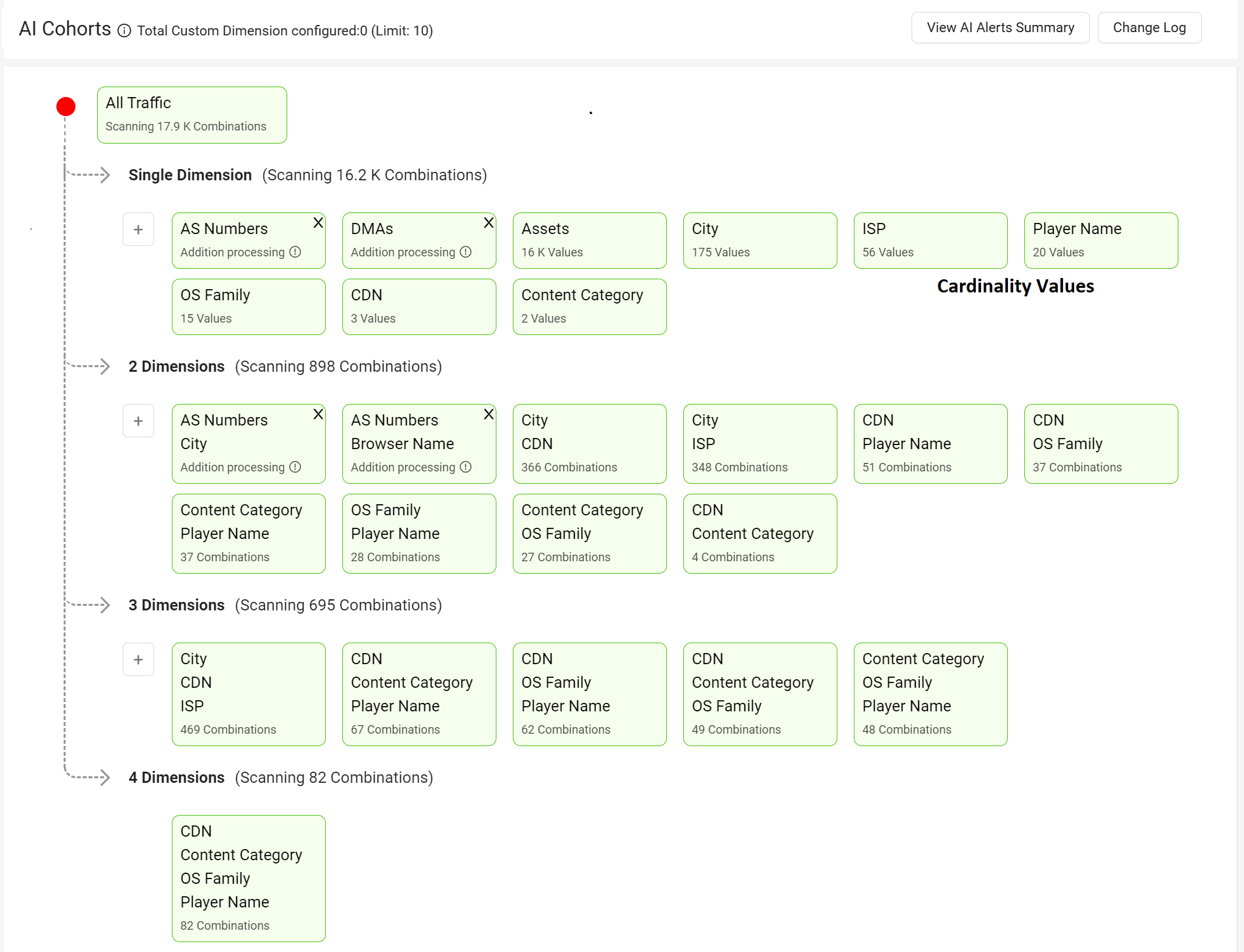
Creating a Custom Dimension
Dimension management enables the conversion of custom tags into custom dimensions for use in Video and Ad Experience. Users can select the required tags for conversion, adhering to a tag conversion limit specified in their company's contract. For more information on converting the custom tags and create the custom dimensions, see Dimension Management.
Adding a Dimension
- Click the Plus "+" icon next to the dimension group list to add a dimension from the displayed dimension list. + Icon
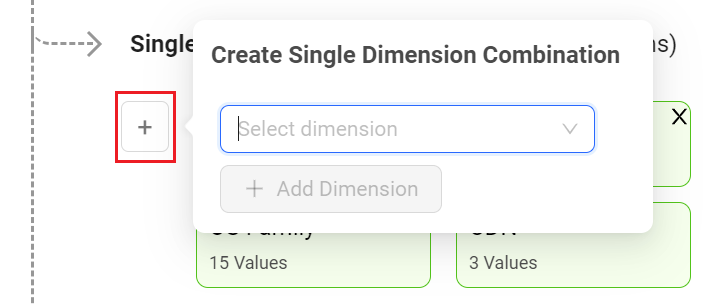
The dimension list contains standard, ads, geo, and custom dimensions, but the displayed dimensions can vary based on the account privileges.
- Click +Add Dimension to add the selected dimension to the list. Add Dimension
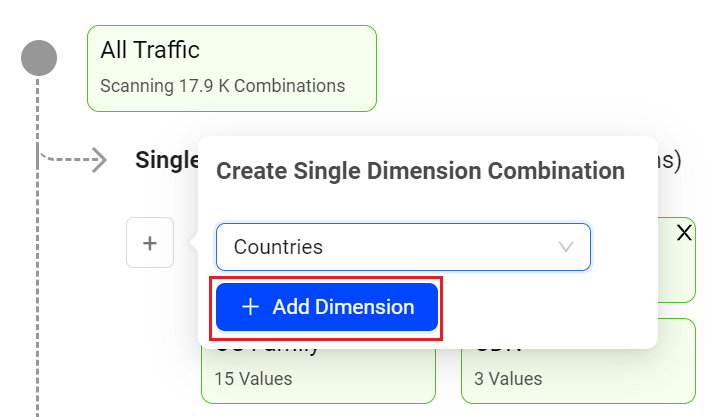
The dimension gets added to the list. The plus "+ " icon indicates new dimensions can be added. After the dimension limit is reached, this icon is no longer visible. It becomes visible again when dimensions are removed. The system takes one day to initialize any new AI Alerts and dimension combinations.
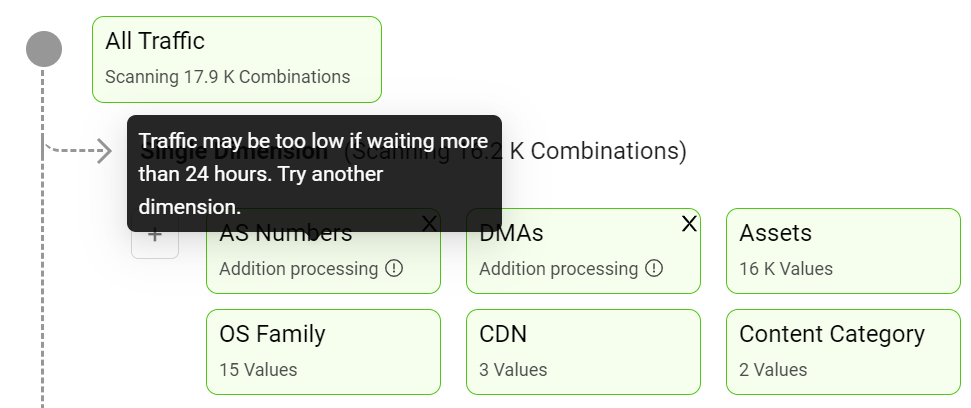
Adding Multiple Dimension Combinations
To create multiple-dimension combinations, make sure the desired dimensions are first added as Single Dimension Combinations.
Click the + icon and select the dimension from the drop-down.
Click +Add Dimensions to add the selected dimension to the list.
2 Dimensions
Create 2 Dimension Combination
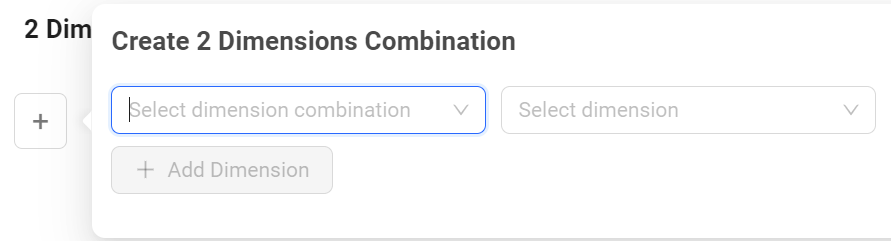
- The first dimension drop-down lists the dimensions from the displayed single dimensions.
- The second dimension drop-down lists all the dimensions (standard+custom) available in the system.
3 Dimensions
Create 3 Dimension Combination
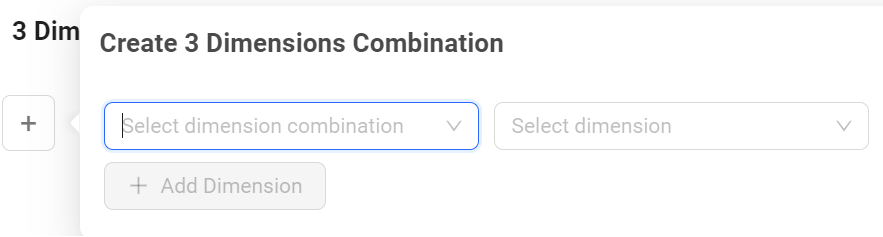
- The first dimension drop-down lists the dimensions combinations from the two dimension combination list.
- The second dimension drop-down lists all the dimensions (standard+custom) available in the system.
Create a combination using the parent level and any dimension the account supports. For example, create a combination with the dimensions Browser + Browser Versions without adding Browser Version at the first (single) level dimension. Similarly, create a combination with Device Name + Device Operating System + Device Operating System Version without including the Device Operating System and Device Operating System Version at the first (single) level dimension.
Dimension Combination Limits
To enhance AI alerting, add default and custom dimension combinations up to the limit shown in the AI Cohorts drawer. This limit counts all default and custom dimension combinations.
Use Case
Create a combination using the parent level and any dimension the account supports.
For example, create a combination with the dimensions CDN + Countries at the Second (two) level dimension. The Precision algorithm monitors the CDN and blacklists the Primary CDN when playback fails and the VPF metric exceeds the threshold. It then diverts traffic to the backup CDN. Simultaneously the AI alerts generates an alert.
Deleting a Dimension Combination
You can delete both default and custom dimensions. Upon reaching the combination limit, remove existing dimensions to add new ones.
To delete a dimension,
- Click the x icon in the dimension box and click the Delete button to delete the dimension. Delete Combination
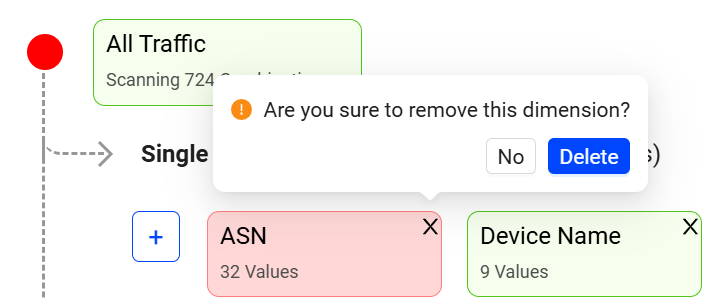
The system may display this error message to address the complexity and high number of values in multi-dimensional groups, signalling that it needs more time to process the combinations and complete the update.
Error fetching combinations
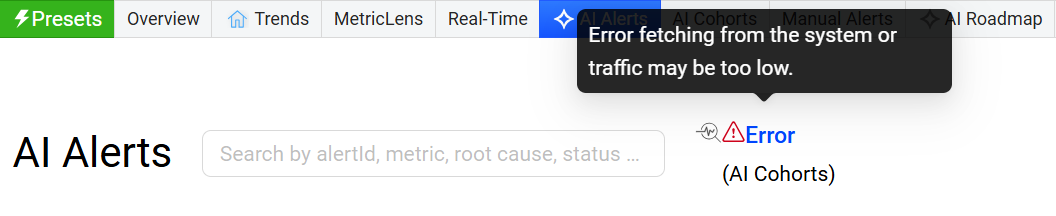
Once the system resources become available, the error message is no longer displayed.
Tracking Custom Dimensions Updates
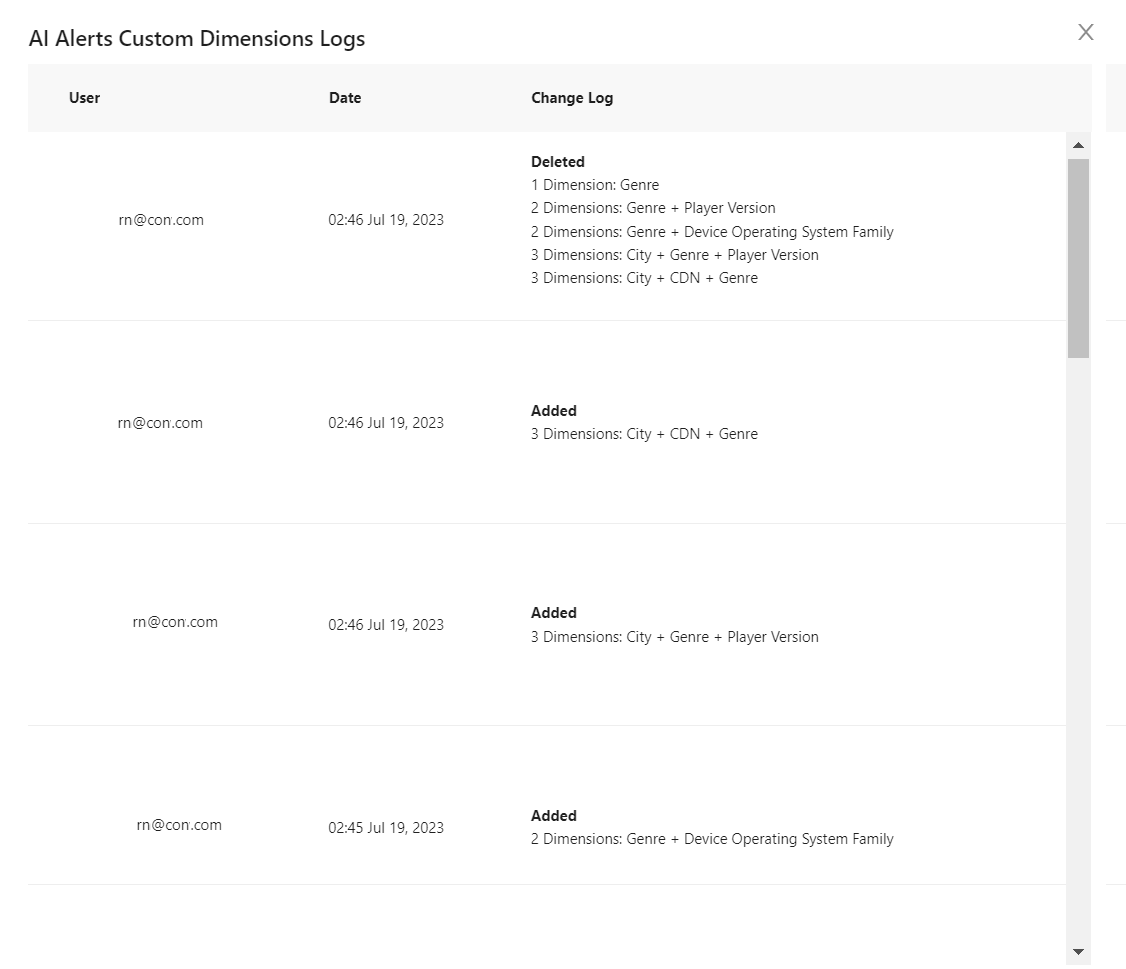
This page logs the chronological list of updates made to the AI dimension combinations to track and monitor AI alert dimension updates.
AI Alerts Logs