
Conviva App Sensor Integration
Conviva App Sensor Installation and Integration
Low-code integration of Conviva App Sensor enables automatic, and semantic-less data collection. For more details to help get started with App Sensor integration, see App Sensor Integration FAQs.
Installation
Cocoapods Add a line to the pods file for ConvivaAppAnalytics version.
Manual Download the package and follow the README file instructions.
Conviva Video Sensor Integration
Quick Integration
The quick integration page for iOS, tvOS, or visionOS contains the code snippets that you'll need at various stages of stream sensor integration and serves as a quick reference.
Follow these instructions to complete the Conviva Video Sensor integration on iOS players:
Step 1: Install Conviva Library
Developer Steps
Step 2: Configure Metadata
Developers Steps
Step 3: Report Events and Metadata
Developer Steps
Step 4: Integrate Video Players
Developer Steps
Step 5: Handle User ActionsUse Conviva methods to report custom events. Use Conviva methods to control data collection and delete collected data. Developer Steps
Step 6: Clean Up Session
Developer Steps
|
Prerequisites
Obtain your account's CUSTOMER_KEYs.**Conviva provides a test account and a production account for Test and Production environments, respectively. You can find your CUSTOMER_KEY here: Pulse - Account Info. Ask your Conviva representative for assistance if you have problems accessing it.
Pass the gatewayUrl parameter to init() method of Conviva SDK. The gatewayUrl is specific for your account and shall ONLY be used for tests, never for production deployment.
Sample gatewayUrl for Testing:
https://<*customer_key*>.ts-testonly.conviva.com
IMPORTANT: If there's any doubt on how to set the gateway URL, consult your Conviva representative - this is a critical parameter. For production, Conviva library uses the automatically-assigned gatewayUrl.
Use Touchstone 2.0 in Pulse to perform self-validation and debugging of video sensor integration
For Conviva JavaScript Sensor Integration, you can use any custom gateway URL with a proxy service setup. This is applicable for JavaScript version 4.7.13 onwards.
Plan your metadata
Conviva supports Pre-defined, Device, and Custom metadata. Work with your project team to determine the need to collect any custom metadata. It's also recommended to work with your Conviva representative to create your metadata plan prior to integration.
Integration Summary
Click an image to view a summary of the API call sequence:**
|
iOS Custom Integration (SDK Only) 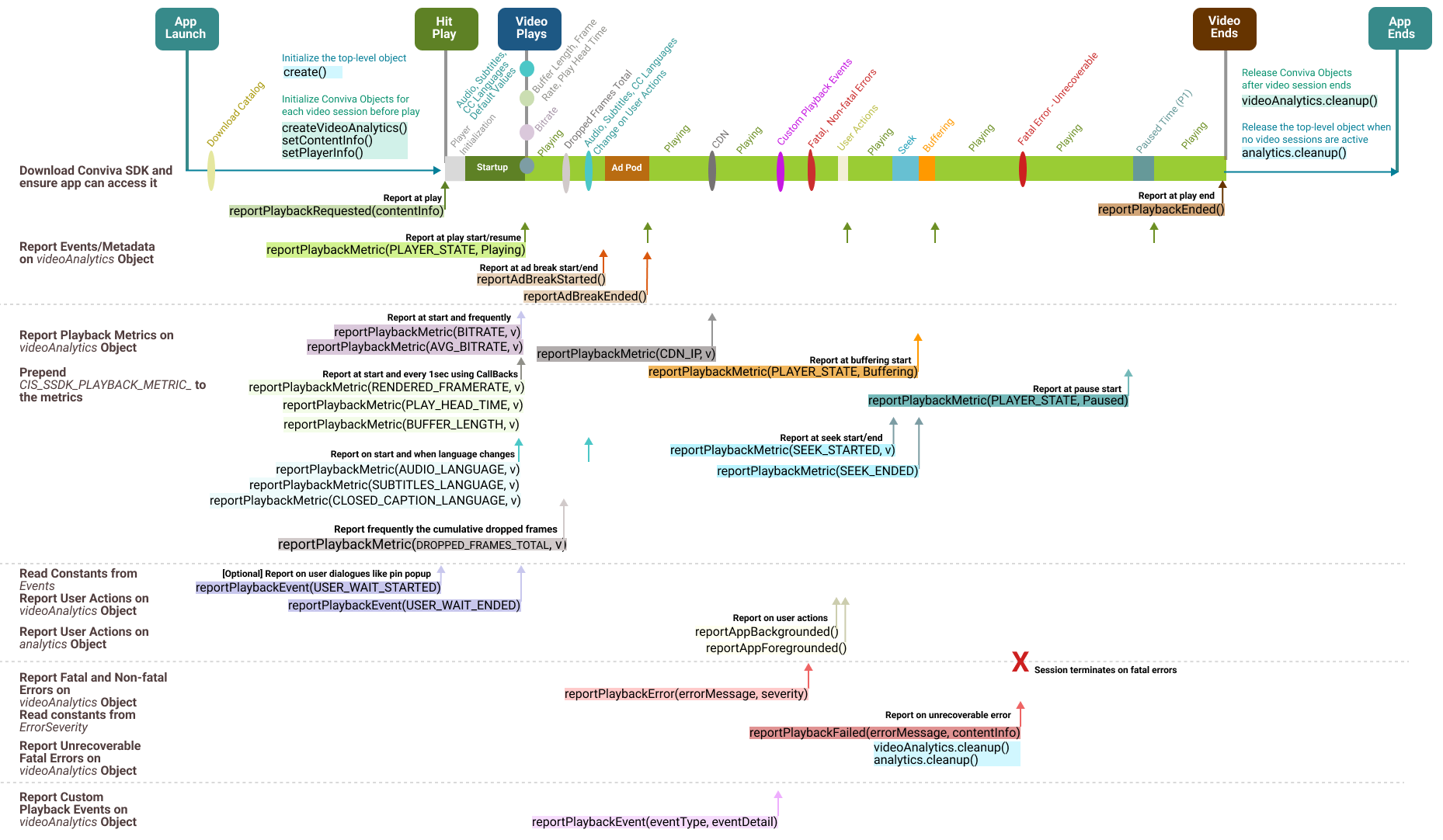
|
Conviva iOS Player Modules 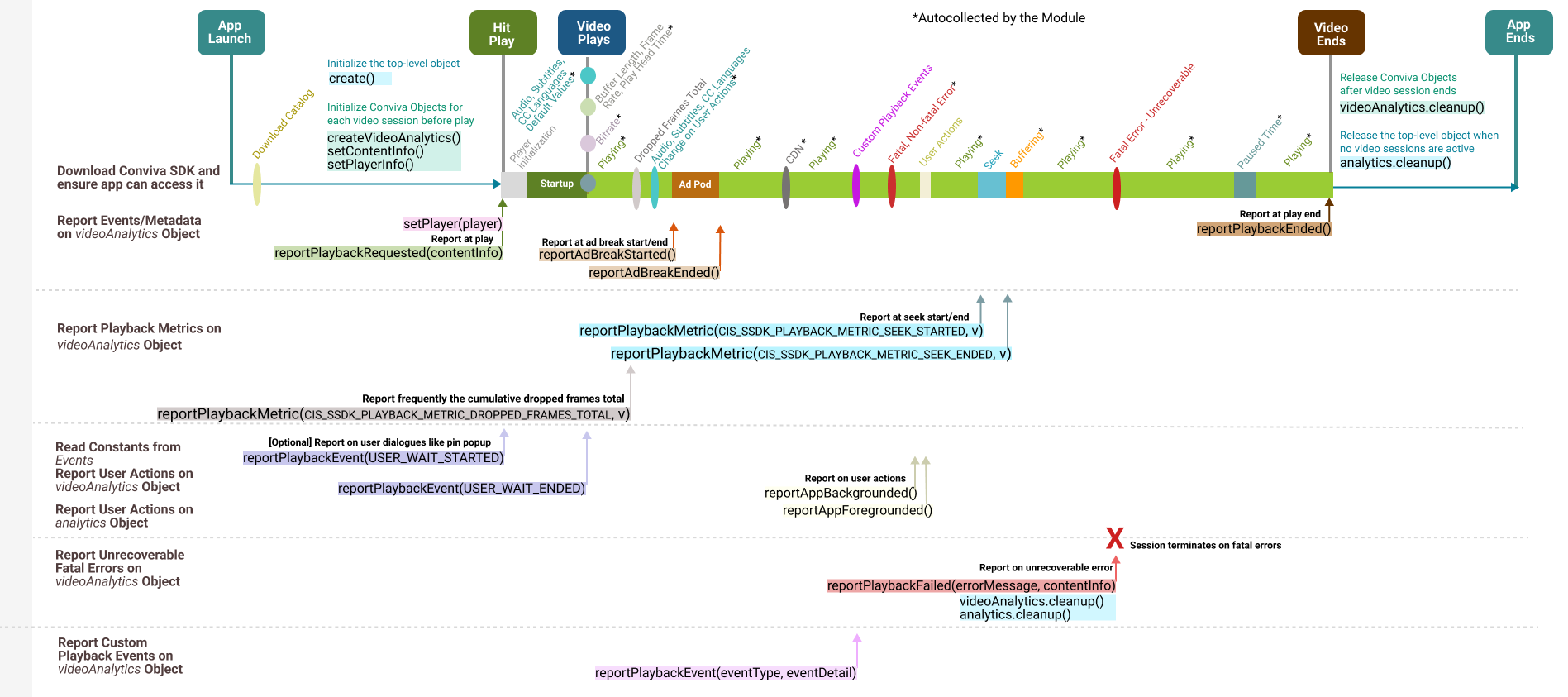
|
|
Use for video players other than AVPlayer or Brightcove. Report all the playback metrics, such as bitrate, player states, seek, buffering, user actions, app backgrounding, and foregrounding. For API call details, refer to iOS Custom Integration API List. |
Use for AVPlayer or Brightcove video players. Modules autocollect most playback metrics, such as bitrate, player states, seek, and buffering. For API call details, refer to iOS Module Integration API List. |
Integration Summary
Integration Summary
Install the library and add dependencies.
Initialize the
CISAnalyticsobject using your CUSTOMER_KEY.Create an instance of
CISVideoAnalyticsas avideoAnalyticsobject to report video related events.If your player has ads: Create an instance of
CISAdAnalyticsas aadAnalyticsobject to report ad related events.
- Configure Metadata **- Implement the metadata by following the instructions to use the pre-defined keys, as well as custom metadata, if applicable.
- Conviva sensor autocollects iOS/tvOS device metadata.
- Report Events and Metadata
**- Implement the
videoAnalytics.reportPlaybackRequested(contentInfo)method to report playback attempt request along with metadata (content, workflow, audience, and other relevant metadata).
- Use the
videoAnalytics.reportPlaybackEnded()method to report the of end playback.
Add Conviva module dependency for your video player (if available), and pass player instance to Conviva by calling
videoAnalytics.setPlayer(playerInstance). If following custom integration guidelines, implement video events & metric reporting as prescribed by the corresponding specification.If following custom ad integration guidelines, implement ad metadata, events & metric reporting as prescribed by the corresponding specification.
Conviva sensor autocollects iOS/tvOS Network Metrics.
- Clean Up
Call 'release' methods to cleanup
CISAnalytics,videoAnalytics,adAnalyticsobjects upon application exit.
Test and Validation
Test your integration using Touchstone. Follow the instructions and tutorials at Self-Validation Use Cases Videos.
Be sure to replace your TEST CUSTOMER_KEY with the PRODUCTION key to go live with your application, and generate the session traffic to the following Touchstone 2 gateway URL:
https://.ts-testonly.conviva.com Done! Analyse your data in Pulse and improve your viewer experience - let's make video experience better!
API Reference Documentation
The Conviva iOS SDK includes Reference Documentation for iOS SDK API. The documentation can be found here.
Sample Application
The sample application illustrating Conviva integration example can be found here.
1. Install Conviva Library
Add Conviva Libraries and Configure Dependencies
Migration instructions if upgrading from an older library version (pre 2.141.0)
Existing Customers can now upgrade to the latest release based on these options:
With Advertising Identifier support.
Without Advertising Identifier support.
Please upgrade to the latest release:
Use ConvivaSDK 4.0.40, if you serve advertisements in your apps.
Use ConvivaSDK 4.0.43, if you do not serve advertisements with your apps.
If you are migrating from an older library version (pre 2.141.0), please follow these steps:
Remove
libiOSSdkCore.afrom "Link Binary with Libraries" of Xcode.Remove the following header files from your application:```javascript
#import "CISSystemInterfaceProtocol.h" #import "CISSystemFactoryProtocol.h" #import "CISSystemSettings.h" #import "CISClientSettingProtocol.h" #import "CISClientProtocol.h" #import "IOSSystemInterfaceFactory.h" #import "CISSystemFactoryCreator.h" #import "CISClientSettingCreator.h" #import "CISClientCreator.h" #import "CISPlayerStateManagerProtocol.h" #import "CISConstants.h" #import "CISPlayerStateManagerProtocol.h" #import "CISContentMetadata.h"
If using one of the players Conviva provides a module for, then follow these steps.


For AVPlayer/AVQueuePlayer:


- Use [ConvivaAVFoundation-4.0.46](https://github.com/Conviva/ConvivaAVFoundation/releases/tag/4.0.46), if you serve advertisements in your apps.

- Use [ConvivaAVFoundation-4.0.49](https://github.com/Conviva/ConvivaAVFoundation/releases/tag/4.0.49), if you do not serve advertisements with your apps.


For Brightcove:


- Use [ConvivaBrightcove-4.0.28](https://github.com/Conviva/ConvivaBrightcove/releases/tag/4.0.28), if you serve advertisements in your apps.

- Use [ConvivaBrightcove-4.0.31](https://github.com/Conviva/ConvivaBrightcove/releases/tag/4.0.31), if you do not serve advertisements with your apps.


1. Remove <code class="text">libLivepass3AV.a</code> from "Link Binary with Libraries" of xcode.

2. Remove the following header files from your application:

```javascript
#import "LivePass.h"
#import "ConvivaLightSession.h"
#import "ConvivaContentInfo.h"
NSUserTrackingUsageDescription key with appropriate message.Example usage:
<key>NSUserTrackingUsageDescription</key>
<string>App would like to access IDFA to uniquely identify the user.</string>
Cocoapods Installation: Please add the following line to your pod file and run pod install:
For Upgrade with Advertising Identifier support:
pod 'ConvivaSDK','4.0.40'
For Upgrade without Advertising Identifier support:
pod 'ConvivaSDK','4.0.47'
Or download and add the library explicitly from Conviva GitHub:
https://github.com/Conviva/ConvivaSDK
Manually adding the ConvivaSDK framework to your project
Unzip the package and add ConvivaSDK.xcframework to "Link Binary with Libraries" under build phase. The package contains the frameworks for iOS, tvOS, and visionOS.
Link the following system frameworks to "Link Binary with Libraries" section in xcode:- SystemConfiguration
- MobileCoreServices
- Security
- AdSupport
- CoreTelephony (iOS only)
- AVFoundation
- Network (weak)
- AppTrackingTransparency (weak) - Required only for Advertising Identifier supported library (Application must be built with XCode 12 or above).
Add "-ObjC" to "Other Linker Flags" of Xcode.
To refer to the Conviva classes from your source code, please add the following import statements:
import ConvivaSDK
@import ConvivaSDK;
If using one of the players Conviva provides a module for, add the corresponding dependency only.
|
For AVPlayer / AVQueuePlayer with Advertising Identifier support |
|
|---|---|
| For AVPlayer / AVQueuePlayer without Advertising Identifier support |
|
| For Brightcove with Advertising Identifier support |
|
| For Brightcove without Advertising Identifier support |
|
Refer to Integrate Video Players for the details of player integration.
Refer to Integrate Ad Managers for the details of ad manager integration.
Swift Package Manager Installation:
- For SDK,
- 4.0.40 if it's with Advertising Identifier Support. - 4.0.47 if it's without Advertising Identifier Support.
- Add the Package Dependency repository URL as https://github.com/Conviva/conviva-ios-avfoundation-spm
- Select version as:
- 4.0.46 if it's with Advertising Identifier Support. - 4.0.51 if it's without Advertising Identifier Support.
- Add the Package Dependency repository URL as https://github.com/Conviva/conviva-ios-bcove-spm
- Select version as:
- 4.0.28 if it's with Advertising Identifier Support. - 4.0.31 if it's without Advertising Identifier Support.
|
Initialize the top level CISAnalytics object |
No need to set gatewayUrl and LogLevel settings for your production release explicitly. The Conviva sensor has the right default value. The allowed parameters are:
Sample code illustrating initialization with/without debug: IMPORTANT: No need to set Expected Errors Due to Dual Stack IPv4/v6 Network SupportWhen the Conviva sensor is initialized with production settings, the SDK sends a single request to the endpoints below:
Sending both requests enables correlation of IPv4 and IPv6 addresses in dual-stack networks. If only IPv4 or IPv6 addressing is used (single-stack networking), it is expected that one request will fail. All the following requests will be sent to the endpoint below which supports both IPv4 and IPv6:
|
|---|---|
|
Initialize the video object |
Create instance of This object will be used throughout the entire application lifecycle to report video related events. |
Initialize the ad object |
This is only applicable if your application has ads. Create This object will be used throughout the entire application lifecycle to report ad related events. This method requires |
2. Configure Metadata
Metadata enables analysis of your data using different dimensions, for example, content, audience, device, workflow, player, and operating system.
Conviva categorizes metadata tags into three buckets (Predefined, Device, Custom).
Pre-defined Video Metadata
Conviva defines the constants or fixed string keys for commonly used metadata. These metadata keys provide critical for success information about video and ad content, versioning, workflow.
IMPORTANT: In case of Conviva modules used for video integration, Conviva autocollects certain fields to simplify the integration. Please refer to the particular module specification for details.
The table below provides the pre-defined metadata fields.
IMPORTANT: Conviva modules for video players are only capable of autocollecting DURATION. The rest of the metadata shall be set by your application.
The constants below are defined in the file CSSConstants.h.
IMPORTANT: To assign content category labels, such as Audio, Trailer, Tile Play, or Short Video, use the c3.cm.categoryType pre-defined content metadata constant.
Constants for Pre-defined Video and Content Metadata
Constants for Pre-defined Video and Content Metadata
| Key | Type | Implementation Note |
|---|---|---|
| CIS_SSDK_METADATA_ASSET_NAME | string | For video content , use a unique name for each stream/video asset. Values are up to your choice, but a human-readable text prefixed with the unique video ID works best in most Conviva sensors. This provides for clarity in reports and makes most popular content easily identifiable.Pattern: [videoID] Video Title
The following are typical patterns for VOD (movies and episodic content) and Live streams:
|
| CIS_SSDK_METADATA_IS_LIVE | NSNumber(Bool) | Denotes whether the content is video on-demand or a live stream. Affects the computation and availability of the Conviva metrics.
|
| CIS_SSDK_METADATA_PLAYER_NAME | string | A string value used to distinguish video players (applications). Simple values that are unique across all of your integrated platforms work best here. If the same player used across multiple platforms, e.g., Tizen, LG TV, WEB, give separate names for each application / platofrm: e.g., "JS Tizen", "JS LGTV", "JS WEB". Do not include the build or version number in this property. The intention is to have a simple way of differentiating data from different players / platforms. |
| CIS_SSDK_METADATA_VIEWER_ID | string | Required for Viewers Module. A unique identifier to distinguish individual viewers or devices through Conviva's Viewers Module. The value shall be unique abstract user's identifier. If user is anonymous, do not set any value for this tag. |
| CIS_SSDK_METADATA_STREAM_URL | string |
The manifest URL of the video stream.
The Conviva backend config server attempts to map a portion of StreamURL into a CDN name. For example: In the URL The URL values reported in the streamURL are case insensitive. The streamURLs with either uppercase or lowercase are acceptable. |
| CIS_SSDK_METADATA_DEFAULT_RESOURCE | string |
This value specifies the video server or CDN name from where the streaming resource is played. Set this field when the video server resource cannot be inferred from the STREAM_URL. For example, if the streamURL is The DEFAULT_Resource value is case sensitive. If the resource name is initially reported as AKAMAI (uppercase) and subsequently modified in the app to akamai (lowercase), it is necessary to inform Conviva about the change because both need to be mapped in the Conviva backend configuration server to ensure that both point to the same CDN name (AKAMAI).
|
| CIS_SSDK_METADATA_DURATION | integer | Duration of the video content, in seconds. |
| CIS_SSDK_METADATA_ENCODED_FRAMERATE | integer | Encoded frame rate of the video stream in frames per second. |
| CIS_SSDK_PLAYER_FRAMEWORK_NAME | string | Video Player Framework Name.
Autocollected if Conviva module used for video player integration, required for custom integration. videoAnalytics.setPlayerInfo(Map<String, Object>):
```javascript
// Sample code snippet
var playerInfo = [String: Any]()
// SET PLAYER NAME
// FRAMEWORK NAME CAN BE SET TO AVPLAYER OR BRIGHTCOVE OR GOOGLE IMA OR ANY OTHER
playerInfo[CIS_SSDK_PLAYER_FRAMEWORK_NAME] = "PLAYER_NAME"
videoAnalytics.setPlayerInfo(playerInfo)
```
```objectivec
// Sample code snippet
NSMutableDictionary *playerInfo = [[NSMutableDictionary alloc] init];
// SET PLAYER NAME
// FRAMEWORK NAME CAN BE SET TO AVPLAYER OR BRIGHTCOVE OR GOOGLE IMA OR ANY OTHER
[playerInfo setValue:@"PLAYER_NAME" forKey:CIS_SSDK_PLAYER_FRAMEWORK_NAME];
[videoAnalytics setPlayerInfo:playerInfo];
```
|
| CIS_SSDK_PLAYER_FRAMEWORK_VERSION | string | Video Player Framework Version.
Set using the API
```javascript
// Sample code snippet
var playerInfo = [String: Any]()
// SET PLAYER FRAMEWORK VERSION
playerInfo[CIS_SSDK_PLAYER_FRAMEWORK_VERSION] = "1.2.3.4"
videoAnalytics.setPlayerInfo(playerInfo)
```
```objectivec
// Sample code snippet
NSMutableDictionary *playerInfo = [[NSMutableDictionary alloc] init];
// SET PLAYER FRAMEWORK VERSION
[playerInfo setValue:@"1.2.3.4" forKey:CIS_SSDK_PLAYER_FRAMEWORK_VERSION];
[videoAnalytics setPlayerInfo:playerInfo];
```
|
| "c3.app.version" | string | Autocollected
If you want to set it manually, report application build version from the application. Shall have the same value for both ads and video. |
| "c3.cm.contentType" | string | Advanced content delivery methods along with Live and VOD. Acceptable values: "Live", "Live-Linear", "DVR", "Catchup", "VOD". |
| "c3.cm.channel" | string | The channel on which the content is consumed.
Example: "ABC". |
| "c3.cm.brand" | string | The name of the brand to which the content belongs.
Examples: "ABC X", "ABC Y". |
| "c3.cm.affiliate" | string | Affiliate or MVPD name for TV Everywhere authenticated services.
Examples: "Xfinity", "Comcast". |
| "c3.cm.categoryType" | string |
Content business categories of interest. Use this constant to assign content category labels, such as Audio, Trailer, Tile Play, or Short Video. Examples: "Episodic", "Movies", "News", "Sports", "Events", "Informercials", "Shorts", "Promos", "Audio", "Trailer", "Tile Play", or "Short Video". |
| "c3.cm.name" | string | Name of CMS Provider.
Examples: "CMS", "ROVI", "TMS". |
| "c3.cm.id" | string | Unique asset identifier to query CMS system to gather additional asset metadata information for a specific asset.
Example: "003b094d-fc5c-3d5a-8ed0-301bf848291e". |
| "c3.cm.seriesName" | string | The name of Series. Set the value only if the metadata cannot be gathered from CMS System. Null if not applicable.
Examples: "Friends", "Null". |
| "c3.cm.seasonNumber" | string | The Season number. Set the value only if the details cannot be inferred from Asset Provider Server. Null if not applicable.
Examples: "1", "Null". |
| "c3.cm.showTitle" | string | The name of the Episode or Show Title. Set the value only if the details cannot be inferred from Asset Provider Server. Null if not applicable.
Examples: "The One with All the Cheesecakes", "Null". |
| "c3.cm.episodeNumber" | string | The Episode number. Set the value only if the details cannot be inferred from Asset Provider Server. Null if not applicable.
Examples: "3", "Null". |
| "c3.cm.genre" | string | The Primary content genre. Set the value only if the details cannot be inferred from Asset Provider Server. Null if not applicable.
Examples: "Drama", "Null". |
| "c3.cm.genreList" | string | The list of the applicable content genre. Set the values in a comma separated list only if the details cannot be inferred from Asset Provider Server. Null if not applicable.
Examples: "Drama, Crime, Political, Violence", "Null" |
| "c3.cm.utmTrackingUrl" | string |
Provide the UTM parameters in the URL to track the effectiveness of the online marketing campaign across traffic sources and publishing media. Conviva uses CONTAINS logic to parse the individual UTM parameters from the URL provided, so either the full URL or just the UTM parameters is acceptable.
Example values: This tag is only applicable for web and mobile devices. |
Custom Metadata
Refer to App Manager->Setup Metadata page for your account to find the custom tags which shall be implemented.
Set custom tags in a similar way for either video or ads, by adding the tags to the contentInfo or adInfo objects, passed into corresponding methods of videoAnalytics / adAnalytics objects.
c3.cm format, for instance, c3.cm.MyCustomTag1. Conviva reserved the c3.cm naming convention for the pre-defined or required metadata.Update/Amend Metadata
To update or amend pre-defined and custom tags for video, use videoAnlaytics.setContentInfo(contentInfo: [AnyHashable : Any]):
contentInfo: dictionary containing the key - value pairs of tags for video content.
Example usage:
// Sample code snippet
// Dictionary for Content Metadata
var contentInfo = [String: Any]()
contentInfo[CIS_SSDK_METADATA_ASSET_NAME] = "[channel_id] Live Channel Name"
// set the values for the other pre-defined keys as appropriate
contentInfo["c3.cm.contentType"] = "Live-Linear"
// set the values for custom tags as required per definition for your account
contentInfo["my_custom_tag_key"] = "my_custom_tag_value"

videoAnalytics.setContentInfo(contentInfo)
// Sample code snippet
// Dictionary for Content Metadata
NSMutableDictionary *contentInfo = [[NSMutableDictionary alloc] init];
[contentInfo setValue: @"[channel_id] Live Channel Name" forKey:CIS_SSDK_METADATA_ASSET_NAME];
// set the values for the other pre-defined keys as appropriate, refer to the tables below
[contentInfo setValue: @"Live-Linear" forKey:@"c3.cm.contentType"];
// set the values for custom tags as required per definition for your account
[contentInfo setValue: @"my_custom_tag_value" forKey:@"my_custom_tag_key"];

[videoAnalytics setContentInfo: contentInfo];
IMPORTANT: Please note that different Conviva products, such as Conviva Conviva SEI and Conviva Audience may have different logic with respect to handling updated values. Conviva recommends to update the metadata only when it is available and do not set any default values before the metadata is available.
3. Report Events and Metadata
Report Video Play Start
For each play, report playback attempt requests |
The keys / constants and expected values of the required metadata tags are defined in the Implement Metadata section below. Refer to the below example illustrating usage of this API: IMPORTANT: It's critical to make this API call correctly to monitor video experience - monitoring session created from this moment, and key metrics are captured based on this event. For example, if this call done late (say, when video starts rather than user clicks "play"), the Video Startup Time will be under-reported, Video Start Failures will be missed, etc. Please note that each video should be monitored separately - call this method for each new video played. IMPORTANT: If some of the content metadata tags aren't available at start, they can be set later or amended by Please note, in most cases that it's required to set content metadata before the player reports "play" for the first time, to accurately attribute metadata to the video asset.
|
|---|
Report Ad Breaks to Video Session
Report Ad Break |
To handle ads, inform videoAnalytics object that ad break is started: videoAnalytics.reportAdBreakStarted(adPlayer: AdPlayer, adType: AdTechnology, adBreakInfo: [AnyHashable : Any]):
The ideal event for invoking this method is on main video pause, to clear stage for Ad playback. If the same video player instance used for ads as for the video, call it when application requests the ads. Refer to the below sample code for illustration of how reporting shall be done in these scenarios:
On ad break ended
|
|---|
Report Video Play End
For each play end, report playback ended |
|
|---|
4. Integrate Video Players
Conviva core SDK is universal and player agnostic, therefore it can be used to integrate any video player using the programming language it's written for.
For ease and speed of integration, Conviva also provides plug-in modules for the most commonly used video players, as well as Ad SDKs.
The modules allow to auto-detect events from the particular player / Ad SDK.
If instructions for your player are not shown below, please follow the instructions for "Custom Integration", or contact your Conviva representative.
AVPlayer/AVQueuePlayer
AVPlayer/AVQueuePlayer
Conviva AVPlayer/AVQueuePlayer module auto-detects events emitted by AVPlayer/AVQueuePlayer.
Therefore, it's not necessary to report these events explicitly by using reportPlaybackMetric() API.
It's still required to report application events such as backgrounding, metadata, session close, ad-related events.
|
Add the Conviva AVPlayer or AVQueuePlayer module dependency |
Application must be built with XCode 12 or above.
Cocoapods Installation: Please add the following line to your pod file and run For Upgrade with Advertising Identifier support:For Upgrade without Advertising Identifier support:Swift Package Manager Installation: For AVPlayer / AVQueuePlayer,
Or download and add the library explicitly using the links below: Always include the ConvivaSDK and ConvivaAVFoundation module with the same major version.
```javascript
import ConvivaSDK
import ConvivaAVFoundation
```
```objectivec
@import ConvivaSDK;
@import ConvivaAVFoundation;
```
|
||||||||||||||||||||||||||||||
|---|---|---|---|---|---|---|---|---|---|---|---|---|---|---|---|---|---|---|---|---|---|---|---|---|---|---|---|---|---|---|---|
|
Set player reference to Conviva videoAnalytics using this API |
Starting that moment, Conviva library will listen for all relevant events automatically. Metrics monitored by Conviva AVPlayer/AVQueuePlayer module (if applicable):
|
||||||||||||||||||||||||||||||
|
Implement Metadata |
Metadata monitored by Conviva AVPlayer/AVQueuePlayer module (if applicable):
To implement the metadata, refer to the above sections of common pre-defined, pre-defined video and custom metadata definitions for implementation details. |
Known AVPlayer/AVQueuePlayer Limitations
| Metric Name | Impact | Conditions | Issue |
|---|---|---|---|
| Connection Induced Rebuffering Ratio(CIRR) | Over-reported | User seek in PiP mode | On initiating seek in PiP mode, there are no reliable events to invoke the seek started and seek ended events. As a result, CIRR is over reported because seek-related buffering is also taken into account. |
| *Rebuffering Ratio (RR)* | Under-reported | HLS and low bandwidth | Under low bandwidth network conditions, HLS Live content freezes but we observe that the player still reports PLAY state. |
| Under-reported | MP4 and user seek | On initiating a seek, if the player has enough cache to play, it continues to play from the current position while the seek is in progress. Once the seek is completed, the player resumes to play from the new position and no buffering is reported. This results in under-reporting of the Rebuffering Ratio Metric and Video Restart Time Metric. | |
| Under-reported | MP4 and iOS 9 with user-seek in low bandwidth | During low bandwidth user-seek, the player reports a PAUSE state until the user manually resumes playback after enough chunks are downloaded. No BUFFERING state is reported. | |
| Under-reported | HLS LIVE | The player displays the first frame momentarily but continues to prepare before it starts playing. For the user, it appears like playback starts after the first frame, but the player delays the actual playback. | |
| Under-reported | MP4 and tvOS AVPlayerViewController built-in seek bar | While using AVPlayerViewController built-in seek bar for Progressive Download (MP4), the player freezes after it has completed seeking the MP4 content, but we observe that the player still reports PAUSE state for sometime, followed by BUFFER state. This results in under-reporting of Rebuffering Ratio Metric and Video Restart Time if the user sends seek start using setSeekStart API. |
|
| Under-reported | HLS and user seek | If player is paused when a user starts seek and resumes play on seek end, during the seek period the player does not report buffering. Buffering is reported only after the play resumes. Buffering is not reported during the seek period. | |
| *Video Startup Time (VST)* | Under-reported | HLS LIVE | For HLS Live, the player delays after first frame is shown. For the user it appears like playback starts after the first frame, but actual playback is slightly delayed. |
| Under-reported | MP4 and tvOS AVPlayerViewController built-in seek bar | The player freezes after it has completed seeking the MP4 content, but we observe it still reports PAUSE state for sometime, followed by BUFFER state. This results in under-reporting of Rebuffering Ratio Metric and Video Restart Time if the user sends seek start using setSeekStart API. |
|
| *Video Restart Time (VRT)* | Under-reported | MP4 and user seek | On initiating a seek, if the player has enough cache to play, it continues to play from the current position while the seek is in progress. Once the seek is completed, the player resumes to play from the new position and no buffering is reported. This results in under-reporting of the Rebuffering Ratio Metric and Video Restart Time Metric. |
| *Video Playback Failure (VPF)* | Not-reported | URL is unavailable during midstream. Progressive Download (MP4) Content | For MP4 content, if the URL becomes unavailable during midstream, the player does not report fatal errors. As a result, Video Playback Failures (VPF) is not reported. |
| Not-reported | URL is forbidden (HTTP 403) during midstream (from iOS 14 onwards) | From iOS 14 onwards, if content URL is forbidden (HTTP 403) during streaming, playback ends without any error. Hence, session will be ended without reporting an error. |
| Metadata Name | Impact | Conditions | Issue |
|---|---|---|---|
| *Encoded Frame Rate* | Not-reported | HLS | The AVPlayer/AVQueuePlayer API does not provide a value for Encoded Frame Rate in HLS. |
| Connection Type | Not reported | VisionOS | For VisionOS, Connection Type change is not reported during the session. |
Observations
tvOS 12 limitation on Foregrounding
During backgrounding events, we recommend cleaning up the old session and recreating a new one. In tvOS 12 if customers don't cleanup the old session, when the application moves to foreground, the network connection is briefly lost and tvOS 12 sends a "Connection abort error". This disrupts the Conviva data reporting and causes metric inconsistency. The affected metrics depend on the player state before backgrounding, and may include Rebuffering Ratio, Connection Induced Rebuffering Ratio, and Average % Complete.
AVPlayerViewController built-in seek bar
While using AVPlayerViewController built-in seek bar, during seek, the player reports PAUSE state until the user completes the seek.
Limitation for automaticallyWaitsToMinimizeStalling instance property
When automaticallyWaitsToMinimizeStalling property on AVPlayer instance is set to false, the Conviva AVPlayer/AVQueuePlayer module can not detect buffering state and is reported as pause state.
Custom Integration
Custom Integration
Conviva sensor can be used to integrate video players using explicit metric reporting using the CISVideoAnalytics class methods.
The major steps required are listed below.
Report playback failures |
To report fatal playback error AND quit the session:
To report fatal playback error AND keep the session open (e.g., in case of player internal re-try or fallback logic):
The argument The argument Example usage: |
||||||||||||||||||||||||||||||||||||||||||
|---|---|---|---|---|---|---|---|---|---|---|---|---|---|---|---|---|---|---|---|---|---|---|---|---|---|---|---|---|---|---|---|---|---|---|---|---|---|---|---|---|---|---|---|
Report playback metrics |
To report metric events:
Example usage: The table below defines the events required to be implemented, with the corresponding parameters for each event key.
IMPORTANT: At any given time, a player can report the language of either the subtitles or the closed captions. When it reports one of them, the other language is set to off if it has already been reported.Report these languages (if they're available) on session start as well as when the user changes them on the current playback. Example: If the audio, subtitle, or closed captions language option was initially enabled but later disabled, ensure to report the most recent language option value as off. Example: |
||||||||||||||||||||||||||||||||||||||||||
|
Implement Callback function for polled metrics |
There are certain metrics which do not have events, hence SDK provides a callback to update these values at a certain frequency.
Once Since this API callback is called every 1 sec, it is recommended that no other metrics than the one specified be updated. |
||||||||||||||||||||||||||||||||||||||||||
Implement Metadata |
For Custom Integration, Conviva sensor does not capture any metadata automatically. Refer to the above sections of common pre-defined, pre-defined video and custom metadata definitions for implementation details. |
Brightcove
Brightcove
Conviva Brightcove module auto-detects events emitted by Brightcove player.
Therefore, it's not necessary to report these events explicitly by using reportPlaybackMetric() API.
It's still required to report application events such as backgrounding, metadata, session close, ad-related events.
Add the Conviva Brightcove module dependency |
Application must be built with XCode 12 or above. Cocoapods Installation: Please add the following line to your pod file and run For Upgrade with Advertising Identifier support:For Upgrade without Advertising Identifier support:Swift Package Manager Installation: For Brightcove,
Or download and add the library explicitly using the links below: Always include the ConvivaSDK and Conviva Brightcove module with the same major version.
|
||||||||||||||||||||||||||||||
|---|---|---|---|---|---|---|---|---|---|---|---|---|---|---|---|---|---|---|---|---|---|---|---|---|---|---|---|---|---|---|---|
|
Set player reference to Conviva videoAnalytics |
Starting that moment, Conviva library listens to all relevant events automatically. If your application is using Metrics monitored by Conviva Brightcove module (if applicable):
|
||||||||||||||||||||||||||||||
Implement Metadata |
Metadata monitored by Conviva Brightcove module (if applicable):
To implement the metadata, refer to the above sections of common pre-defined, pre-defined video and custom metadata definitions for implementation details. |
Known Brightcove Player Limitations
| Metric Name | Impact | Conditions | Issue |
|---|---|---|---|
| *Video Playback Failures (VPF)* | Not-reported | URL is unavailable during midstream. Progressive Download (MP4) Content | For MP4 content, if the URL becomes unavailable during midstream, the player does not report fatal errors. As a result, Video Playback Failures (VPF) is not reported. |
| Not reported | URL is forbidden (HTTP 403) during midstream (from iOS 14 onwards) | From iOS 14 onwards, if content URL is forbidden (HTTP 403) during streaming, playback ends without any error. Hence, session will be ended without reporting an error. | |
| *Average Bitrate* | Incorrectly-reported | Playing chunk file bitrate | The player does not report the bitrate of the chunk file that is playing, but instead reports the bitrate of the chunk file getting downloaded. When bandwidth changes, this behavior results in incorrect reporting of average bitrate metric. |
| Metadata Name | Impact | Conditions | Issue |
|---|---|---|---|
| *Framework Version* | Not-reported | All | The framework version is not reported. |
5. Integrate Ad Managers
Conviva core SDK is universal and player agnostic, therefore it can be used to integrate any Ad SDK using the programming language it's written for.
Google IMA
Google IMA
Conviva provides the module to auto-detect ad events emitted by the Google IMA SDK. Therefore, it is not necessary to report these events explicitly by using core SDK APIs. It is still required to report application events such as backgrounding.
Add the Conviva IMA module dependency |
Or download and add the library explicitly: |
|||||||||||||||||||||||||||||||||||||||||||||||||||||||||
|---|---|---|---|---|---|---|---|---|---|---|---|---|---|---|---|---|---|---|---|---|---|---|---|---|---|---|---|---|---|---|---|---|---|---|---|---|---|---|---|---|---|---|---|---|---|---|---|---|---|---|---|---|---|---|---|---|---|---|
Set Ad Listener to AdAnalytics |
To enable Ad metric & metadata auto-detection, pass the adsLoader instance of the IMA SDK to Conviva adAnalytics:
Starting that moment, Conviva IMA module will listen for all relevant events automatically. The constants below are defined in the class Metrics monitored by Conviva Google IMA module (if applicable):
|
|||||||||||||||||||||||||||||||||||||||||||||||||||||||||
Implement Ad Metadata |
Conviva defines the set of the metadata keys to be used for metadata implementation. The implementation can be extended by adding custom tags - refer to Custom Metadata section. The Conviva IMA module automatically collects the available values for some of the metadata tags from the IMA SDK. Some of the tags though still have to be explicitly implemented. Please refer to the table below for the metadata tag definitions and details of the implementation. No action required if implementation note says "Autocollected".
Pre-defined Ad Metadata:
|
Known IMA Limitations:
| Metadata Name | Impact | Issue |
|---|---|---|
| *Ad Start Failures (ASF)* | Under reported | ASF, AST, and EBAS are not autocollected by IMA SDK module and these metrics are under-reported. |
| *Ad Startup Time (AST)* | Under reported | ASF, AST, and EBAS are not autocollected by IMA SDK module and these metrics are under-reported. |
| *Exits Before Ad Start (EBAS)* | Under reported | ASF, AST, and EBAS are not autocollected by IMA SDK module and these metrics are under-reported. |
| *Ad Minutes* | Over reported | From iOS 13 onwards, during a phone call interruption, the player pauses ad playback but it continues reporting PLAYING state. No PAUSE state is reported. Under low bandwidth network conditions, the player delays playback after the first frame is shown. It appears like the playback starts after the first frame, but actual playback is delayed. It is observed that the player still reports PLAY state instead of BUFFERING state. |
Custom Ad Manager
Custom Ad Manager
|
Report Ad Lifecycle Events |
In case of Custom Ad integration, Conviva does not detect any ad metrics or events. Implement the following ad events from your application to Conviva:
In the above methods, the parameter Implement it with respect to the requirements prescribed in the next step. |
||||||||||||||||||||||||||||||||||||||||||||||||||||||||||||||||||||||||
|---|---|---|---|---|---|---|---|---|---|---|---|---|---|---|---|---|---|---|---|---|---|---|---|---|---|---|---|---|---|---|---|---|---|---|---|---|---|---|---|---|---|---|---|---|---|---|---|---|---|---|---|---|---|---|---|---|---|---|---|---|---|---|---|---|---|---|---|---|---|---|---|---|---|
Implement Ad Metadata |
In case of Custom Ad integration, Conviva does not automatically collect ad metadata, except a few fields for common metadata pulled from the The constants below are defined in the class Pre-defined Common Metadata
Pre-defined Ad Metadata
|
||||||||||||||||||||||||||||||||||||||||||||||||||||||||||||||||||||||||
Report Ad Metrics |
Report Ad-video metrics to Example code illustrating how to set the metric: Refer to the list of metric keys to be implememted in the table below:
|
API Diagrams for Custom Ad Integration
Click an image to view the API call sequence:
|
CSAI 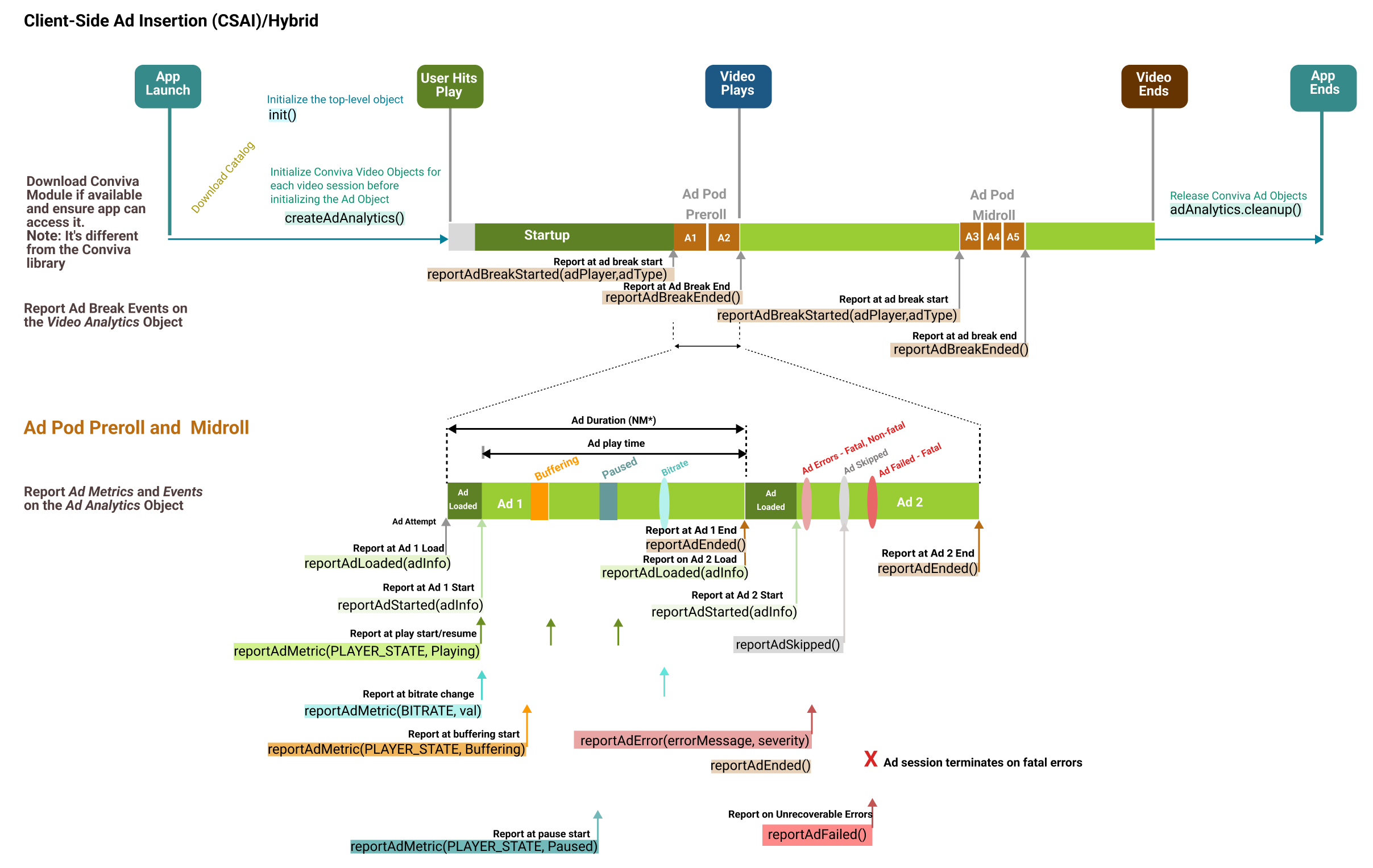
|
SSAI 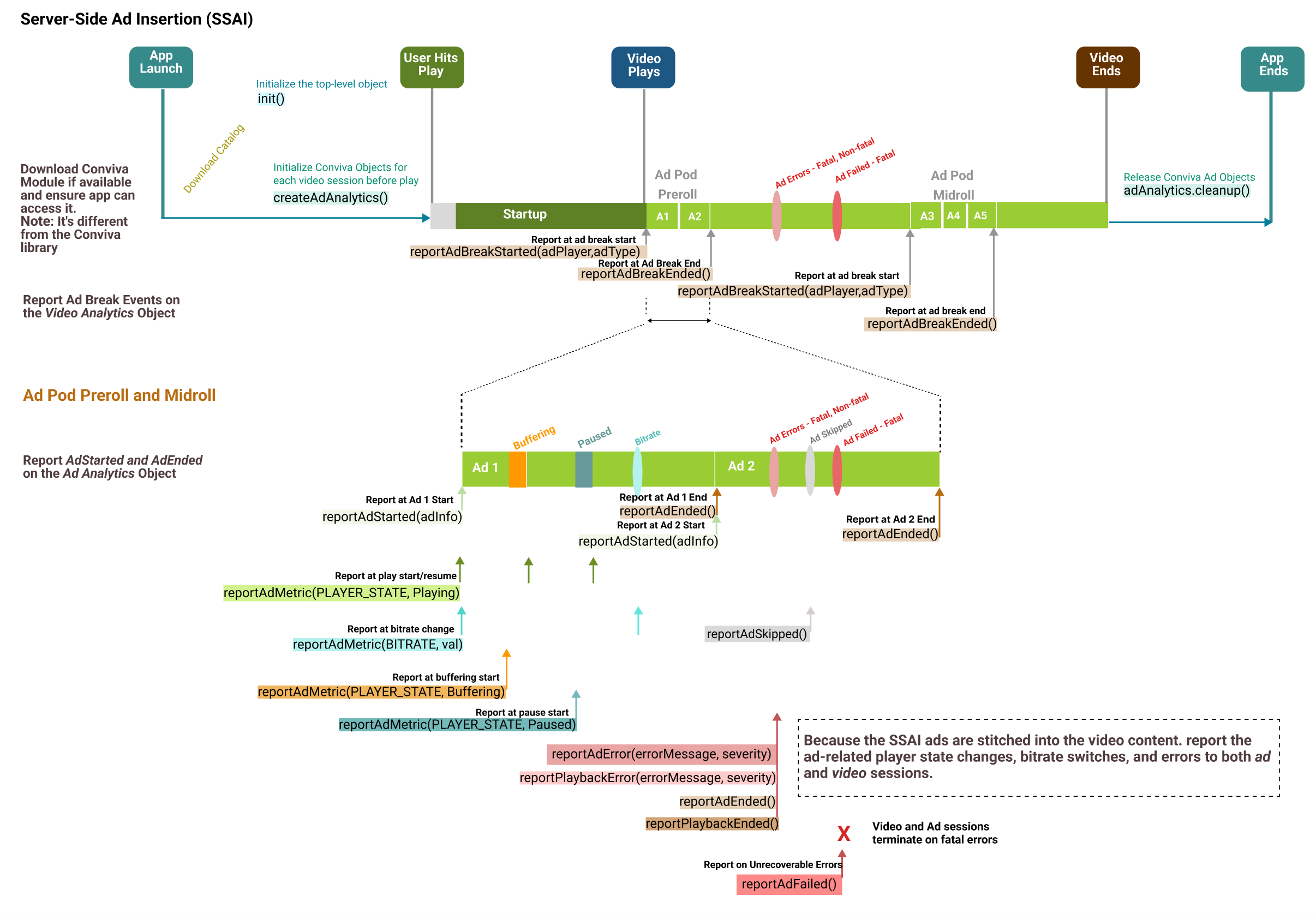
|
|
|
6. Handle User Actions
Handle specific user actions such as:
App backgrounding or foregrounding
Dialogues
Pin popups
Startover dialogues
Video slates, and so on
Use the corresponding API as prescribed on the corresponding pages.
Use the corresponding API as prescribed on the corresponding pages.
User Actions: Backgrounding
|
Handle backgrounding event (e.g., "home"/"power off" buttons) |
|
|---|---|
|
On foregrounding |
|
User Actions: User Dialogue
User Dialogues such as:
Pin popup
Accepting strong language / violence
Confirming age
Startover / resume dialogue
|
Use this API on dialogue shown |
|
|---|---|
| Use this API on dialogue dismiss |
|
Data Collection and User Preferences
Data Collection and User Preferences
By default, Conviva collects a set of data for better user analytics. However, the appropriate legal agreement with Conviva is required in order for Conviva to begin collecting data that would be considered PII, personal information, personal data or the like under applicable data privacy laws such as the General Data Protection Regulation (GDPR) and the California Consumer Privacy Act (CCPA). Further below in this document, there is a description of the user-preference APIs that control data collection, including opt-out and deletion of data, in compliance with data privacy laws. These APIs are in addition to existing, offline processes for opt-out and data deletion requests.
This document describes the identifiers that the libraries are capable of collecting, however actual collection of identifiers is contingent upon the customer's legal department providing written instructions to Conviva to begin collection. At the discretion of the customer's legal department, some or all of these identifiers may be collected. Conviva provides this flexibility to allow the customer to determine the precise identifiers to be collected.
Following tags are used to collect data:
idfa: Advertising Identifier (Apple provided). This is available only on Advertising Identifier supported library. The value changes only when the user resets the Advertising Identifier, or enables and subsequently disables the Limit Ad Tracking option in the device's privacy setting.idfv: Vendor Identifier (Apple provided). The value in this property remains the same when the app (or another app from the same vendor) is installed on the iOS device. The value changes only when the user deletes all the apps (from the same vendor) from the device and subsequently reinstall one or more of them.
The API shown below is used to control the data collection. Use it to set user preferences to opt-out of data collection by specifying the corresponding tag to true/false. By default, Conviva assumes no restriction in collecting data.
Control Data Collection and Delete Collected Data
The API shown below is used to control the data collection. Use it to set user preferences to opt-out of data collection by specifying the corresponding tag to true/false. By default, Conviva assumes no restriction in collecting data.
|
Control the data collection |
|
|---|
The API shown below is used to delete the collected data. Use it to delete previously collected data and opt-out of data collection by specifying the corresponding tag. By default, Conviva assumes no deletion of data.
|
Delete collected data |
|
|---|
7. Report Network Metrics
Report Network Metrics
The iOS Conviva library automatically detects the following network connection types: WiFi, 2G, 3G, 4G, OTHER. The iOS library does not support wired (Ethernet) network connection.
The tvOS Conviva library automatically detects only wireless (WiFi) connection type.
From tvOS 12 onwards, the tvOS Conviva library automatically detects wired (Ethernet) connection type.
The Conviva library supports the core telephony framework and fetches the raw values returned by the framework. You can reference these raw values based on the following Conviva mapping:
| Raw Value | Mapping |
|---|---|
| WiFi | WiFi |
| CTRadioAccessTechnologyGPRS | 2G |
| CTRadioAccessTechnologyEdge | 2G |
| CTRadioAccessTechnologyWCDMA | 2G |
| CTRadioAccessTechnologyHSDPA | 3G |
| CTRadioAccessTechnologyHSUPA | 3G |
| CTRadioAccessTechnologyCDMA1x | 3G |
| CTRadioAccessTechnologyCDMAEVDORev0 | 3G |
| CTRadioAccessTechnologyCDMAEVDORevA | 3G |
| CTRadioAccessTechnologyCDMAEVDORevB | 3G |
| CTRadioAccessTechnologyeHRPD | 3G |
| CTRadioAccessTechnologyLTE | 4G |
| CTRadioAccessTechnologyNRNSA | 5G |
| CTRadioAccessTechnologyNR | 5G |
For iOS/tvOS, to manually report or update the network connection type, use reportPlaybackMetric API:
videoAnalytics.reportPlaybackMetric(CIS_SSDK_PLAYBACK_METRIC_CONN_TYPE, value: "Ethernet")
[videoAnalytics reportPlaybackMetric:CIS_SSDK_PLAYBACK_METRIC_CONN_TYPE value: @"Ethernet"];
The table below shows the representation string values for CIS_SSDK_PLAYBACK_METRIC_CONN_TYPE.
| Internet Connection Type | Representation String |
|---|---|
| Wireless | WiFi |
| Wired | Ethernet |
| Cellular 2G | 2G |
| Cellular 3G | 3G |
| Cellular 4G | 4G |
| Cellular 5G | 5G |
| Other | OTHER |
If you can fetch wireless connection sub-type, such as "802.11 a", "802.11b", "802.11n", "802.11g", then pass the sub-type instead of "WiFi".
Report Signal Strength
The library cannot automatically detect signal strength of a cellular network or Wifi. However, the video application developer can report signal strength as shown in the following example:
videoAnalytics.reportPlaybackMetric(CIS_SSDK_PLAYBACK_METRIC_SIGNAL_STRENGTH, value: NSNumber(value:0.2))
[videoAnalytics reportPlaybackMetric:CIS_SSDK_PLAYBACK_METRIC_SIGNAL_STRENGTH value:[NSNumber numberWithDouble:0.2]];
The application developer can make use of Apple's Network Extension Frameworks NEHotspotHelper class to fetch the WiFi signal strength. The application developer needs HotspotHelper entitlements from Apple to use NEHotspotHelper. For further details, refer to NEHotspotHelper and NEHotspotNetwork Apple documentation.
8. Report Custom Events
Player Insight is an advanced feature which allows you to track custom events that are not related to video rendering, but rather specific to your player's functionality. These events and their attributes are then tabulated in the Player Insight dashboard at Conviva SEI (Pulse). Contact your Conviva representative to enable Player Insights in Pulse.
You may send a custom Player Insight event that can be associated with a video playback using the following method:
Player Insight is an advanced feature which allows you to track custom events that are not related to video rendering, but rather specific to your player's functionality. These events and their attributes are then tabulated in the Player Insight dashboard at Conviva Video (Pulse). Contact your Conviva representative to enable Player Insights in Pulse.
|
Report video-related events |
|
|---|---|
|
Report app-level events |
```javascript
// Sample code snippet
let eventType = "share-click"
var attr = [String: Any]()
attr["Toolbar"] = "location"
attr["Facebook"] = "shareService"
analytics.reportAppEvent(eventType, details: attr)
```
```objectivec
// Sample code snippet
NSString *eventType = @"share-click";
NSMutableDictionary *attr = [[NSMutableDictionary alloc] init];
[attr setValue:@"location" forKey:@"Toolbar"];
[attr setValue:@"shareService" forKey:@"Facebook"];
[analytics reportAppEvent: eventType details: attr];
```
|
Identifiers for Persistent Memory
The following value is set on the player initialization. Any time this value is cleared during application handling, such viewer logout/logins and background/foreground changes, Conviva recommends storing the value in persistent memory. If this identifier is not kept persistence, the unique devices and active devices/users values may be inflated: clientId.
NS UserDefaults to exclude from clearing: instanceId, sdkConfig, and clId.
9. Cleanup
|
At video playback end, call |
|
For Ad content, call |
|
On application exit, or when the Conviva object is destroyed, release the objects |
|
10. Advanced Use Cases
You can use specific APIs in the Conviva sensor for various advanced use cases, such as:
Live or live linear streaming program changes
Video changes in the playlist
Playback does not recover from error and is reported once only
Multiple errors due to retry when playback does not recover
Playback recovers from a fatal error by switching to a different asset URL or CDN
A warning occurs when there's no impact on the playback
Handling user actions, such as user dialogues, backgrounding, and foregrounding
To learn more about these advanced use cases, see here.
Privacy Manifest Support
Privacy Manifest support is added to SDK’s(which does not collect IDFA) as mandated by Apple. Below is the snapshot of the privacy report generated by Xcode.
| Identifiers | Tracking | Linked | |
| Device ID |
ConvivaSDK.framework AdvancedExampletvOS.app/Frameworks/ConvivaSDK.framework/PrivacyInfo.ecprivacy -Analytics |
No | Yes |
| Usage Data | Tracking | Linked | |
| Advertising Data |
ConvivaSDK.framework AdvancedExampletvOS.app/Frameworks/ConvivaSDK.framework/PrivacyInfo.ecprivacy -Analytics |
No | Yes |
| Other Usage Data |
ConvivaIMASDK.framework AdvancedExampletvOS.app/Frameworks/ConvivaIMASDK.framework/PrivacyInfo.ecprivacy -Analytics |
No | Yes |
|
ConvivaSDK.framework AdvancedExampletvOS.app/Frameworks/ConvivaSDK.framework/PrivacyInfo.ecprivacy -Analytics |
No | Yes | |
|
ConvivaBrightcove.framework AdvancedExampletvOS.app/Frameworks/ConvivaBrightcove.framework/PrivacyInfo.ecprivacy -Analytics |
No | Yes | |
|
ConvivaAVFoundation.framework AdvancedExampletvOS.app/Frameworks/ConvivaAVFoundation.framework/PrivacyInfo.ecprivacy -Analytics |
No | Yes |
The table below describes each identifier in the privacy report and the corresponding field SDK’s collect and reason for the collection.
| Data Type | What the SDK Collects | Reason |
|---|---|---|
| Device ID | SDK collects IDFV which comes under Device ID category. | IDFA is collected to improve the accuracy of unique user identification. |
| Advertising Data | If customer supports ads and reports Conviva for ad playbacks, SDK collects all the information about ads. | To monitor ad sessions. |
| Other Usage Data | SDK collects information about video playbacks, failures, device metata data, and other information about the content passed by the application. | To monitor video sessions across devices. |
11. Self Validation
Upon completion of your integration, perform self-validation to ensure metric and metadata accuracy. The self-validation guide with test cases and video tutorials is available here.
Type to search. Results appear as you type.