
LiveLens Use Case
LiveLens allows you to efficiently explore events and monitor the event flows (initial and follow-up events) in real time as part of the event discovery process for building meaningful and actionable metrics.
For example, this use case provides a hands-on way to identify accurate event names and tags for creating a metric that measures the duration from the start of the food purchasing process to its completion.
-
Access the demo website and perform online actions, such as selecting and purchasing food.
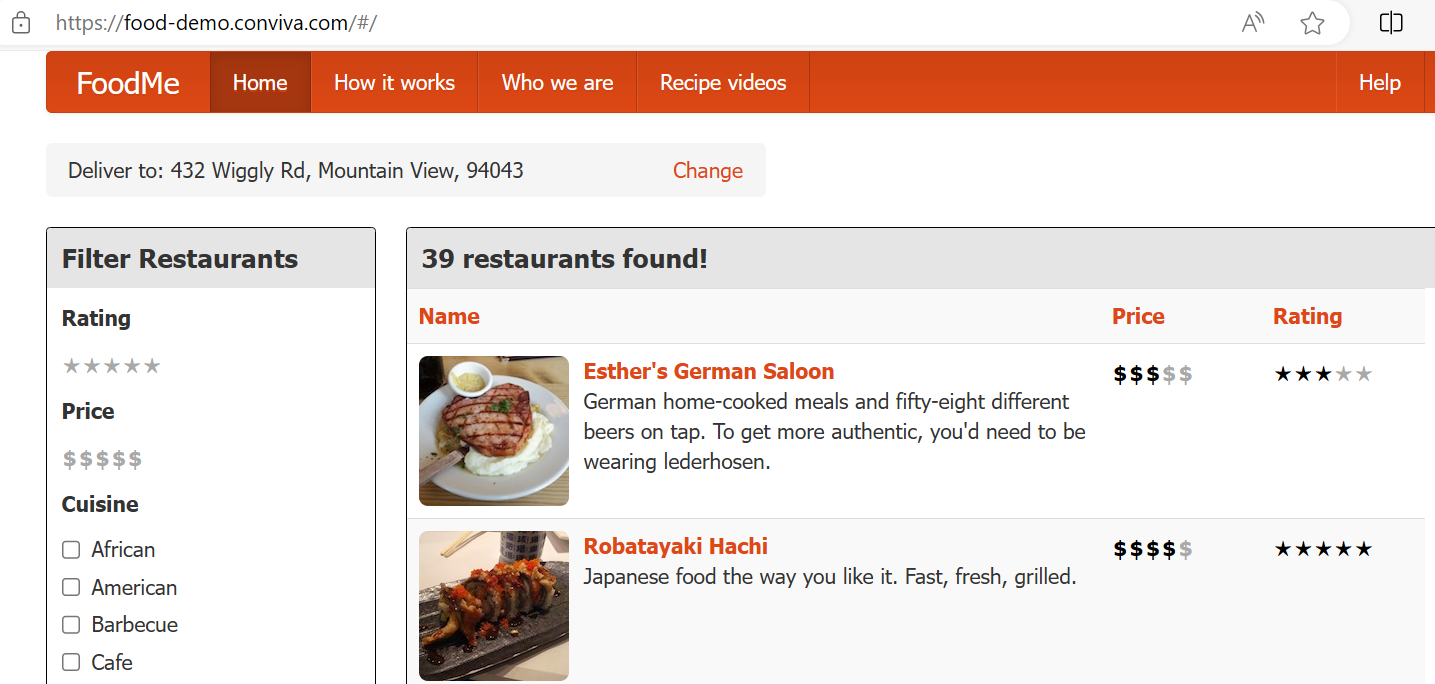
Note: The demo website is created by Conviva to simulate the real process and users' behaviors for ordering food. This Conviva demo website simulates the processes and user behaviors for online food ordering.
-
From the App menu, click Activation, then click the LiveLens tab on the Activation page to access the LiveLens page.
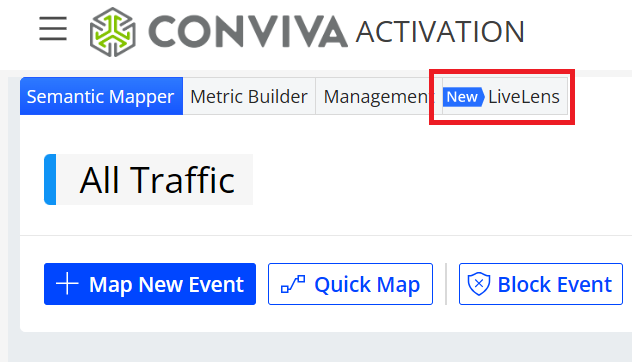
Note: It is recommended that you use the same network for the demo website and App.
-
By default, the Find Myself By IP Address option and the current IP address are automatically selected.

If you follow the recommendation in step 2 to use the same network for the demo website and App, click Find to continue.
If not, use the search engine on the device that opens the demo website to find the IP address, enter the IP address, and then click Find to continue.
-
From the pop-up table, locate your client ID and click the client ID to open the Real-time Timeline area.

-
Explore the events in the Real-time Timeline area and related event details.
-
The Real-time Timeline area shows follow-up events after clicking the Purchase button on the demo website.
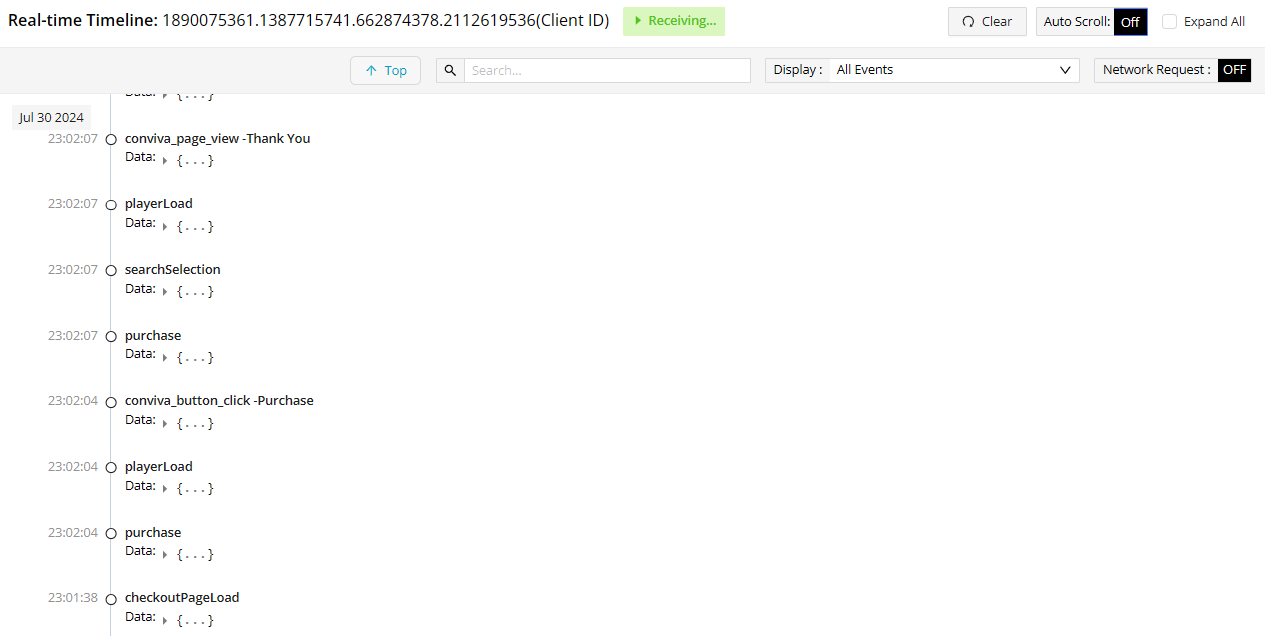
-
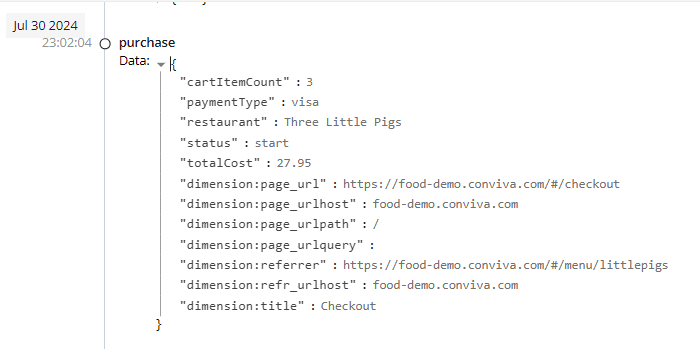
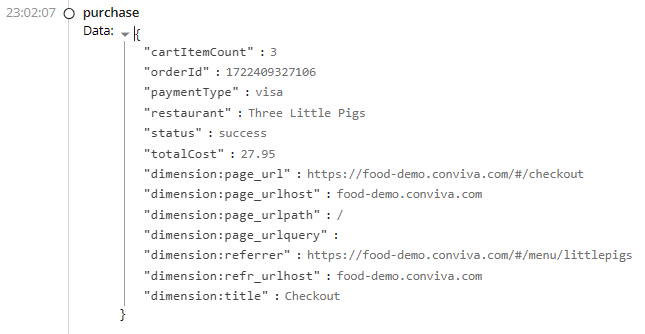
Expand the purchase events to view the details.
-
-
From the Real-time Timeline area, identify the required messages to map two purchase events for creating a metric that measures the purchase processing duration:
-
Mapped event name: Payment Start Event
-
Event Name: purchase
-
Tag Key: status
-
Tag Value: start
-
-
Mapped event name: Payment Success Event
-
Event Name: purchase
-
Tag Key: status
-
Tag Value: success
-
-
For more details on how to map events and use complex event combinations to create metrics, check Semantic Mapper and Metric Builder.