
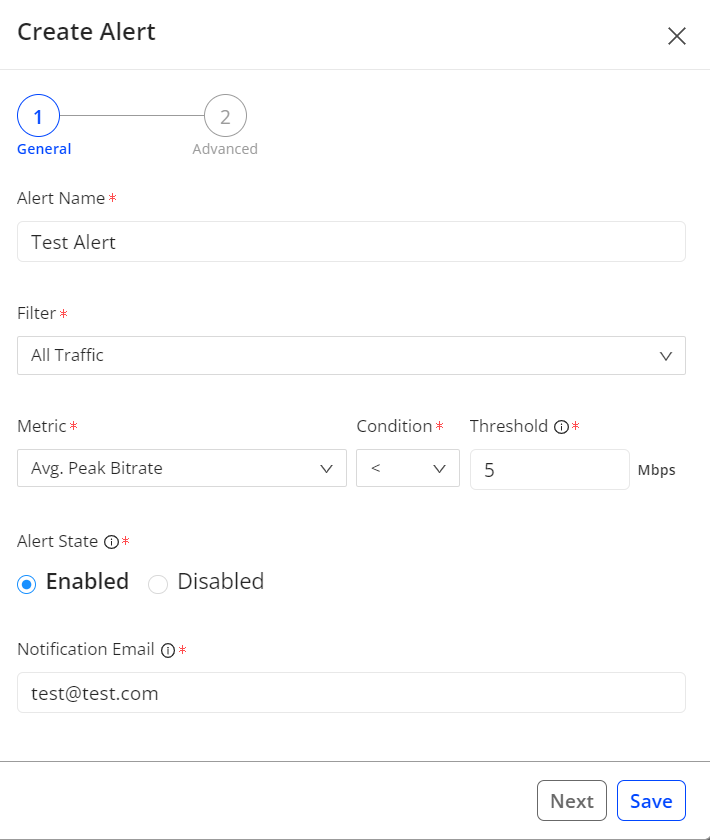
To access the advanced settings, click Advanced Settings when you create or edit an alert.
The image shows the Advanced option in the Create Alert page.
The image shows the Advanced Settings options that are available.
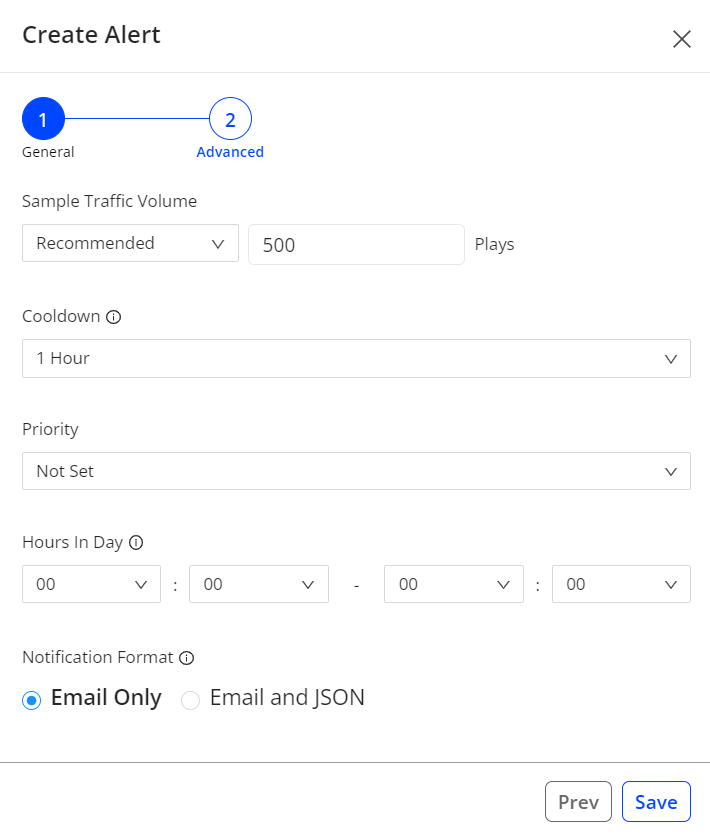
| Advanced Setting | Functionality |
|---|---|
| Time-of Day | Controls when each alert is evaluated each day. This capability allows you to restrict the time period when an alert will trigger instead of manually disabling or ignoring it, which prevents confusion and improves your ability to focus on your service’s quality events. |
| Sample | Sets the size of the data sample before the alert can be triggered. This helps ensure you only receive alerts when the number of users impacted is significant. For example, let's say you have an alert for VSF greater than 10%. The alert could trigger when you have 1 failure out of 5 attempts, which is not very interesting. If you add a required sample of 1000 attempts, you focus the alert on larger scale problems. The default setting depends on the metric you choose. To change the size of the sample, choose Custom from the list to the right of the sample value and enter a value. |
| Cool Down | Determines how long the system waits before pinging you again for a new event on the same alert. This allows you to set the sensitivity for the alert. If it's a super-critical metric, you might want to set it for no cool down. The system continues to record activity during the cool down period; it simply doesn't ping you with new alert emails until the cool down period expires. |
| Priority | Assigns a qualitative importance to the alert. The priority appears on the email notification, so recipients can tell at a glance how critical the alert is. P1 is typically the most critical; P3 is the least. You can also choose not to set a priority. |
| Notification Format | Provides choice of two notification formats: plain email or email + JSON. The appearance of the plain email depends on your email client. |
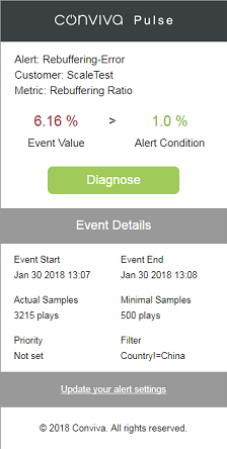
Email Example
JSON Data Example
If you select Email and JSON notification format option, JSON data for the alert is included with the alert email. To view the included JSON data, your email program must be able to parse JSON data. For example in Gmail, open the alert email and select the Show original email option. Then, scroll to view the raw email information, including the JSON data.
For example, this JSON data was included with a rebuffering error.
{"alert":
{"condition":
{"type": ">", "value": 1.0},
"cool_down": "1 hour",
"filter": {"id": 52739, "name": "Country!=USA"},
"id": 5495,
"name": "Rebuffering-Error",
"priority": "Not set",
"quality_metric": {"name": "Rebuffering Ratio", "units": "%"},
"samples": {"metric": "Concurrent Plays", "units": "plays", "value": 500}
},
"event":
{"id": 26619877, "quality_metric_value": 6.16, "samples_value": 3215, "timestamp": "Jan 30 2018 13:08",
"url": "https://pulse.conviva.com/customer_switch/1928808/?next=3D%2Freports%2Fdiagnostic%2F%23alert%3D5495%26event%3D266198"},
"version": "2.0"}
}