
With API management, you can generate client-based API credentials, activate and de-activate API credentials, view API usage information, and generate multiple API credentials per application to segment API access. This client-based API authentication enables API access at the Conviva c3 account level. All API calls for that account data can use the generated client ID and client secret, instead of the Pulse user-level credentials. API calls made with the client-based credentials inherit the permissions from the account active in Pulse when the credentials were generated and apply to all API calls for that account.
Conviva enables the generation of client-based API authentication credentials from the API Management option in the Pulse Settings menu.
Client-based Credential Details
| Credential Source | Client ID and client secret generated for each account from the API Management option in the Pulse Settings menu. |
| API Account Access |
Account active in Pulse when credentials generated. |
| API Permissions | Inherited from the account used when credentials were generated in Pulse. |
| Credential Management |
Performed from the Pulse API Management pages:
|
| Support Status | Recommended for new API implementations.
Note: Pulse user-level API credentials are no longer supported as of July 31, 2020. |
For Conviva application API User and Reference Guides, refer todeveloper.conviva.com.
API Management Settings
API Management Access Levels New Jul 22, 2026
Access to the API Management page is controlled by a dedicated API Management permission, set per user in User Management. This permission is independent of a user's general Admin or Staff role, and has three levels:
Hide — The API Management page is not visible to the user, and the user cannot generate or use client-based API credentials.
View — The user can open the API Management page to view existing credentials and API usage, but cannot create, edit, activate, deactivate, or delete credentials.
Edit — The user can create, edit, activate, deactivate, and delete API credentials.
By default, the API Management permission maps to a user's role as follows: Admin → Edit, Staff → View, and all other users → Hide.
For details on setting this permission, see Pulse Access Levels and User Roles and User Management.
Accessing API Authentication Settings
To access the API authentication settings, select the Feature Settings > API Management option in the Pulse Settings menu.
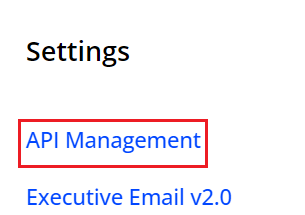
The API Management page appears with options to create new application-based API authentication credentials and manage existing authentication credentials.
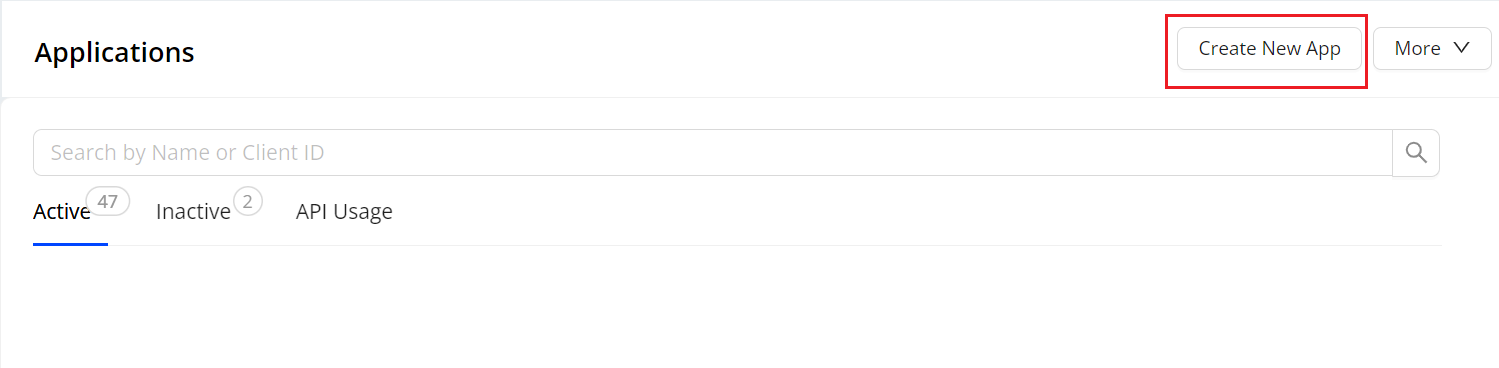
To create new authentication credentials,
- Click Create New App and specify the application Title and Description.
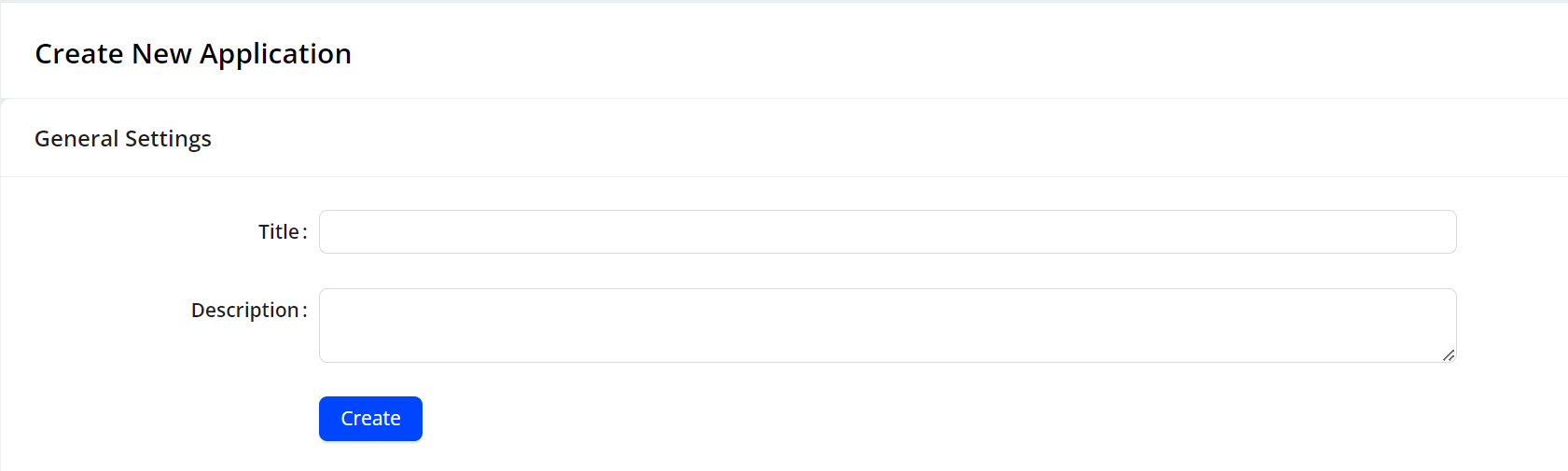
Click Create to generate the authentication credentials. The generated credentials apply to the account active in Pulse and inherit the permissions from that account.
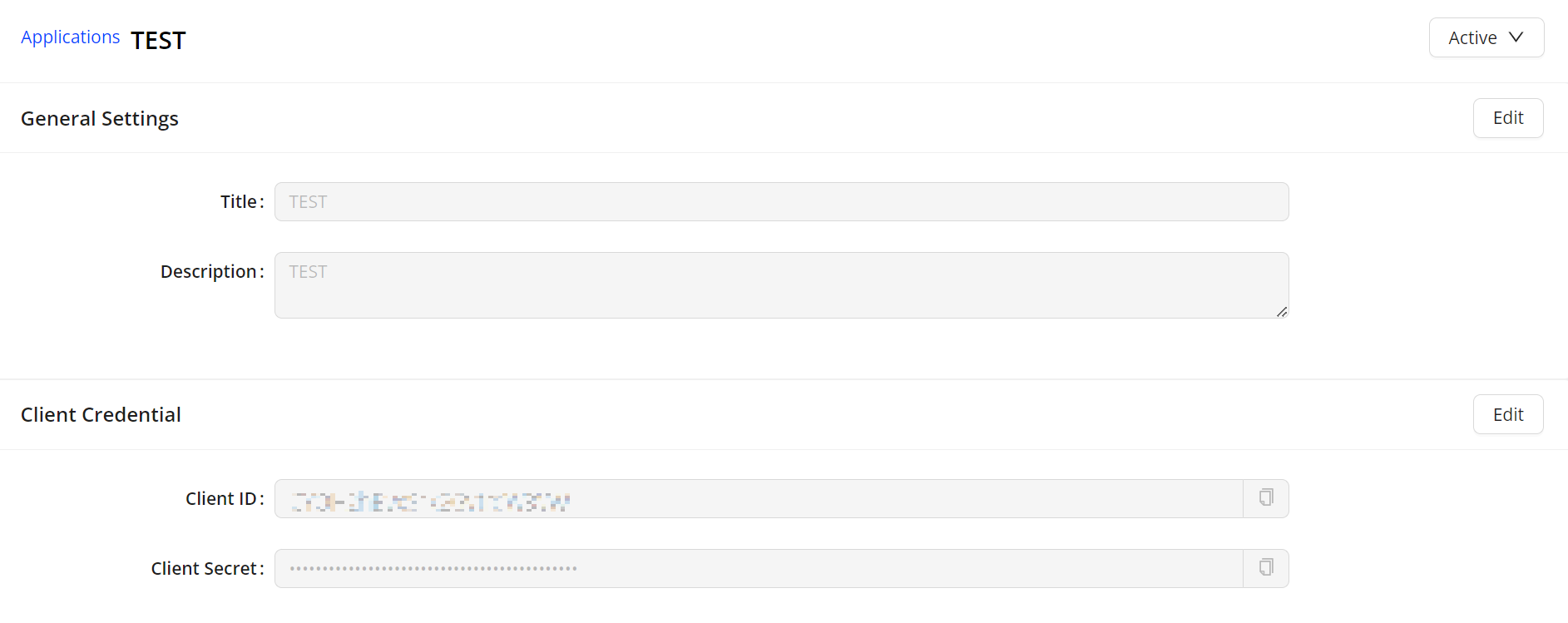
(Optional) Click the copy icons to copy the client ID and client secret to the clipboard. You can also click Edit to update the title and descriptions as well as generate new credentials.
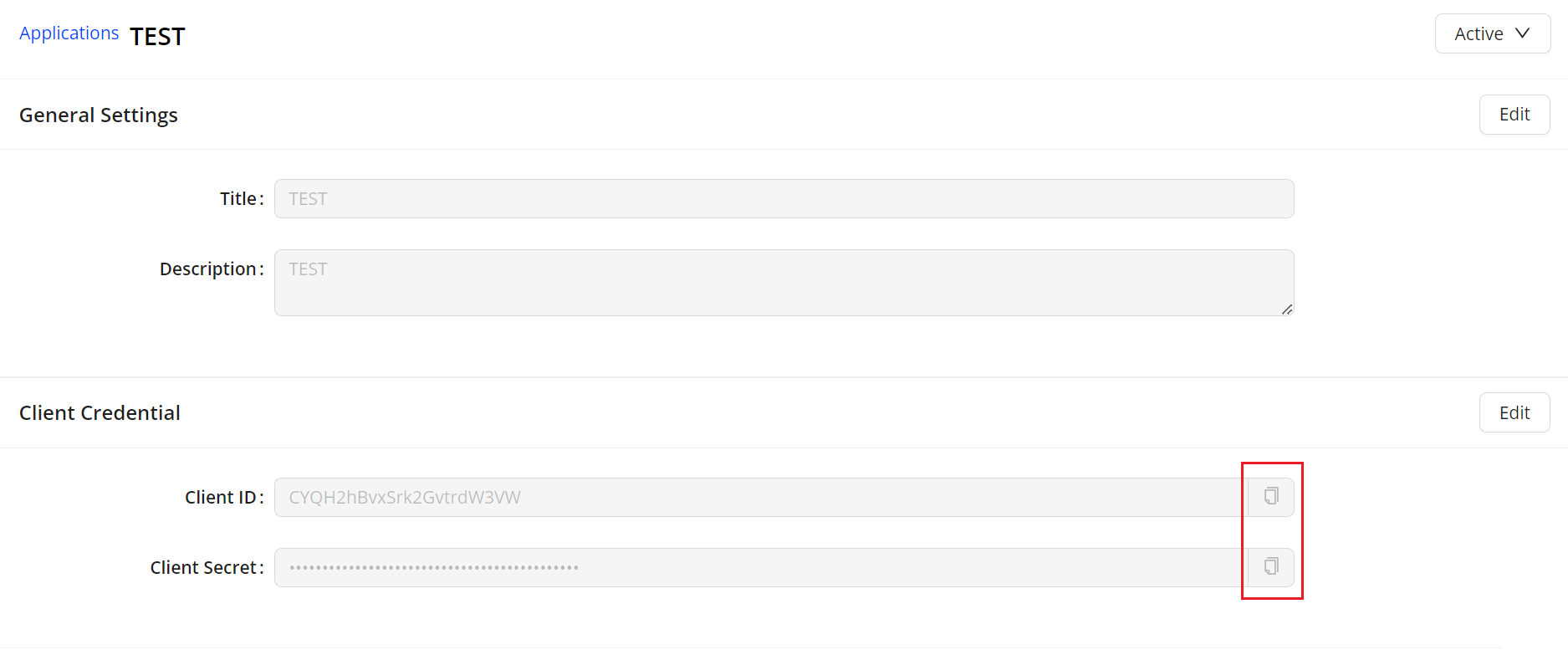
The generated credentials appear on the Applications page. After generating API credentials, click the credential name to display to credential details.
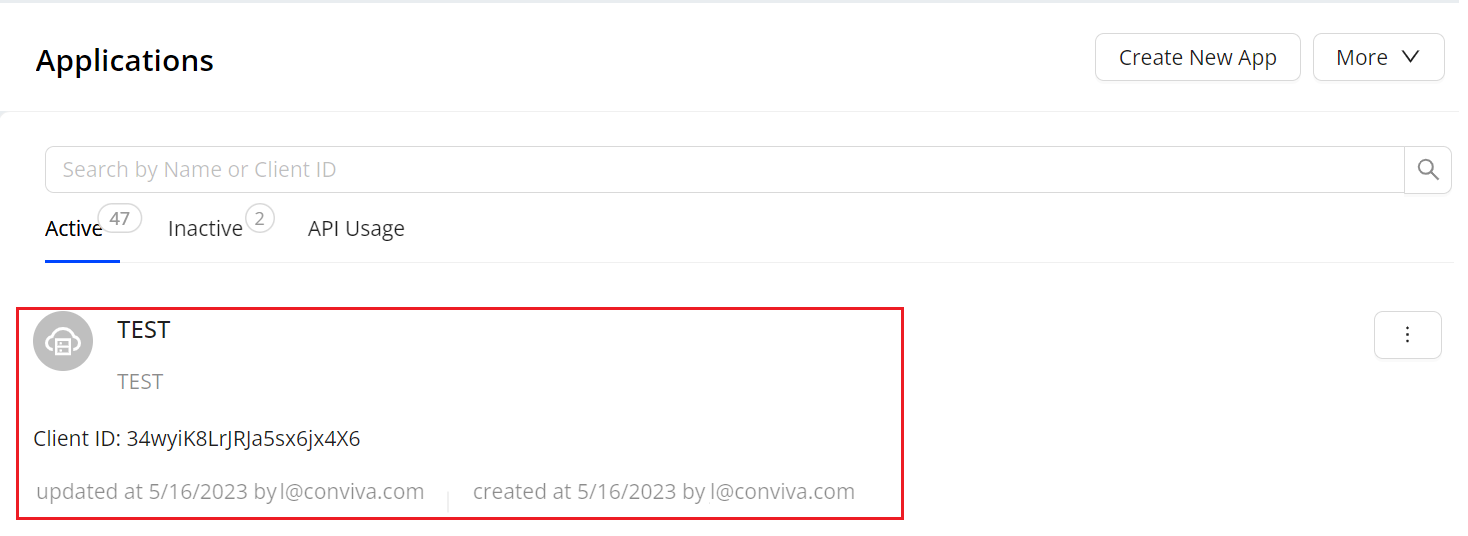
You can also:
Enter credential names in the search box to quickly access specific credentials.
Toggle the display between active and inactive credentials.
API Usage Report
To view the API Usage information for the authentication credentials, click API Usage.
The API Usage Dashboard provides an interface for monitoring the monthly usage summary of key SEI and App metrics, along with a detailed view of the data points for each interval within the selected time range for the specified accounts related to Conviva account billing.
It initially displays,
SEI: Total Viewer hours, Video Concurrent Plays
DPI: Total Events, User Sessions (Ended), Total Flows, Total Metrics, Peak Events Per Minute, Average Events Per Session
API: Realtime API calls, Historical Realtime API calls
For more details about API usage reporting, see Usage Dashboard.