
User Management enables admins to invite users, manage roles, edit profiles, control access, and monitor activity.
Common admin user operations include:
-
Invite new users
-
Edit the user roles
-
Set permissions for:
-
App Activation Admin
-
Precision Policy Admin
-
Metadata Service
-
Audience
-
API Management
-
Viewer Access
-
MCP Access
-
-
Set a single permission for many users across many accounts in one action
-
Revoke mutiple users simultaneously
To perform user management,
-
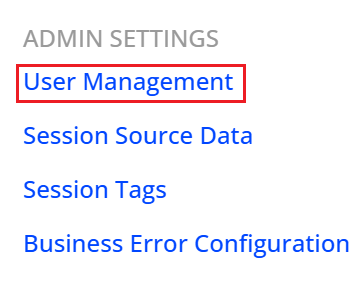
Click the Settings icon, and select Bulk User Management under Admin Settings, to access the User Management page.
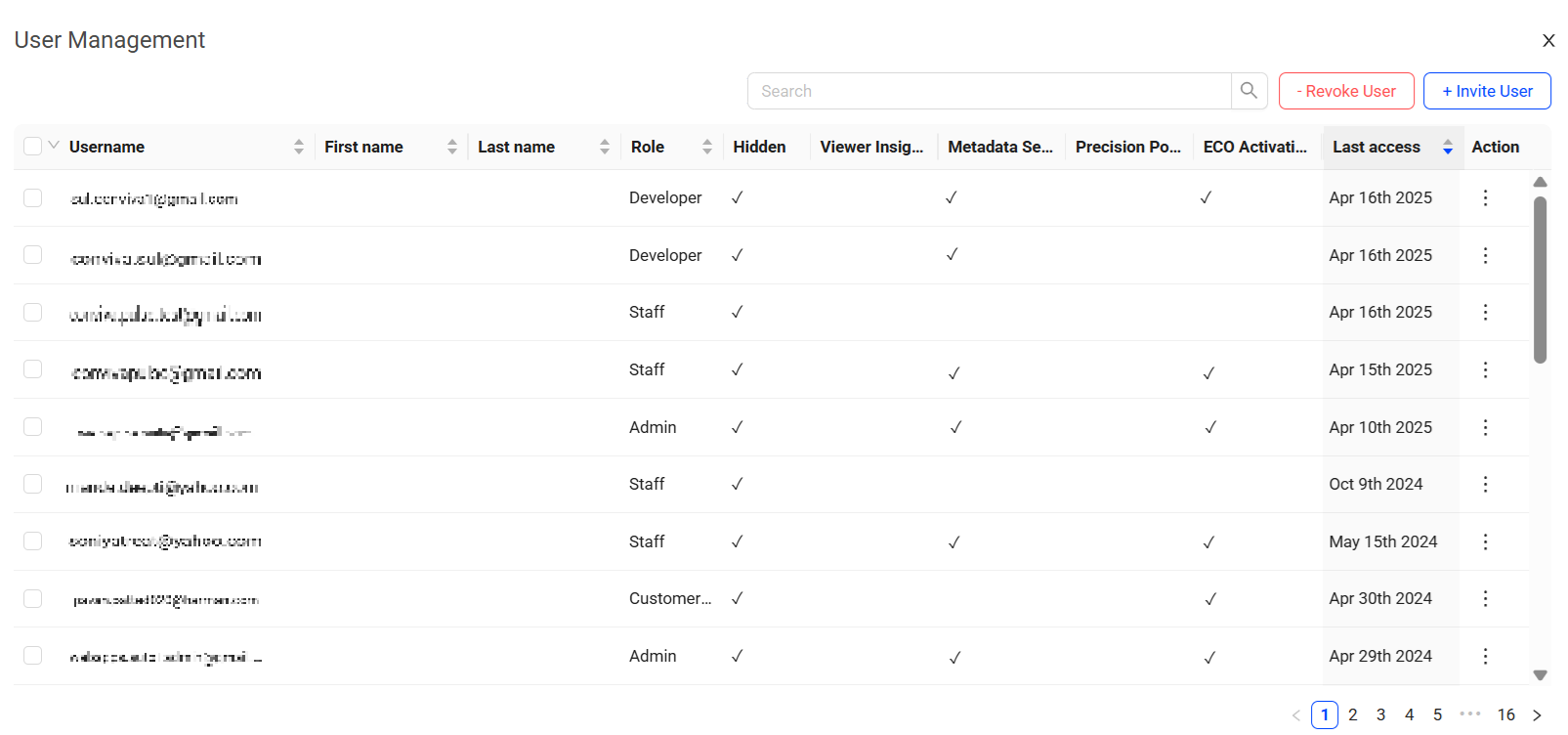
The User Management page displays a list of users with access to the currently configured accounts.
Invite Users
Admins use the Invite User screen to set user permissions and send invitations to the new users.
To invite new users,
-
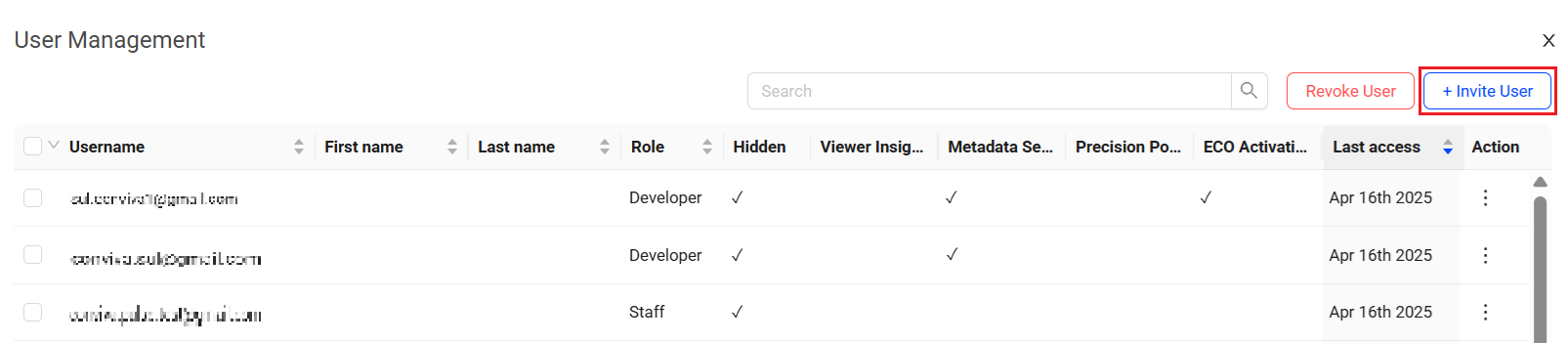
On the User Management page, click +Invite User.
-
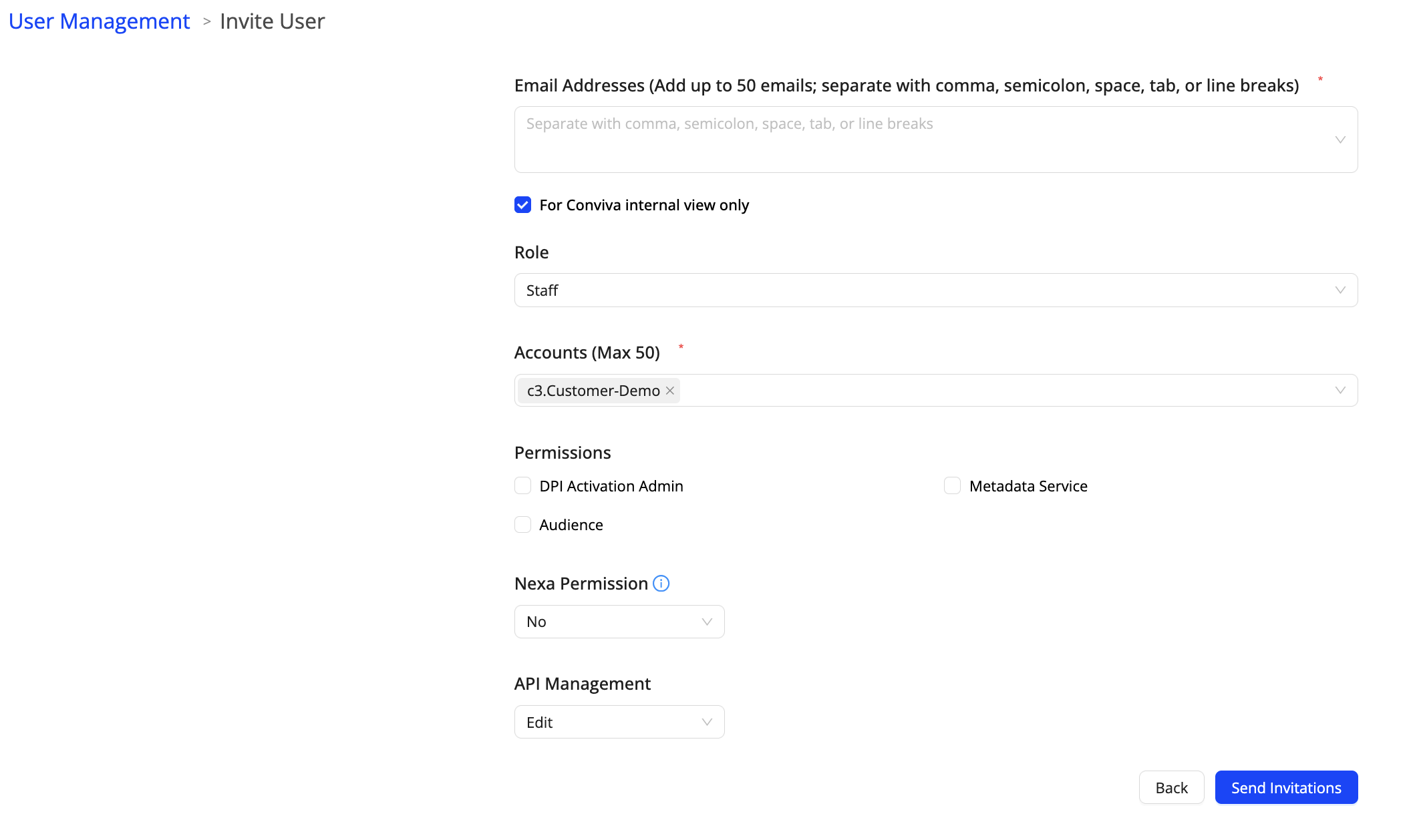
On the Invite User page, enter the email IDs (max 50).
 Only an Admin who holds Precision Policy Admin access grants Precision Policy Edit permissions. General Admins who do not have this specific access cannot perform this action.
 -
Select the user role from the drop-down.
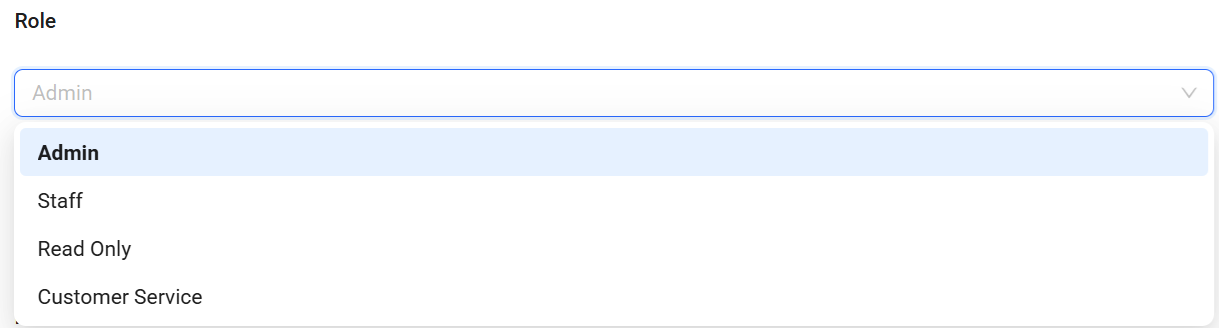 As of 8 May 2025, all custom user roles have been updated to Staff roles, as custom roles are no longer supported.
 -
Add the Accounts and select the Permissions for the user.
-
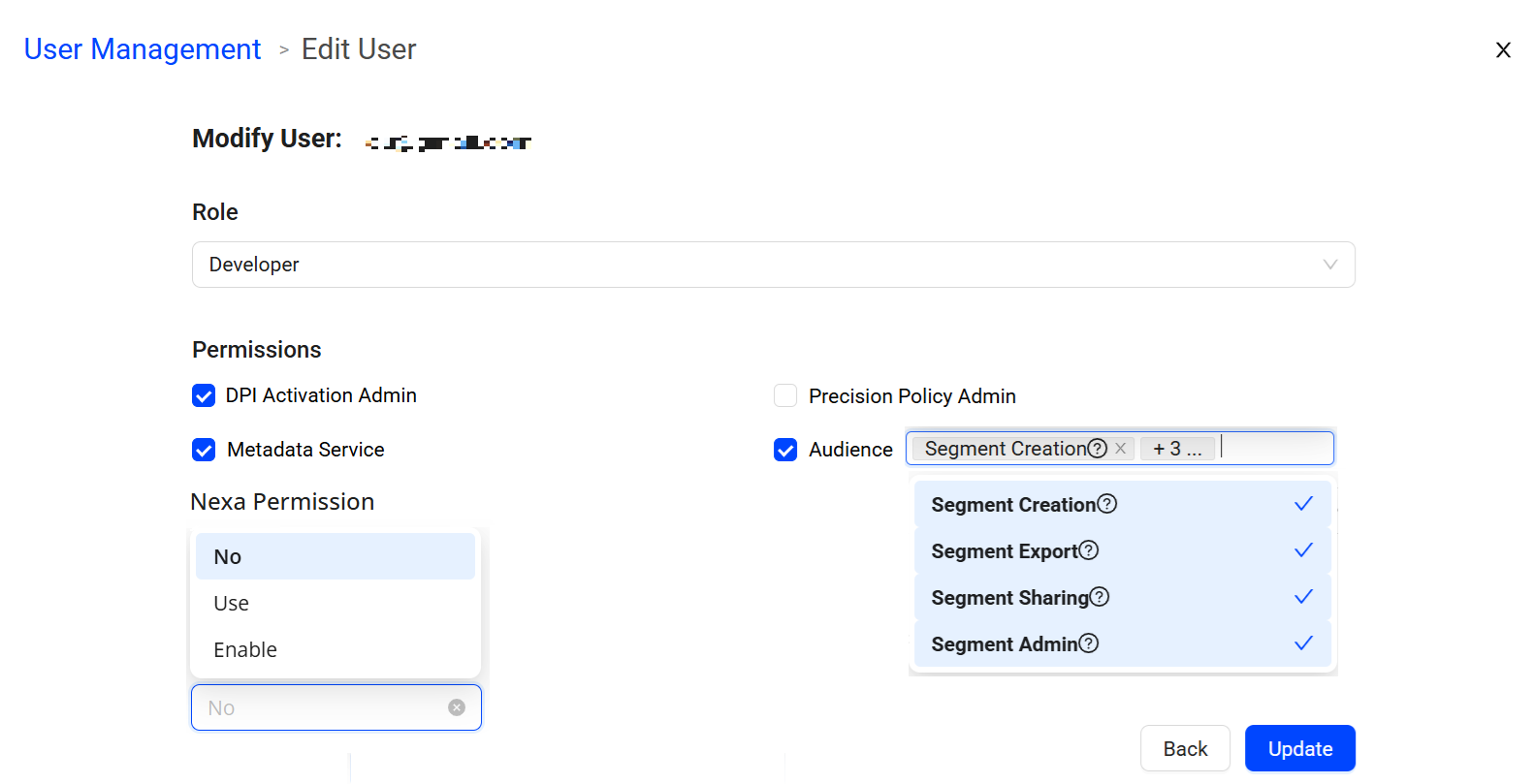
Nexa Permission:
-
No: Users does not have permission to use Nexa
-
Use: Users have the permission to use Nexa
-
Enable: Admins are given the permission to enable Nexa for other users in the company.
-
-
API Management: Controls whether the user can see and use the API Management page.
-
Hide: The user cannot see the API Management page.
-
View: The user can view API credentials and usage, but cannot create, edit, or delete them.
-
Edit: The user can create, edit, activate, deactivate, and delete API credentials.
-
-
Viewer Access and MCP Access: Both checkboxes are cleared by default on the Invite User screen. Select them to grant the new user viewer-level data access or access to Conviva through the Model Context Protocol (MCP). See Viewer Access and MCP Access.
The API Management permission is independent of a user's Admin or Staff role. By default, Admin maps to Edit, Staff to View, and all other users to Hide. API Admin is a separate permission that controls whether a user can grant or change another user's API Management permission. API Admin is not self-service and is assigned by Conviva. Having Edit does not, by itself, allow a user to grant access to others. For more information, see API Management. -
-
Click Send Invitations to enable user access.
-
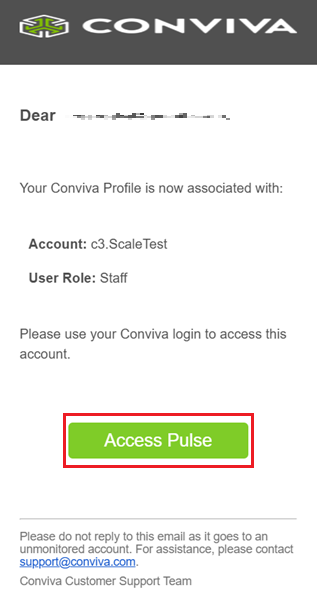
On the email received, click Access Pulse.
Block Non-Federated Domain Access New Aug 27, 2026
On an account with this control enabled, Pulse validates the email domain at the invitation step. An invitation to any domain outside the account's configured single sign-on (SSO) domain list is rejected at User Management > Invite User.
-
The approved-domain list is maintained by Conviva rather than exposed in the UI, because it changes rarely.
-
Existing users are not affected. Accounts already created on other domains keep working; only new invitations are blocked.
Edit User Roles
To modify the user roles, control access, and permissions,
-
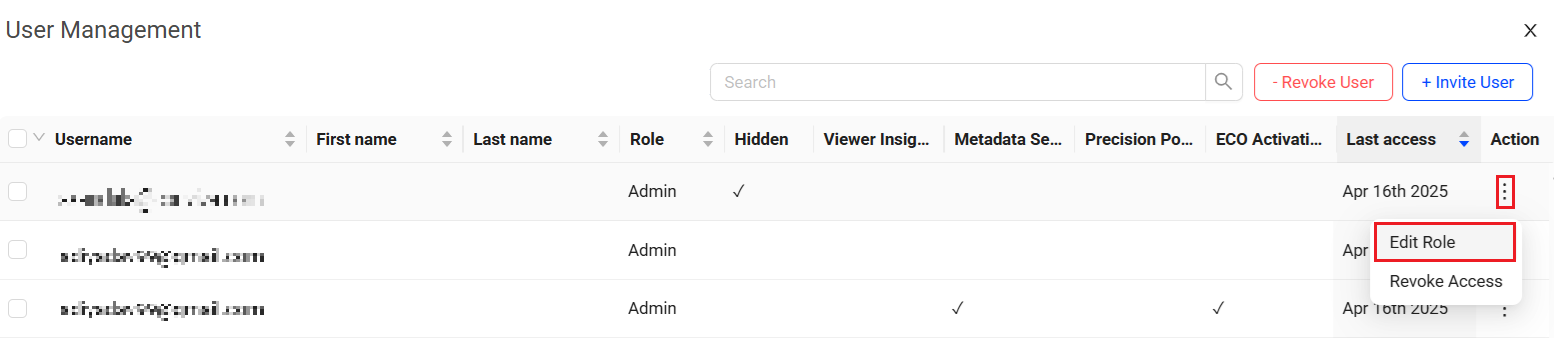
Click the kebab icon under the Action column and select Edit Role.
-
On the Edit User page, modify the required roles and permissions.
-
Click Update to apply the changes.
Viewer Access and MCP Access New Aug 27, 2026
Viewer Access and MCP Access are two independent per-user permissions. They sit on the user profile at User Management > Modify User > Permissions, alongside the App Activation Admin, Metadata Service, Precision Policy Admin, and Audience controls, and can also be set when you invite a user.

The Viewer Access and MCP Access checkboxes on User Management > Modify User.
Viewer Access
Viewer Access controls whether a user can reach individual viewer- and user-level data. In product, the permission reads:
"Allows individual Viewer & User level data access which includes Viewer Module, Viewers, Sessions, Timeline, Impacted Viewers across all Video and App dashboards."
Clear the checkbox and the user loses the following, everywhere they appear across Video and App dashboards:
-
The Viewer module
-
Viewer sessions and timelines
-
Impacted Viewers
-
The Users tab and User module in App
Use this permission when viewer-level data should reach only the people whose job requires it, such as when an internal security or compliance policy restricts access to data adjacent to personally identifiable information.
MCP Access
MCP Access controls who can reach Conviva through the Model Context Protocol (MCP). An account admin can enable or disable MCP for an individual user rather than for the whole account. Clear the checkbox and that user's MCP client can no longer authenticate against Conviva data.
Defaults and when changes take effect
-
Both permissions are granted by default for all existing users, so no user sees a change in behavior until an admin deliberately removes one.
-
On the Invite User screen, both checkboxes are cleared by default. Select them to grant the permission to a new user.
-
A change takes effect at the user's next login. A user whose Viewer Access is revoked mid-session keeps the previous behavior until they log out and back in. This also applies to an admin changing their own permission.
Edit Permissions in Bulk New Aug 27, 2026
From User Management, an admin can select multiple users spanning multiple accounts and set a single permission for all of them in one action, instead of editing one user at a time on one account at a time.
Step 1: Filter the column and select the users
Every permission is its own sortable, filterable column in the User Management grid. Filter on the column you care about, select the rows, and click Edit Permissions. The button shows the number of users selected.

Filter on a permission column, select the users, then click Edit Permissions.
Step 2: Set one permission across the chosen accounts
Select one permission, set one value, and choose the accounts to apply it to. The value applies to every selected user across every account you pick.

One permission, one value, applied across the selected accounts.
-
Accounts where you do not have rights to grant that permission are disabled in the picker.
-
A single action is limited to 50 operations, where operations is the number of selected users multiplied by the number of selected accounts. For example, 5 users across 10 accounts is 50 operations and is allowed, but 50 users across 2 accounts is 100 operations and is not. The Accounts field label shows the maximum number of accounts available for the number of users you selected.
Step 3: Review and apply
Click Review & apply. The final screen summarizes the bulk action, reporting success or failure for each user and account, so you can confirm exactly what applied without rechecking the grid row by row.

The result screen reports success or failure per user and account.
Revoke User
To revoke the user access from the system,
-
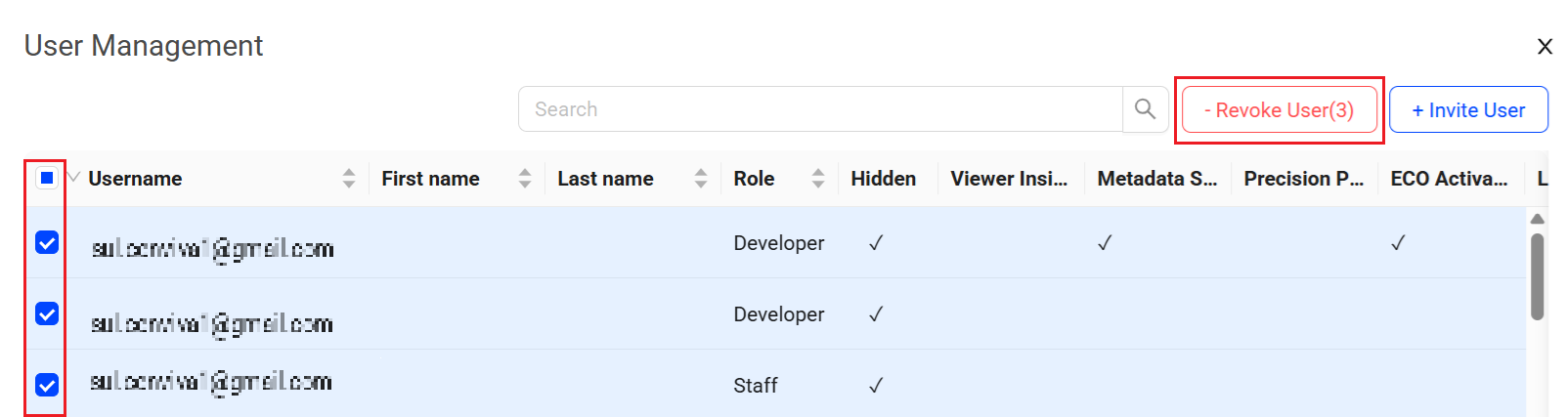
Select the users to be revoked and click Revoke User.
-
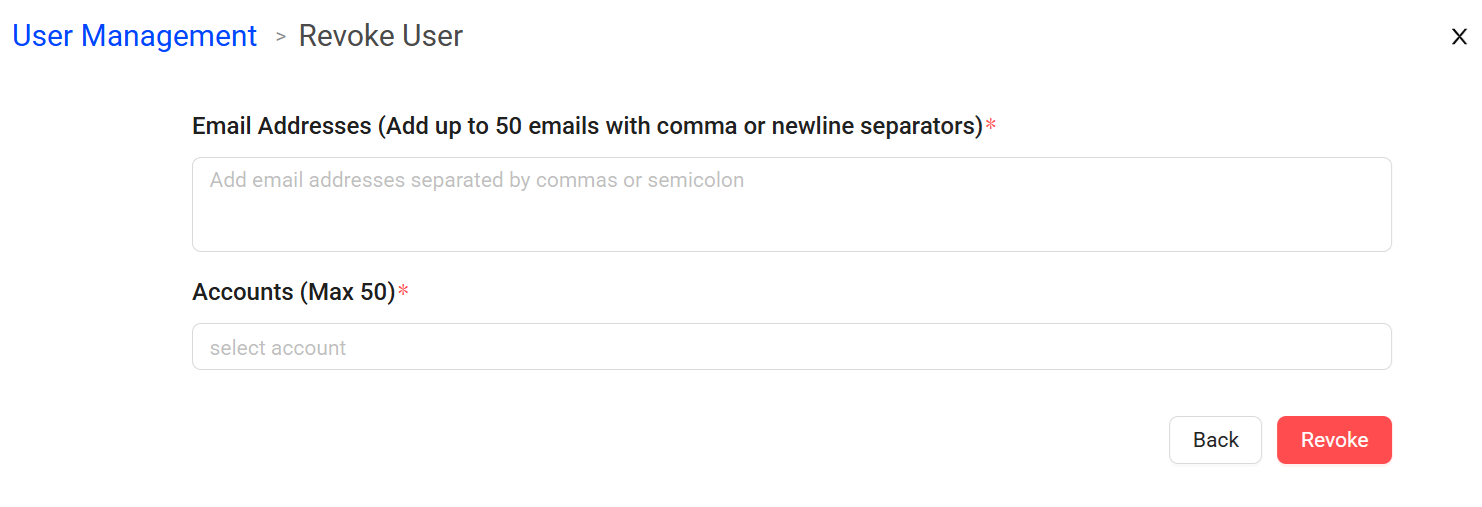
On the Revoke User page, confirm the email addresses and specify the user accounts.
-
Click Revoke to delete the selected accounts.