
The User Management page enables you to manage users to VSI App, such adding new users, deactivating users, and assigning user roles.
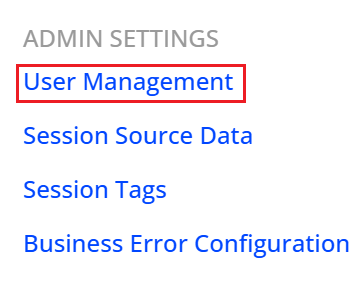
To access this page, click the Settings icon, and click User Management under Admin Settings.
User Management enables admins to invite users, manage roles, edit profiles, control access, and monitor activity.
Common admin user operations include:
-
Invite new users
-
Edit the user roles
-
Set permissions for:
-
App Activation Admin
-
Precision Policy Admin
-
Metadata Service
-
Audience
-
API Management
-
-
Revoke mutiple users simultaneously
To perform user management,
-
Click the Settings icon, and select Bulk User Management under Admin Settings, to access the User Management page.
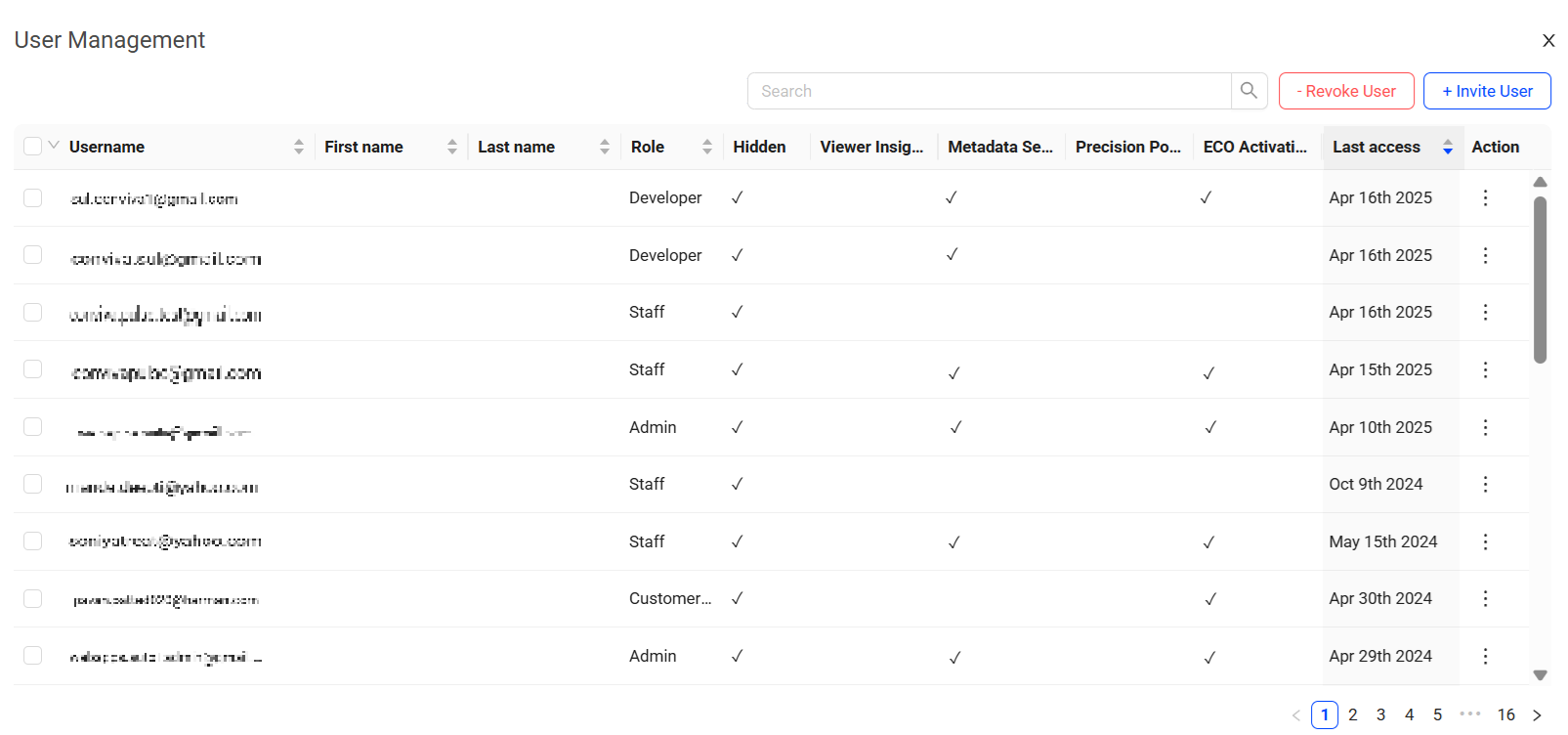
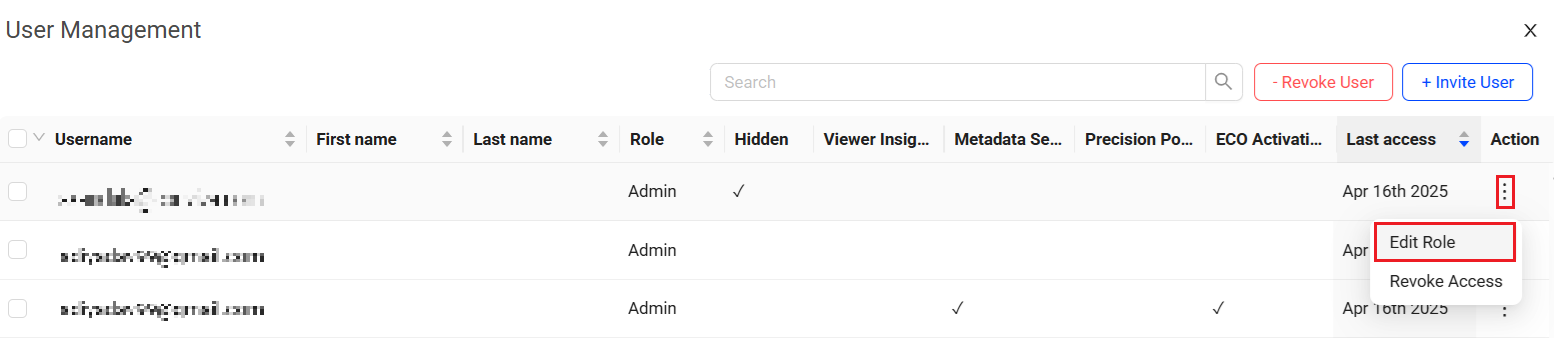
The User Management page displays a list of users with access to the currently configured accounts.
Invite Users
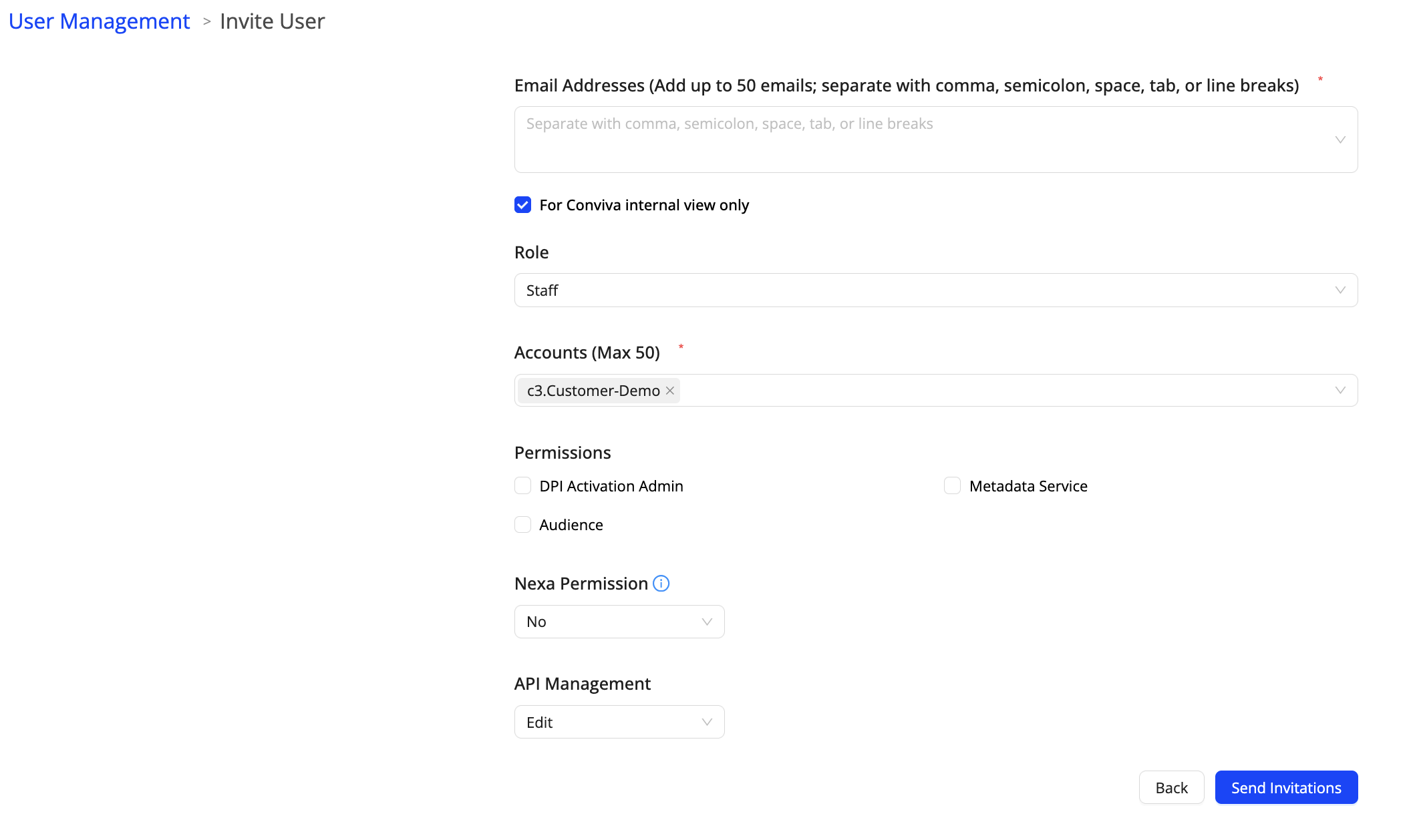
Admins use the Invite User screen to set user permissions and send invitations to the new users.
To invite new users,
-
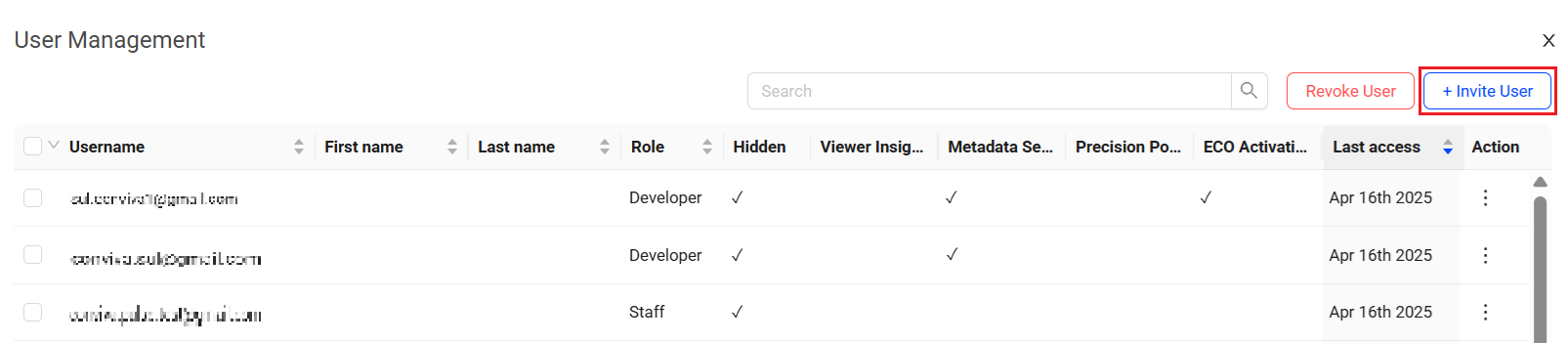
On the User Management page, click +Invite User.
-
On the Invite User page, enter the email IDs (max 50).
-
Select the user role from the drop-down.
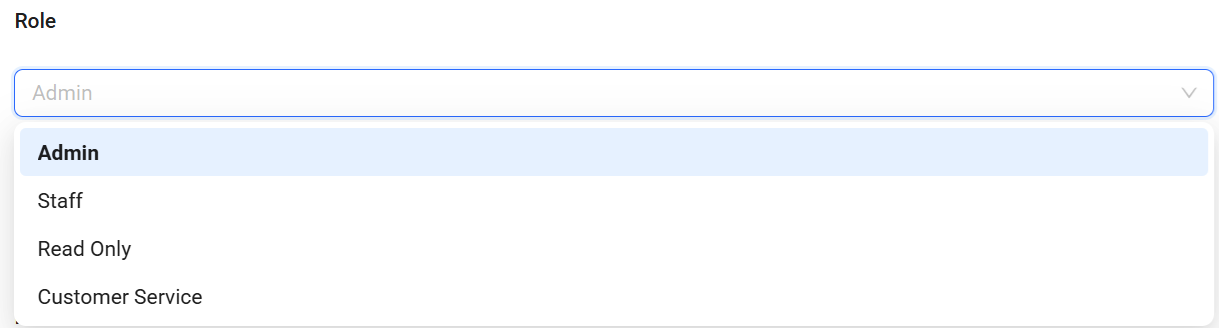 As of 8 May 2025, all custom user roles have been updated to Staff roles, as custom roles are no longer supported.
 -
Add the Accounts and select the Permissions for the user.
-
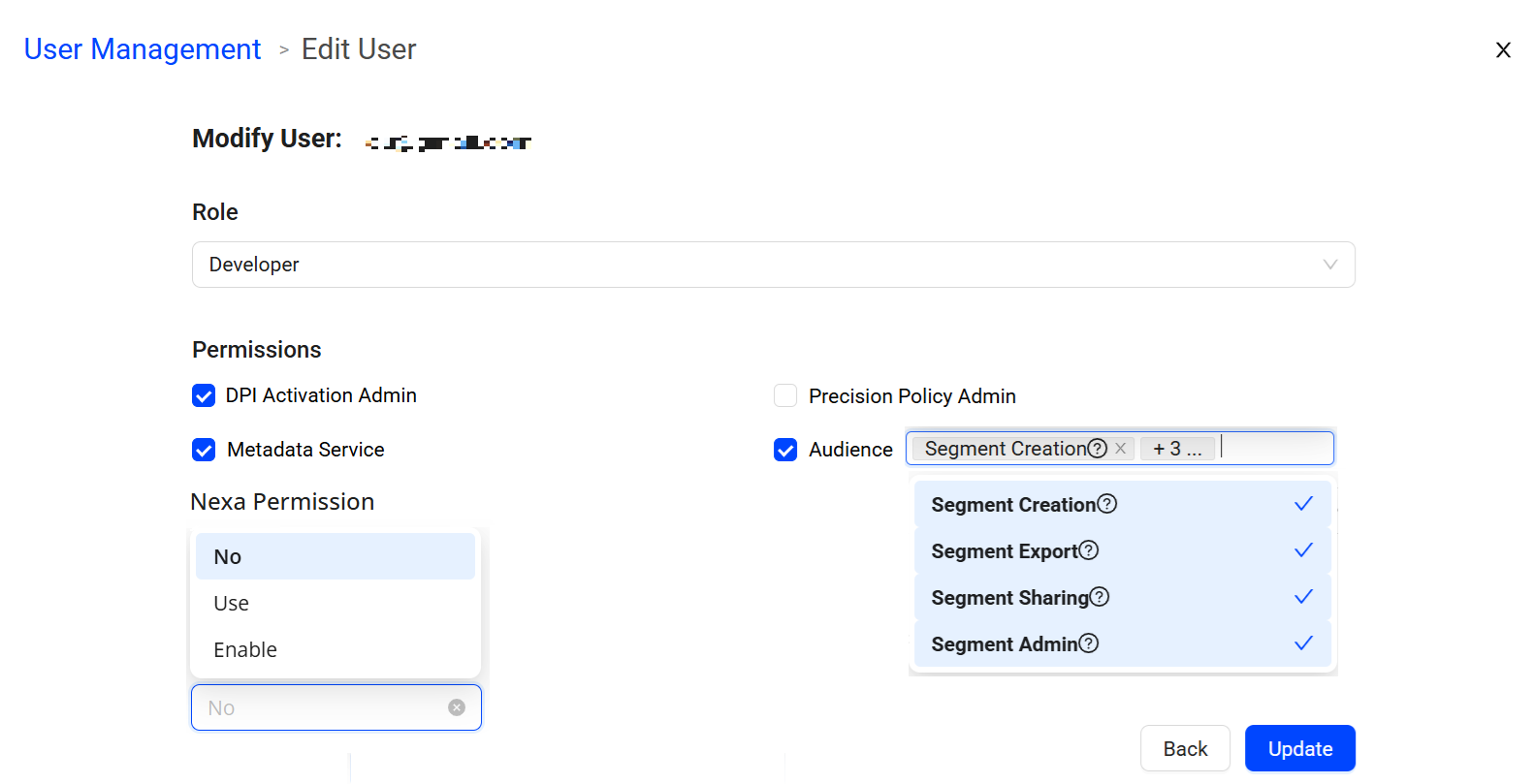
Nexa Permission:
-
No: Disables permission to use Nexa for this user.
-
Use: Enables permission to use Nexa for this user.
-
Enable: Grants Admins permission to enable Nexa for other users in this account.
-
-
API Management: Controls whether the user can see and use the API Management page.
-
Hide: The user cannot see the API Management page.
-
View: The user can view API credentials and usage, but cannot create, edit, or delete them.
-
Edit: The user can create, edit, activate, deactivate, and delete API credentials.
-
The API Management permission is independent of a user's Admin or Staff role. By default, Admin maps to Edit, Staff to View, and all other users to Hide. API Admin is a separate permission that controls whether a user can grant or change another user's API Management permission; it is not self-service and is assigned by Conviva. Having Edit does not, by itself, allow a user to grant access to others. For more information, see API Management. -
-
Click Send Invitations to enable user access.
-
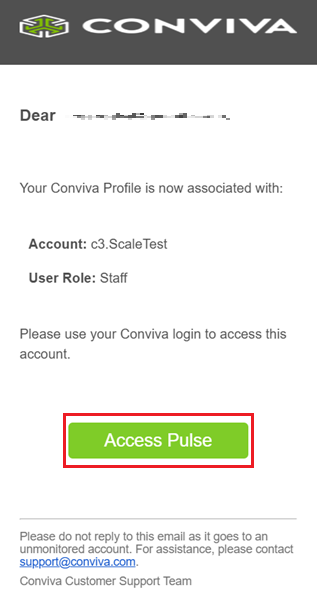
On the email received, click Access Pulse.
Edit User Roles
To modify the user roles, control access, and permissions,
-
Click the kebab icon under the Action column and select Edit Role.
-
On the Edit User page, modify the required roles and permissions.
-
Click Update to apply the changes.
Revoke User
To revoke the user access from the system,
-
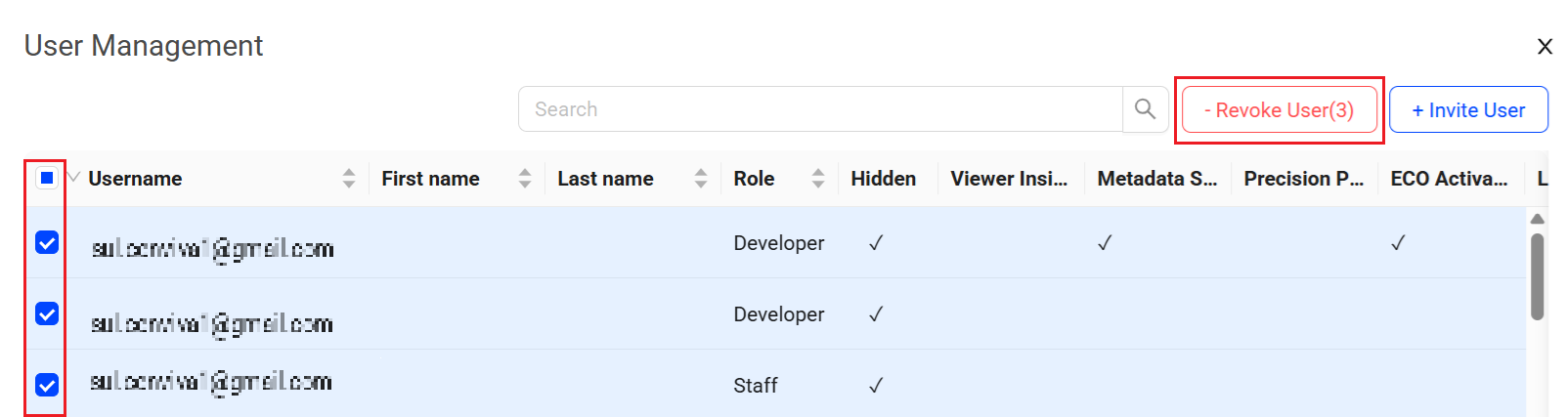
Select the users to be revoked and click Revoke User.
-
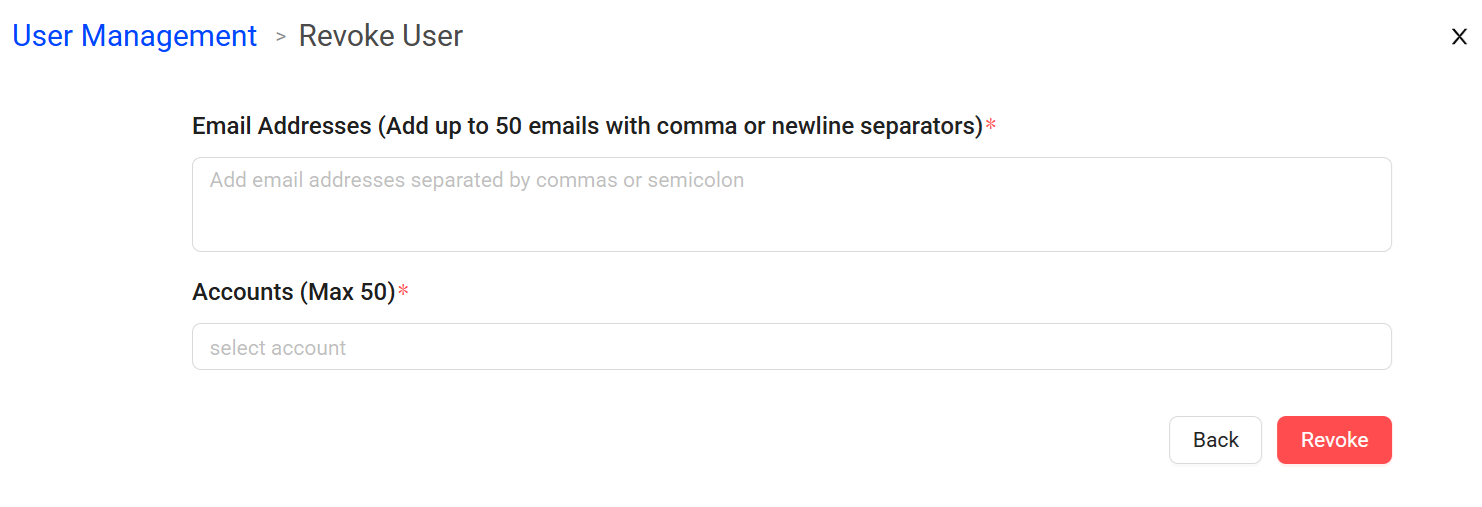
On the Revoke User page, confirm the email addresses and specify the user accounts.
-
Click Revoke to delete the selected accounts.