
During an incident, teams have limited control over when — and who — gets notified. Without a way to temporarily suppress notifications, on-call and support teams end up with excess noise on their channels, making it harder to focus on the alerts that matter.
Mute Rules let you suppress AI Alert notifications for a defined time window, based on dimension and/or metric conditions, across one or more notification channels. Rules are defined once and attached to the channels they apply to.
Mute Rules and Global Mute Are Now Generally Available Updated Oct 15, 2026
Mute Rules (per user, available in Video, Ads, and App) and Global Mute (organization-wide, set by admins) are both generally available — the Beta tag has been removed from both features.
Creating a Mute Rule
Go to Settings > Notifications > Mute Rules.
Click New Rule.
Enter a Name for the rule.
Set the Time Window. Use the Next 2h, Next 6h, Next 12h, or Next 24h shortcuts, pick a custom start and end time, or select No end date (mute forever) to leave the rule running until you delete it. Times use the time zone shown next to the Time Window label.
Choose the Rule Type:
- Mute Specific — suppress the alerts that match the condition you define.
- Mute everything except — suppress all alerts except those that match the condition you define.
Define the condition using Dimensions, Metrics, or both:
- Dimensions — select a dimension, an operator — Equals, Has any, or Contains — and one or more values (for example, Device Operating System Equals iOS, or Asset Name Contains TRAILER to match every asset name that includes that text). Click + AND to add further dimension conditions; all of them must match.
- Metrics — optionally select one or more metrics to restrict the rule to alerts on those metrics.
When you set both, the rule matches only alerts that satisfy the dimension condition and are for one of the selected metrics.
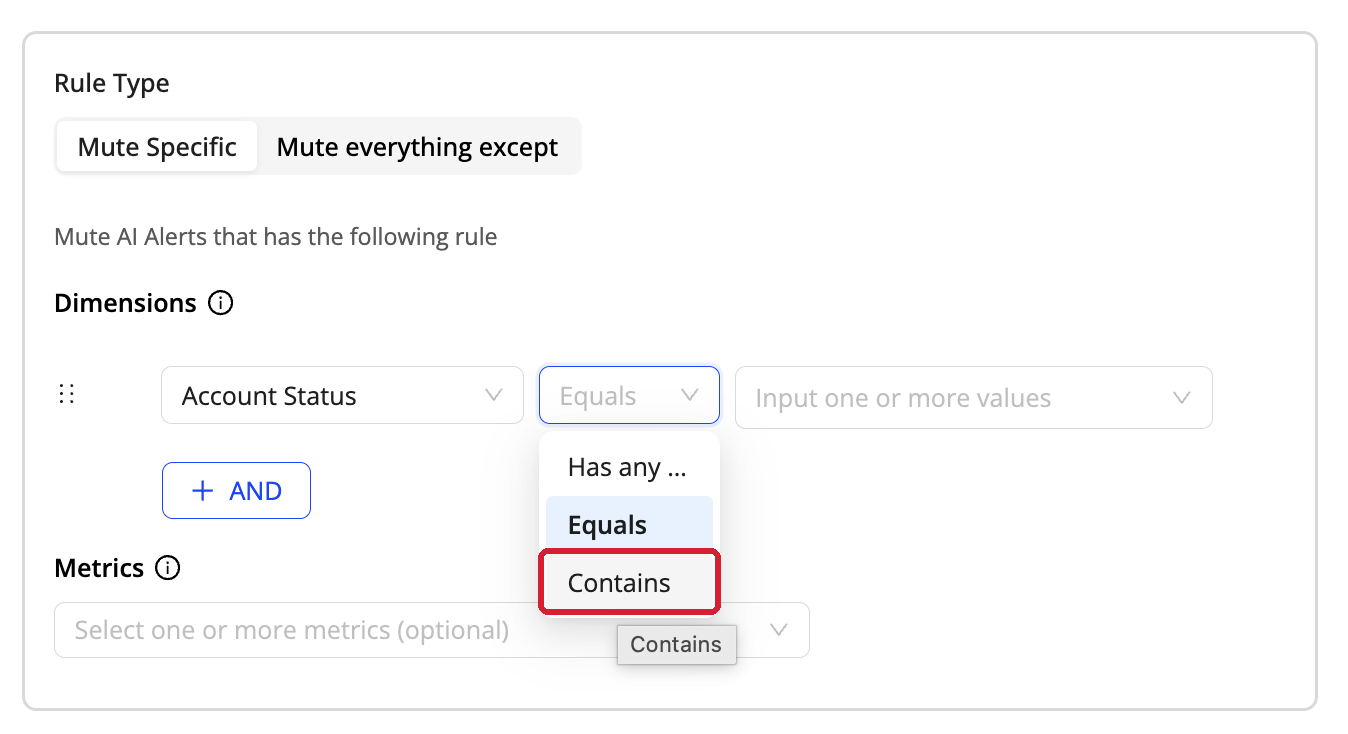
Dimension condition operators — Has any, Equals, and Contains.
Under Channels, choose the notification channels the rule applies to — for example Webhook, Email, or WhatsApp — and select the specific channel target. Click + Add channel to apply the rule to more than one channel.
Click Create Rule.
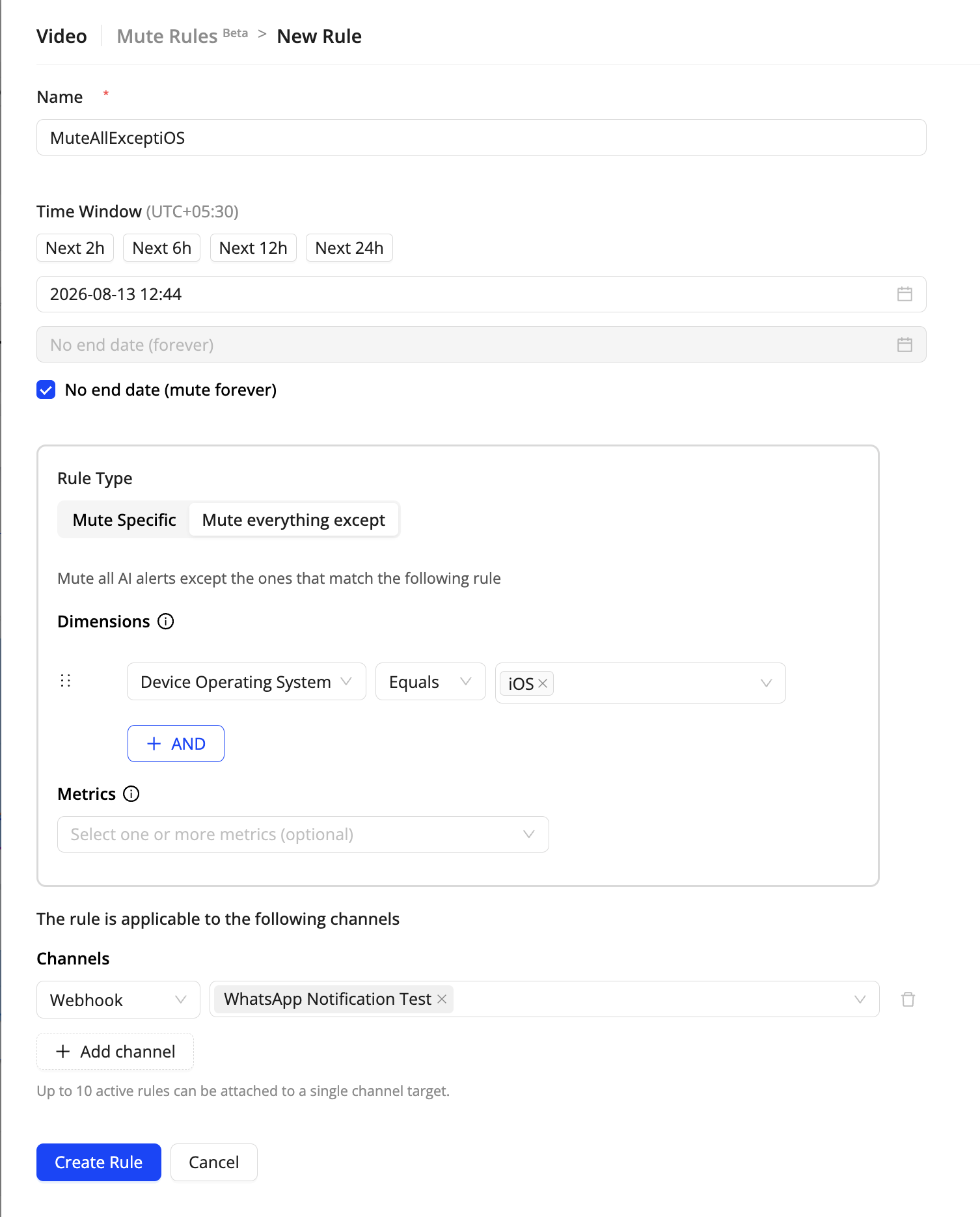
Creating a Mute Rule — time window, rule type, dimension and metric conditions, and channels.
Viewing and Managing Mute Rules
The Mute Rules page lists every rule with its type, conditions, time window, channel count, status, and creator. Use the view selector to switch between:
- Active & Scheduled — rules currently suppressing notifications, and rules whose time window has not started yet.
- All — every rule, regardless of status.
- Expired — rules whose time window has ended.
Use the edit and delete actions on a row to change or remove a rule, and the history action to open the change log for that rule.

The Mute Rules list — review Active & Scheduled, All, or Expired rules at a glance.
Rule Precedence
When more than one mute applies to the same notification, the order of precedence is:
Global Mute > Mute Specific > Mute all except
Global Mute remains a separate feature and takes precedence over any Mute Rule. Use Global Mute to silence everything across every channel for a short window; use Mute Rules for targeted, condition-based suppression.
What Mute Rules Do and Don't Affect
Mute Rules apply to AI Alert notifications only. Notifications for manually configured alerts are not affected.
Alerts are still generated and remain visible on the Alert Listing page — only the notifications are suppressed.
A rule only affects the channels it is attached to. Channels you don't select continue to receive notifications as normal.